Offline Mode in Store OS allows stores to continue billing and completing sales even when internet connectivity is unavailable. The system securely uses last-synced data and automatically syncs all offline activity once the store is back online. Offline Mode can be used in two scenarios:
- Manual Activation – A sales associate can proactively switch the store to Offline Mode from Settings.
- Automatic Activation – Store OS automatically switches to Offline Mode if network connectivity is lost.
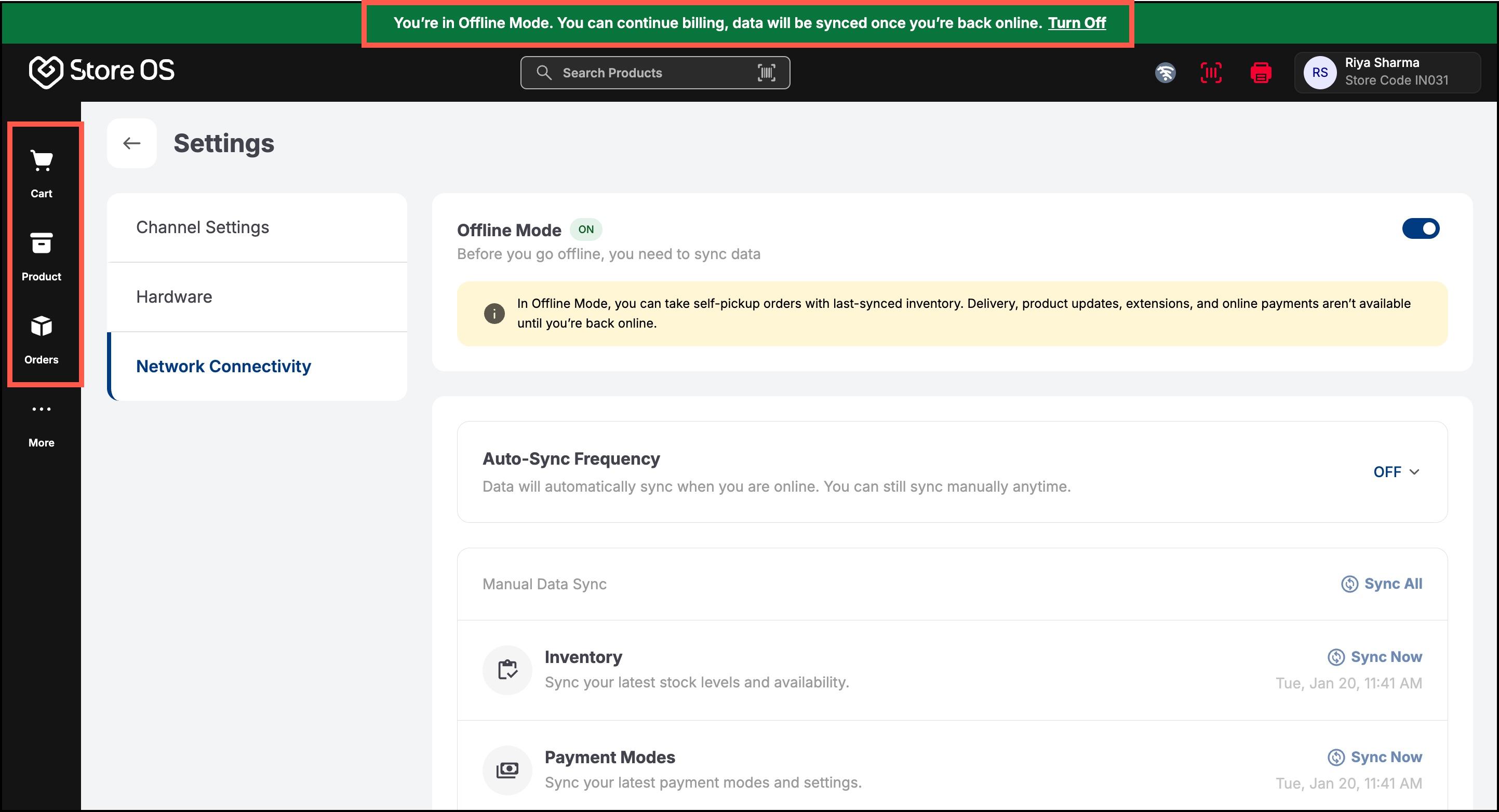
During offline mode, a green banner at the top of the screen clearly indicates:
"You’re in Offline Mode. You can continue billing, data will be synced once you’re back online."
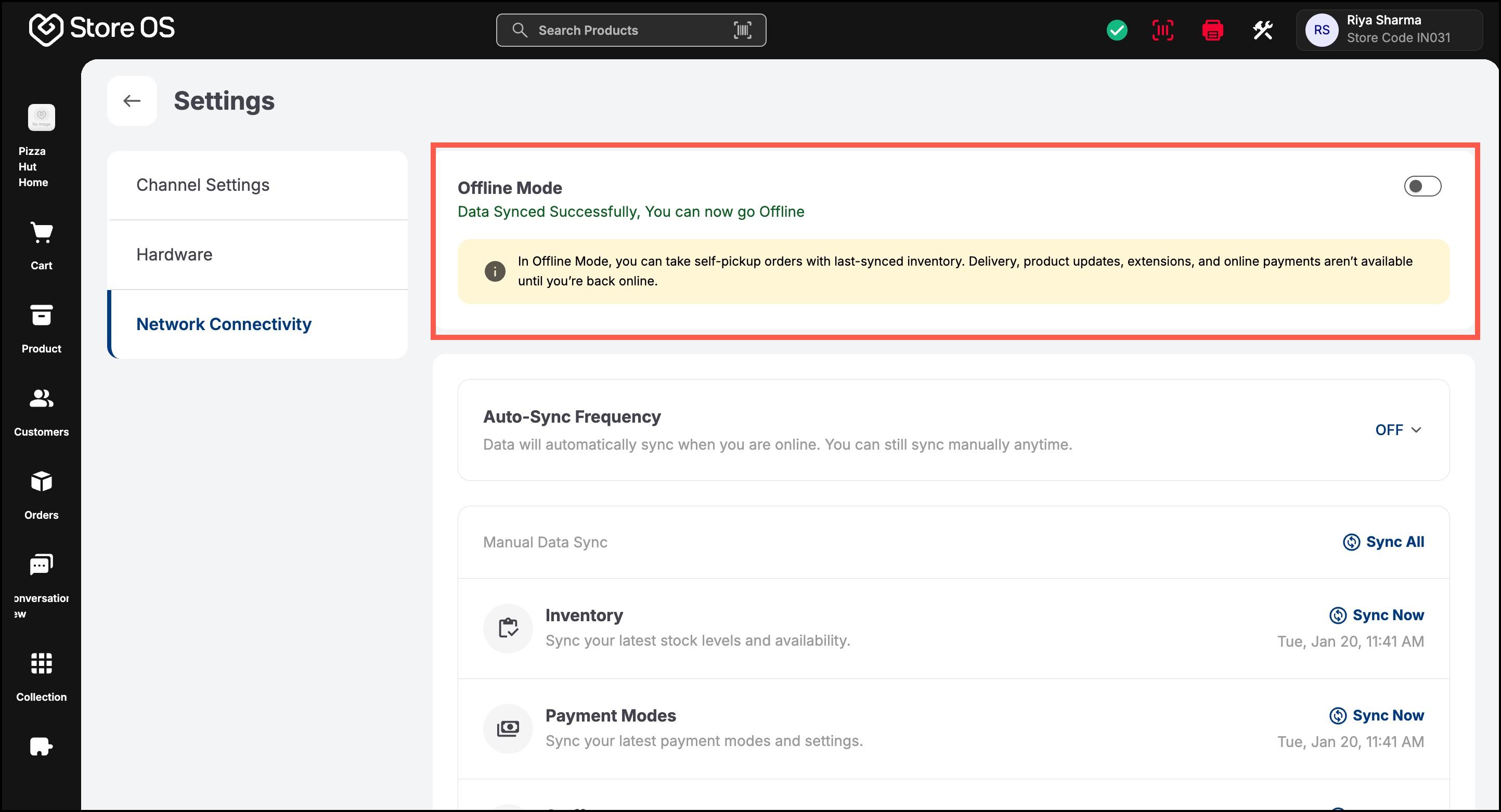
Before Offline Mode can be enabled, data must be synced successfully. If data is not synced, Offline Mode cannot be turned ON. Product catalog, inventory availability, payment modes and staff (sales employee) details are synced automatically.
Offline Mode is not supported in Safari. To access Offline Mode and continue selling without internet, please switch to Google Chrome or another supported browser.
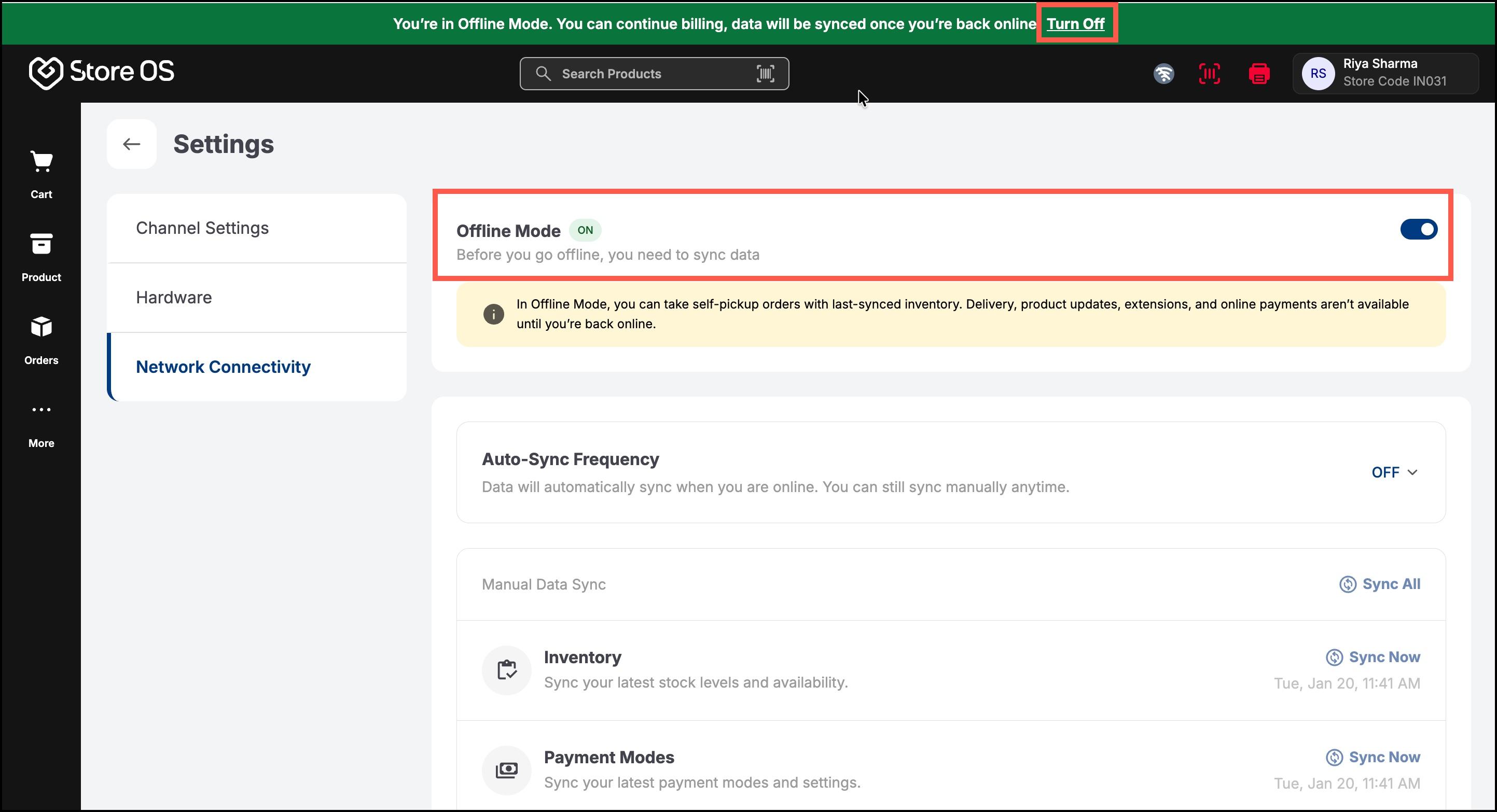
- Go to Settings → Network Connectivity
- Toggle Offline Mode ON
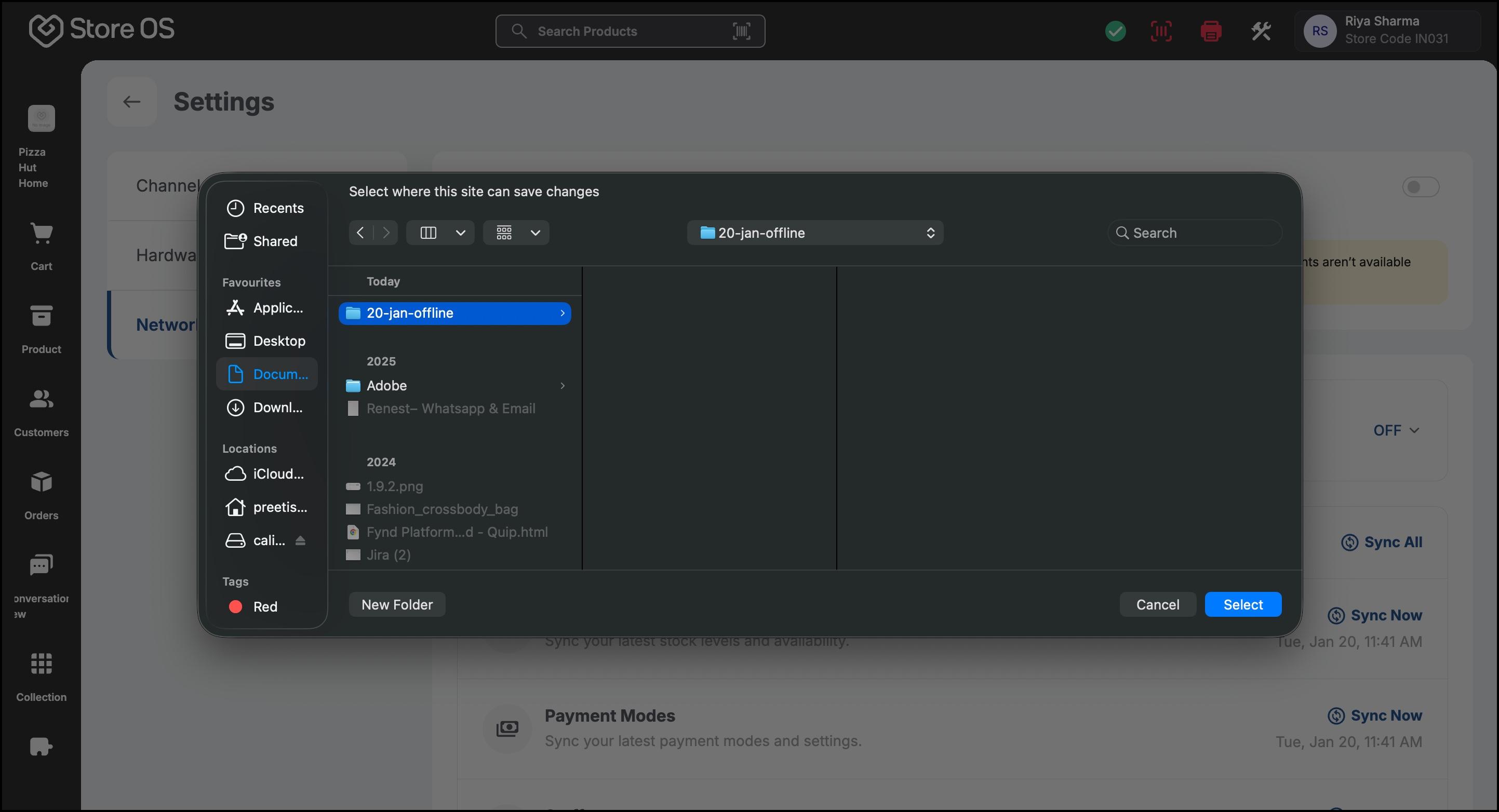
- Grant folder permission when prompted:
- Select a folder path where Store OS can store offline data
- Allow browser permission to read/write files in this folder
- This is a mandatory one-time step for Offline Mode
Store OS shows different banners based on connectivity and sync state:
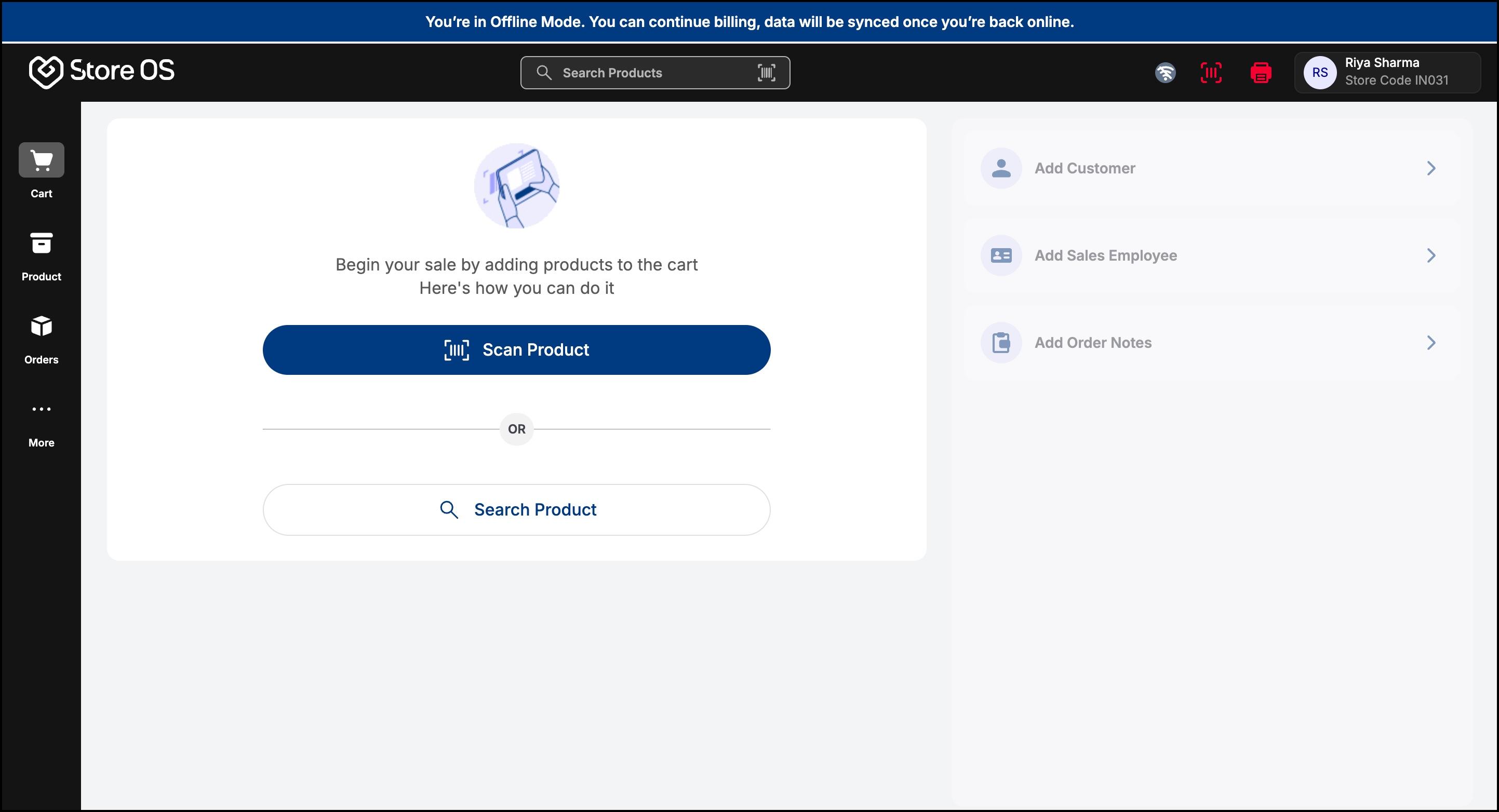
- Blue Banner: Internet is not connected
- Indicates loss of network
- Offline Mode is active automatically
- Turn Off CTA is NOT visible
- Green Banner: Offline Mode is enabled with data available
- Indicates offline billing is active
- Shows message that data will sync once back online
- Turn Off CTA is visible when internet is available
- Click Turn Off from the green banner, or
- Toggle Offline Mode OFF from Settings
- Browse products using last-synced catalog
- Add products to cart
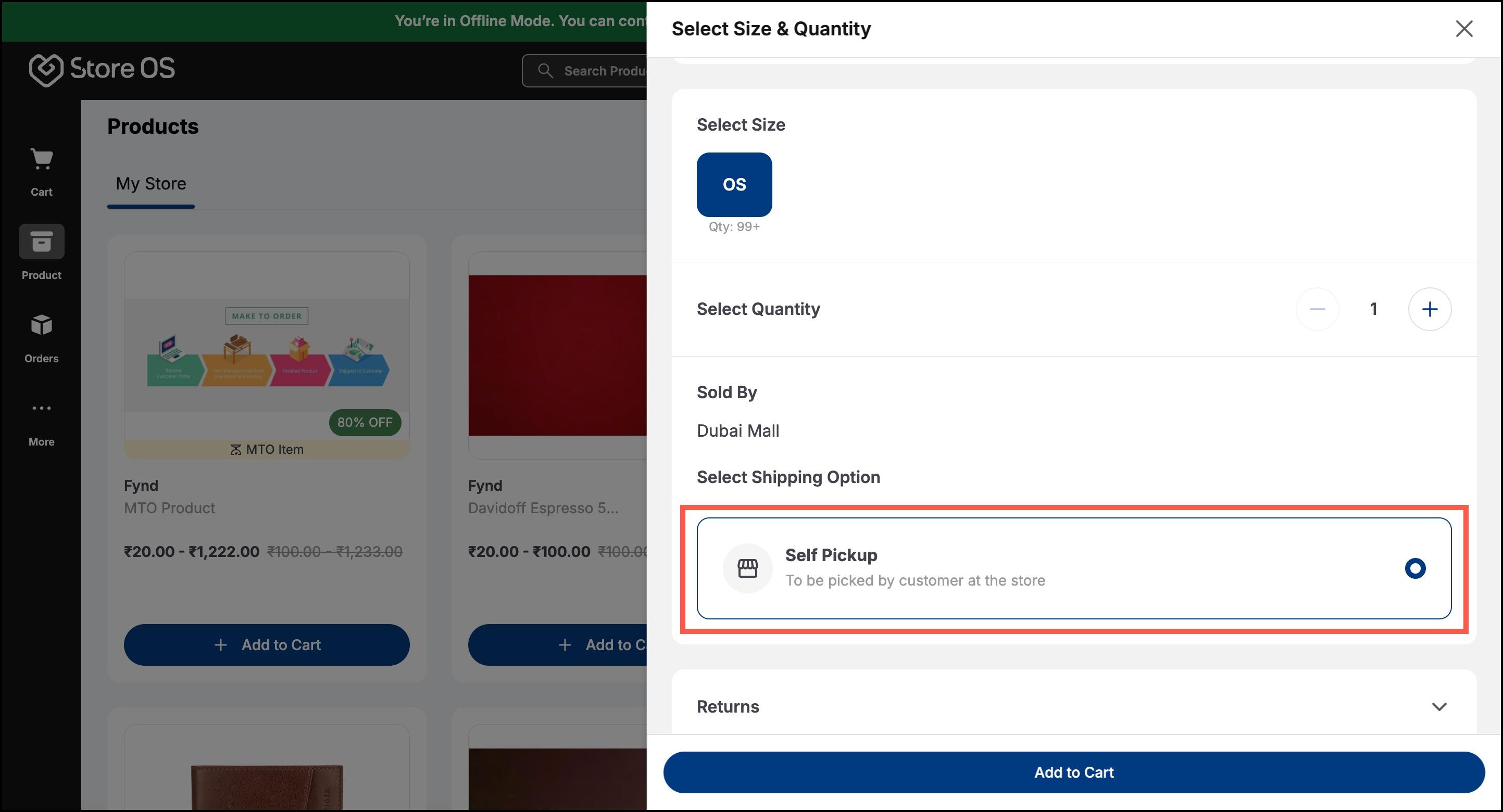
- Select size and quantity (based on last-synced inventory)
Inventory shown may not reflect real-time stock until sync completes.
- Only Self Pickup is allowed
- Delivery and other shipping options are disabled
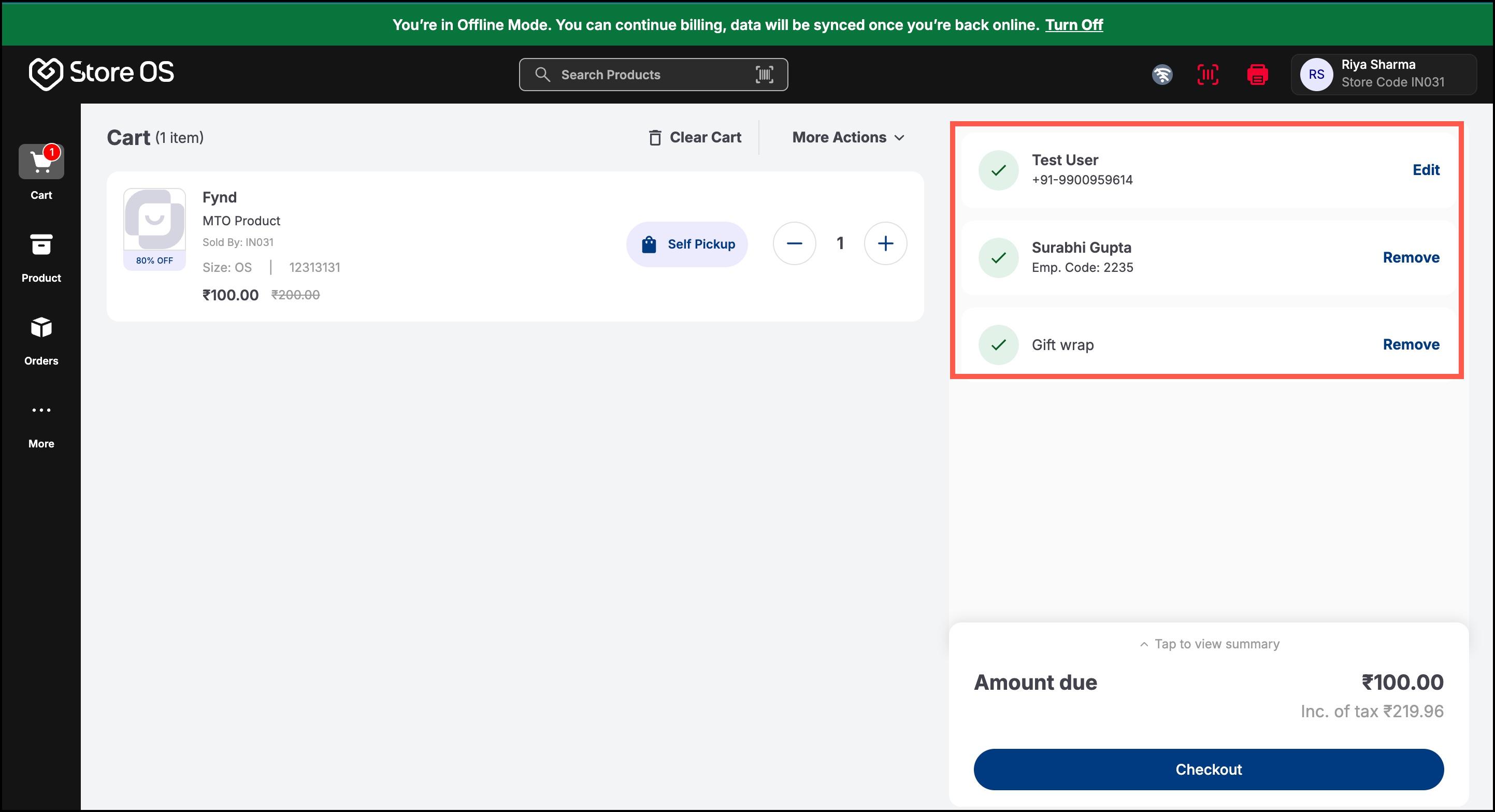
- Add or edit customer details
- Add a sales employee to the order
- Add order notes (e.g., gift wrap, special instructions)
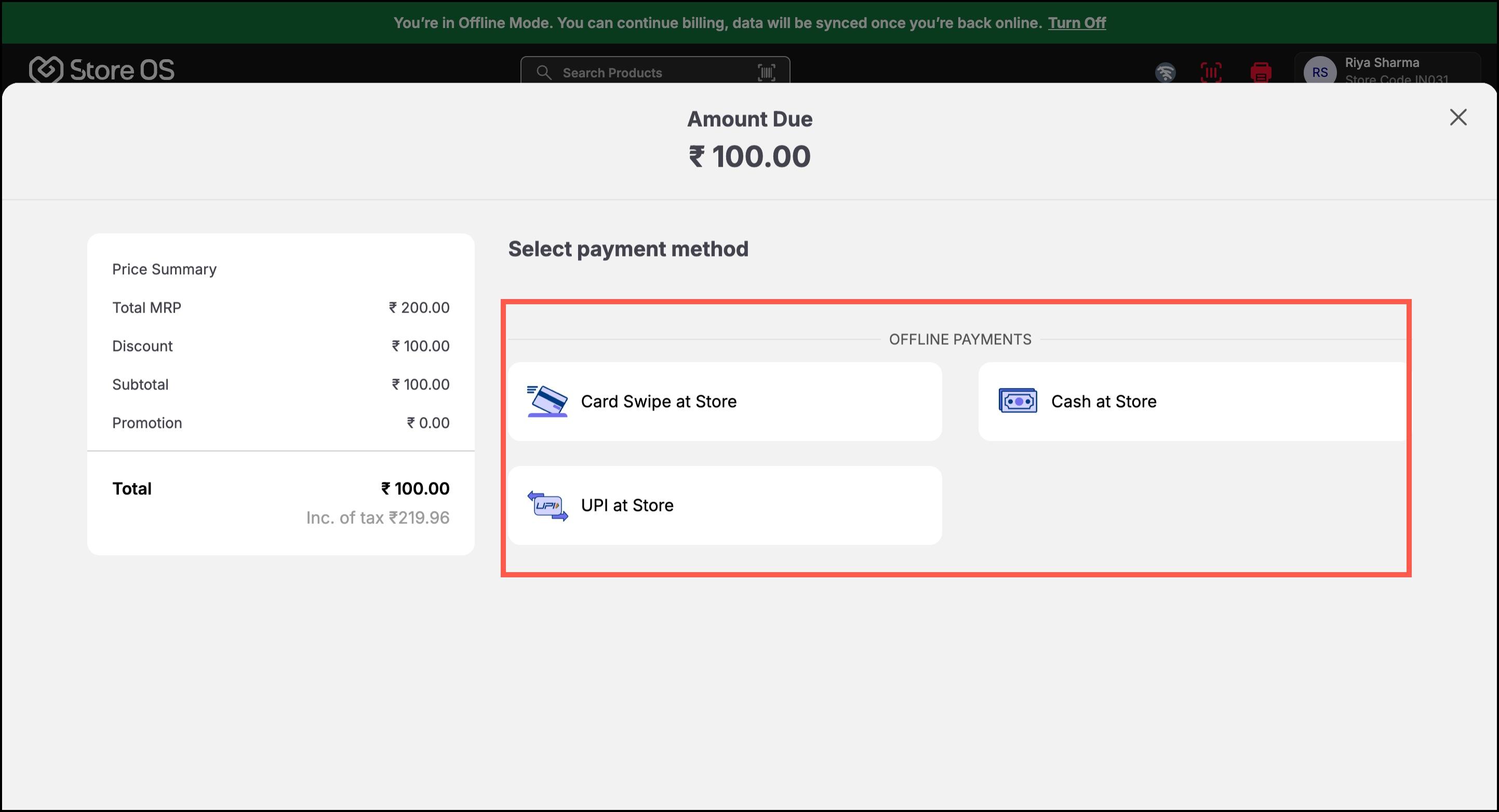
Only offline payment modes are available:
- Cash at Store
- Card Swipe at Store
- UPI at Store (offline confirmation)
Online payment methods are not available.
Orders can be successfully completed
Invoice option is available. An offline label is shown at the top of the invoice
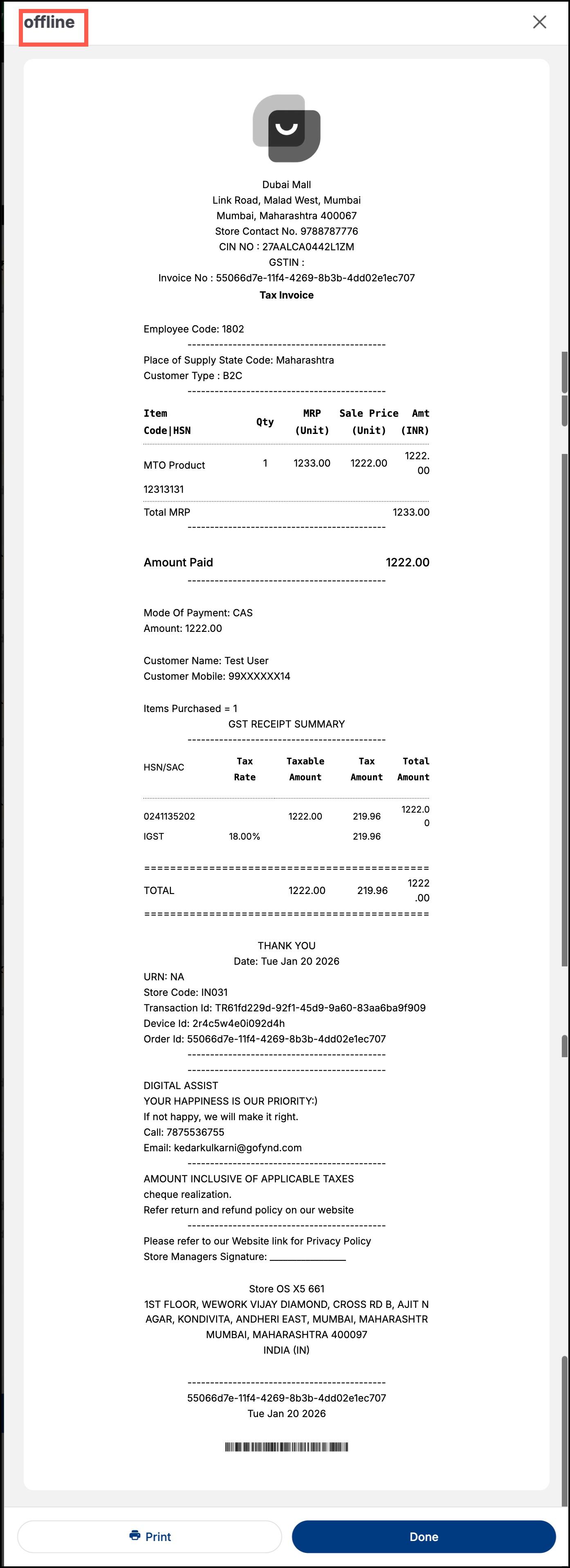
Figure 10: Invoice in Offline Mode In Orders List, offline orders are visible immediately even before sync
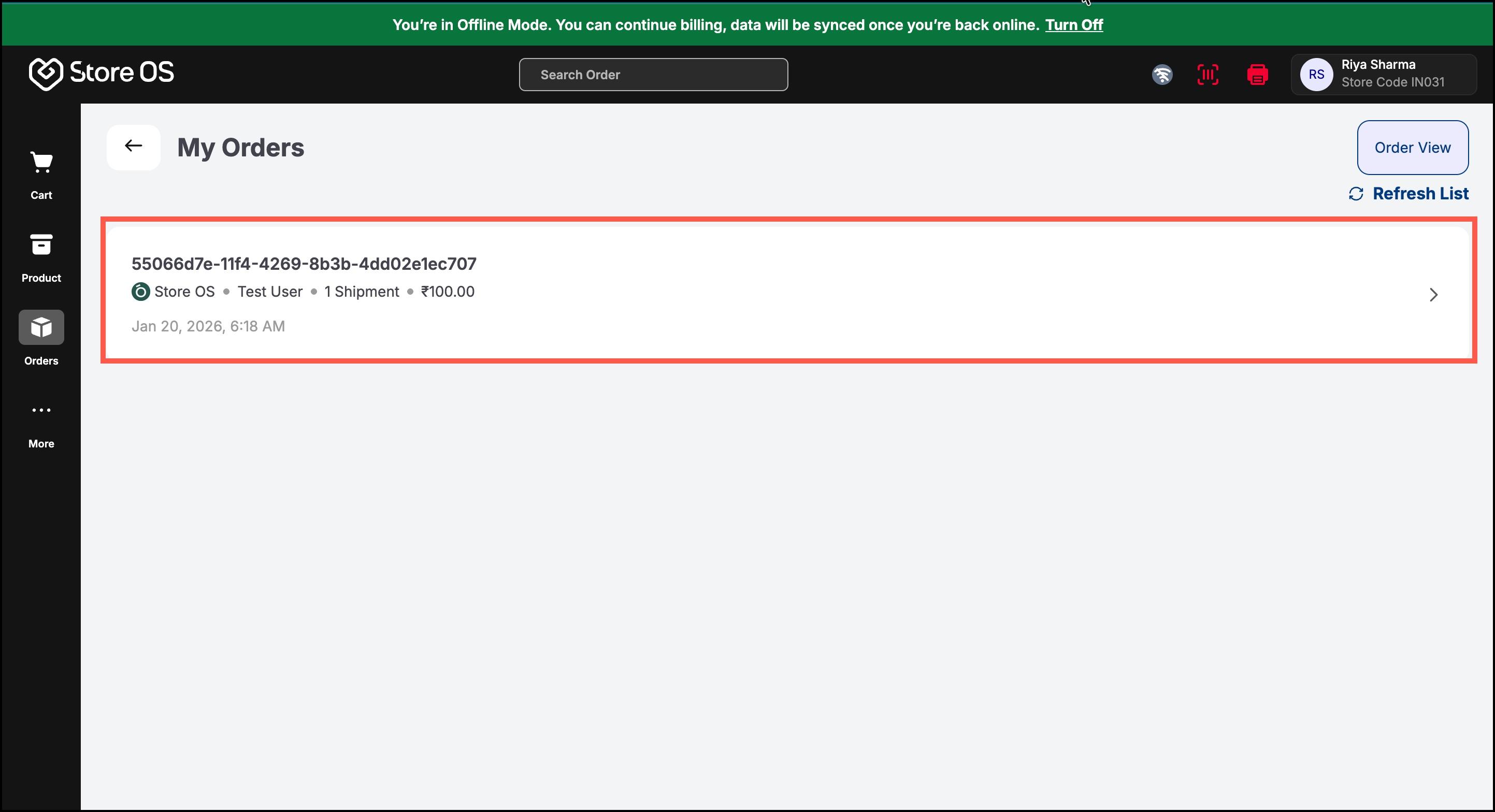
Each completed order is clearly marked as an Offline Order.
Offline invoices are valid and automatically reconciled once the order syncs online
The following actions are disabled in offline mode:
- Promotions & coupons
- Delivery orders
- Product updates or extensions
- Online payment methods
- Real-time inventory updates
- Retrieving customer details using a scanner
These features automatically become available once the store is back online.
When internet connectivity is restored:
- Store OS automatically switches back to Online Mode
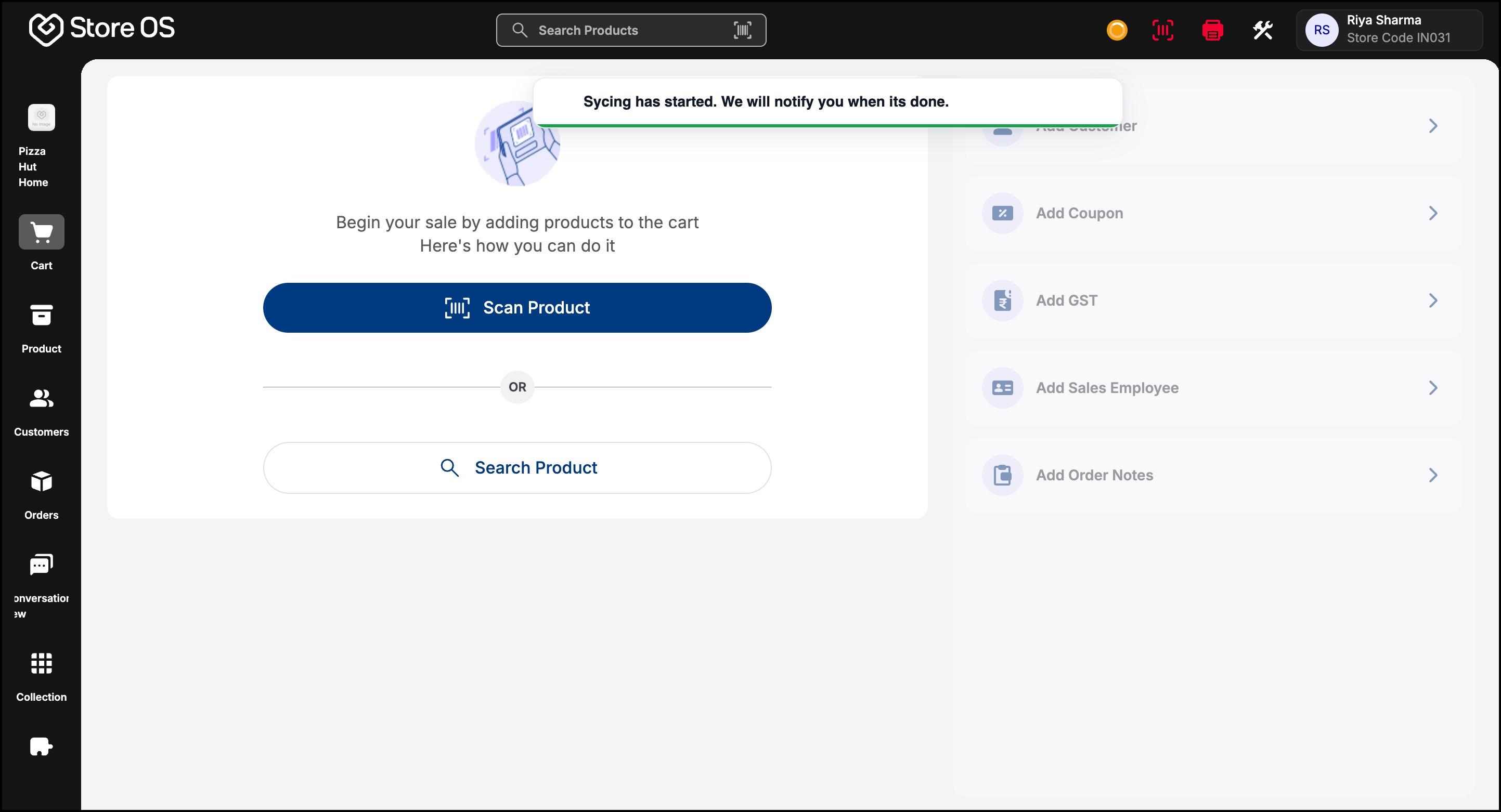
- A toast notification confirms: "Order syncing started in background"
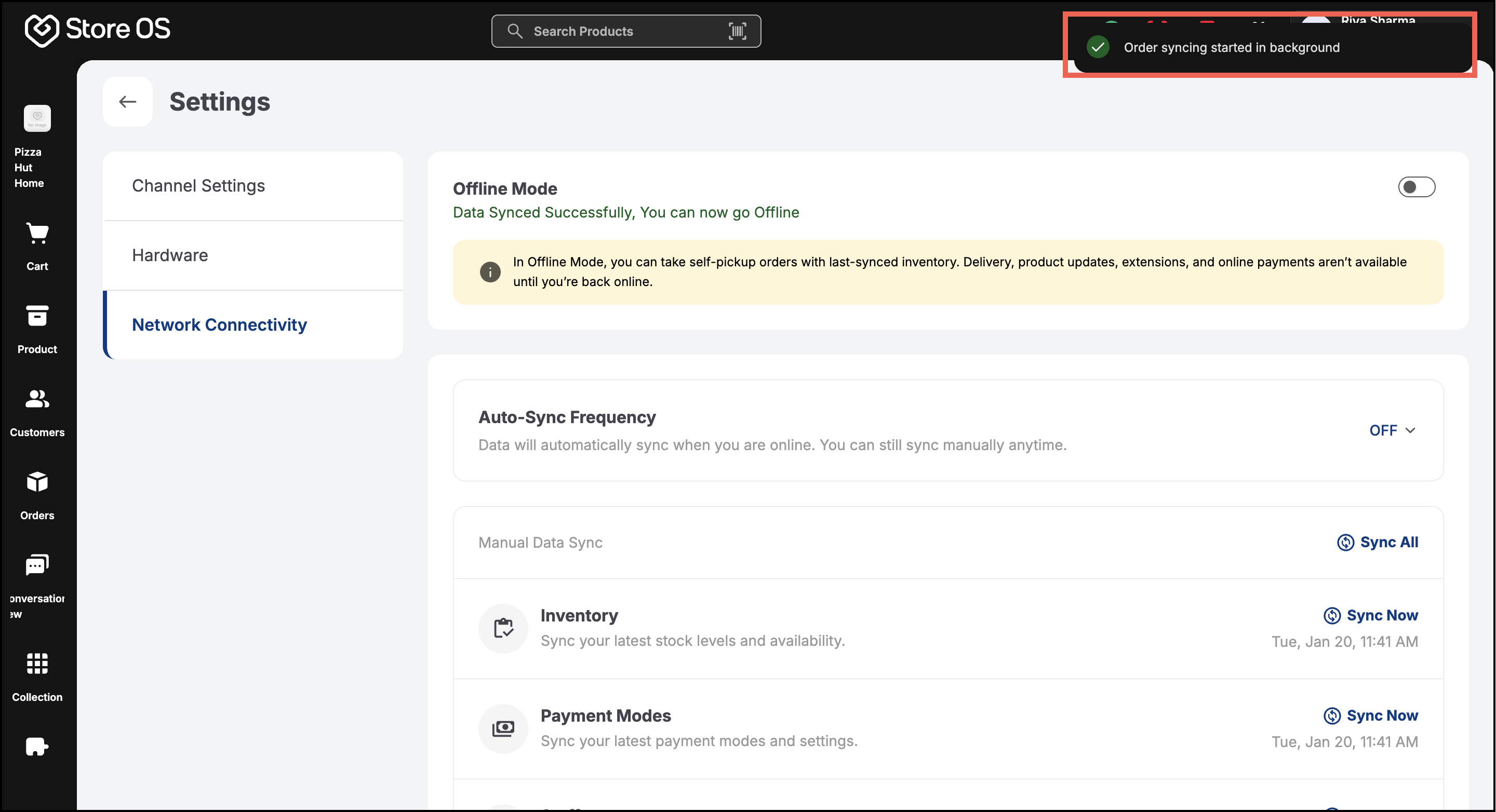
- Offline orders begin syncing automatically
- Once sync is complete, orders behave exactly like online orders
Order sync to OMS may take time based on volume and network. Users should wait until sync completes.
- If syncing fails, orders remain in pending state and manual action is required. If Auto-Sync is OFF, users can manually trigger sync from Settings → Network Connectivity
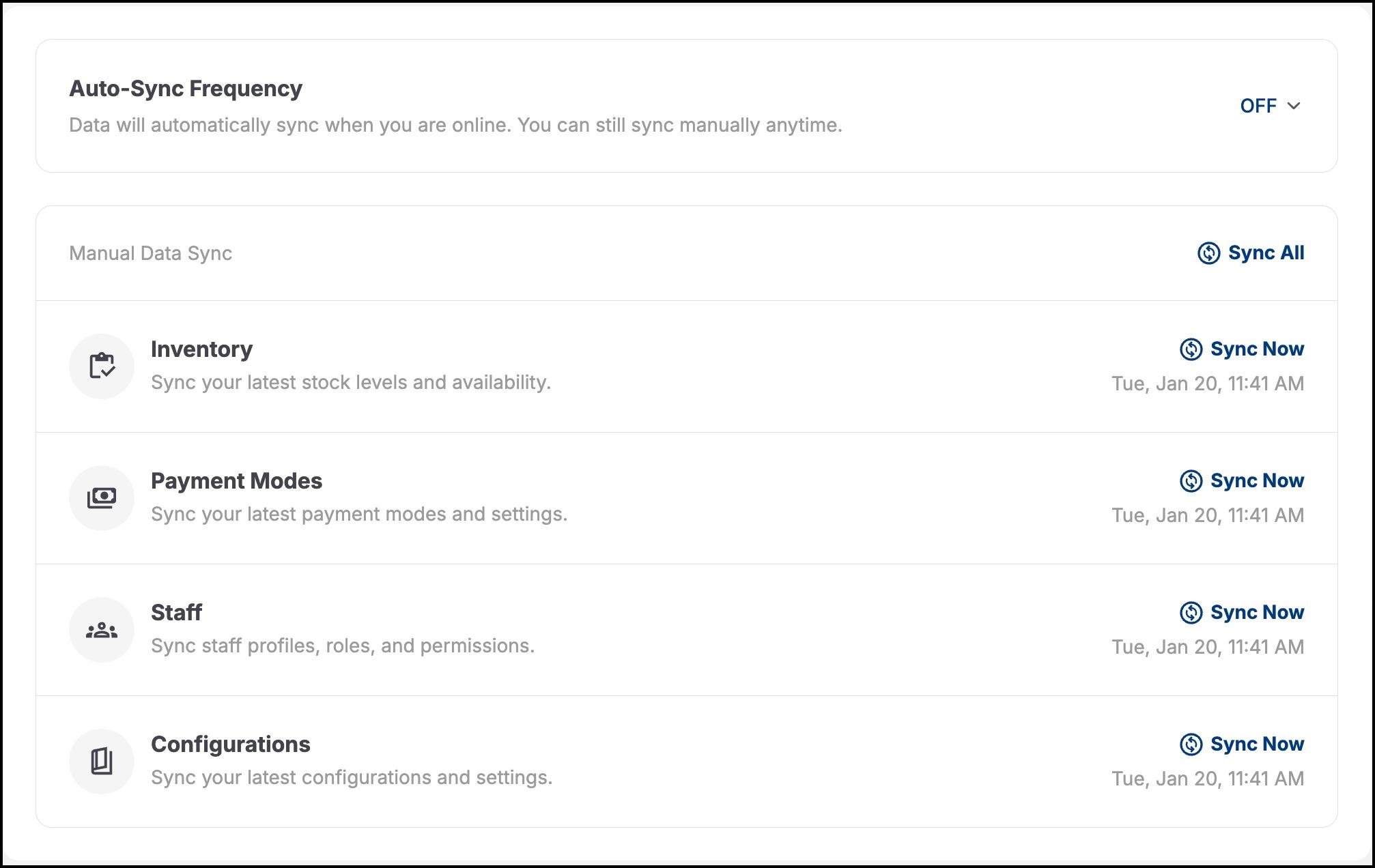
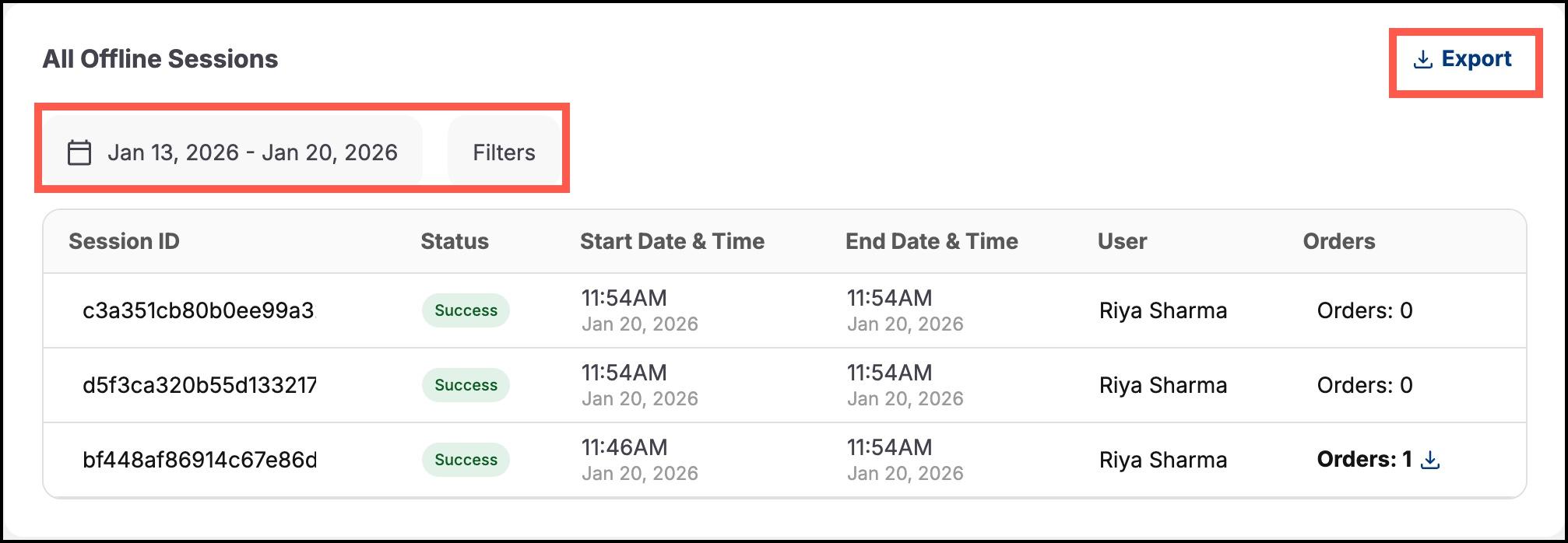
From Settings → Network Connectivity, users can view All Offline Sessions, including:
- Session ID
- Status (Success / Failed)
- Start date & time
- End date & time
- User who triggered Offline Mode
- Number of orders placed during the session
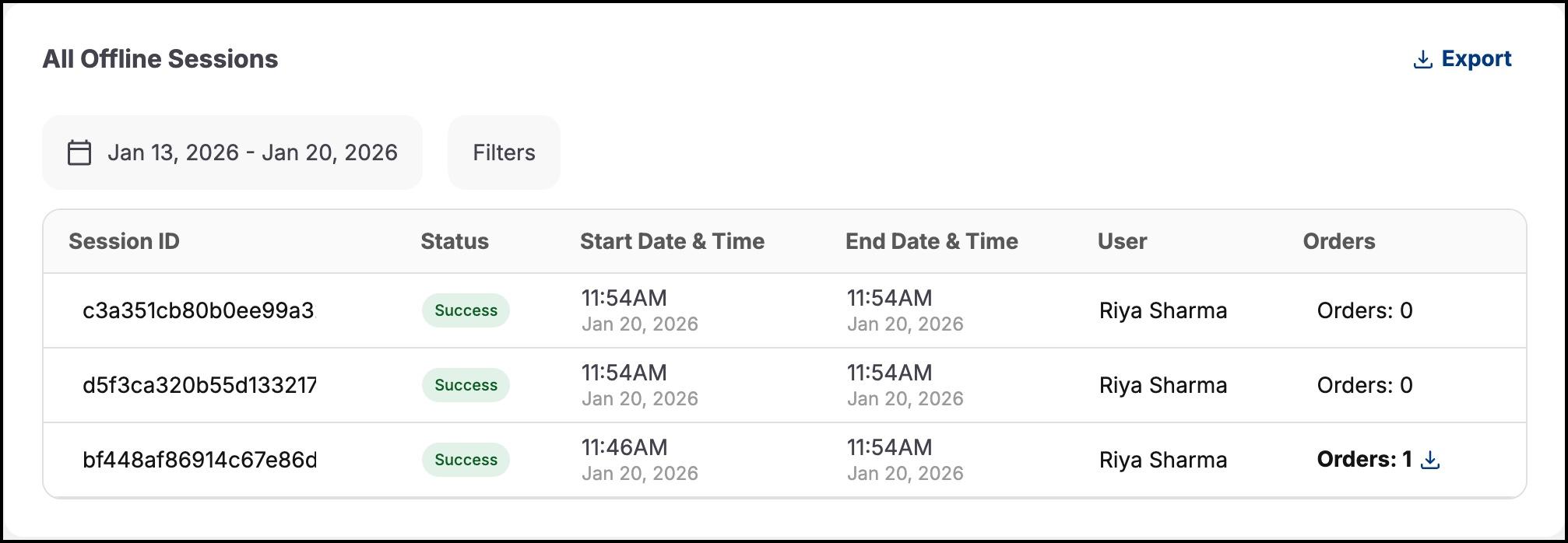
- Offline sessions can be exported for audits or reconciliation
- Filters can be applied using date range and status