Commerce Panel → Extensions
The management of extensions in Fynd Commerce is straightforward and convenient. With a diverse range of functions and features, extensions offer a lot of options, and you can perform basic actions such as setting permissions, enabling/disabling, or uninstalling them.
To access the list of all installed extensions in your company, follow these steps:
- Go to Extension.
This will provide you with a complete overview of all extensions currently installed in your company.
To reach out to the extension's support person or service and obtain assistance related to the extension, follow these steps:
Click Details for the specific extension you need support for.
Click Get Support.
This action will direct you to the Support Details section.
- Go to Team section in Fynd Commerce .
- Open individual's entry to which you wish to set permissions.
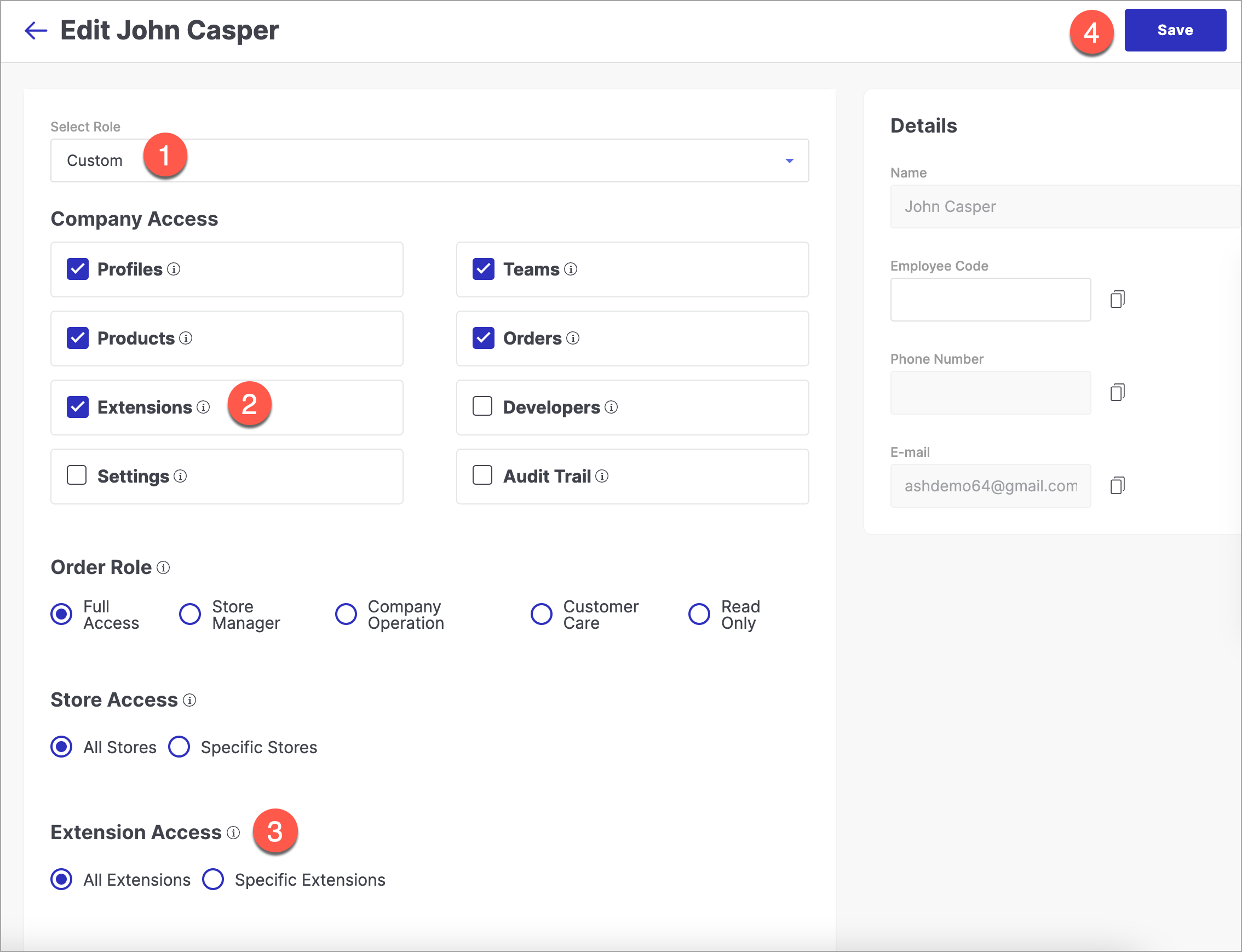
- Select a Custom role from the dropdown.
- Select Extensions option present in Company Access section.
- Extension Access - Choose either All Extensions or Specific Extensions option. Using this section, you can set permissions to access extensions for your team member.
- All Extensions - Choose this option if you wish to grant access to your team member for all extensions that you have installed in Fynd Commerce .
- Specific Extensions - Choose this option if you wish to grant access to your team member for particular extensions.
- Save - Upon clicking this button, your configurations will be saved.
Turn ON the toggle button present on the top-right on the homepage of extension that you wish to activate and click Save.