Product mapping creates a relationship between:
- Your SKU (internal identifier)
- Inventory Location
- Pricing
- Selling Status (Active/Inactive)
Types of Mapping:
- Manual Mapping (for precision or missed SKUs)
- Bulk Mapping (for uploading via CSV/XLSX)
- Navigate to Products → Channel Mapping in the left-hand navigation menu
- Click on the 3 Vertical lines symbol on the right-hand and select Amazon (account you created) under Demand
- Fill the Amazon SKU ID fields for the Marketplace Identifier for SKU mapping
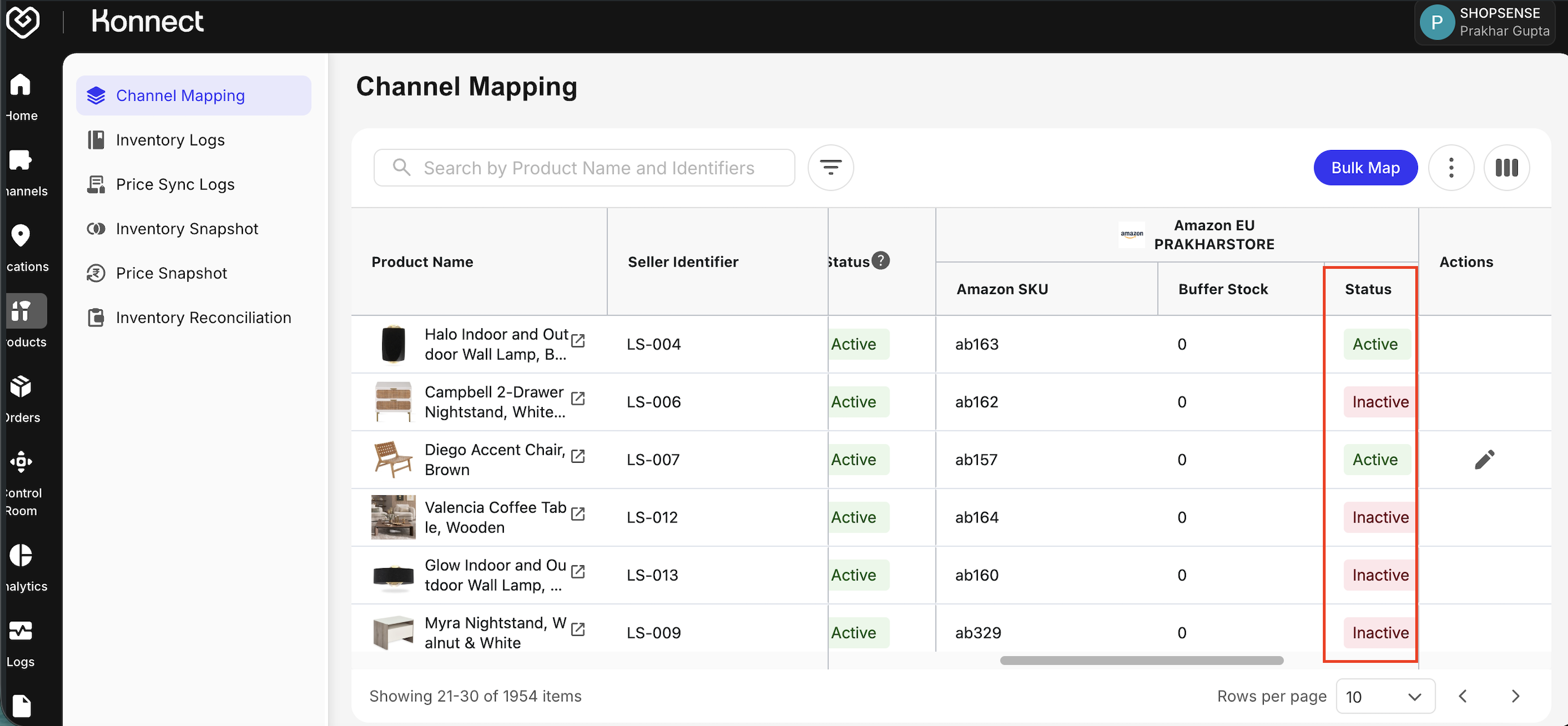
- Activate the products in the status column once mapping is done
- Update optional Buffer Stock, toggle Status = Active, and Save (✓)
- If you want to add buffer stock for a particular SKU, you can do so by specifying the desired quantity in the Buffer Stock field
Tip
Buffer stock prevents overselling by holding back inventory.
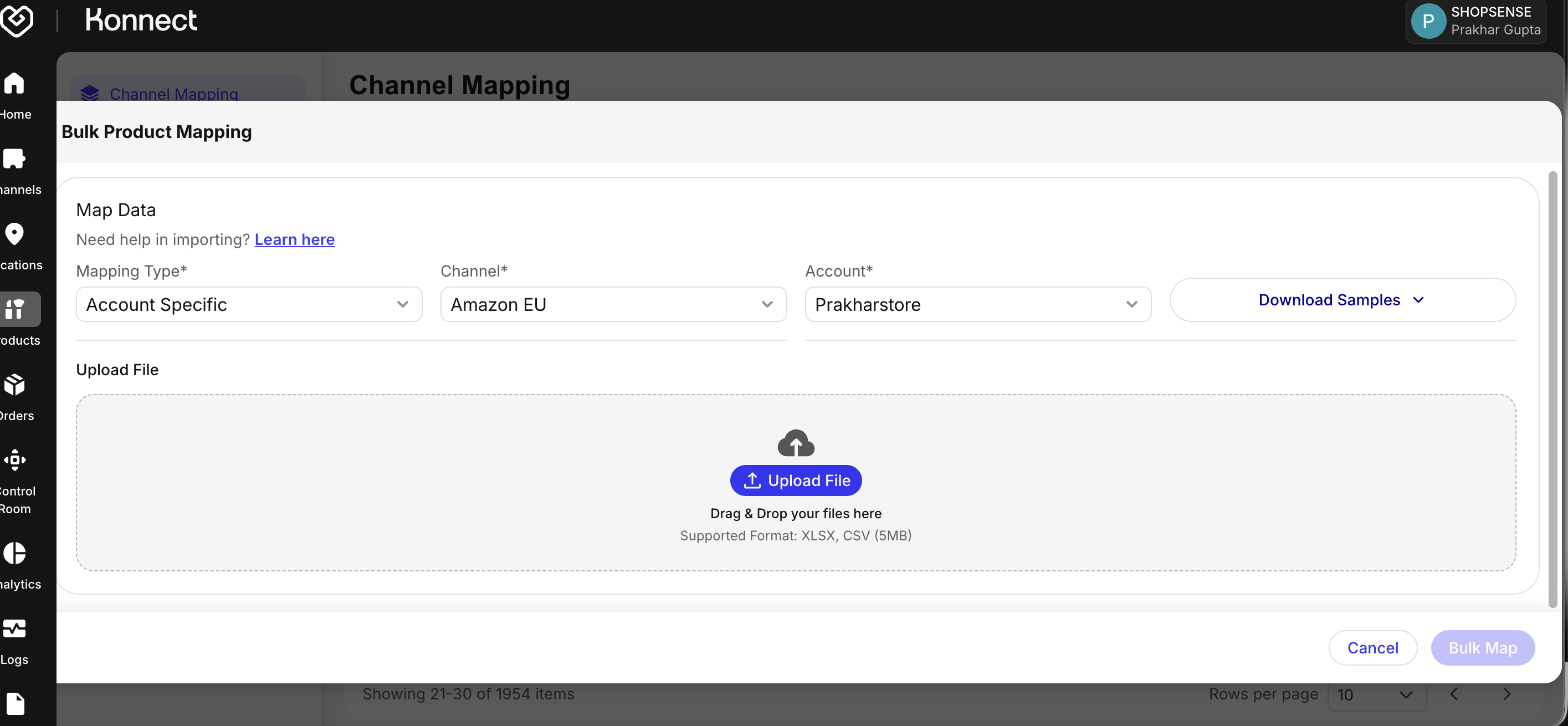
- You can also perform bulk SKU mapping by uploading a CSV or XLSX file using the Bulk Map option available on the UI
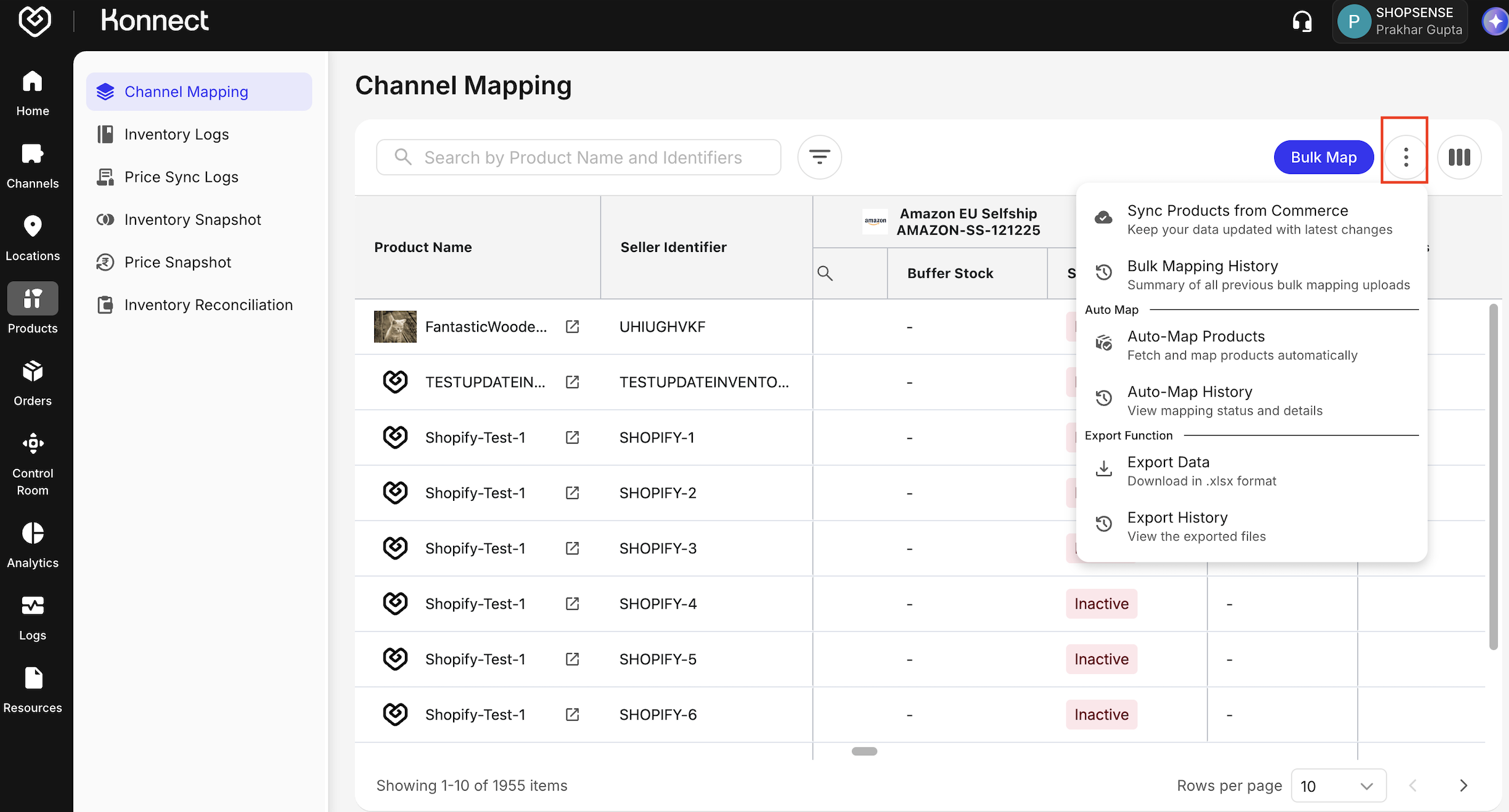
- To check the logs for Bulk Map, click on the three dots next to the Bulk Map option on the UI, then select "Bulk Mapping History" from the dropdown
Active Products:
- Appear on Amazon marketplace
- Sync inventory
- Are eligible to receive orders
Inactive Products:
- Hidden from listings
- Do not sync inventory
- Useful for seasonal SKUs or testing
Activation Options:
- Individually toggle per SKU and Save (✓)
- Use checkboxes to Bulk Activate/Deactivate
Buffer Stock Management
- Set at SKU, Location, or Channel level
- Example: 100 units total, 10 buffer → 90 available
Product Attribute Mapping
- Standard: Brand, Size, Color, Category
Variant Mapping
- Map each size/color/pack variant as separate SKU
- Use consistent naming and link to corresponding Amazon Product IDs