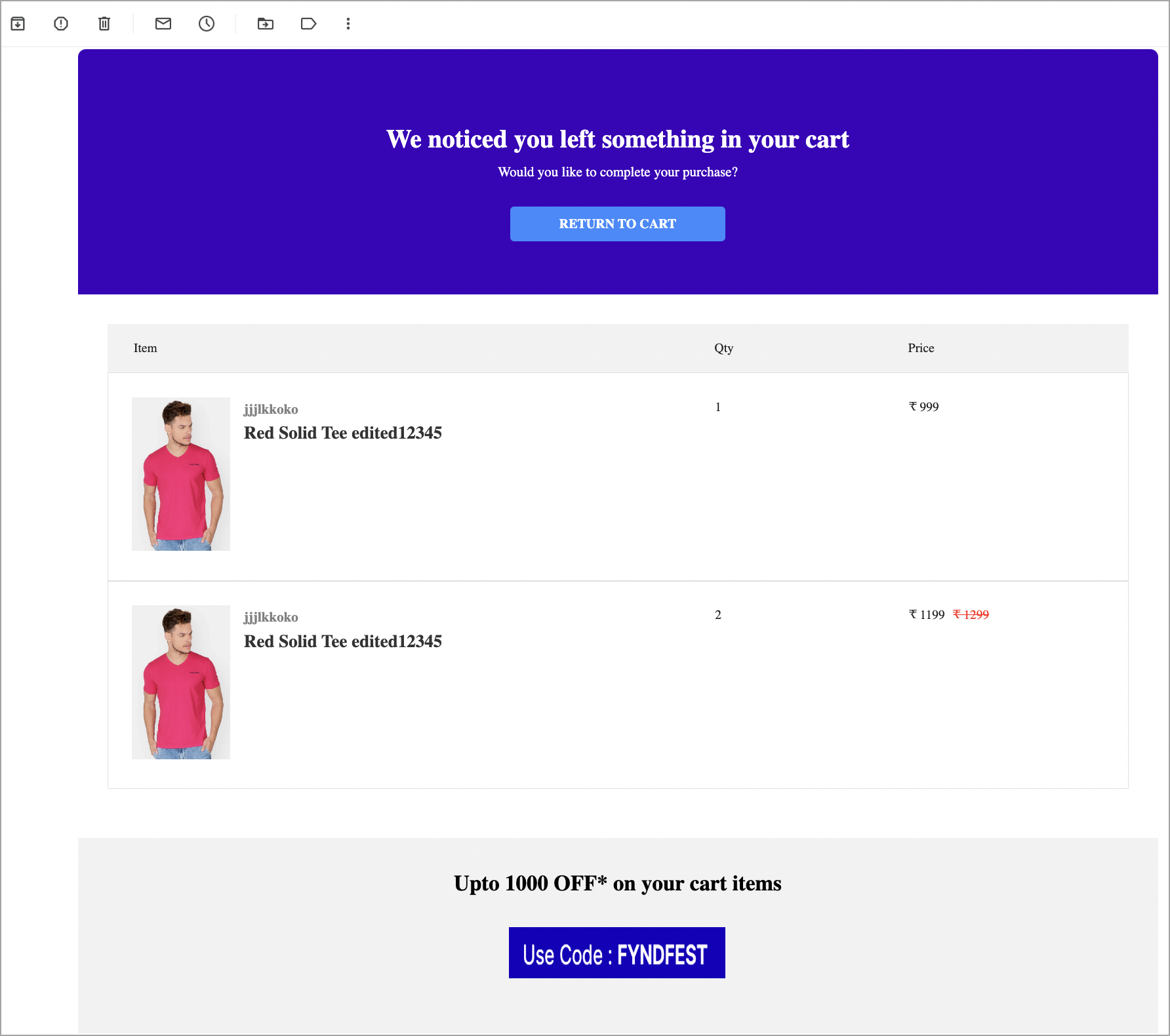
The Abandoned Cart Alerts extension helps you recover sales from abandoned carts. Use this extension to send notifications and discount coupons to customers who add products to their cart but don't place an order.
Go to Extensions in Fynd Platform.
Select Abandoned Cart Alerts.
After you install the extension, it appears in the list of available extensions.
- Select the required sales channel. In this example, DKLS Fynd Store is selected.
The following sections explain the features available in the Abandoned Cart Alerts extension.
A cart is considered abandoned if one or more items remain in it for 12 hours or more. If the cart is updated during this period, the 12-hour period restarts.
Use Configure to set up general settings and notification channels for abandoned carts.
Send Notification To Customers - Select whether to send notifications for carts abandoned in the last 24 hrs, 48 hrs, or 72 hrs.
Choose Frequency - Choose how often notifications are sent. For example, if you select Thrice, customers receive notifications three times a day.
Choose Interval - Select the interval between notifications. For example, if you select 6 hours, a notification is triggered every six hours after the first notification is sent.
Choose Start Time - Select the time when notifications start. For example, if you select 09:00, the first notification is sent at 09:00 AM.
Choose Notification Type - Select Reminder without coupons or Reminder with coupons.
Reminder without coupons - Send notifications without coupons.
Reminder with coupons - Send notifications with coupons.
In this example, Reminder with coupons is selected.
Add New Coupon - Select this option to create a coupon.
Coupon Name - Enter a name for the coupon. For example, FYNDFEST.
Discount Percentage - Enter the percentage discount for the coupon.
Max. Discount Amount - Enter the maximum discount amount available for the coupon.
Min. Cart Value - Enter the minimum cart value required to use the coupon.
How to redeem a coupon - Enter the steps to redeem the coupon.
Terms & Conditions - Enter the terms and conditions that apply to the coupon.
Submit - Select Submit to create the coupon. You can then select the coupon from the dropdown list.
You can also create a coupon from Abandoned Cart Coupons on the extension home page. Follow the same steps to configure the coupon.
- Save - Select Save to save the configuration.
Choose Template - Select a template from the dropdown list.
Primary Font - Select the font for the primary elements in the email.
Secondary Font - Select the font for the secondary elements in the email.
Theme Colour - Select the colour for button backgrounds.
Provider Name - Select a provider from the dropdown list.
Learn how to set up a provider for your sales channel in Fynd Platform. If a provider isn't configured for the sales channel, the extension uses the default provider to send email notifications.
Heading - Enter the heading for the email.
Subheading - Enter the subheading for the email.
Subject - Enter the text for the email subject line. For example, Hello Jon, You forgot items in your cart.
Save - Select Save to save the configuration.
Configure SMS notifications for abandoned carts:
- Select an SMS provider from the Provider dropdown list.
- Select the required template from the Template dropdown list.
- Select Save.
- Turn on SMS Notification to start sending SMS notifications.
Configure WhatsApp notifications for abandoned carts:
- Select Add Provider to configure a WhatsApp provider.
- Add an approved WhatsApp template, and enter its template slug.
- Select the configured provider from the Provider dropdown list.
- Select the required template from the Template dropdown list.
- Select Save.
- Turn on WhatsApp Notification to start sending WhatsApp notifications.
Use Analytics to track and analyse abandoned-cart data. You can also view and export details for abandoned carts and notifications sent through the configured communication channels.
Total Abandoned Carts - Represents the total number of abandoned carts.
Unique Notification Sent - Represents the number of users who received abandoned-cart notifications through the configured communication channel.
Revenue Redeemed - Represents the total amount collected after customers redeem coupons.
Abandoned Cart Total Value - Represents the total value of all abandoned carts on your website.
View abandoned-cart details for the selected time period. Select an individual entry to view more details about the customer's abandoned cart.
Select Export to download the abandoned-cart details.
View details of all notifications sent through the configured communication channels during the selected time period. The table includes abandoned-cart alerts sent both with and without coupons.
Select Export to download the abandoned-cart notification details.
Go to Abandoned Cart Coupons on the extension home page.
Open the coupon that you want to deactivate.
Turn off the toggle to deactivate the coupon for the sales channel.
Coupons created in this extension also appear in Commerce > Sales Channel > Marketing > Coupons for the corresponding sales channel. Changes made to a coupon from either location, including turning it on or off, editing it, or deleting it, also apply to the coupon in the other location. These changes can affect coupons included in abandoned-cart notifications.
Go to Configure on the extension home page.
Turn on the toggle to activate abandoned-cart alerts for the sales channel.
Select Save.
Customers start receiving abandoned-cart notifications through the communication channels that you configure.