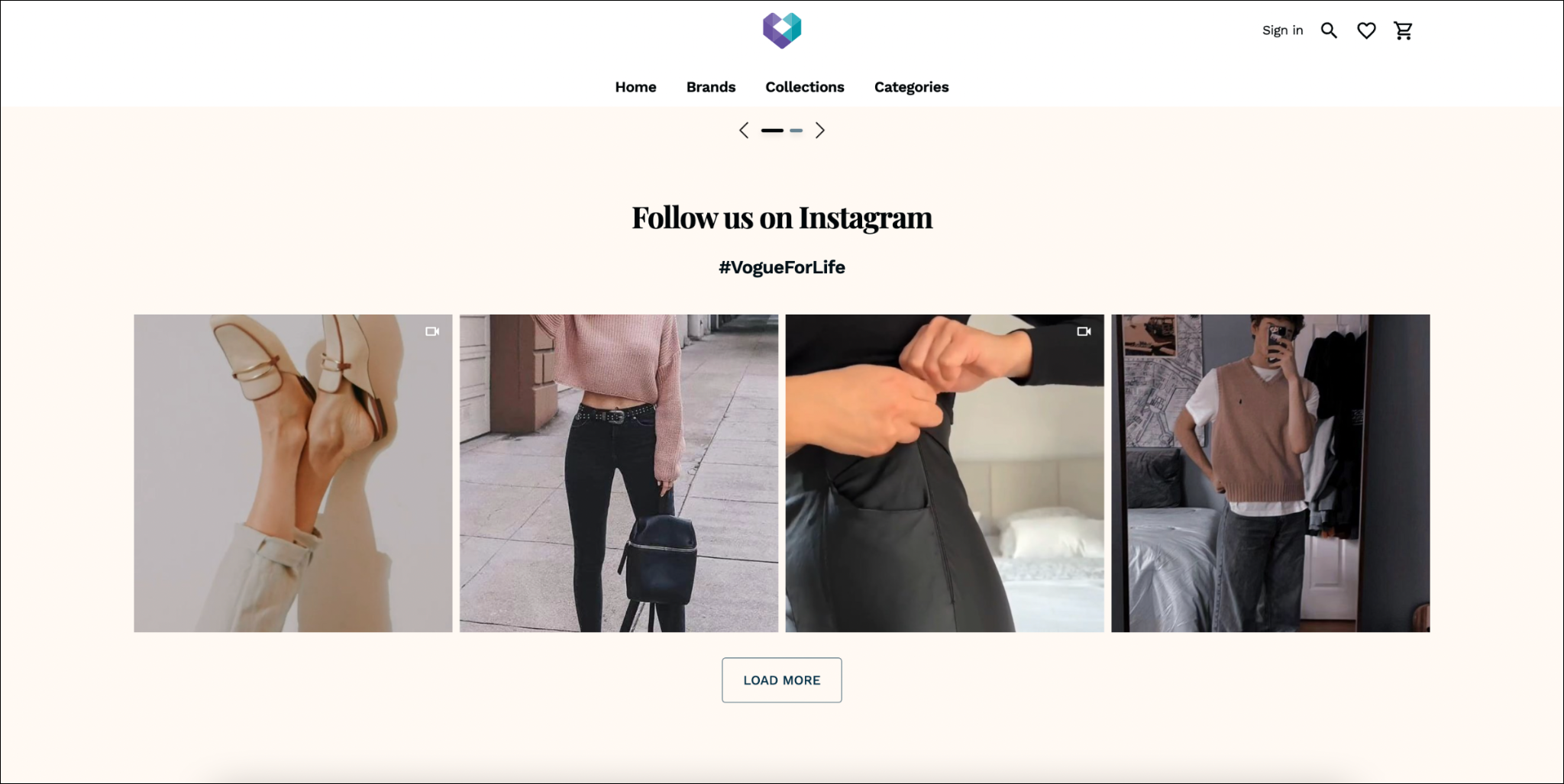
The Instagram Feed Extension allows sellers to integrate their Instagram feed directly into their online store. With this integration, sellers can display their Instagram posts, videos and reels on their websites.
Go to Extensions in Fynd Platform.
Click Instagram Feed.
Once you have installed this extension, it will be available in the list here.
Select desired sales channel. Here we have selected 'shubham'.
Click Instagram Sign-in to connect your Instagram account.
Click Allow.
Your Instagram account is connected successfully. In the next sections, you'll learn to configure the appearance of the Instagram feed on the website.
Arrangement:
- Square Arrangement: This option displays your Instagram feed in a clear and square layout, creating a cohesive and visually striking composition.
- Random Arrangement: This option displays your Instagram feed in a clean and random grid layout, giving it a balanced and harmonious look.
- Gallery Arrangement: This option displays your Instagram feed in a stunning photo gallery layout, showcasing your images in a sophisticated and elegant way.
- Social Arrangement: This option displays your Instagram feed in an organized and equal-sized rectangular layout, providing a clean and structured design.
Layout Template:
Select a suitable layout from Grid or Carousel.
Configure Rows & Columns: Select the desired number of rows and columns you want to keep in your Instagram feed section in the given space.
Heading: Toggle on "Heading" to add a suitable title for your Instagram feed section.
Subheading: Toggle on "Sub Heading" to add a suitable subtitle for your Instagram feed section.
Text Alignment: Select the suitable text alignment from the given option.
Spacing: Select the suitable spacing you want to provide between the post.
Include videos: Add video posts also to your Instagram feed section by checking it.
Click Save.
Overlay Theme:
Light: Selecting it will lighten the image with a semi-transparent layer on hover.
Dark: Selecting it will darken the image with a semi-transparent layer on hover.
Overlay Elements:
Show Caption: Displays the caption associated with the post/video when hovering over it.
Show Instagram Icon: Displays the Instagram icon when hovering over the post/video.
None: Hovering will darken the image with a semi-transparent layer on hover.
Click Save.
- Open in Popup: Clicking on a Post/Video opens in a pop-up window.
- Open on Instagram: Clicking on a post/video redirects the user to the corresponding post/video on Instagram.
- None: Clicking on the post/video will not redirect anywhere.
Click Save.
- Layout Template: Select a suitable layout from Grid or Carousel.
- Heading: Toggle on the heading option to enable the heading and provide a suitable heading for your Instagram feed section in the given space.
- Subheading: Toggle on "Sub Heading" to add a suitable subtitle for your Instagram feed section.
- Text Alignment: Select the suitable alignment from the given option.
- Spacing: Select the suitable spacing you want to provide between the post.
Click Save.
- Open in popup: Reel opens in a pop-up window on click.
- See on Instagram: Reel opens on Instagram on click.
Click Save.
Reels will auto-play on mute on your storefront.
Click your desired Sales Channel. Here we have selcted shubham.
Click Appearance.
Click Themes.
Click Edit to open the theme editor.
Click Add Section in the Sections tab.
Click Add on Extensions.
Click on the "+" icon in Extension Position.
Select Instagram Feed extension from the dropdown.
Choose your desired Wrapper - Post/Videos or Reel.
Click Save.
- To activate the Instagram Feed Extension, open the extension and toggle the button to ON on the features page after selecting the sales channel.
- To deactivate the extension, select sales channel > Instagram Feed > toggle the button to OFF.
- Click Reconnect Instagram to sign out of your current account and add a new Instagram account to the extension.
Visit the sales channel and you will see that the Instagram feed is visible on your website.