Commerce Panel → Sales Channel (select application) → Configuration → Domains
If you already possess a domain, you can link it in Fynd Commerce and in case you don't have a domain, you can purchase one.
Before you begin
When you open the Add Custom Domain page, you will see the required A records and TXT record for your domain.
You will need these values while configuring your DNS settings in your domain provider.
These values are dynamically generated and may vary across applications and environments. Always copy the exact values shown in the UI.
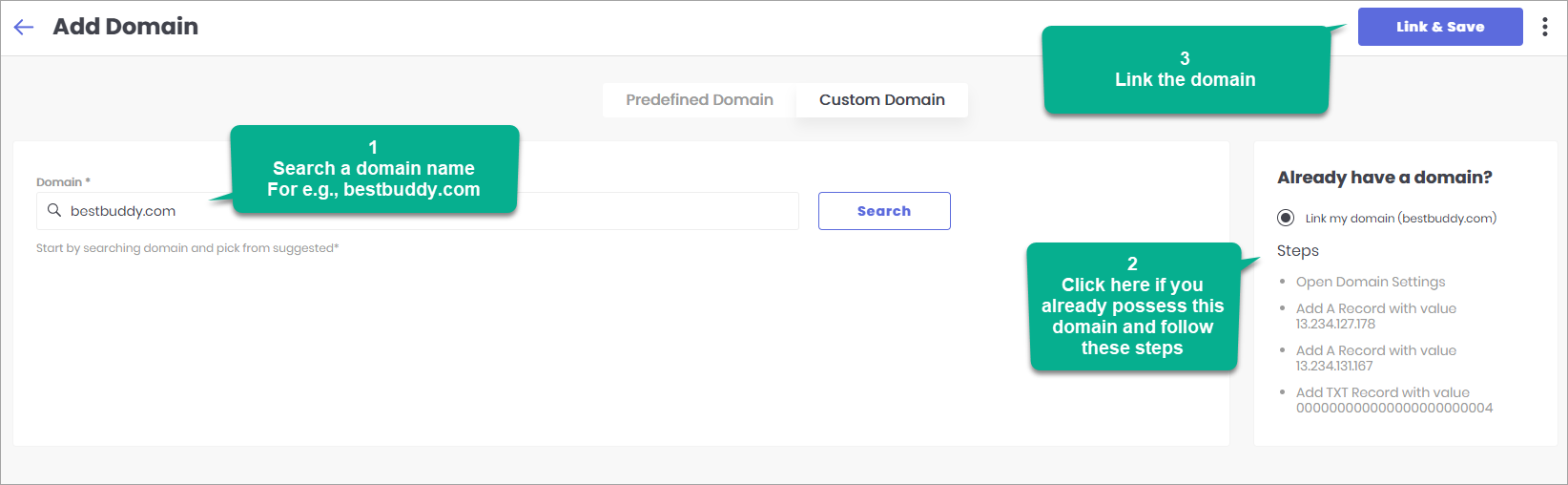
Step 1: Let's say you possess the domain 'oasisshop.online', enter it in the search bar. In the search results, it should ideally show as NOT AVAILABLE.
Step 2: Now, you can start linking your domain by following the instructions written on the page. Nonetheless, let's go through each of those steps one-by-one.
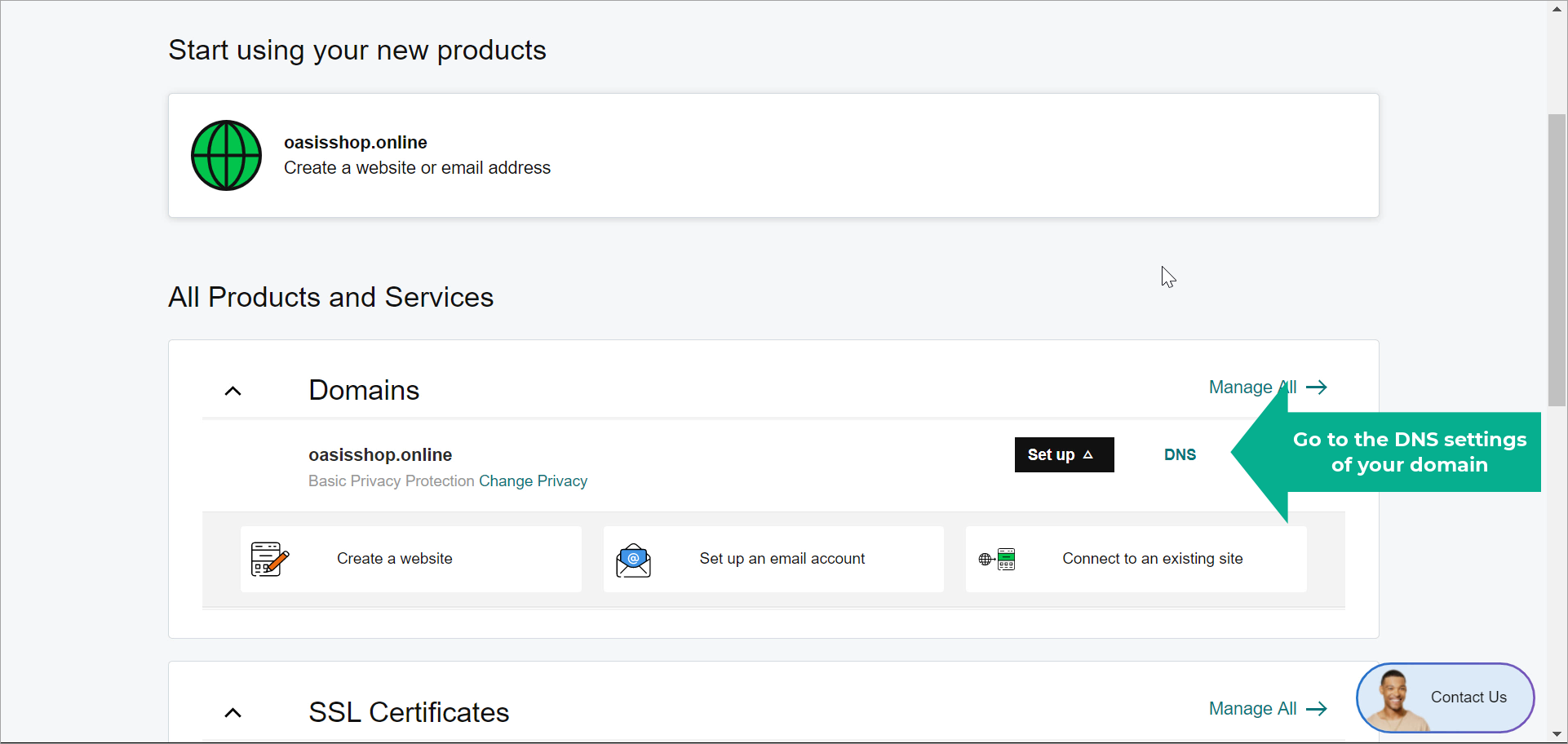
Step 3: Sign-in to your domain provider's account to configure the DNS settings. The below steps have been written assuming that your domain provider is GoDaddy.com. In your case, it could be any provider such as GoDaddy, Domain.com, Namecheap, HostGator, Wix, DreamHost, etc. In that case, you can connect with your domain provider to understand the process of changing the DNS settings of your domain.
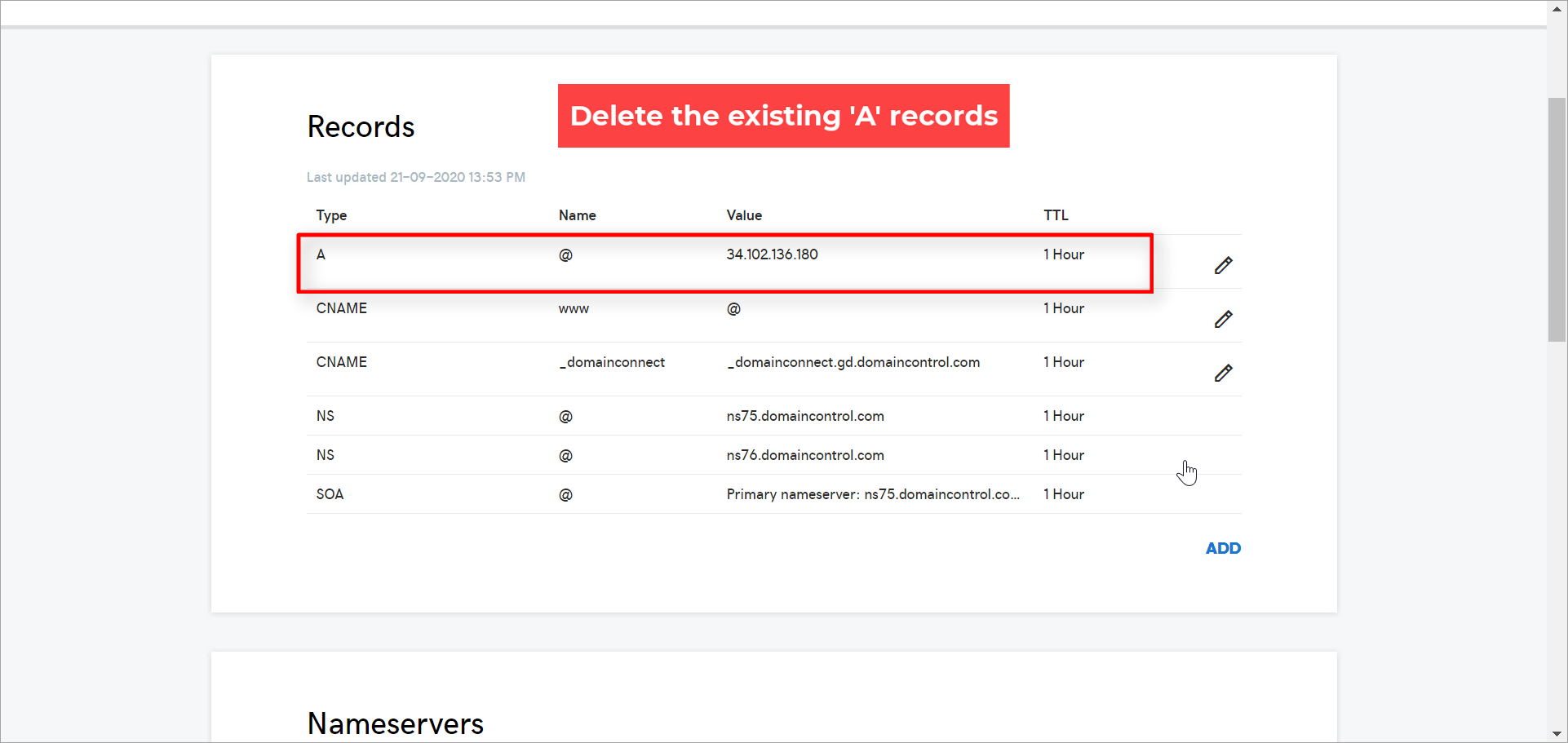
Step 4: Delete all the existing address records ('A' records) from the DNS settings.
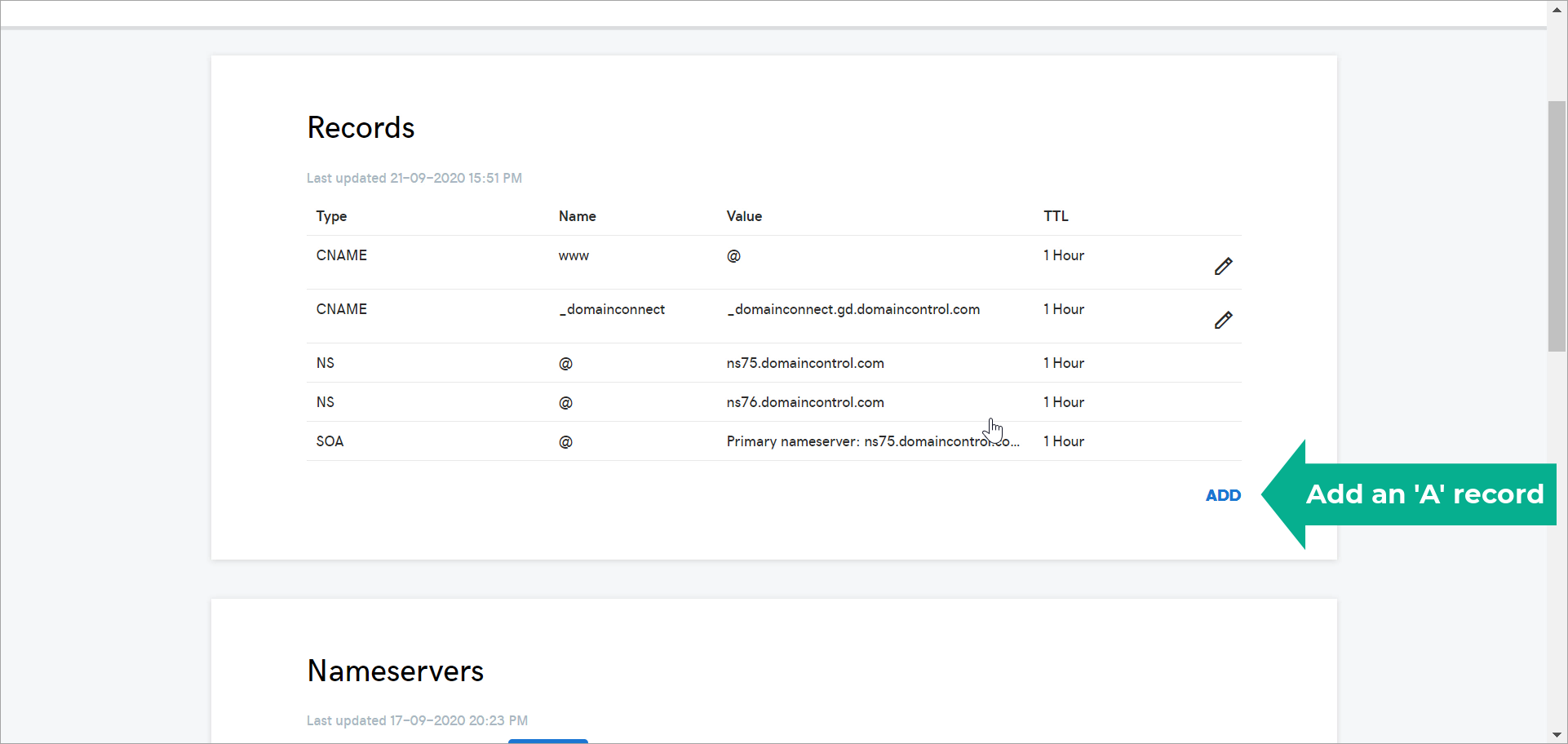
Step 5: Click on Add to include new records.
Step 6: Fill all the mandatory fields.
- Type - A
- Host - @
- Points to - 13.234.150.137 (example value; copy from UI)
- TTL - 1 Hour
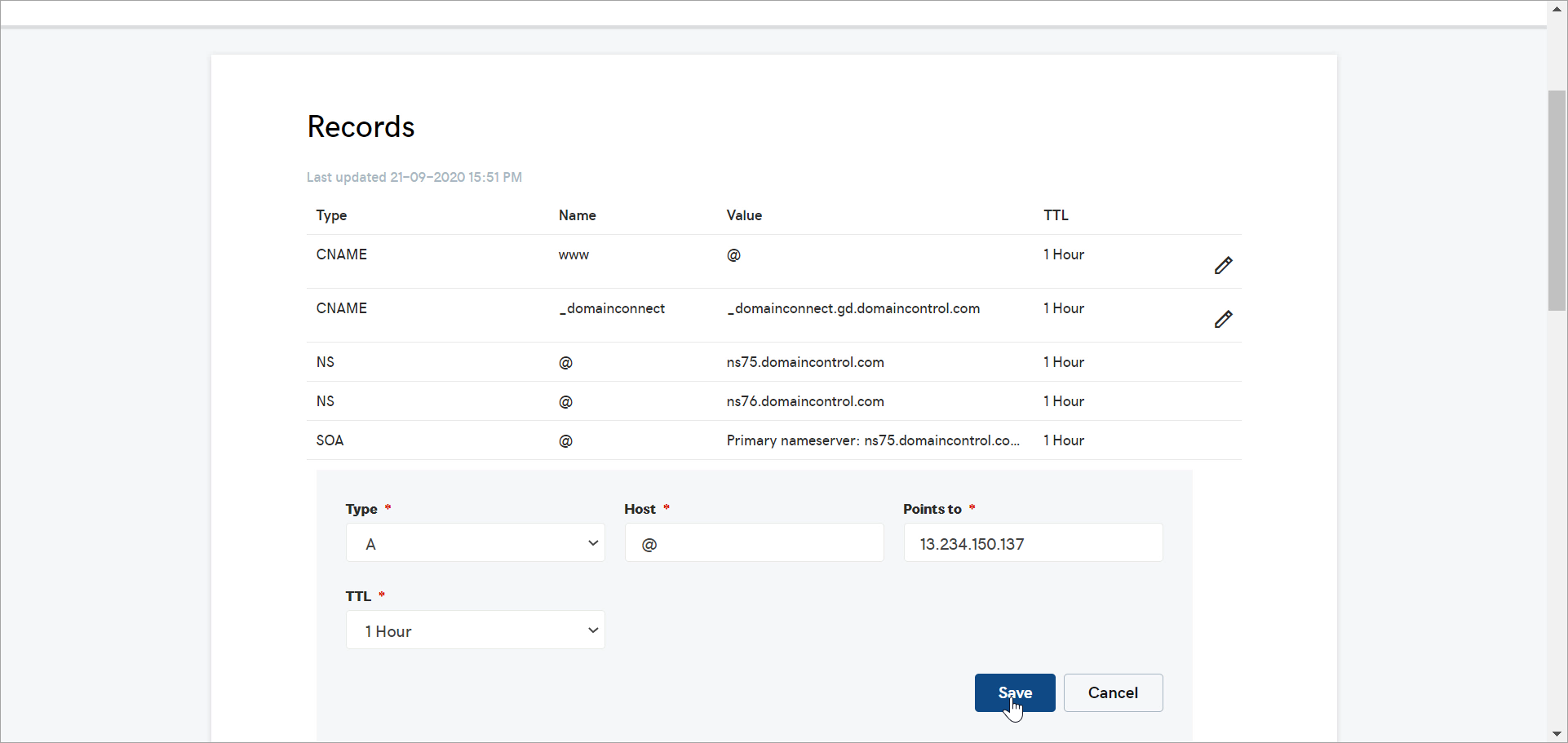
Step 7: Add one more 'A' record and fill the mandatory fields.
- Type - A
- Host - @
- Points to - 52.66.130.179 (example value; copy from UI)
- TTL - 1 Hour
Multiple A records may be required. These values can differ across applications and environments.
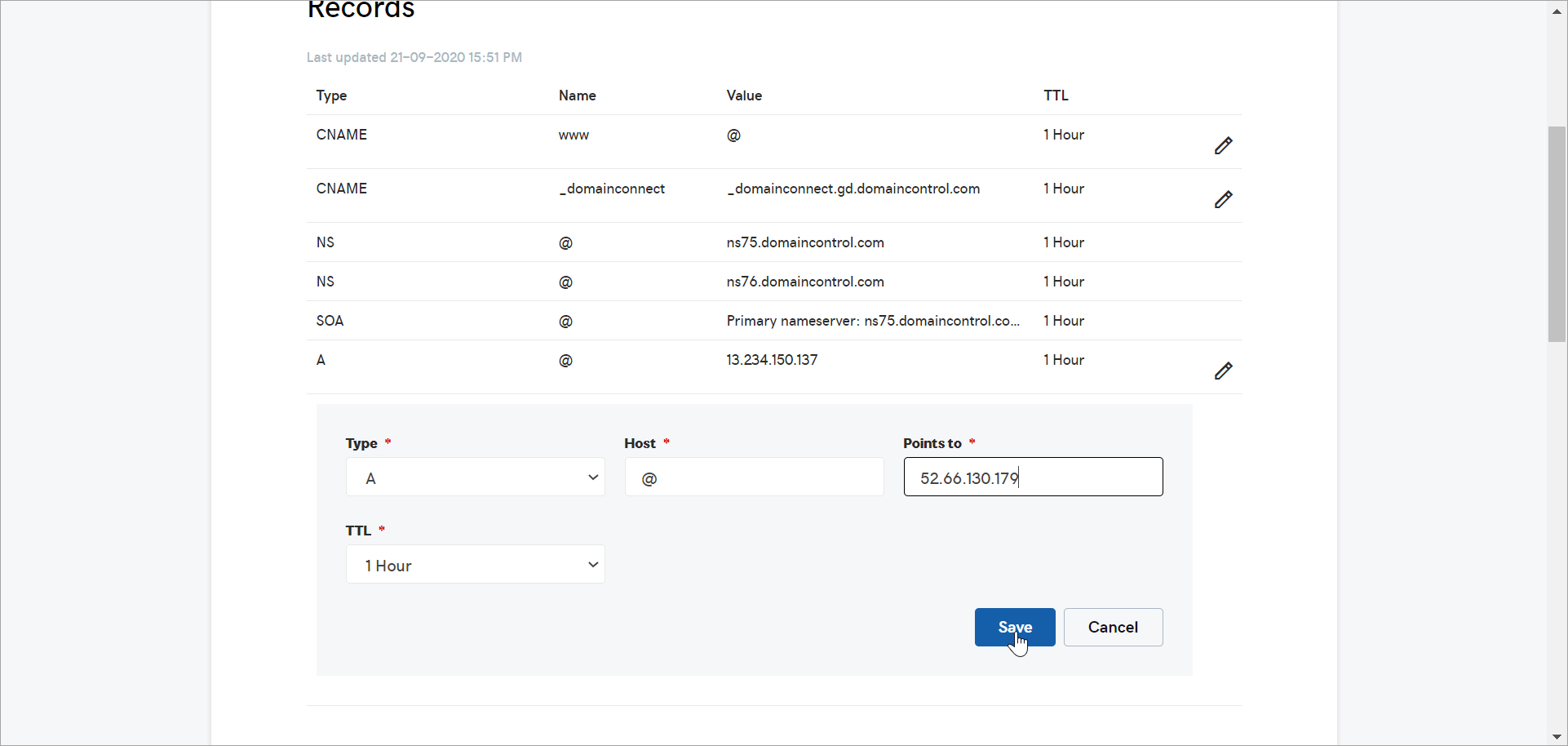
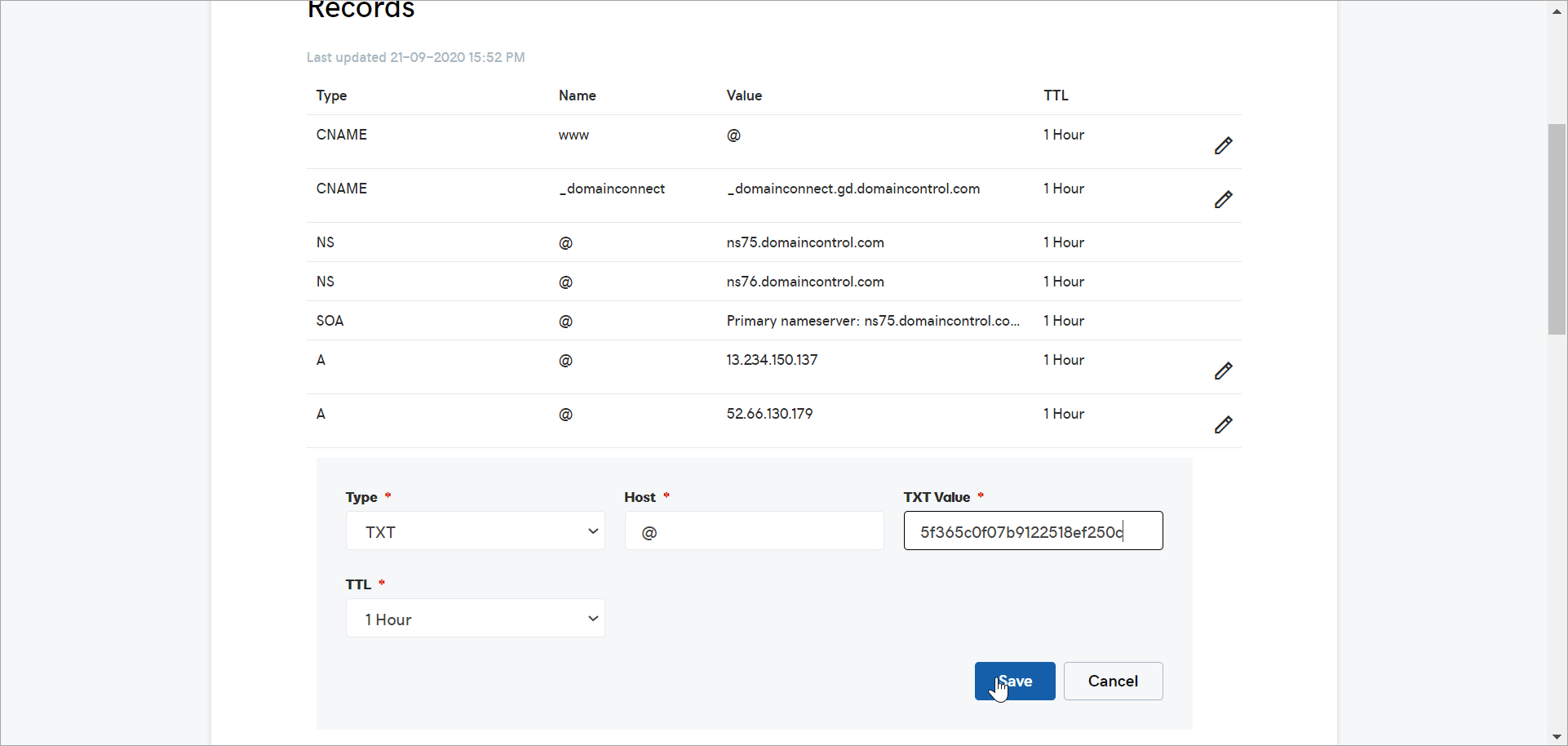
Step 8: Now, add a 'TXT' record and fill the mandatory fields.
- Type - TXT
- Host - @
- TXT Value - 5f365c0f07b9122518ef250c (example value; copy from UI)
- TTL - 1 Hour
The TXT value is unique for verification and will always differ. Copy it exactly from the UI.
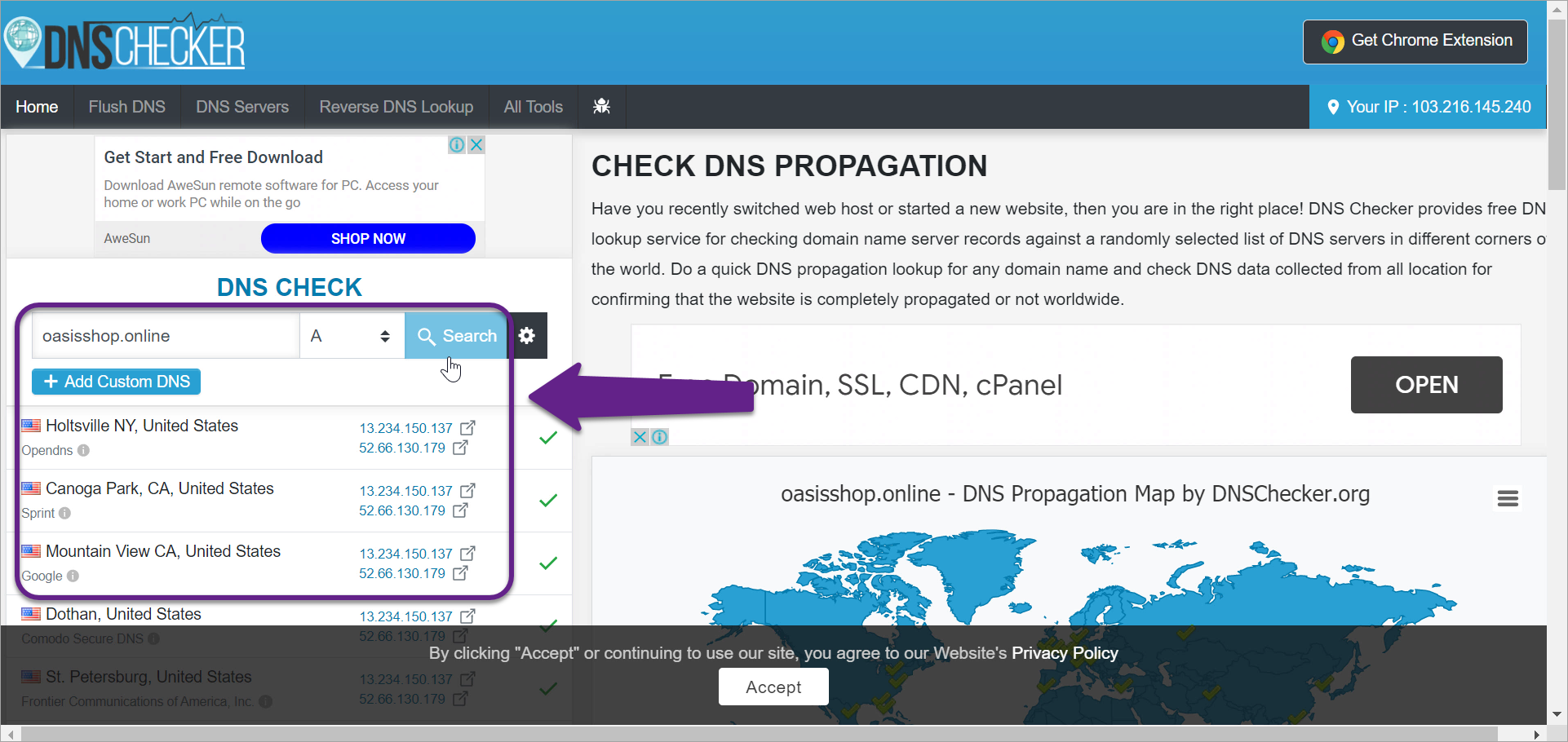
Step 9: Go to https://dnschecker.org and check these 'A' records. If the IP address that you have entered in both the 'A' records (13.234.150.137 and 52.66.130.179) matches with the IP addresses shown here, you can proceed with linking the domain.
Step 10: Click on Link & Save.
Step 11: You have successfully added your domain. Click on it to check whether it's functioning correctly.
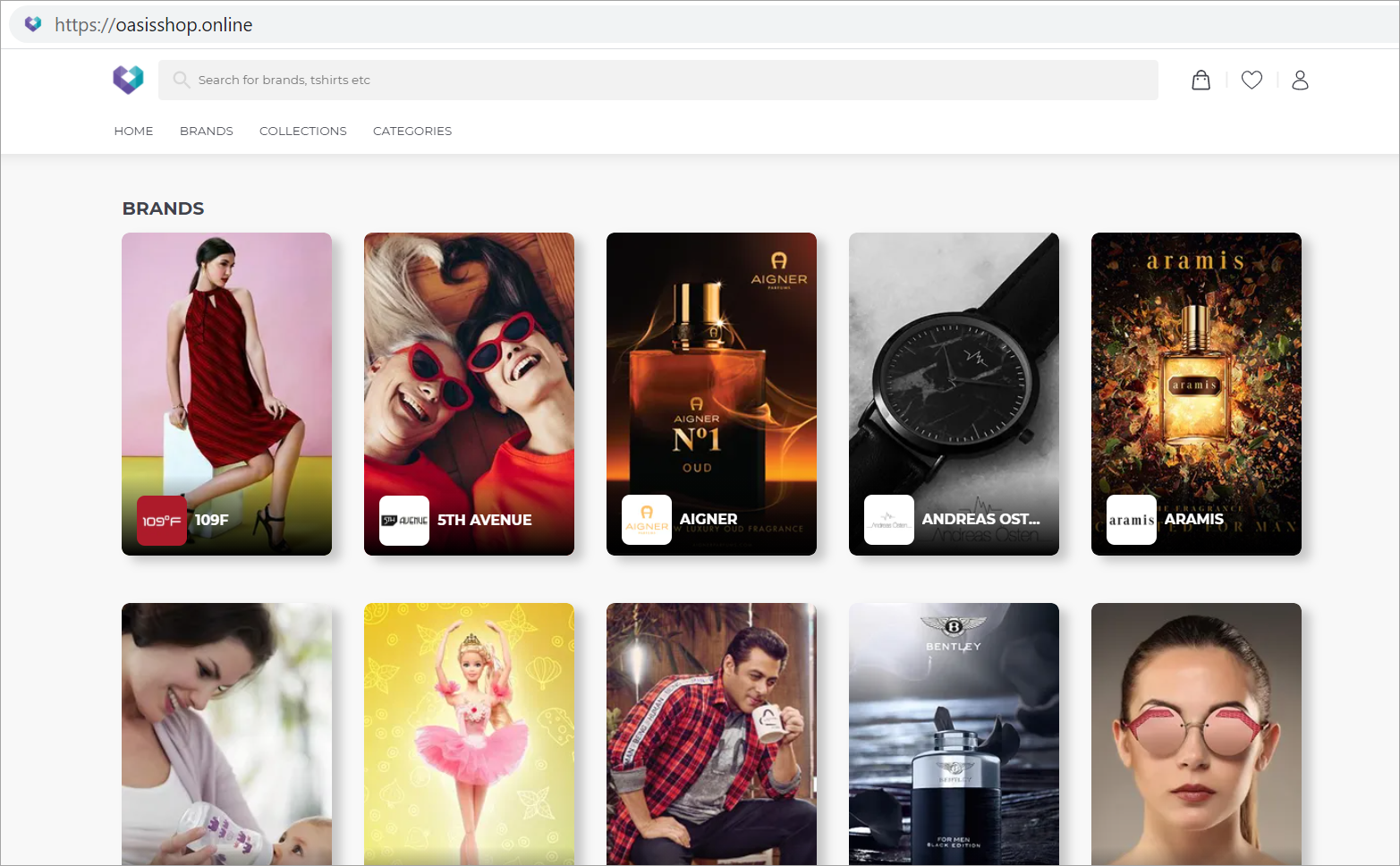
Step 12: The URL is successfully up and running.
Step 13: Further, you can use this domain as your primary domain or a shortlink domain.
Primary domain - A domain you choose to represent your main website.
If you have only one domain name registered, then that will be your Primary Domain. However, if you have several domain names registered, you will need to select one that will be your Primary Domain.
Shortlink domain - A shorter version of your domain which points to your primary domain. It is used as an alternate web address.
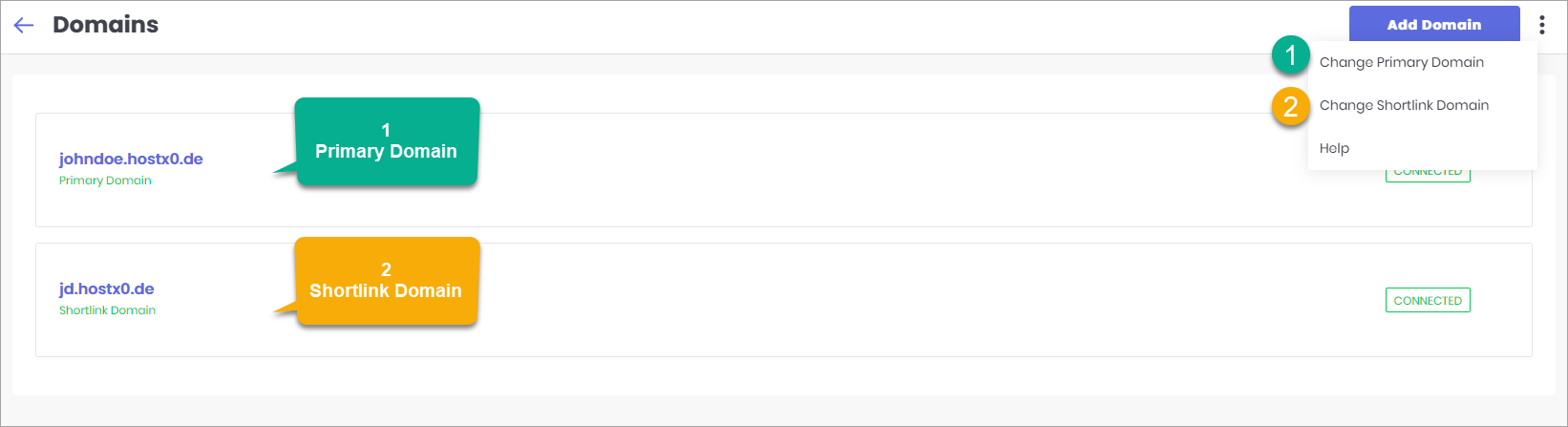
Figure 14: Primary and Shortlink Domain
You can choose the same website to be your primary and shortlink domain.
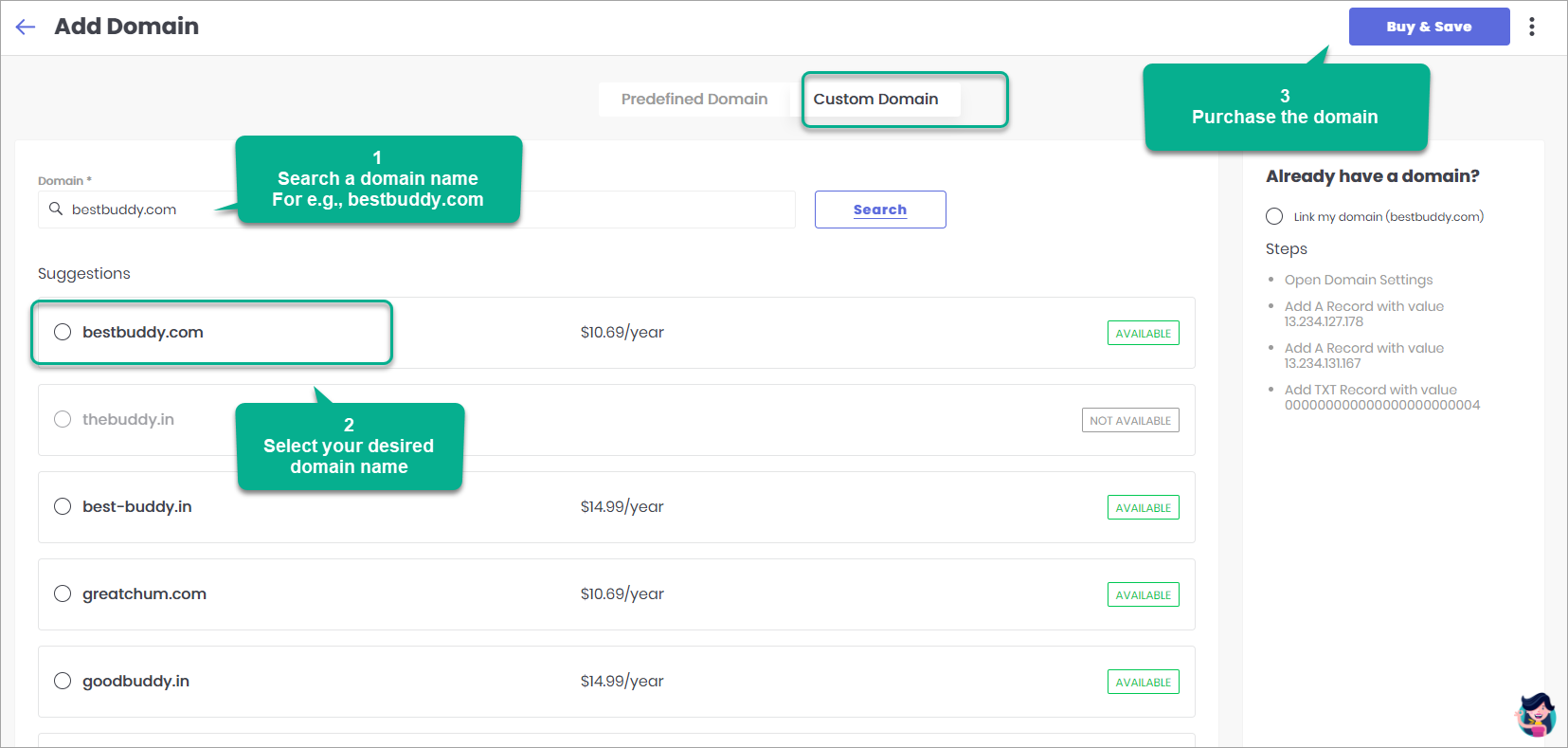
Currently, we do not support direct purchase of a domain through Fynd Commerce . We will soon incorporate this feature in our future release.