Create & Configure Google Merchant Center (GMC) ↗ - [Help ↗]. Set up with business name, contact info, and claimed website.
Create & Verify Google Business Profile Google Business Profile (GBP) ↗ - [Help ↗]. Add and verify all physical store locations.
Share access to Fynd by granting
Adminaccess togmc@gofynd.comin your:- Google Merchant Center
- Google Business Profile
- Google Ads (if applicable)
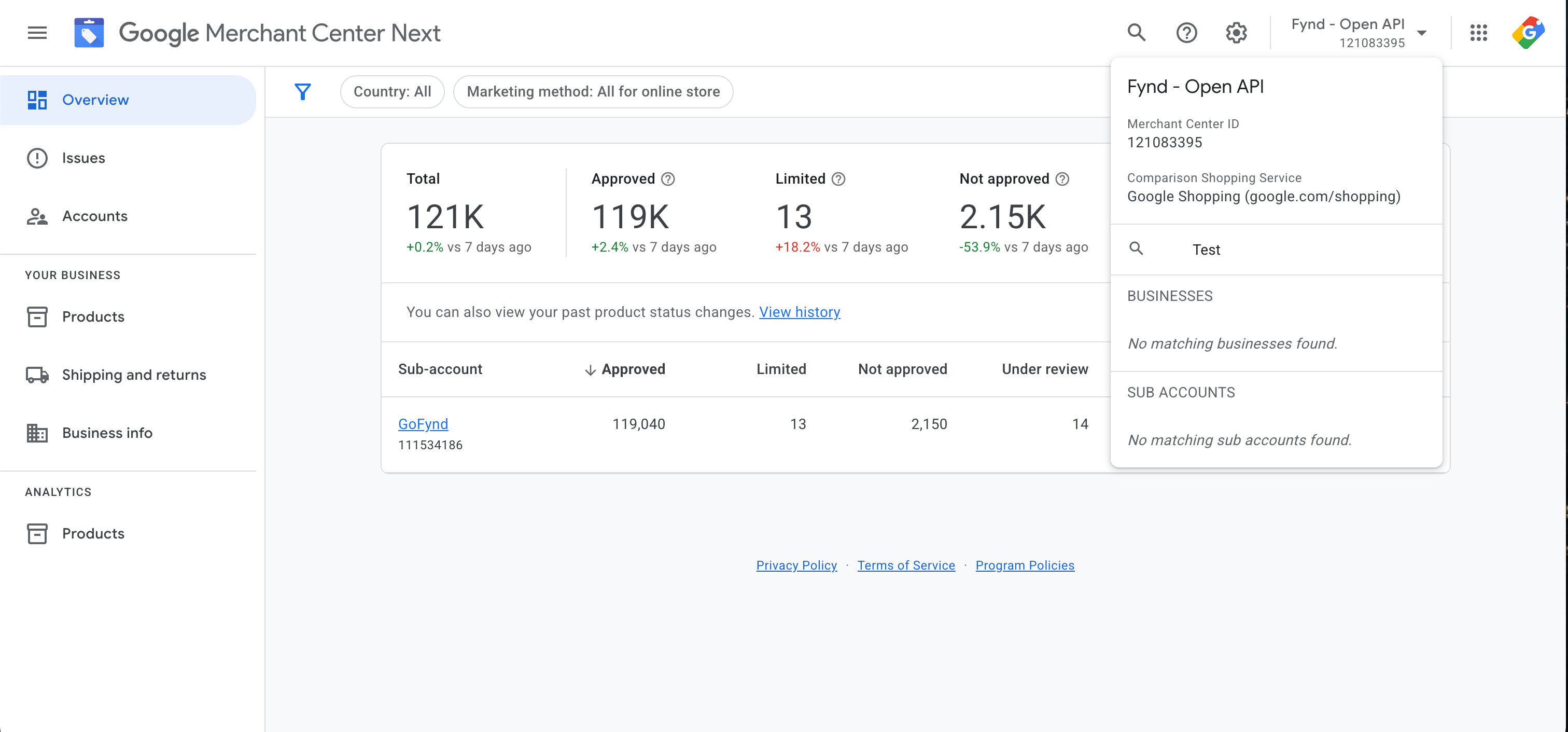
Once the access is granted, the brand name will appear in Fynd’s GMC account dropdown under BUSINESSES like below:
Why is this step required? Google requires verified and linked store locations in Merchant Center before local inventory can be published.
- Log in to your Google Merchant Center account.
- Navigate to Settings → Linked Accounts → Business Profile.
- Ensure your Business Profile is verified.
- If not yet linked, click “Request Access” and enter your business email.
- Once access is established, Fynd will confirm the linkage on the seller's behalf. This step allows Google to associate physical stores with your product feed. It must be completed before POS provider setup.
Why is this step required? This allows Fynd to configure and manage your POS provider setup, Content API sync, and feed diagnostics.
- In Google Merchant Center, go to: Settings → Account Access.
- Click “Add User.”
- Enter the Fynd email: gmc@gofynd.com.
- Select role: Admin before clicking “Add.” This gives Fynd permission to perform all necessary configurations, including API-based feed pushes and diagnostics.
Why is this step required? This is only required if you plan to run paid Local Inventory Ads (LIA). Skip this step if you only want Free Local Listings
- In GMC, go to: Settings → Linked Accounts → Google Ads.
- Send a link request to your brand’s Google Ads account.
- Accept the request from the Google Ads UI.
Why is this step required? Activating these programs allows your store-level availability to appear on Google.
- Navigate to Growth → Manage Programs.
- Enable the following:
- Free Local Product Listings
- Local Inventory Ads (optional)
- Add itself (POS ID: 757045021) as the POS data provider** via API.
- Map your store codes and product catalog to Google’s feed specifications.
- Push regular inventory updates through the Content API v2.1.
No further action is required from the brand once gmc@gofynd.com is added and GBP is verified.