Once onboarding and configuration are complete, verify that your Google Merchant Center (GMC) account and Fynd Konnect integration are successfully linked. This ensures your local inventory is being transmitted to Google in real time.
In your Google Merchant Center, navigate to Add-ons → Your add-ons.
Ensure both Free Local Listings and Local Inventory Ads are visible.
Both programs should display as enabled, showing a “Remove” button next to each.
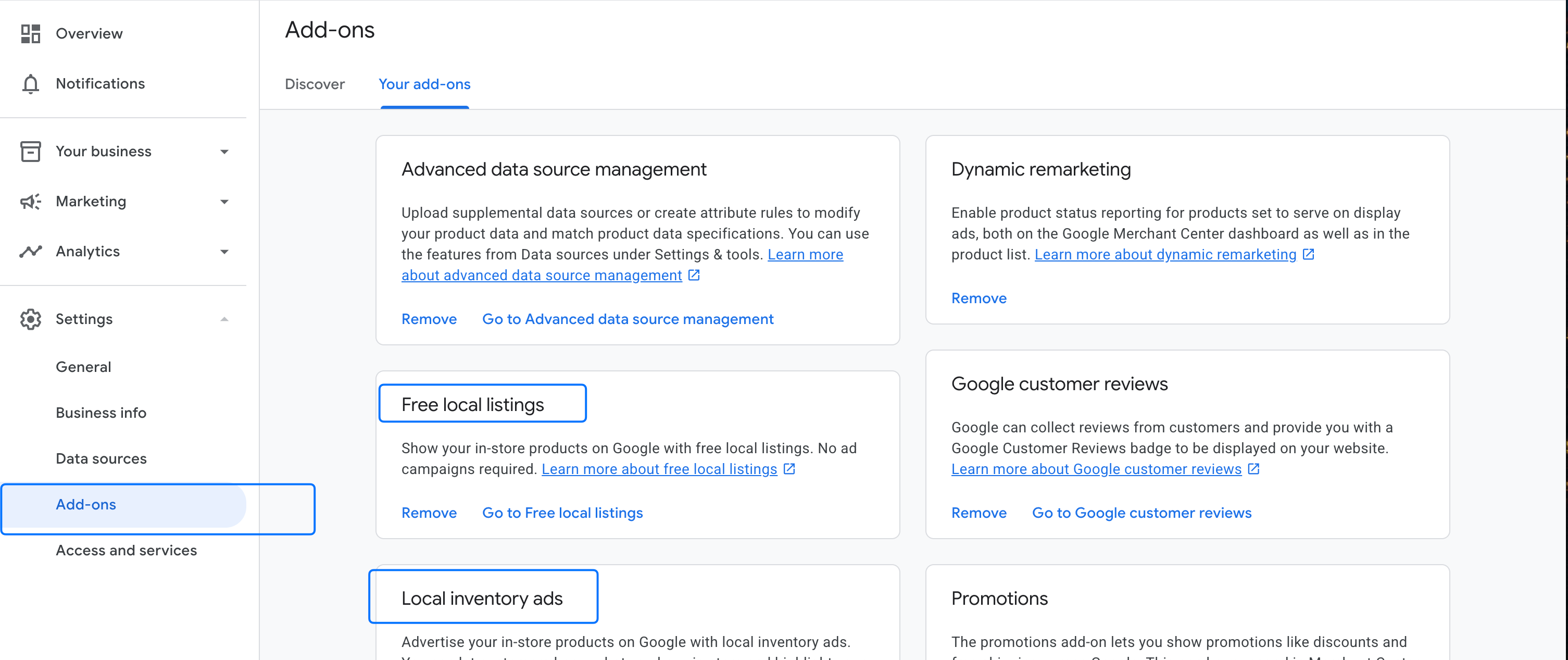
Figure 1: Free Local Listings and Local Inventory Ads on GMC
If the add-ons are not enabled, return to the onboarding steps and ensure the “Manage Programs” configuration is completed correctly.
In your GMC dashboard, go to Growth → Manage Programs → Free Local Listings.
Click “Review setup status” next to your target country (e.g., India).
Confirm that all configuration checks (feed connection, product approval, and store linkage) display as complete.
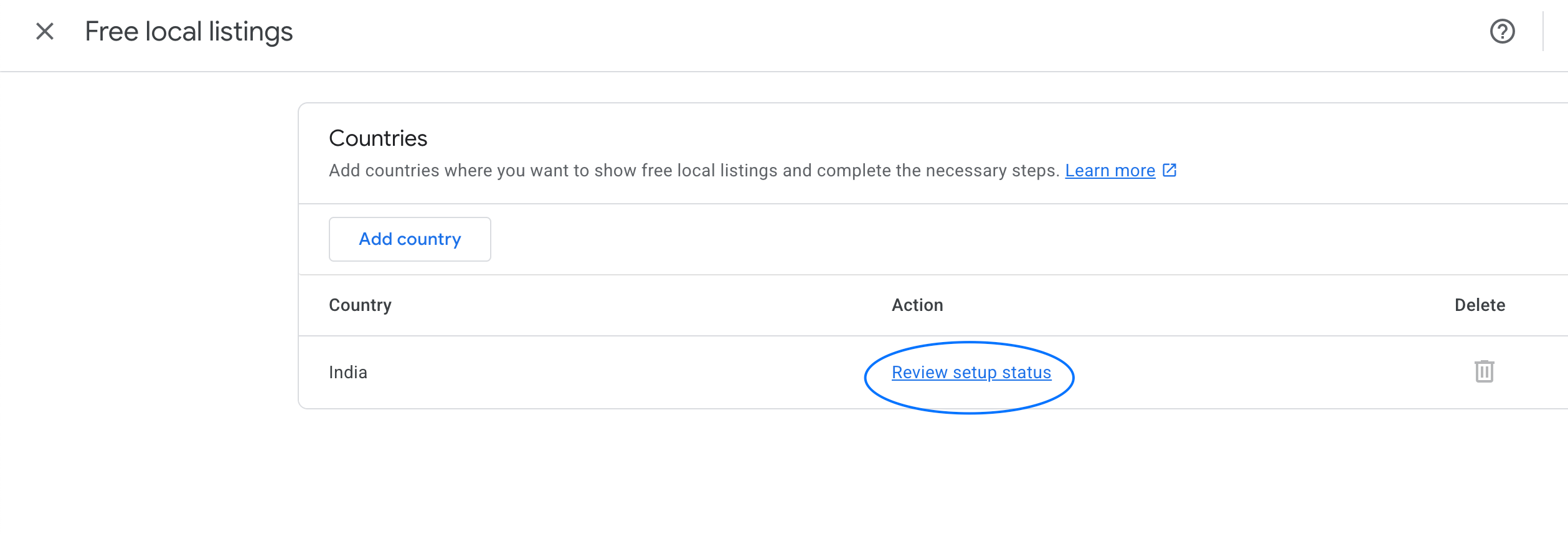
Figure 2: Free Local Listings Review Setup
Within the same Free Local Listings setup section:
- Click “Add inventory” (if not already connected).
- Select Fynd as the POS Data Provider.
Once connected, you will see a green badge confirming: ✅ Fynd Connected.
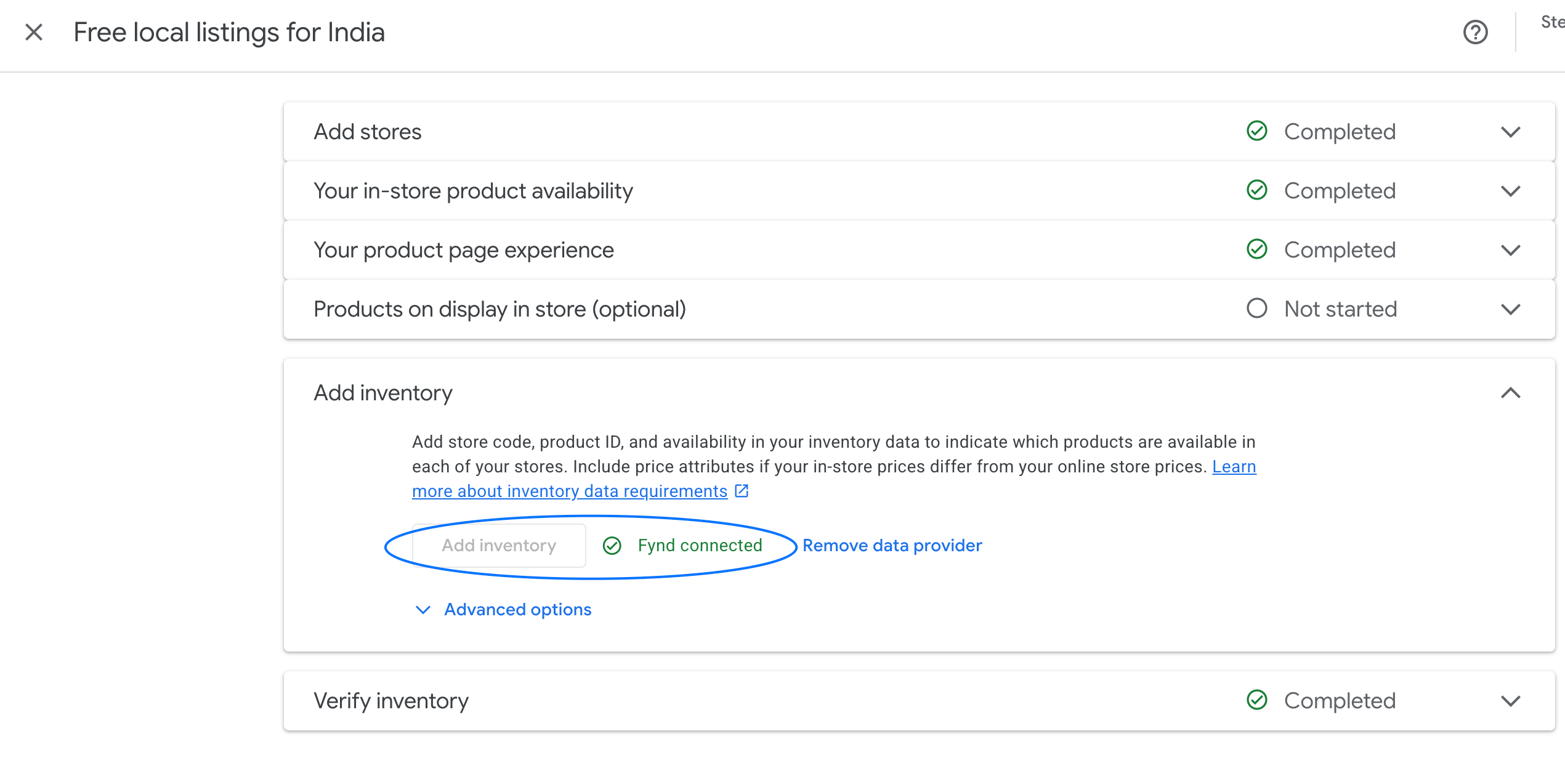
Figure 3: Connecting Fynd as POS Provider 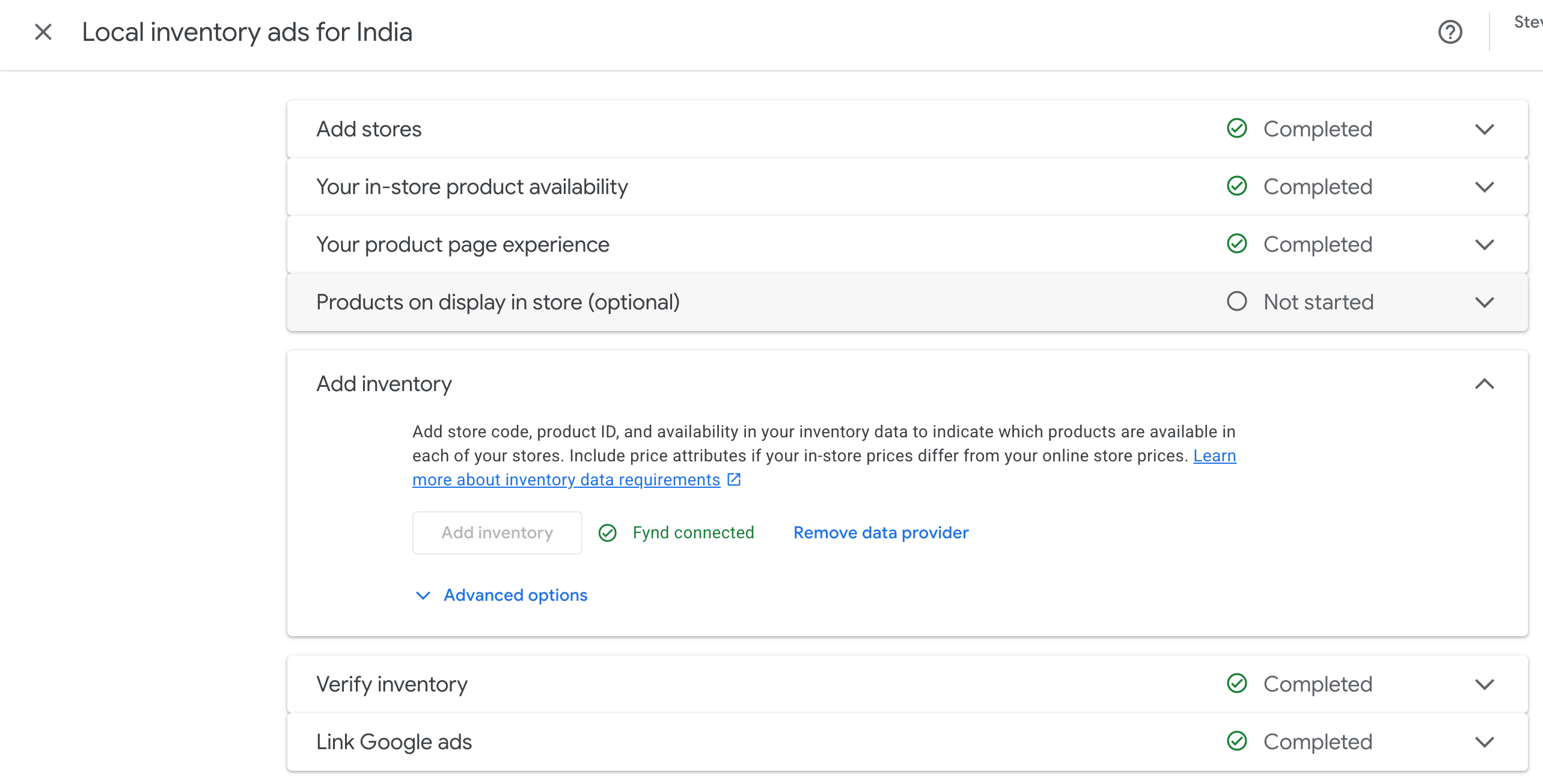
Figure 4: Fynd Connected Confirmation
Your Fynd integration with Google Merchant Center is now verified. Inventory sync will proceed automatically via the Google Content API, keeping your local listings fresh and discoverable on Google Search, Shopping, and Maps.