Commerce Panel → Orders → My Orders
Returnless Refund allows you to issue a refund to a customer without collecting the product back. Once you select this option, the return request (if any) is closed and no reverse pickup will be arranged. The refund will then be processed based on your configured refund setup. You can use this option when:
- The cost of return logistics exceeds the product value
- The product is damaged, defective, or non-resalable
- The issue can be resolved without requiring physical inspection of the item
- You want to resolve a customer complaint quickly as a service recovery gesture
- The product belongs to a low-value, consumable, or hygiene-sensitive category
- Reverse pickup is not feasible due to operational or location constraints
When enabled, this option becomes available in specific shipment states explained below.
Make sure the following conditions are met:
| Requirement | Details |
|---|---|
| Feature enabled | “Refund without Return” must be turned ON in Refund Configuration |
| Shipment state | Shipment must be in Delivered or Return Requested state |
| Pre-QC (only for Scenario 2) | Pre-QC must be enabled if customers need to raise return requests first |
| Permissions | You must have access to Manage Refunds without Refunds |
To learn how to enable this feature, see: Configure refund without return
There are two practical situations where this feature applies.
Use this when the order has already been delivered and you want to refund the customer without asking them to return the product.
Shipment state required: Delivered
How it works
Open OMS and search for the relevant shipment.
Open the Shipment Details page.
Click the three-dot menu (⋮).
If the feature is enabled and the shipment is eligible, you will see the option Refund without Return.
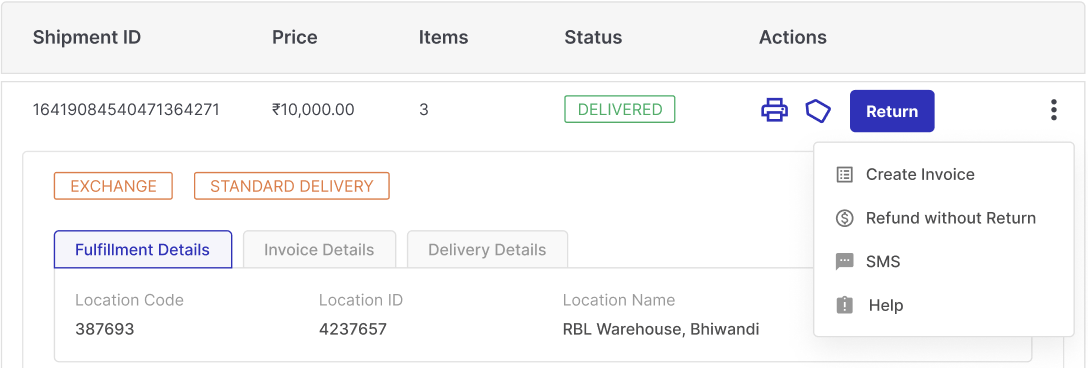
Click Refund without Return.
Select the reason for refund without return from the dropdown list.
Select the product(s) you want to refund by clicking the checkbox next to each item.
You can select one or multiple items if it is a multi-item shipment.
Click Proceed.
In the refund method step, select the appropriate refund method from the available options.
If the order was paid online, you may see options such as:
- Refund to original payment source
- Refund to bank account
- Other supported methods (based on the payment used)
Review the details carefully.
Click Submit to confirm.
The shipment status updates to: Refund Without Return
Once confirmed, no return pickup will be initiated.
Use this when the customer has already requested a return, but after reviewing the request, you decide that collecting the product is not required.
Shipment state required: Return Requested
Pre-QC must be enabled. If Pre-QC is not enabled, this review flow will not be available.
Step 1: Customer raises return request
- Customer submits a return request.
- Shipment status changes to Return Requested.
- If Pre-QC is enabled, the customer can upload images and details.
Step 2: You review the request
- Go to OMS.
- Filter shipments in Return Requested state.
- Open the relevant shipment.
- Review the return reason and uploaded details.
Step 3: Select items to refund
If the shipment contains multiple items:
- Click Select Items to Refund.
- Choose the specific items.
- Confirm your selection.
This allows partial refunds.
Step 4: Approve refund without return
- Choose the option to approve refund without collecting the item.
- Confirm your decision.
The shipment status updates to: Refund Without Return
No return pickup is created.
When a shipment moves to this status:
- Refund has been approved.
- Product return is not required.
- Shipment is removed from return queues.
- Refund processing begins based on payment method.
You can see:
- Status update on Shipment Details page
- Timeline entry with user name and timestamp
- Customer notification (if enabled)
| Situation | Shipment state | Pre-QC required |
|---|---|---|
| You refund after delivery | Delivered | No |
| Customer requests return, but you approve refund instead | Return Requested | Yes |
Feature dependency: Refund without return works only if enabled in Refund Configuration.
Partial refunds: You can refund selected items in multi-item shipments.
Cannot be reversed: Once confirmed, this action cannot be undone from OMS. Always review:
- Return reason
- Uploaded images
- Payment breakdown
before confirming.
Customer communication
- Online refunds depend on bank processing time.
- Offline refunds depend on your store process.
- Inform customers accordingly.