Commerce Panel → Orders → My Orders
The Order Management System (OMS) on Fynd Commerce is where you manage the complete lifecycle of every customer order — from the moment it's placed on your website, marketplace, or store, all the way through fulfilment, delivery, and returns. Whether you process 10 orders a day or 10,000, the OMS gives you a single dashboard to track, fulfil, and resolve every order across all your sales channels.
This section of the documentation covers everything a seller needs to manage orders effectively. Here's how the content is organised, following the same sequence you'd follow when handling an actual order.
Before you start processing orders, familiarise yourself with how the OMS is structured.
- OMS Dashboard & Navigation: Learn how to navigate the My Orders page, understand super-lanes (Unfulfilled, Processed, Returns, Action Centre), and use sub-lanes to find orders at specific stages.
- Search & Filter Orders: Find specific orders using search (by Shipment ID, Order ID, Bag ID, customer email, etc.) and narrow results using filters (by date, status, sales channel, delivery partner, and more).
- Order Basics: Understand the core terminology — what an order, shipment, and bag are, how orders get split into shipments, and the states an order moves through during its lifecycle.
Not all orders come from customers clicking "Buy" on your storefront.
- Create Order (Phone/Manual): Place an order on behalf of a customer directly from the Commerce Panel — useful for phone orders, assisted sales, or re-orders.
- International Orders: Understand how cross-border orders work on Fynd Commerce, including currency handling, customs, e-invoicing requirements, and delivery partner setup for international shipping.
This is the core daily workflow for most sellers. The pages follow the exact sequence you perform when fulfilling an order:
Confirm or Cancel a Shipment: Once a new order lands in the Unfulfilled lane, decide whether you can fulfil it. Confirm the items you can ship (full or partial confirmation), and cancel what you can't (full or partial cancellation). Cancelled items may get reassigned to another selling location automatically.
Invoice & Pack a Shipment: After confirming, enter the invoice number (or let auto-invoicing handle it), download the tax invoice and shipping label in your preferred format (A4, A6, POS), and mark the shipment as packed. This section also covers B2B invoice downloads.
Manifest & Dispatch: After packing, generate a manifest — the handover document between you and the delivery partner. Upload the signed manifest or declare consent, then dispatch. The shipment moves from Unfulfilled to Processed.
Bulk Order Processing: For high-volume sellers, process multiple orders at once — confirm, invoice, pack, and manifest in bulk rather than one at a time.
Split Shipment: In cases where items in a single shipment need to be shipped separately (different warehouses, different delivery timelines), split them into separate shipments.
Returns are a reality of e-commerce. This section covers what happens after delivery.
- Return Processing: Handle customer-initiated returns, manage quality checks on received items, and process refunds. Understand the return states and how items flow back through the system.
- Credit Notes: Configure automatic credit note generation for returns, or learn how to create them manually when needed.
- Seller-Initiated Returns: Handle post-dispatch cancellations, RTO (Return to Origin) scenarios when a delivery fails, and re-shipment workflows.
These are operations you'll use less frequently but are important for edge cases and escalations.
- Forced Marking: An administrative override that allows you to manually force a shipment into a specific state when the normal workflow can't proceed — for example, marking a stuck shipment as delivered based on proof of delivery.
- Action Centre: The escalation queue that highlights orders needing immediate attention — delayed shipments, failed deliveries, NDR (Non-Delivery Report) re-attempts, and buyer complaints.
Keep your customers informed throughout the order journey.
- Order Tracking: How shipment tracking works with delivery partners, the customer-facing tracking page, and how DP status updates flow into the OMS.
- Notifications & Alerts: SMS, email, and WhatsApp notifications triggered automatically at key order state changes (order confirmed, shipped, out for delivery, delivered, return initiated, refund processed).
Everything related to the documents generated during order processing.
- Invoice Configuration: Set up auto-invoicing, enable e-invoice and e-way bill generation from your selling location settings, and configure invoice numbering.
- Customize Invoice Template: Use the HTML editor to customise the look, layout, and content of your invoice template — change your company name, logo, header fields, footer text, and more.
- Download Invoices & Labels: Understand the available formats (A4, A6, POS), the difference between B2C and B2B invoice tabs, and the merged Invoice + Label PDF feature for faster packing.
Track every action taken on every order.
- Activity Logs: View a chronological trail of all state changes, user actions, and system events for any order or shipment. Useful for debugging issues, resolving disputes, and maintaining compliance.
Understanding the end-to-end flow helps you know where to look and what to do at each stage.
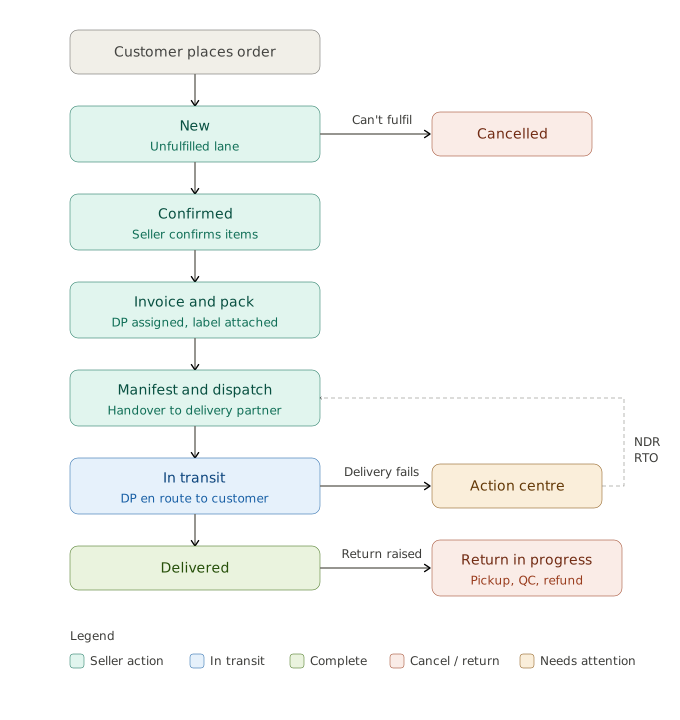
The main flow runs top to bottom through the seller's daily workflow: a new order lands in the Unfulfilled lane, the seller confirms it, invoices and packs it, generates a manifest, and dispatches it to the delivery partner. Once delivered, the order is complete.
Two branches fork off the main flow. If the seller cannot fulfil the order, it moves to Cancelled (or gets reassigned to another selling location). If a delivery attempt fails, the order moves to the Action Centre for NDR re-attempts or RTO processing. And if the customer initiates a return after delivery, the order enters the Returns flow for pickup, quality check, and refund.
Before diving into the step-by-step guides, here are a few terms you'll encounter throughout this section:
- Order: The complete purchase made by a customer. A single order can contain multiple products.
- Shipment: A subset of an order grouped for delivery. If items in an order ship from different locations or at different times, each group becomes a separate shipment with its own Shipment ID.
- Bag: The smallest unit in the OMS — a single product line item within a shipment. If a customer orders 2 t-shirts and 1 jeans, and they ship together, that's 1 shipment with 3 bags.
- Super-Lane: The top-level category on the OMS dashboard (Unfulfilled, Processed, Returns, Action Centre).
- Sub-Lane: A more specific status within a super-lane (e.g., New, Confirmed, DP Assigned, To Be Packed are all sub-lanes under Unfulfilled).
- Delivery Partner (DP): The courier or logistics company assigned to pick up and deliver a shipment.
- Manifest: A document generated after packing that serves as proof of handover between the seller and the delivery partner.
- Credit Note: A document issued to the customer when a return or refund is processed, adjusting the original invoice amount.
- NDR (Non-Delivery Report): A report generated when a delivery attempt fails. The Action Centre tracks NDR re-attempts.
- RTO (Return to Origin): When a shipment that couldn't be delivered is sent back to the seller's location.