To enable a seamless Supplier Channel with Shopee through the Konnect platform, the following steps must be followed by the Fynd business team during the onboarding process.
- Log in to your Shopee seller account through the Shopee app or website.
- Locate the "Me" tab on the app or the "Shop" section on the Seller Centre sidebar to access your shop's profile
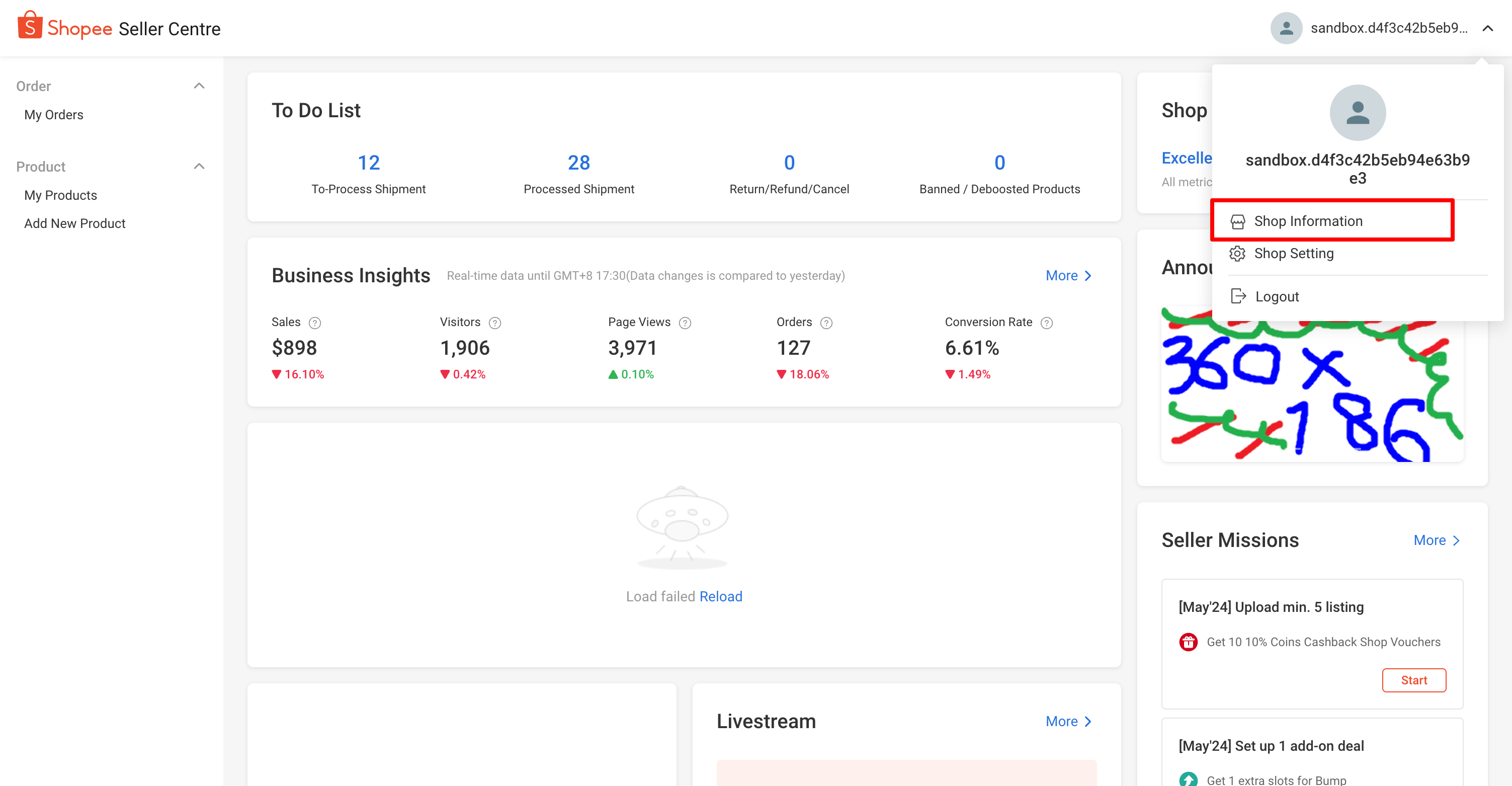
- Locate the profile icon in the top right section and click on “Shop Information” from the drop-down options
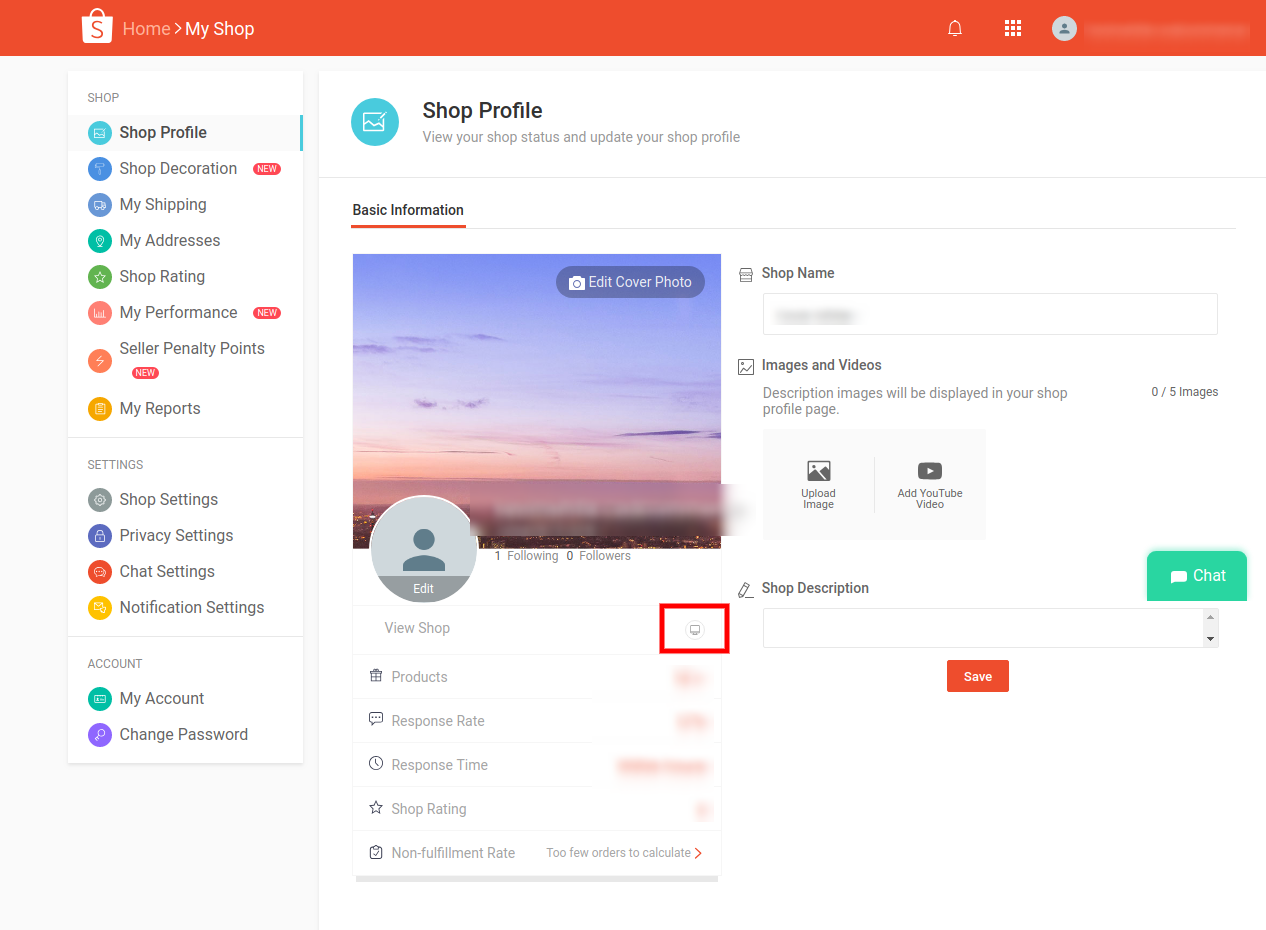
- Look for a section labeled "Shop ID", "Store ID", or similar on the Shop Profile page. The redirect button for getting the Shop ID is often displayed adjacent to the View Shop text, as shown below.
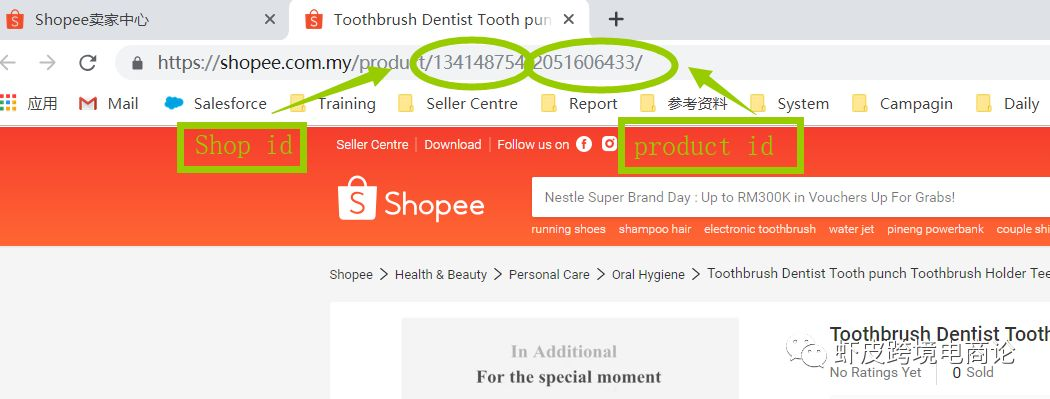
- On clicking this button, you will be redirected to a new page where you will get the Shopee Store ID in the URL as shown in the image below.

- Alternatively, you can open any of your product listings in the Shopee seller centre. The URL which will be created will contain the Shop ID, as shown below.
Note
- Your shop ID is a unique identifier for your Shopee shop and is different from your shop name.
- The shop ID may be needed for certain integrations or when contacting Shopee support.
- Once you have the Shop ID, navigate to the channel configuration section on the Konnect Seller Panel.
- The complete process is explained in depth in Phase 3 of this document.
- On the location activation screen, locate the “Log in to Shopee” CTA under Credentials addition pop-up and click on that.
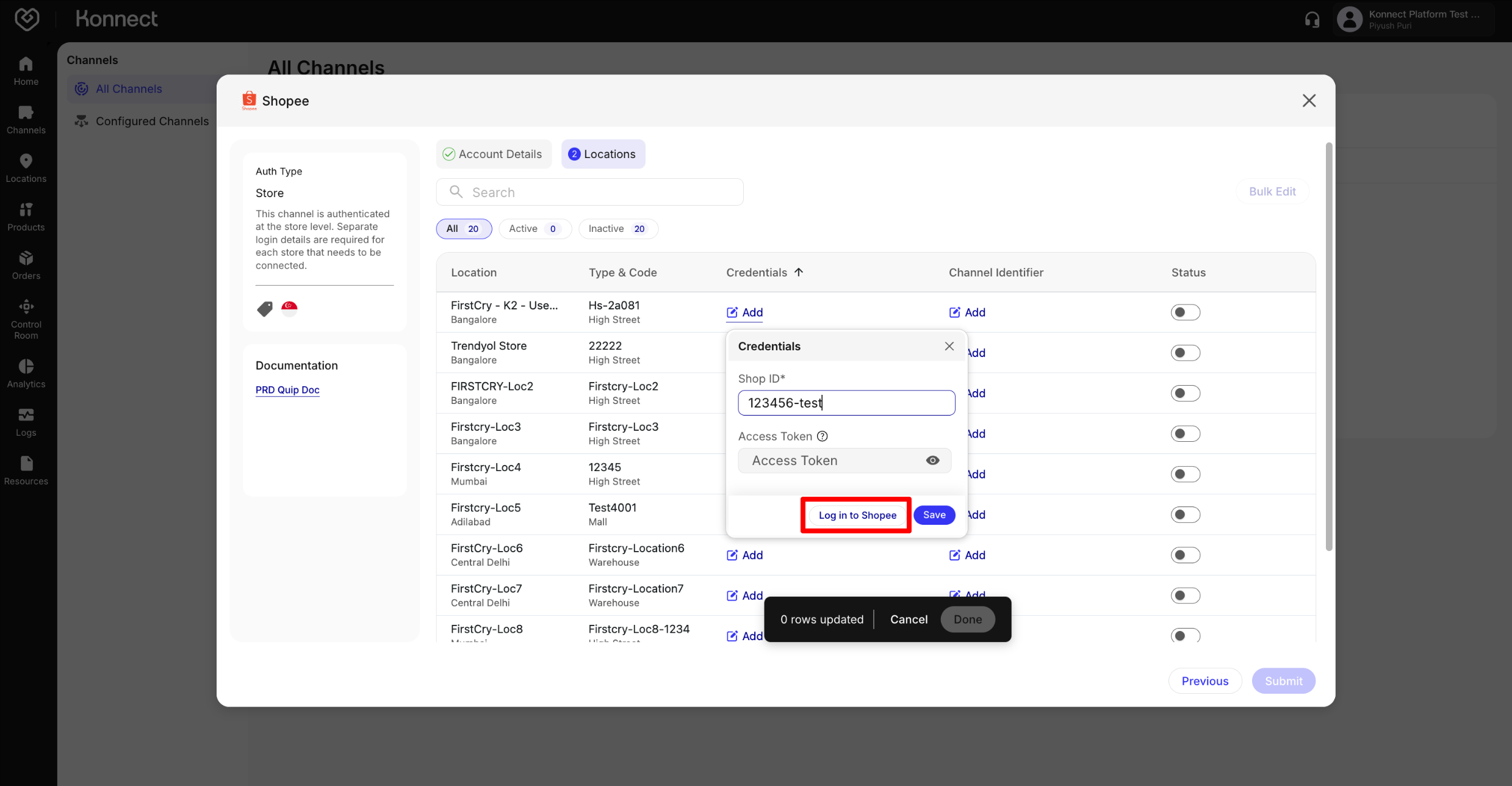
- On click, the entered Shop ID will get authorised for +365 days from the current day and the access token for the shop will get generated. The generated access token will be auto-filled in the field visible in the above screenshot. The Konnect system will auto-map this token via the implemented OAuth flow.
- Click on save once this is done. Add similar Region/Location Code and Shop ID details under the Channel Identifier column as well.
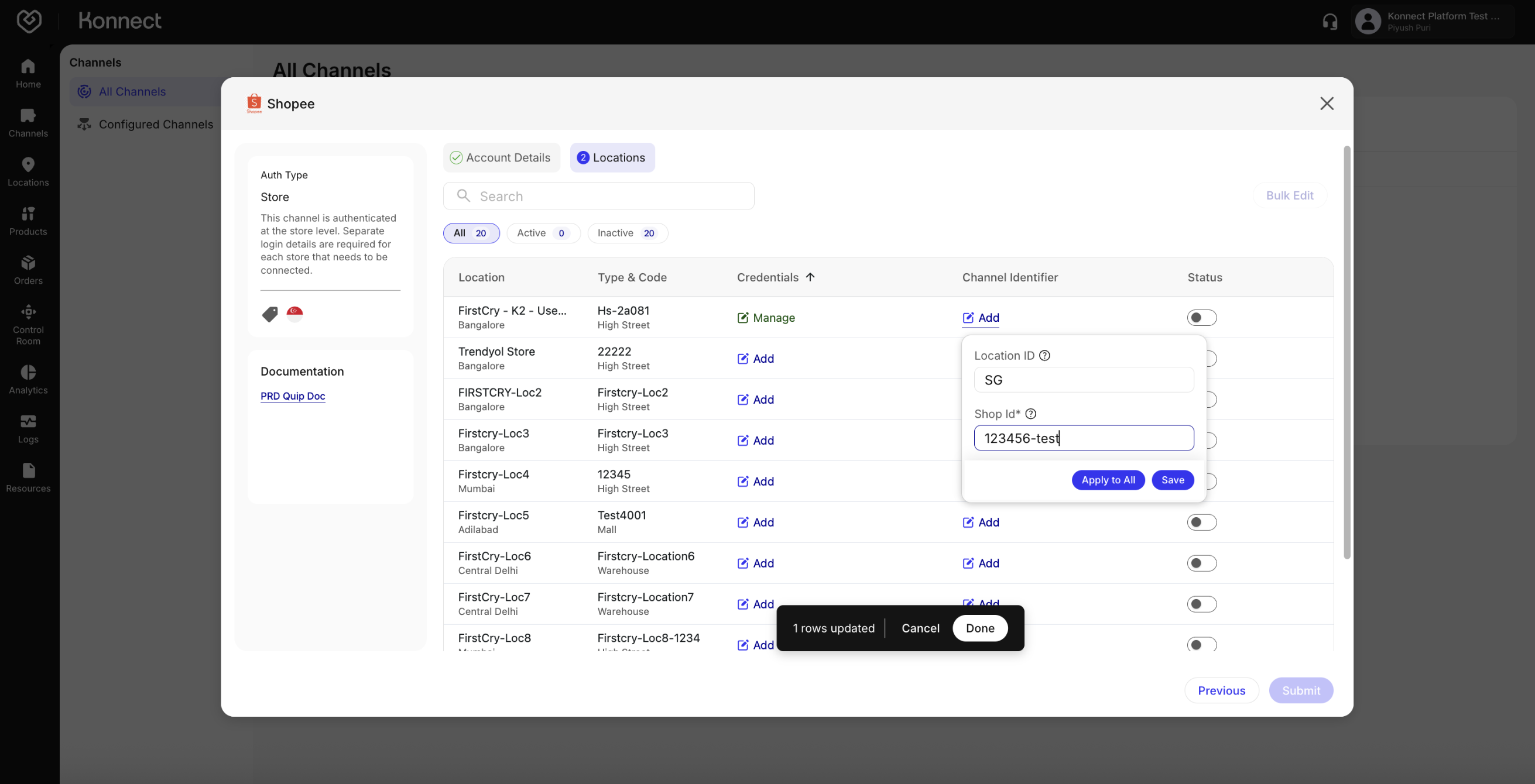
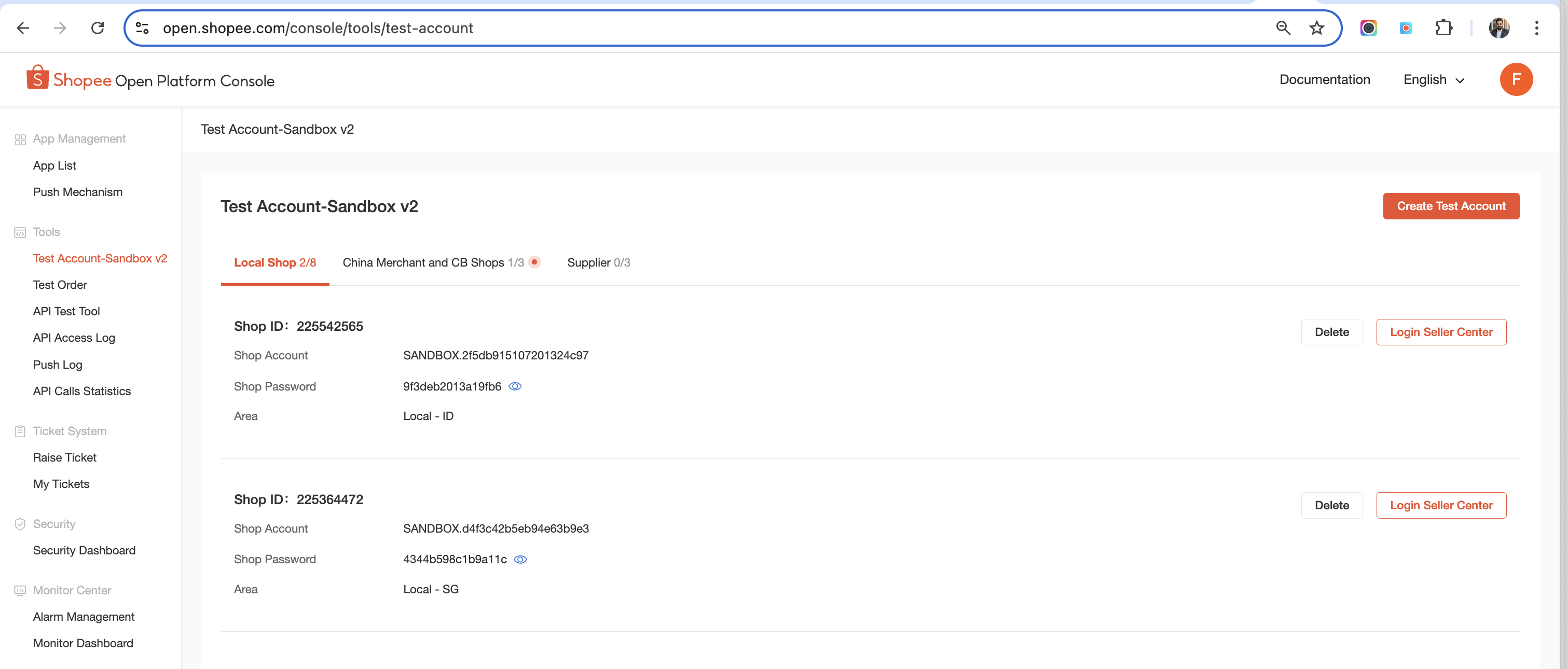
- Once the Shop ID is successfully authorised, the details for the same will become visible on the Shopee Open Platform Console (Developer Platform for Fynd).
- This displays the login credentials for the Shop, the Shop ID and the particular region/location.