With Descripto, our product description extension, you have the flexibility to add descriptions for a single product or perform bulk uploads of multiple products, making it easier to manage your storefront content. With this extension, you can easily generate engaging and informative descriptions for your products, saving you time and effort.
Go to Extensions in Fynd Platform.
Click Descripto.
Once you have installed this extension, it will be available in the list here.
In the next sections, you'll learn to configure the extension to generate descriptions for individual and multiple products.
Choose a product from the list on the screen for which you want to create a description.
Click Generate.
Click Apply to add the description to the product or click Re-Generate to create another version of the description.
For better product descriptions, include name, brand, and category in your catalogue as they are used to generate descriptions based on accurate information. This ensures that your product descriptions are informative, engaging, and tailored to your target audience.
To upload product descriptions for multiple products, follow these steps:
Click Filter products widget.
Apply filters for category and/or brand of the products you want to generate descriptions for.
Click Search. The filtered products will be displayed.
Click Generate All to create descriptions for all the products at once.
Bulk upload descriptions for multiple products by importing their unique identifier (UID) in sample Excel format (xlsx).
Click Import Products widget.
Click Download Sample to download sample format.
Fill in the UID of the products you want to generate descriptions for in the Excel sheet.
You can get the UID of products by going to Commerce panel → Products → All products → Export (Product)
Upload the filled-in Excel sheet. File Summary will appear.
Click Generate to create descriptions for all the listed products.
The upload history feature is not visible for first-time users of the extension. Descriptions will only be generated for products marked as "SUCCESS" during import. Products marked as "ERROR" will not have descriptions generated, and details will be provided along to take corrective action on required attributes to solve the errors.
How to verify if the product description is added/updated:
Go to the dashboard and click on Products.
Select the product you want to verify.
Click Publish to confirm the description if it's added/updated.
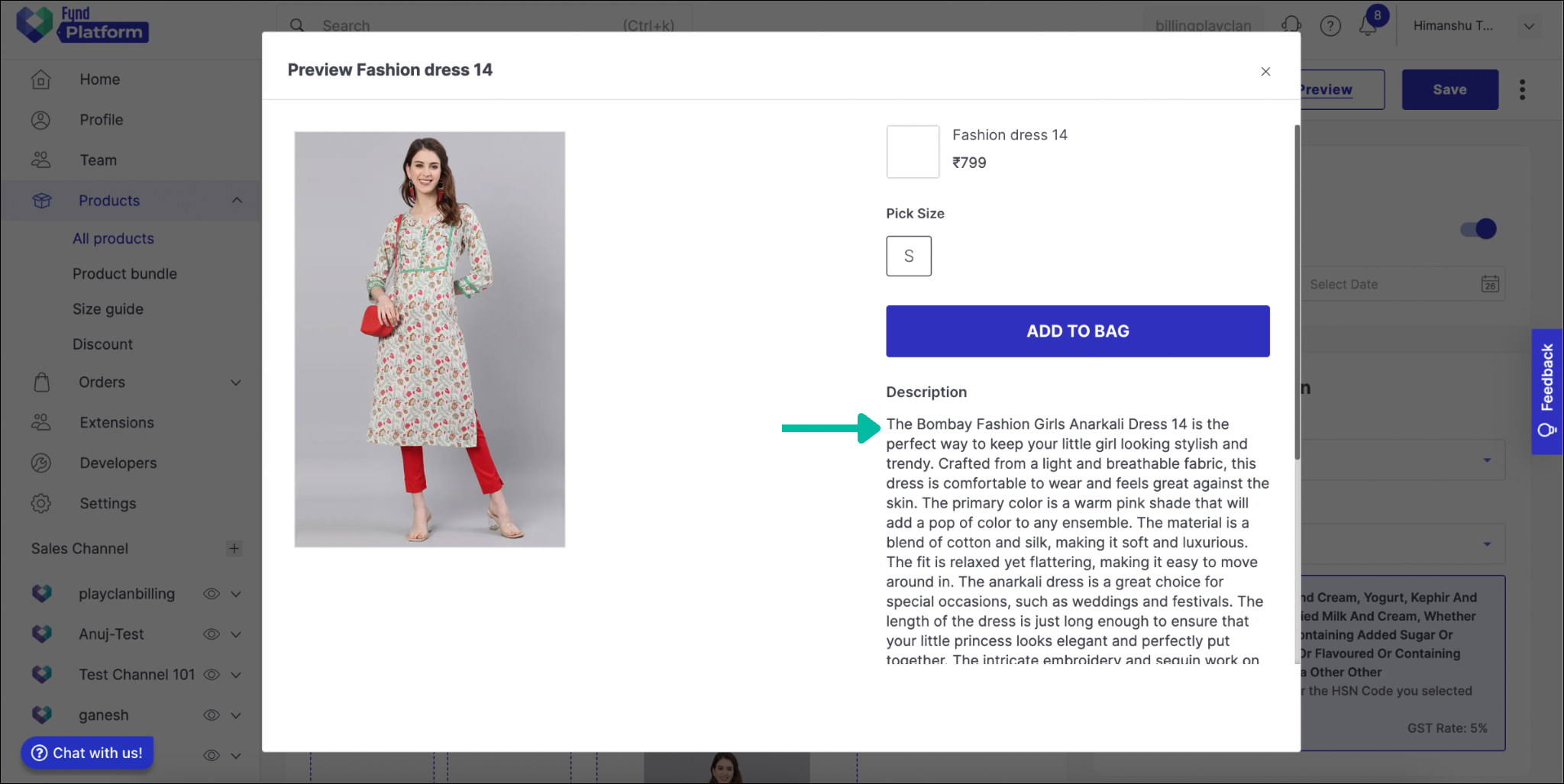
Figure 15: Product Description Preview
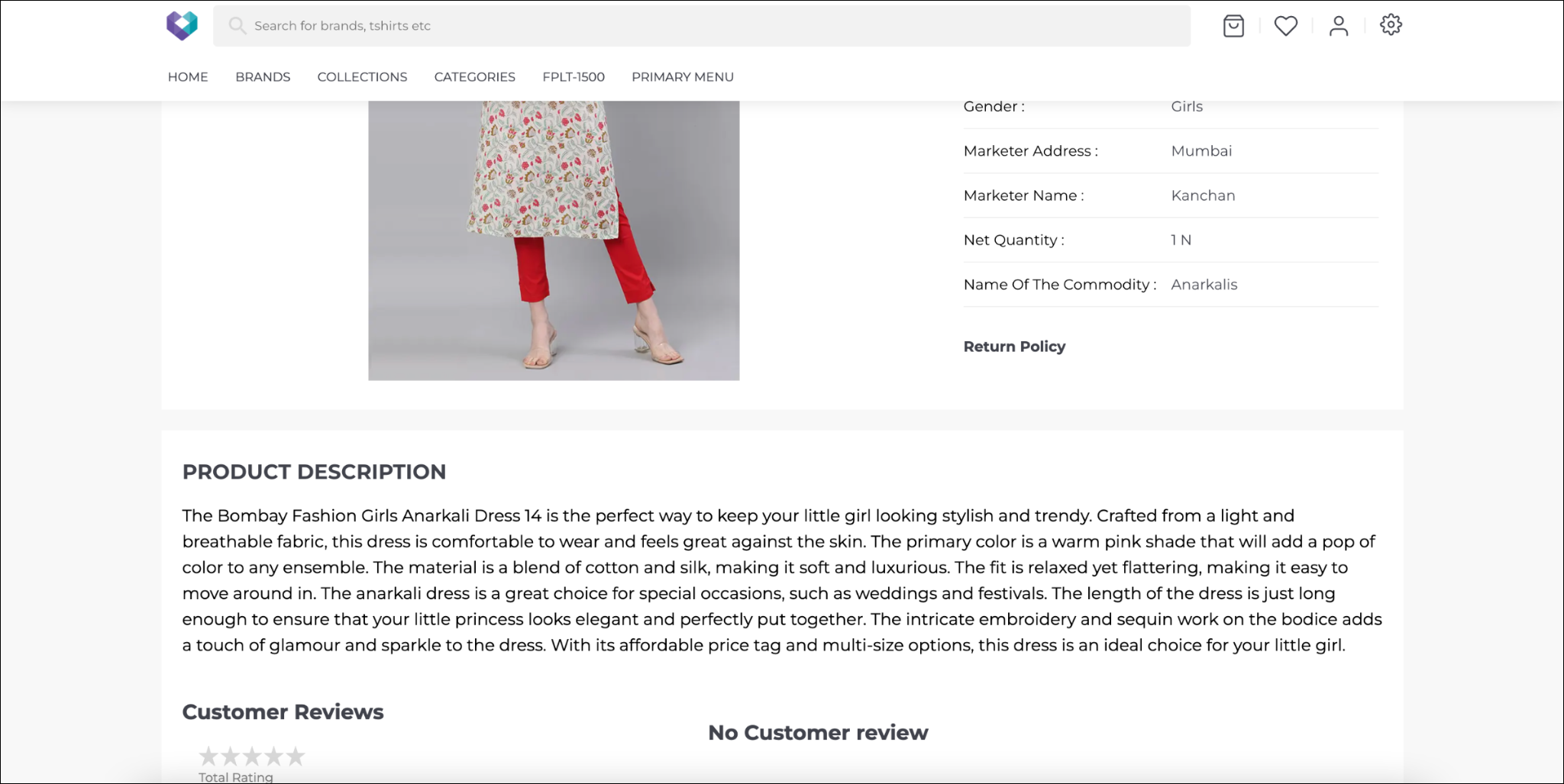
Go to your sales channel website, and check the PDP of the product(s) for which you have generated the description.