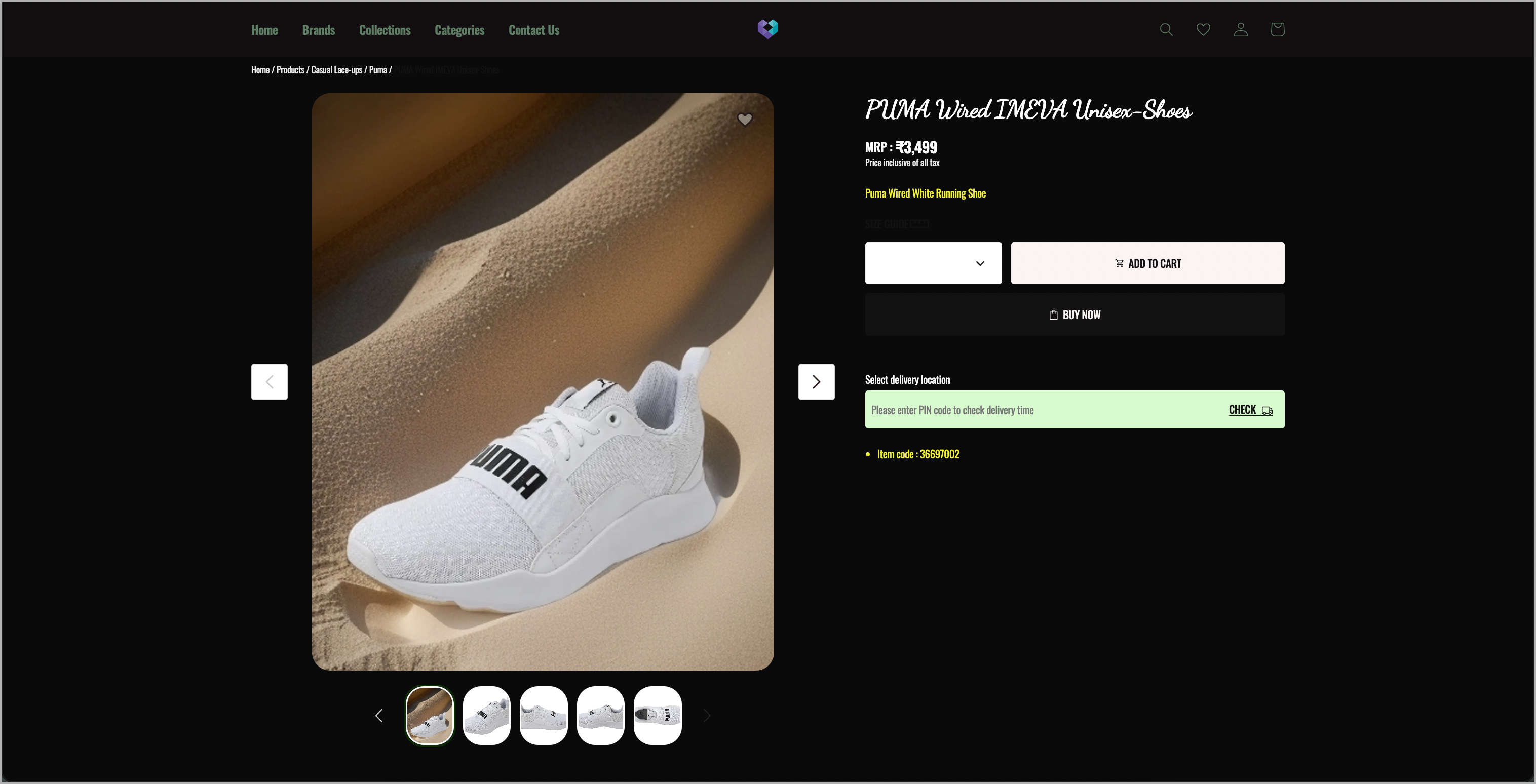
PixelBin AI Image Transformations extension automatically generates high-quality backgrounds for product images. With just a text prompt, you can generate image backgrounds to add to your products and display them on your storefront.
The service offers a free plan with a limited number of credits, and you can upgrade to a paid plan for additional credits to generate more background images for the products.
Generate an API token from your PixelBin account and enter it in the extension's settings to use the PixelBin AI Image Transformation extension. Follow these steps:
Go to pixelBin.io.
Go to Settings section.
Go to Tokens section.
Click Create Token or Create your first Token.
Enter Token name.
Click Create.
Click on the token. Here we are clicking the token which we created, i.e. TestingToken.
Click on the toggle button to enable it.
Copy the API Key.
Click Save.
Go to Extensions in Fynd Platform.
Click PixelBin: AI Image Transformations.
Once you have installed this extension, it will be available in the list
Go to Settings section.
Enter API Token (API Key).
Click Proceed.
Generated tokens can only be enabled or disabled. Editing or modifying the token values is not possible. However, you have the option to delete a generated token whenever needed.
In the following section, you will learn how to use the extension and generate backgrounds.
Click Transform on your desired product.
Enter Background Prompt.
Click Generate. A preview of the transformed image will be displayed.
- Add: Add image to catalogue.
- Replace: Replace current image with the preview.
- Cancel: Cancel the preview.
- Or, click Show Advanced Options for more customisation.
- Enter Background Prompt.
- Select Focus from Product or Background (Default setting: Product).
- Enter Negative Prompt to remove elements from the image.
- Seed (min: 1 and max: 1000): The seed option allows you to give a number between 1 to 1000 as an identifier to the prompt. By using the same seed number, you can generate the same response every time you enter the prompt, otherwise, it may give different responses.
- Click Generate.
You can reorder product images by dragging them left or right, with the left-most image appearing first and the right-most image appearing last in the catalogue. Click Save to save the order.
To use PixelBin's AI background generator for product image backgrounds, credits are required. The free plan includes a limited amount of credits, which can get exhausted. To generate more background images for the products, a paid plan can be purchased from PixelBin to obtain additional credits.