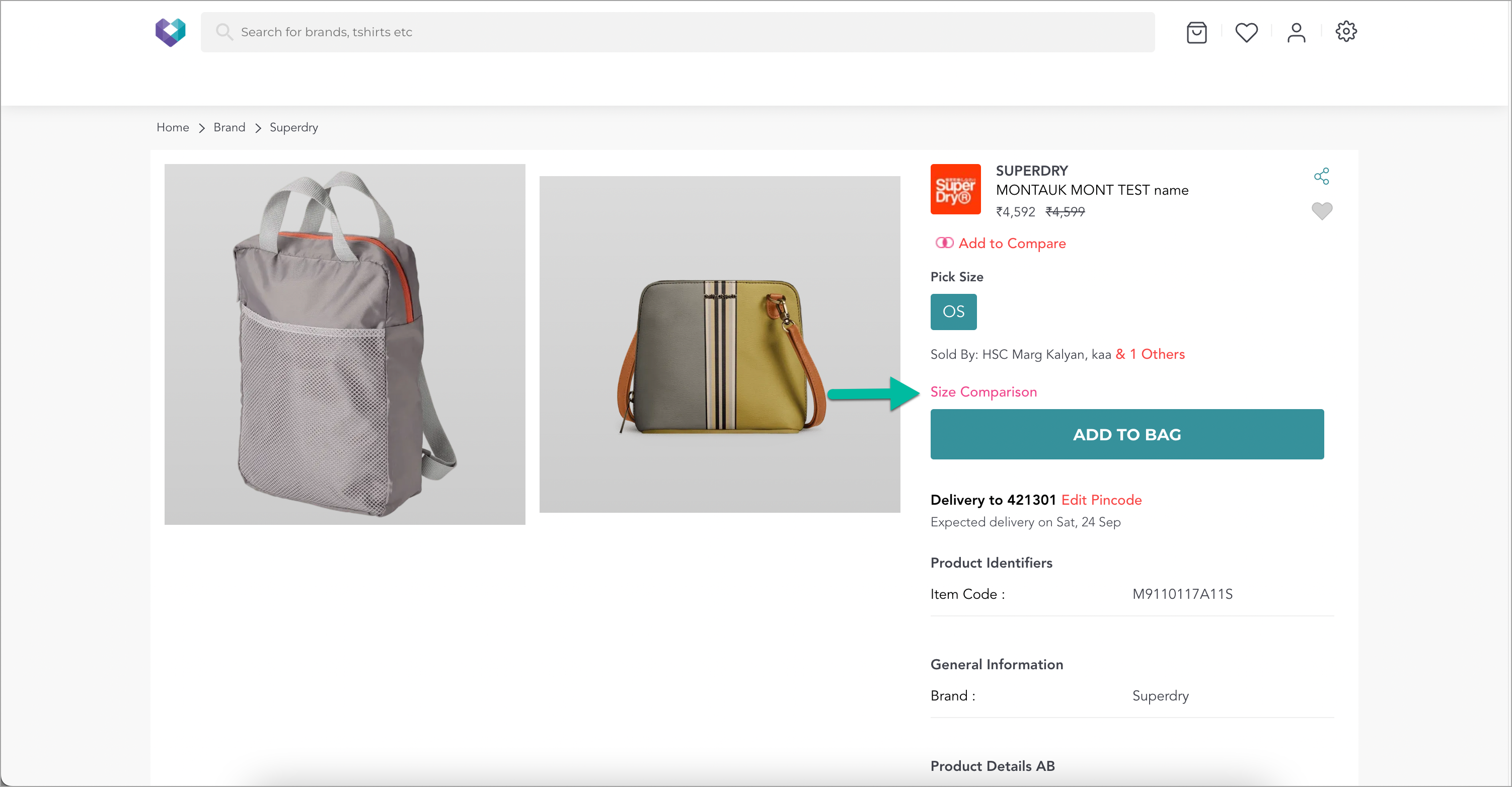
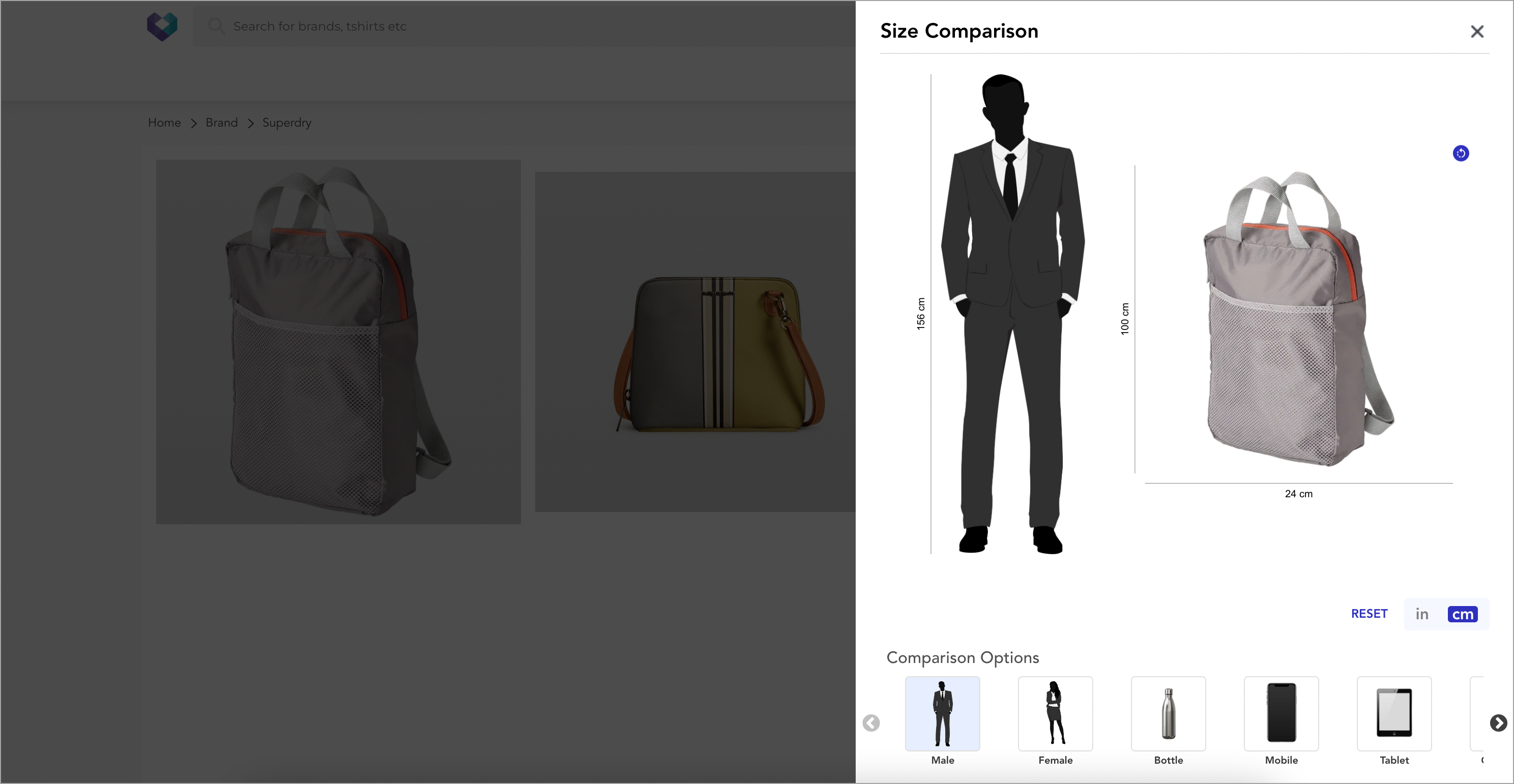
Size Comparison extension helps your customers visualize the dimensions of your products. When customers see that the size is right for them, it is easy to feel reassured. You can use this assurance to sell more. Also, it helps you reduce your returns. When customers use size compare feature on PDP, a panel appears that allows them to compare and even purchase more items from your website.
Go to Extensions in Fynd Platform.
Click Size Comparison extension.
Once you have installed this extension, it will be available in the list here.
Select desired sales channel. Here, we have selected 'testk'.
Click Bulk Upload.
Go to Template.
If you wish to update the existing object comparison group, then please choose 'Existing Group' option.
Click Download File to download the sample file.
Open the sample file.
Fill details of the products to which you want to add size comparison feature.
Item UID - This can be found in exported catalogue of products in Fynd Platform. It is present under column name 'UID' in exported catalogue file. Click here to learn how to export a catalogue in Fynd Platform.
Item Dimensions - Fill in the product dimensions like height, width, and depth in the file correctly. These dimensions are the actual dimensions of the product and not the ones which you entered in the catalogue.
Product Image URL - Enter the image link for the products. The supported file format is PNG or JPEG. Also, product images should have transparent background with edge-to-edge cropping. You can use our free image hosting source PixelBin.io to upload your product images with transparent background.
Enable for Comparison - Keep only those products to which you want to enable size comparison and mark 'TRUE'. In future, if you want to disable size comparison, make sure you mark 'FALSE' for that product in the file.
All fields in the file are mandatory.
Save the file.
Click Select a file to upload the saved file.
Click Proceed.
Enter suitable name to your object comparison group in Group Name field. For e.g., Bags.
Click Create Group.
You will see that 'Bags' group has been created successfully. Its status is INACTIVE initially.
Open the object comparison group that you have created.
Turn ON the toggle button for objects/models that you wish to add in your object comparison group.
Turn ON the toggle button to activate 'Bags' group on PDPs.
Click Save.
In this way, your object comparison group is activated successfully.
Open the object comparison group in which you want to update the details of products.
Click Manage Product.
Click Edit.
Enter the new Width and Height values.
Click Save.
In this way, product details in your object comparison group have been updated successfully.
- Close the Manage Products window.
Deleting the object comparison group will result in the removal of the size comparison feature for all products within it.
Go to kebab menu
⋮of the object comparison group which you wish to delete.Click Delete.
In this way, your object comparison group has been deleted successfully.
Go to Existing Group if you want to update the existing object comparison group for any of the following reasons:
- Enabling size comparison feature for products that have size comparison disabled.
- Disabling size comparison feature for products that have size comparison enabled.
- Updating image URLs.
Click Themes in Appearance section of sales channel on Fynd Platform.
Click Edit.
Select 'Product Description' option from SYSTEM PAGES dropdown.
Choose a random product from the dropdown list.
Click Ok.
Go to Page tab.
Click + sign of desired position in Extension Positions section. Here, we have selected Below Size Component position.
Click Add Extension dropdown.
Select Size Comparison extension from dropdown list.
Click Save.
In this way, Size Comparison extension is added in your website's theme.
- Close the theme window.
It might take up to 10 minutes to view Size Comparison feature. Since these configurations aren't used regularly, the caching duration is active and new changes might take some time to reflect on your website.
Now, visit the sales channel and you will see that Size Comparison feature visible on PDP.