In retail, store staff often need to adjust prices on the spot — for example, when a customer highlights a mismatch between online and in-store prices, or when an associate offers a quick discount to close a sale. The Price Override extension provides this necessary flexibility while ensuring control and governance.
It enables Store OS owners to set discount boundaries, define product-specific rules, and manage role-based permissions. This ensures staff can handle exceptions effectively without risking revenue leakage, misuse, or inconsistent customer experiences, maintaining compliance and consistent pricing across all sales channels.
Go to Extensions in the sales channel.
Open the Price Override extension.
Once the extension is installed, it appears in your Extensions list.
Activate Extension → Set Threshold Limits → Add Rules → Apply Discounts via POS
If the extension is inactive for a sales channel:
Go to the Sales Channel section.
Toggle the inactive switch at the top-right corner to Active.
In the confirmation modal, select Activate.
The extension becomes active for the selected channel (e.g. Store OS, Dev Testing).
Set boundaries for how much store staff can change the product price. These can be applied globally or for individual products.
Toggle the At Cart Level switch to enable.
Choose one of the following:
No Limit: No restriction on price edits.
Set Maximum Discount: Specify:
Percentage (%) – Discount allowed in percentage (0–100).
Maximum Discount (₹) – The upper limit in currency.
Example: A 10% discount with a ₹200 cap means the max discount on cart subtotal is the lesser of the two.
- Click Apply to save the cart discount rule.
Toggle the At Global Level switch to enable.
Choose one of the following:
No Limit: No restriction on price edits.
Set Maximum Discount: Specify:
Percentage (%) – Discount allowed in percentage (0–100).
Maximum Discount (₹) – The upper limit in currency.
Example: A 25% discount with a ₹100 cap means the max discount on any product is the lesser of the two.
- Click Apply to save the global discount rule.
You can override global limits by defining rules for specific products.
In the At Product Specific section, select Add Rule.
Enter the following:
- Rule Name
- Rule ID (auto-generated)
- Percentage Discount (%)
- Maximum Discount (₹)
Example: A rule for “Black Shirts” with 25% discount and ₹100 cap applies only to that product.
Click Add to save the rule.
Once added, the rule appears with options to Edit or Delete.
These product-specific rules override the global discount configuration.
You can configure a list of valid reasons for which store staff are allowed to override a product’s price. This helps maintain transparency and consistency in pricing decisions at the point of sale.
View the default reasons, such as:
Wrong price shown in system
Match price from another channel
Damaged
Other Reason
Employee Purchase
Each reason includes a toggle to activate or deactivate it.
Use the toggle switch beside each reason to enable or disable it as required.
Select Apply to save changes.
Select Add New Reason.
In the Add Reason panel, enter the reason (up to 50 characters) in the Specify Reason field.
Click Submit.
Once added, the new reason appears in the list and is enabled by default. You can choose to Edit or Delete the reason, or disable it via the toggle switch.
Example: Add a custom reason like Employee Purchase to be used when discounts are applied to staff orders.
Use this section to assign discount rules to individual products, ensuring the correct price override policy applies at the time of billing. You can assign rules to products manually or in bulk via upload.
Select Configure Products from the Features section.
In the All Products tab, search for items using the product name, item code, or seller identifier.
Optionally filter by Brand or Category using the dropdown menus.
Select the checkboxes beside one or more products you want to assign a rule to.
Click Continue.
Example: You select RECTANGULAR SUNGLASSES and NexusTshirt (multiple sizes) for rule assignment.
In the Select Rule screen, choose from the list of pre-created rules.
Each rule shows:
- Rule name
- Rule ID (e.g.
product_25_100) - Percentage Discount (%) (e.g.
25%) - Maximum Discount (₹) (e.g.
₹100)
- Select a rule and click Apply Rule to X Products.
Result: In the All Products list, the Assigned To Rule column will now show the rule name for the relevant products.
Use this option to assign rules to multiple products efficiently using an Excel template.
Go to the Bulk Upload tab.
Select Download Template.
In the Bulk Upload sheet, fill in:
| Column | Description | Example |
|---|---|---|
| Seller Identifier | Unique code of the product in your system | ITEM2015 |
| Rule ID | Identifier of the rule you want to apply | product_25_100 |
Maximum 500 rows allowed, no duplicates.
Ensure that the Rule ID exists in your system. Refer to the Available Rules sheet.
- Drag and drop the filled
.xlsxor.xlsfile.
File must be under 5MB and contain no more than 500 rows.
Track upload status and fix any issues.
| Status | Meaning |
|---|---|
| Completed | All rows were successfully processed. |
| Partial | Some rows succeeded; others failed (e.g. due to invalid Rule ID). |
| Failed | None of the rows were processed. |
Click the download icon:
The file will get you:
- Full Report – All records with success and error details.
- Failed Only – Rows that failed, with row numbers for easy correction.
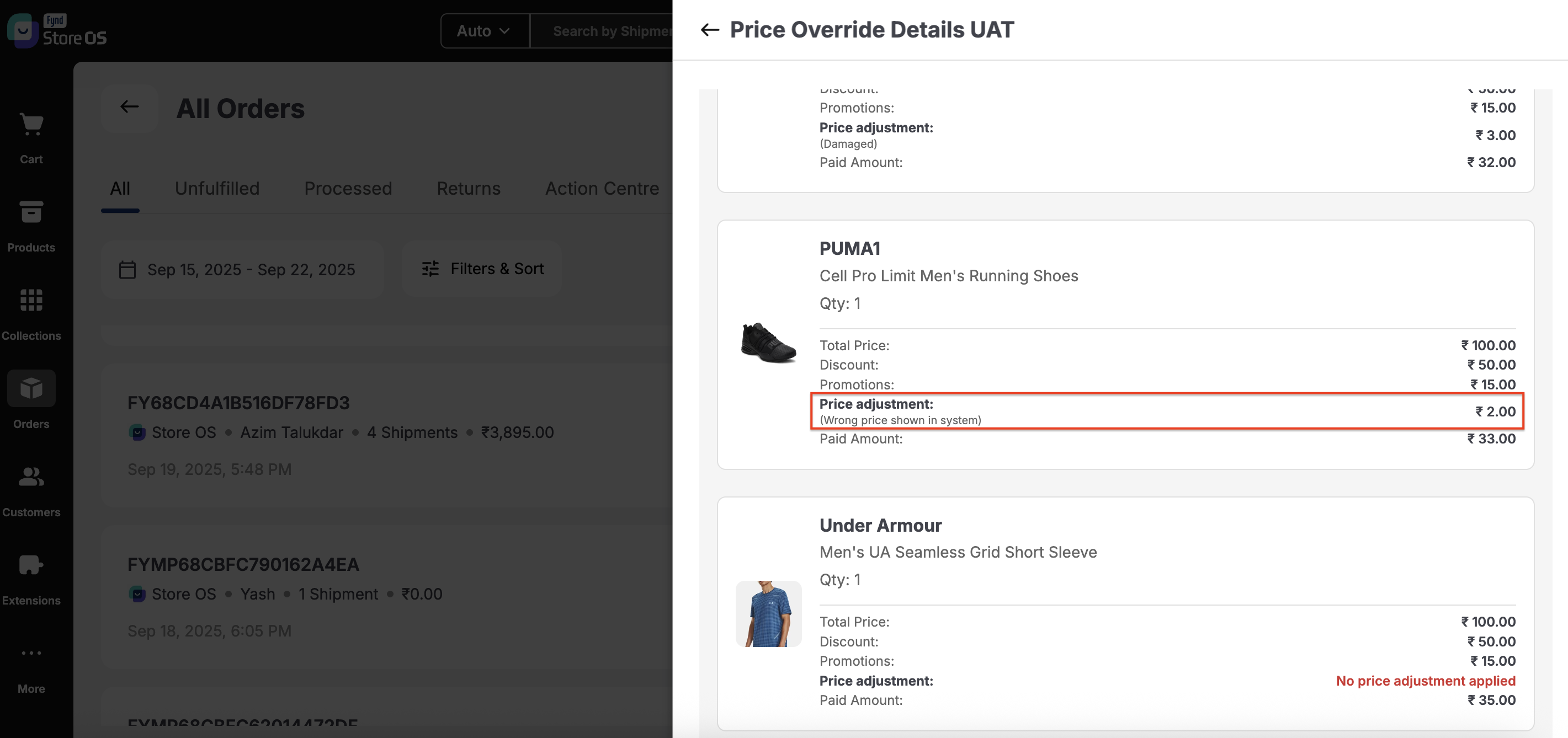
In Store OS, when you override the price of a product, the details of that price override can be viewed under the ‘All Orders’ tab within each shipment or order, depending on the product whose price was adjusted. The image reference below shows orders where prices were adjusted using the extension—the adjusted amount appears as a price adjustment, along with the reason displayed beneath the adjustment. The final price paid is also shown below.