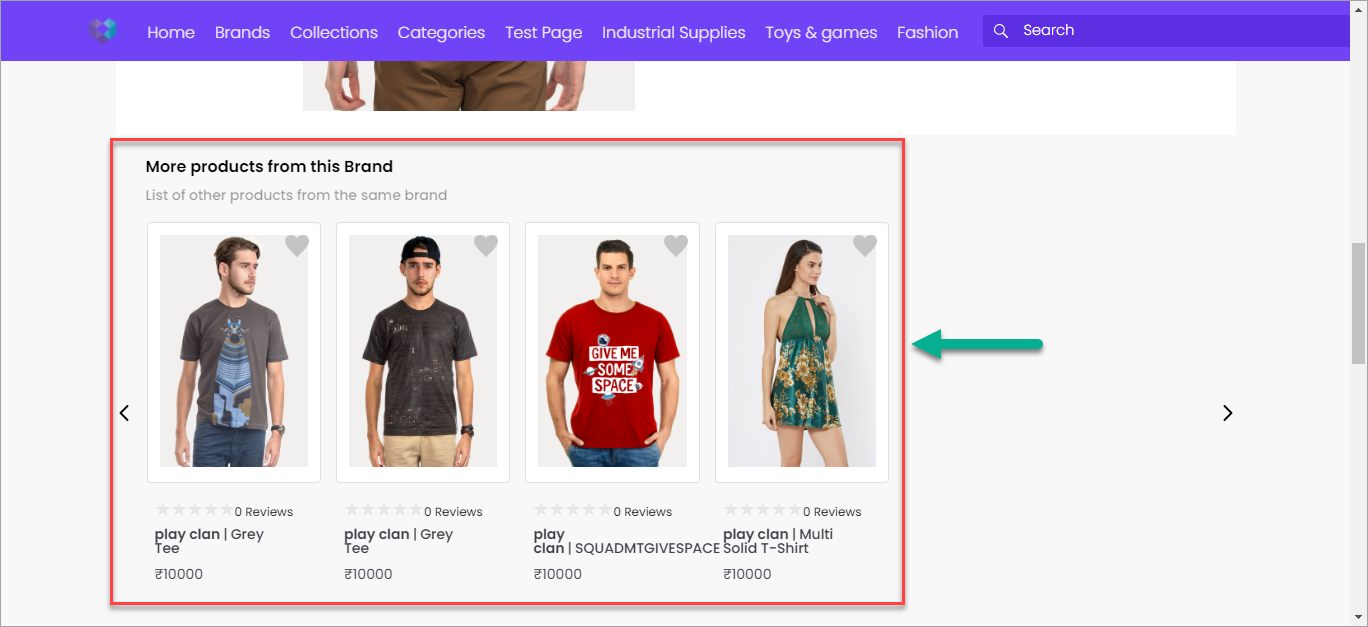
This extension allows you to enable and configure different product recommendations on your sales channel with a live preview. You can enable this extension in the theme. Ultimately, it will help you sell more products on your website.
Once you have installed this extension, it will be available in the Extensions section on Fynd Platform.
- Click sales channel widget. Here, we have selected Fuschia Vine Designs.
Catalogue data will be fetched automatically through synchronzation. Please wait until its status changes from Sync in Progress to Sync Completed.
Click the type of widget you wish to add to your sales channel. Let us select Brand.
Click Product Page checkbox.
Click Configure Pages.
Click Configure.
Let us configure extension settings.
- Widget Settings
- Product Image
- Product Card Layout
- Product Card Style
- Wishlist Icon
- Discount Label
- Reviews and Ratings
- Price
- Product & Brand Title
- Product Highlights
- Header Title - Provide a suitable heading that explains what this widget is displaying to the customer. For e.g., 'More products from this Brand'.
- Header SubTitle - Provide a subtitle that compels the customers into purchasing. For e.g., 'These stocks are getting over soon. You may not want to miss!'.
- Brand Icon - Upload icon of your brand.
- Max. number of products - Enter the maximum number of products that can be shown within the widget.
- Title Colour - Set a colour for the title text by using the colour picker or entering its hex value.
- SubTitle Colour - Set a colour for the subtitle text by using the colour picker or entering its hex value.
- Save - Upon clicking this button, your widget settings will be saved.
- Image Height - Enter the height of the product image in pixels. For e.g., 230.
- Scale to maximum to fit the area - Enable this to autosize the product image to fit into the available area.
- Save - Upon clicking this button, your product image settings will be saved.
Choose a suitable layout from the available options and click Save.
- Border Radius - Set an appropriate radius (in pixels) for the border corners.
- Background Colour - Set a colour for the background by using the colour picker or entering its hex value.
- Padding - Set the padding inside product card (in pixels).
- Box Shadow - Enable/Disable shadow around product card.
- Save - Upon clicking this button, your product card style settings will be saved.
- Enable/Disable - Show or hide the icon that customers use to add a product to their wishlist.
- Icon Colour - Set a colour for the wishlist icon by using the colour picker or entering its hex value.
- Save - Upon clicking this button, your wishlist icon settings will be saved.
- Enable/Disable - Show or hide the price difference between the cost price and selling price.
- Font Size - Set an appropriate size of the text (in pixels).
- Font Colour - Set a font colour by using the colour picker or entering its hex value.
- Background Colour - Set a background colour by using the colour picker or entering its hex value.
- Position - Set a position of discount label in a product card.
- Save - Upon clicking this button, your discount label settings will be saved.
- Show Stars - Show or hide the ratings received by the product from its customers.
- Star Colour - Set a colour for the ratings by using the colour picker or entering its hex value.
- Review Count - Show or hide the number of reviews received by the product from its customers.
- Save - Upon clicking this button, your reviews and ratings settings will be saved.
- Enable/Disable - Show or hide the prices within the widget.
- Font Size - Set an appropriate size of the text (in pixels) used for showing the price.
- Font Colour - Set a colour for showing the prices by using the colour picker or entering its hex value.
- Layout - Choose suitable layout to display original price and selling price within the widget.
- Save - Upon clicking this button, your price settings will be saved.
- Font Size - Set an appropriate font size (in pixels) for the titles.
- Font Colour - Set a colour for the titles by using the colour picker or entering its hex value.
- Text Truncate Limit - Set the maximum number of characters beyond which the title will be trimmed.
- Brand Name - Show or hide the brand name within the widget.
- Layout - Choose whether to display brand and product name 'side by side' or 'one below the other'.
- Save - Upon clicking this button, your product & brand title settings will be saved.
- Show Product Highlights - Show or hide highlights of a product.
- Font Size - Set an appropriate font size (in pixels) for the highlights.
- Font Colour - Set a colour for the highlights text by using the colour picker or entering its hex value.
- Highlight Count - Set the maximum number of highlights to be shown within the widget.
- Margin-top (in pixels) - Set an appropriate margin (in pixels) to be added between highlights.
- Show Bottom Border - Show or hide the border line below highlights.
- Save - Upon clicking this button, your product highlights settings will be saved.
In this way, the count of configured pages is reflected on the 'Brand' widget. It ensures that the product recommendations are saved successfully. Now, it is time to enable the extension in the theme.
Click Themes in Appearance section of sales channel on Fynd Platform.
Click Edit.
Select Product Description from SYSTEM PAGES dropdown.
Choose a random product from the dropdown list.
Click OK.
Go to Page section.
Select desired position for extension in Extension Positions section. Here, we have selected 'Bottom Of Product Description'.
Choose Product Recommendation from the dropdown present in Extension field.
Choose Brand from the dropdown present in Wrapper field.
Click Save.
Now, visit the sales channel and you will see that the product recommendations visible on your website.