Configure the name, logo, order and banner of the brands.
Commerce Panel → Sales Channel (select application) → Products → Brands
On your website, go to the Brands page.
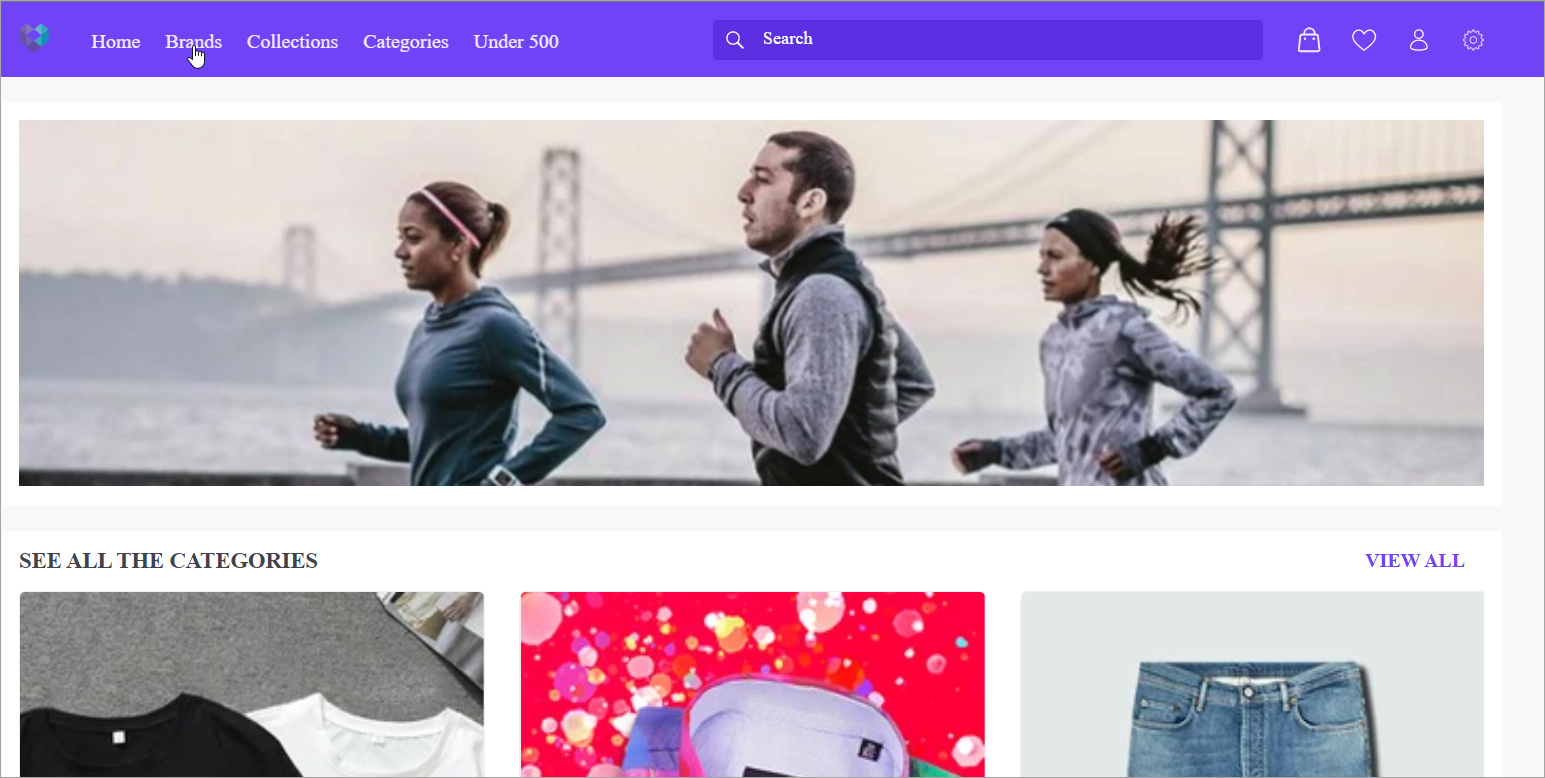
Figure 1: Home Page You'll see a list of all the brands whose products are being sold on your website.
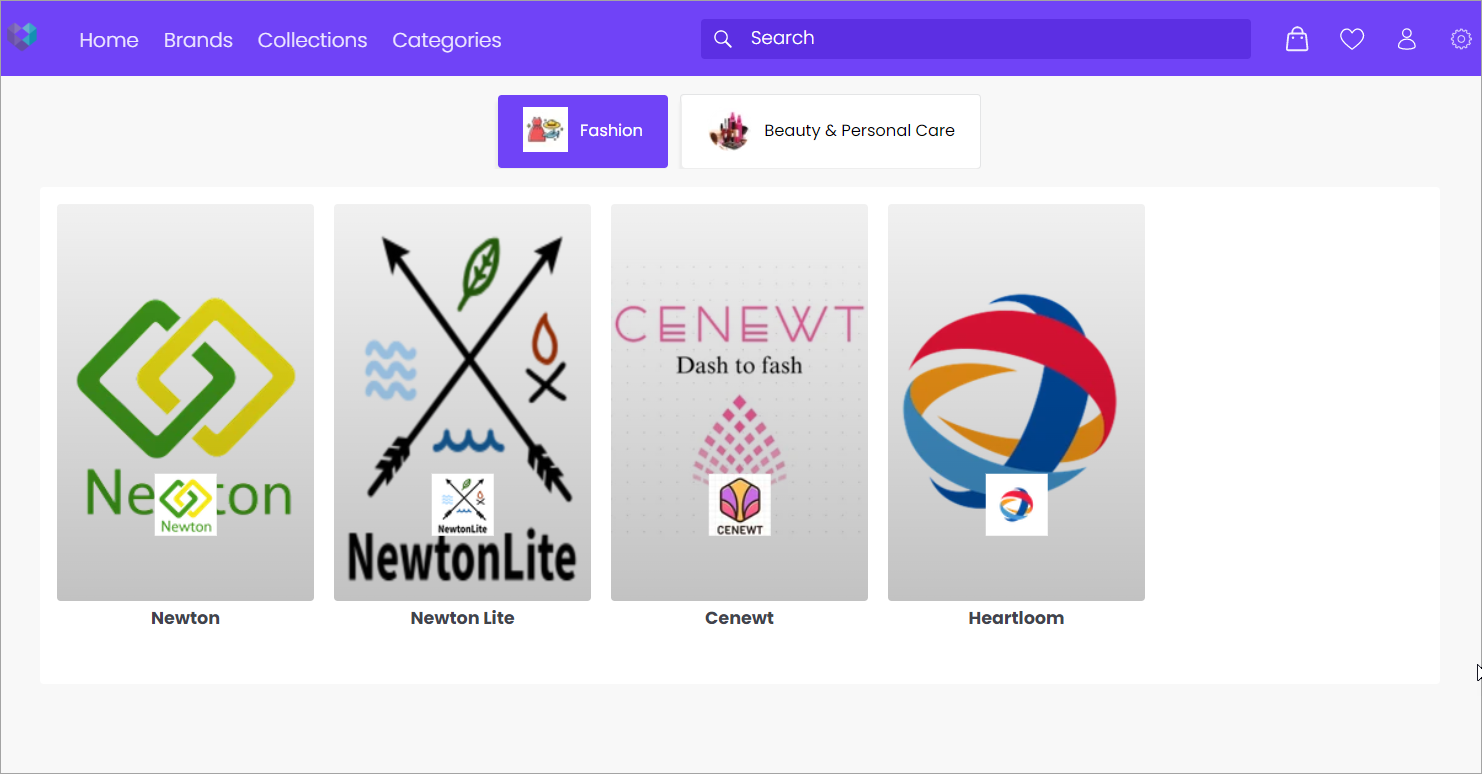
Figure 2: Brands You can change the name, logo, portrait image, landscape image and the sequence in which these brands appear.
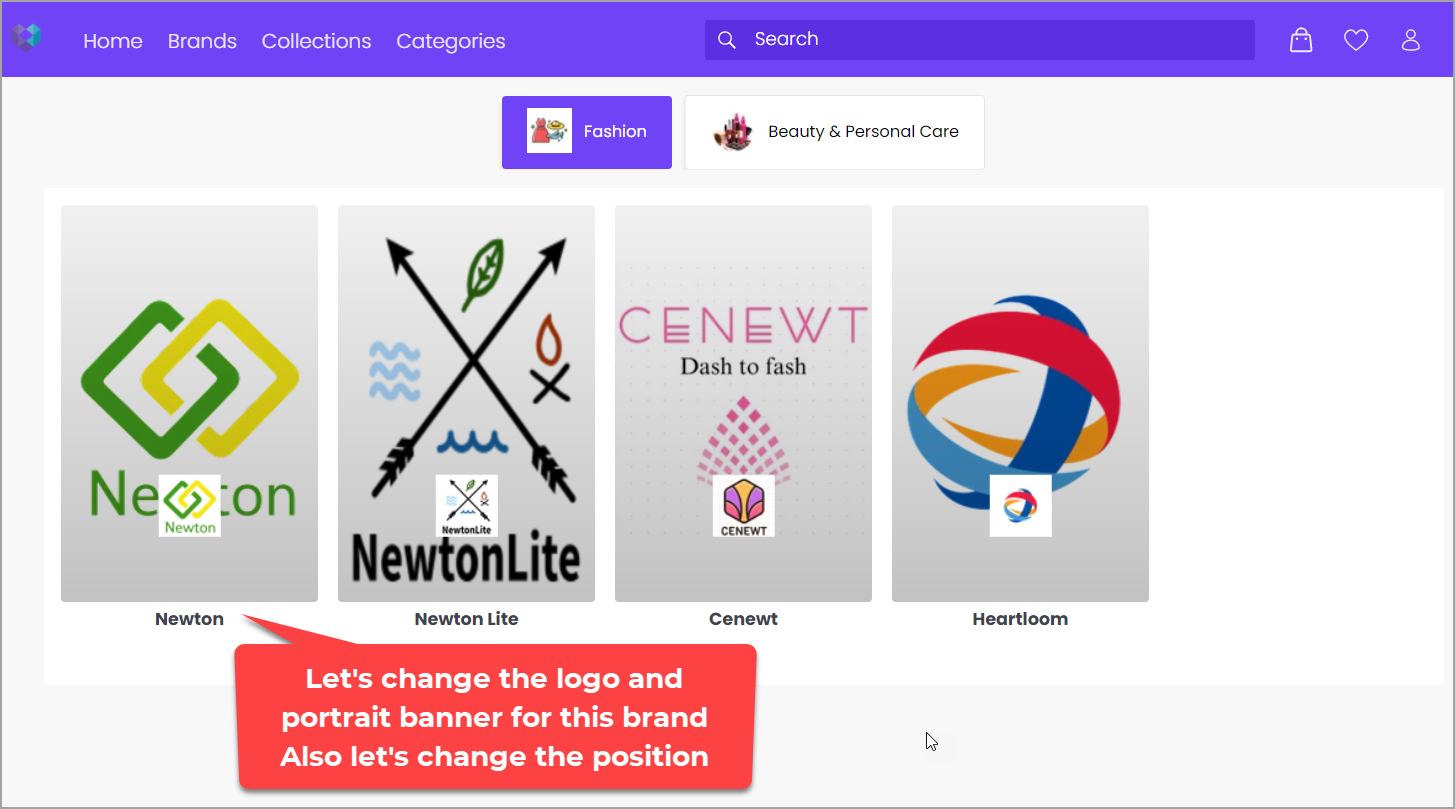
Figure 3: Updating Brand Details Select the brand you want to customize.
Let's change the logo of the brand.
Delete the existing logo.
This is not a permanent deletion because the logo is saved in the image gallery.
Click on 'Select file'.
Select an image file from your local system.
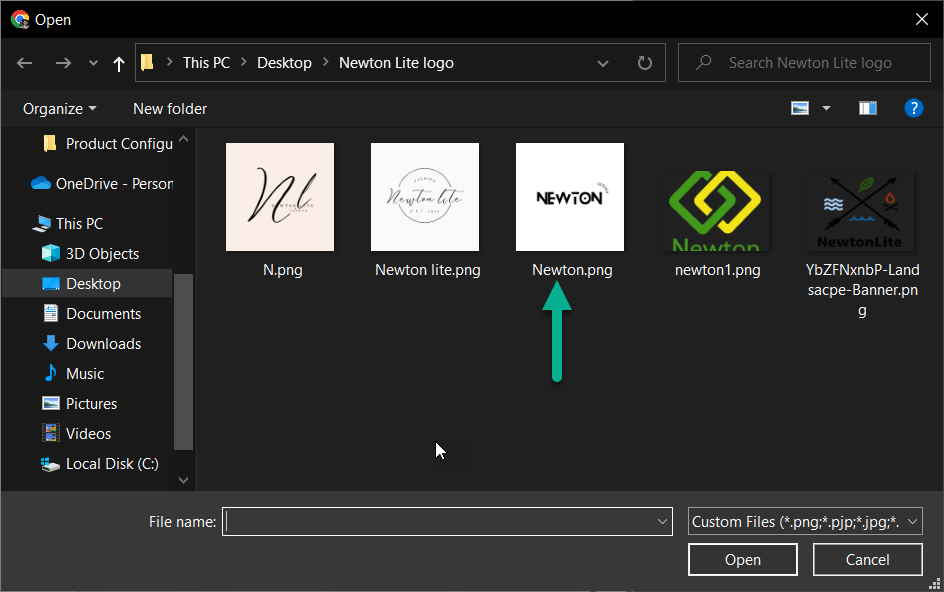
Figure 9: Local Image Upload the file.
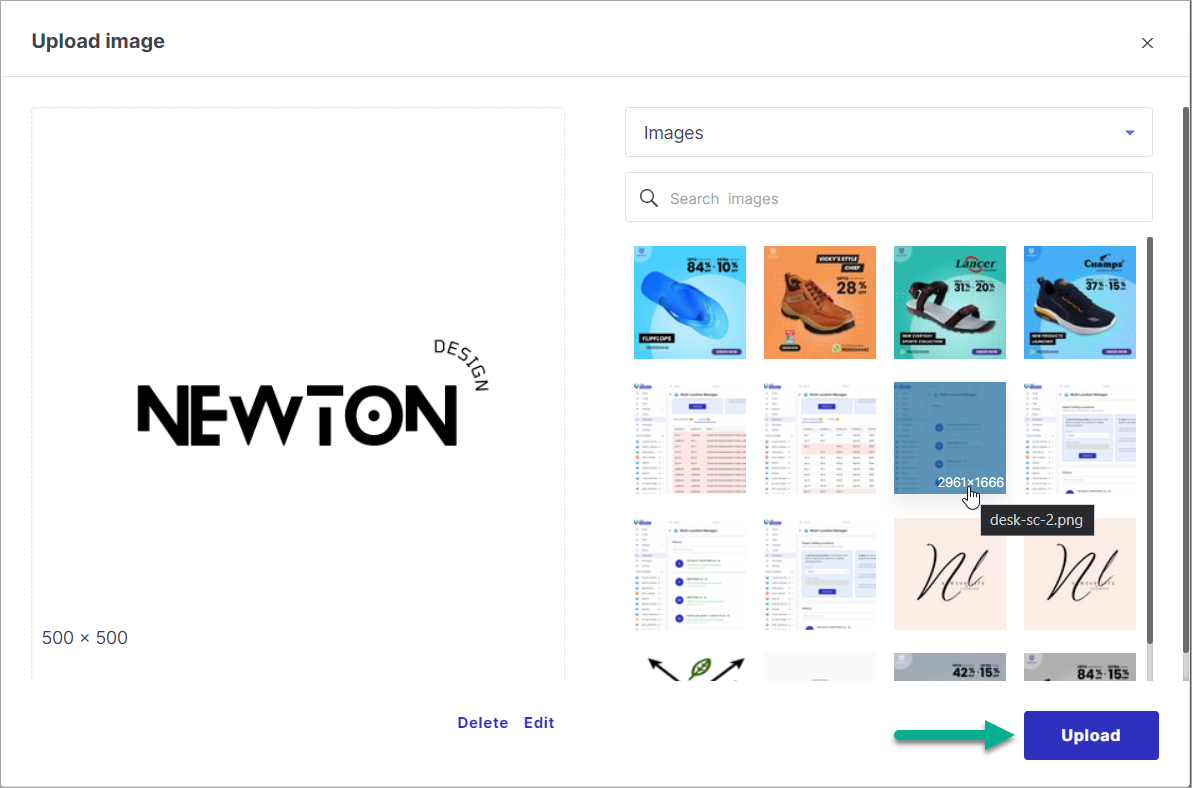
Figure 10: Upload Image Select the file to use it as a logo.
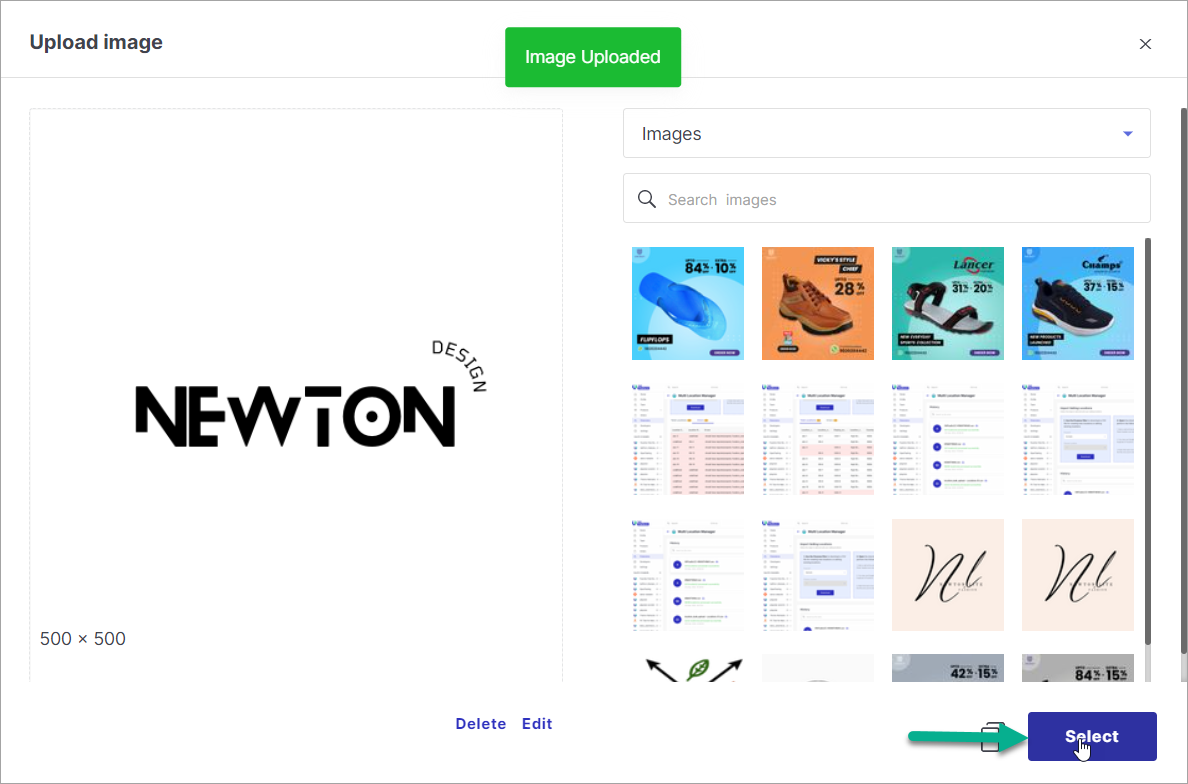
Figure 11: Select Image Let's change the portrait image of the brand. The procedure is similar to that of the logo as seen above.
Click on 'Select file'.
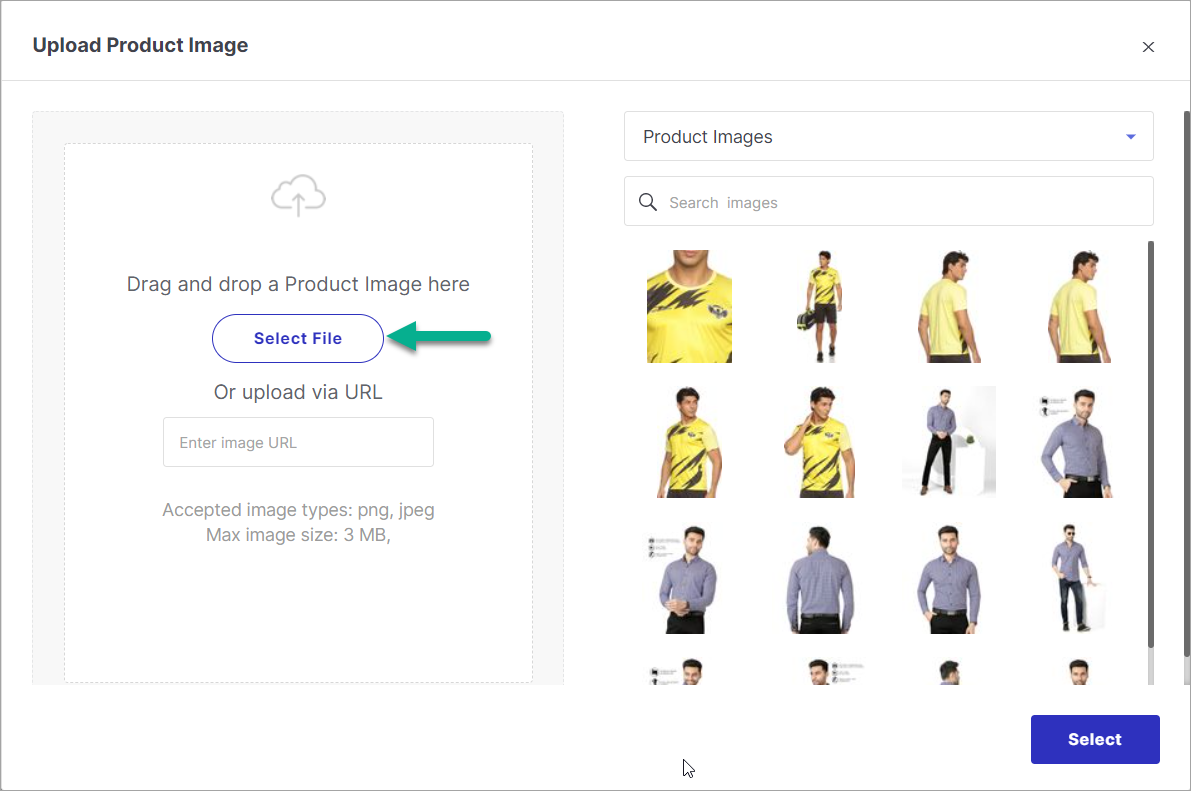
Figure 13: Select File Select an image file from your local system.
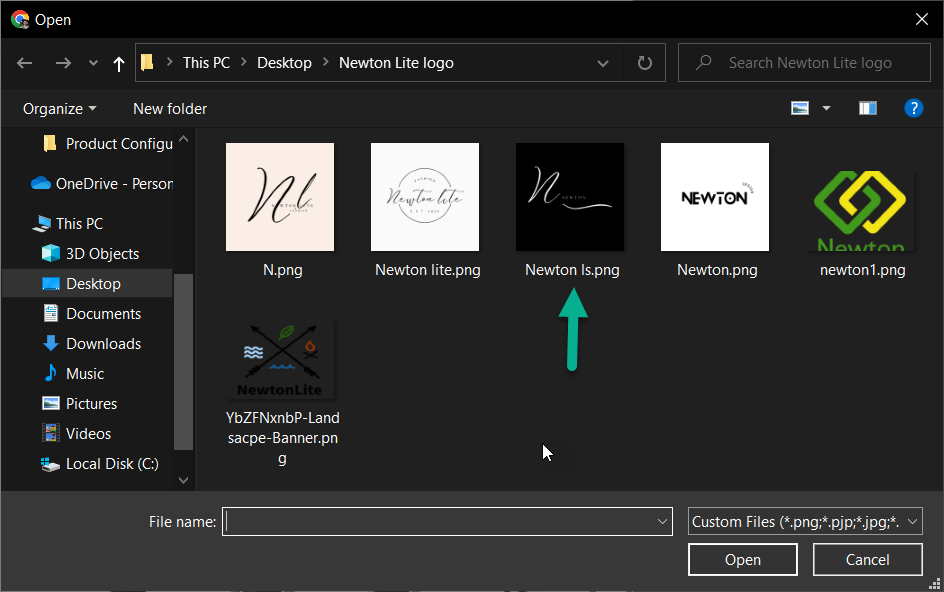
Figure 14: Local Image Upload the file.
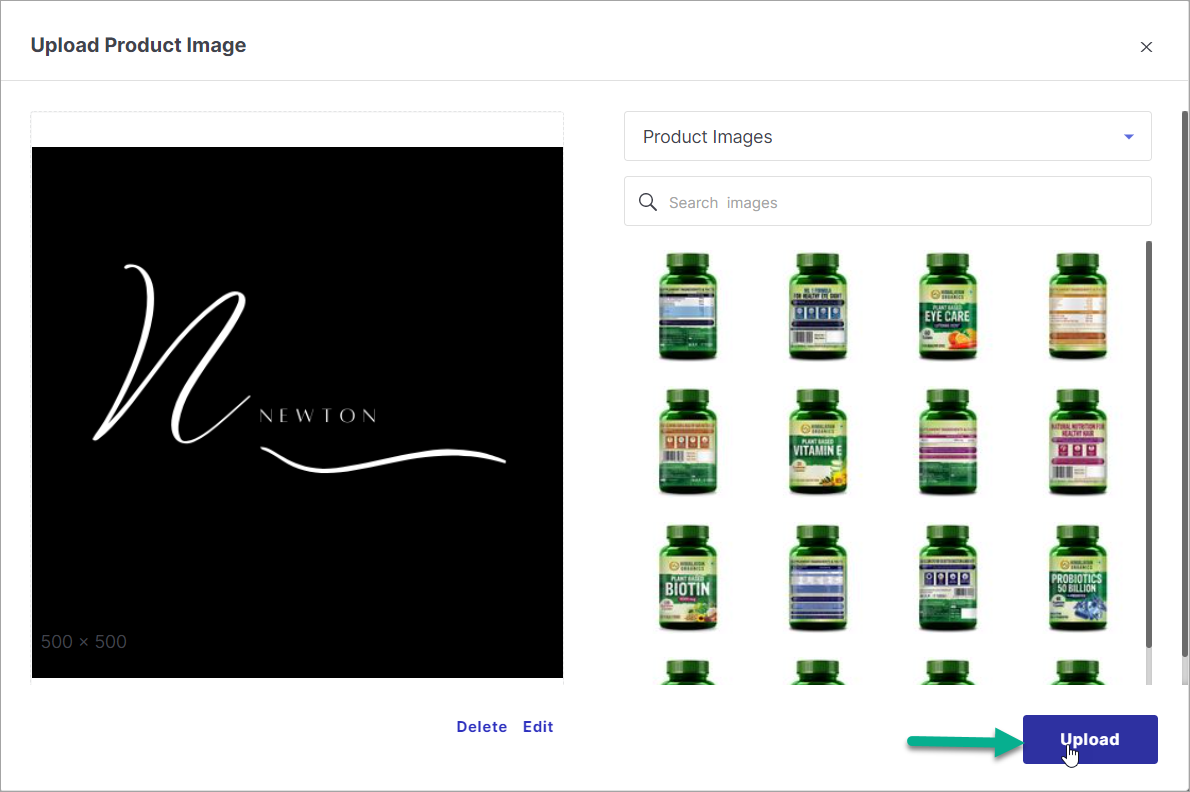
Figure 15: Upload Image Select the file to use it as a portrait image. Similarly, you can change the landscape image if needed.
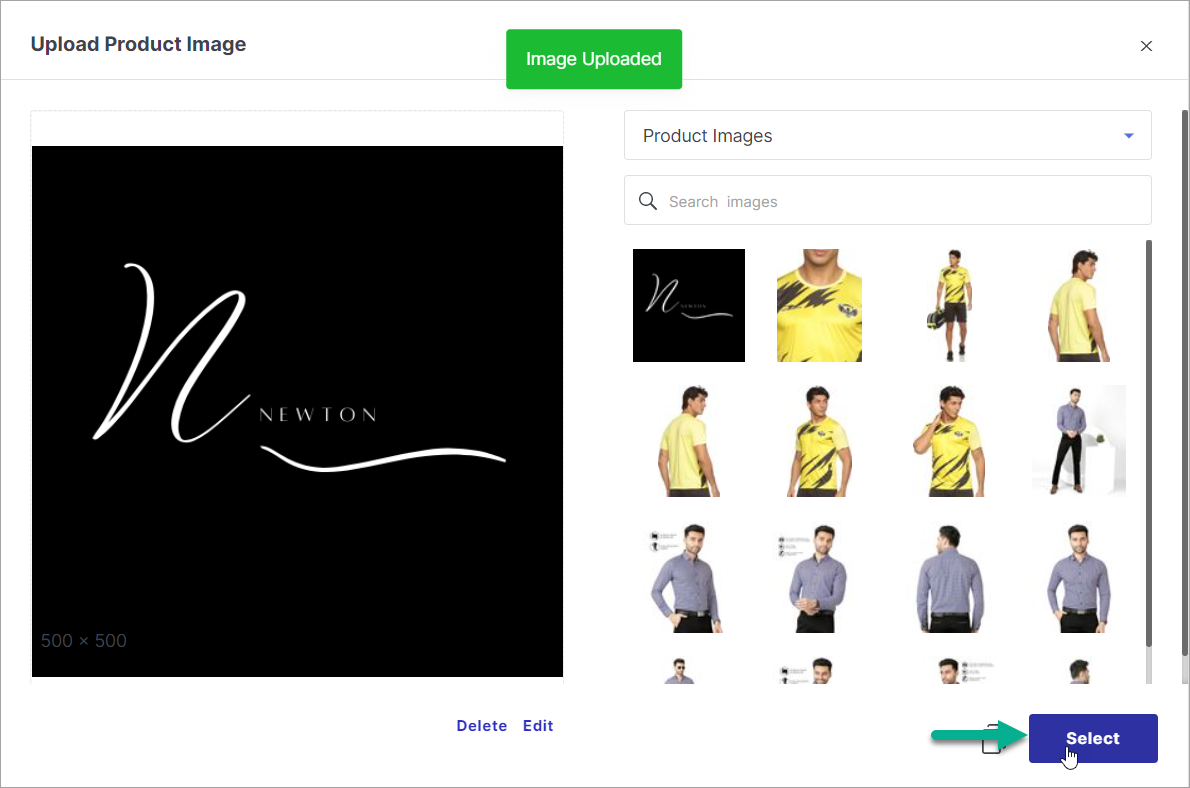
Figure 16: Select Image You can change the sequence of the brand. Use drag-and-drop or use the 'Move to Position' field and enter the desired position e.g. 1.
You can change the display label of an existing brand if needed.
Let's move the renamed brand to the 2nd position.
On the brand page of your website, you can view the updated images, renamed brand and the new sequence.
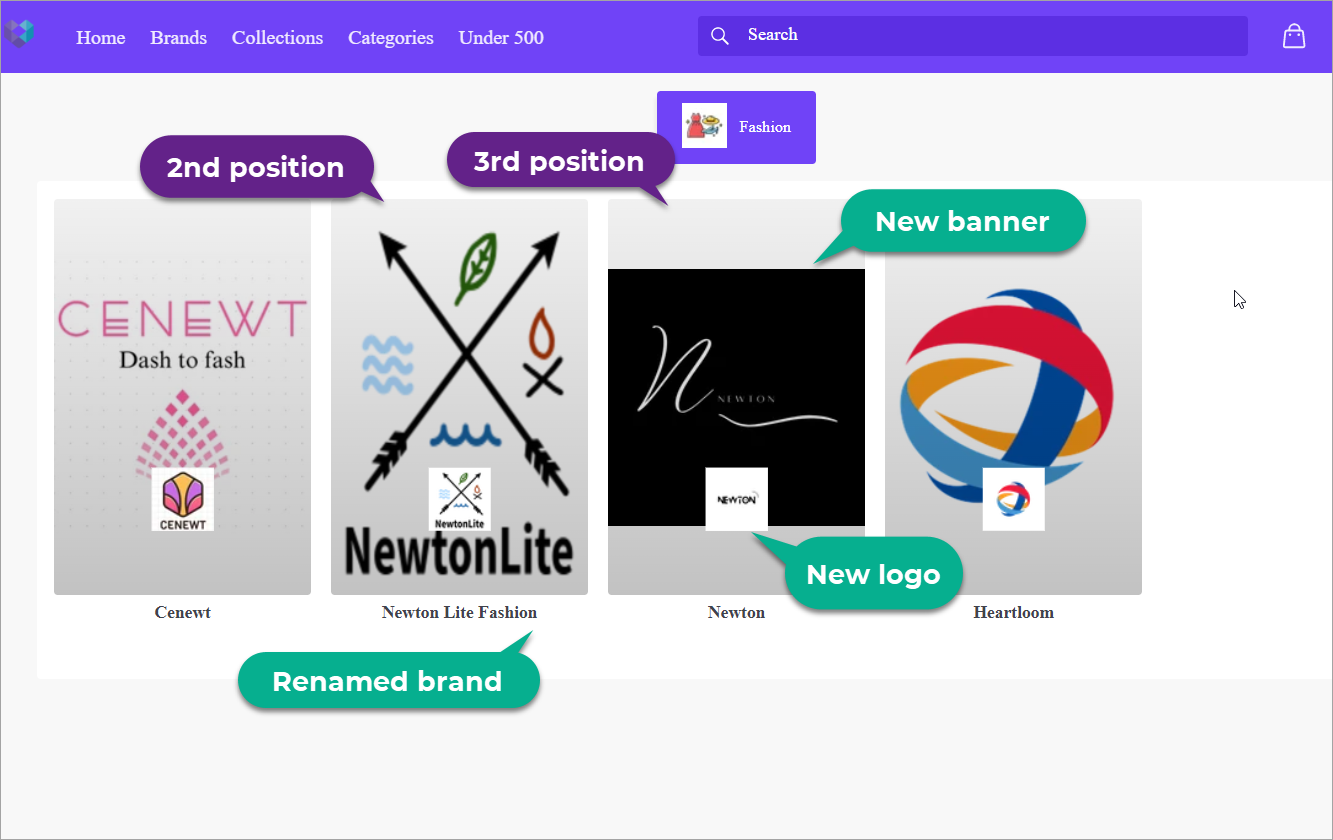
Figure 21: Brand Page
It might take up to 1 hour to view the changes. Since these configurations aren't used regularly, the caching duration is active and new changes might take some time to reflect on your website.
Commerce Panel → Sales Channel (select application) → Products → Category
Check the list of categories, and choose the category you wish to edit.
Start customising the category.
- Attribute Name - (non-editable)
- Display Label - Name that should appear on the website
- Position - Rank on which the category should appear amongst other categories
- Portrait Banner Web - Banner that should appear on the website to represent the category
- Landscape Banner Web - Banner that should appear on the website to represent the category (depends on the theme applied)
- Drag and Drop - Shuffle the position of categories
On the website, this is how the category appears.
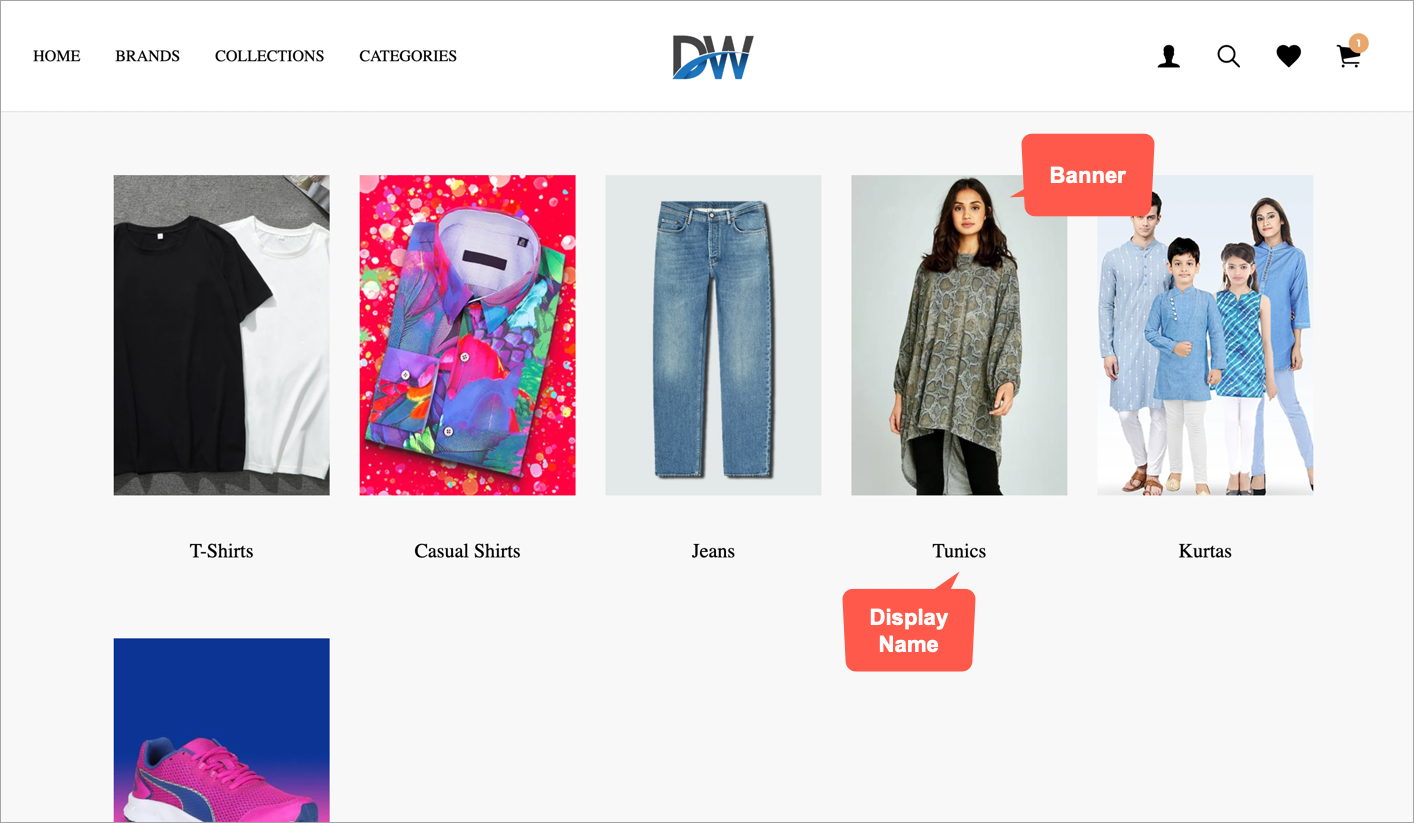
Figure 4: Appearance Of The Category On Storefront
It might take up to 1 hour to view the changes. Since these configurations aren't used regularly, the caching duration is active and new changes might take some time to reflect on your website.