Commerce Panel → Sales Channel (select application) → Products → Variant
Remember: First, you must ensure that you have enabled 'Product Variants' within your theme. Click here to know more.
Steps
Let's say, a T-shirt is available in multiple colour variants. These variants will be shown on the PDP page as shown below. This section can be modified through commerce panel.
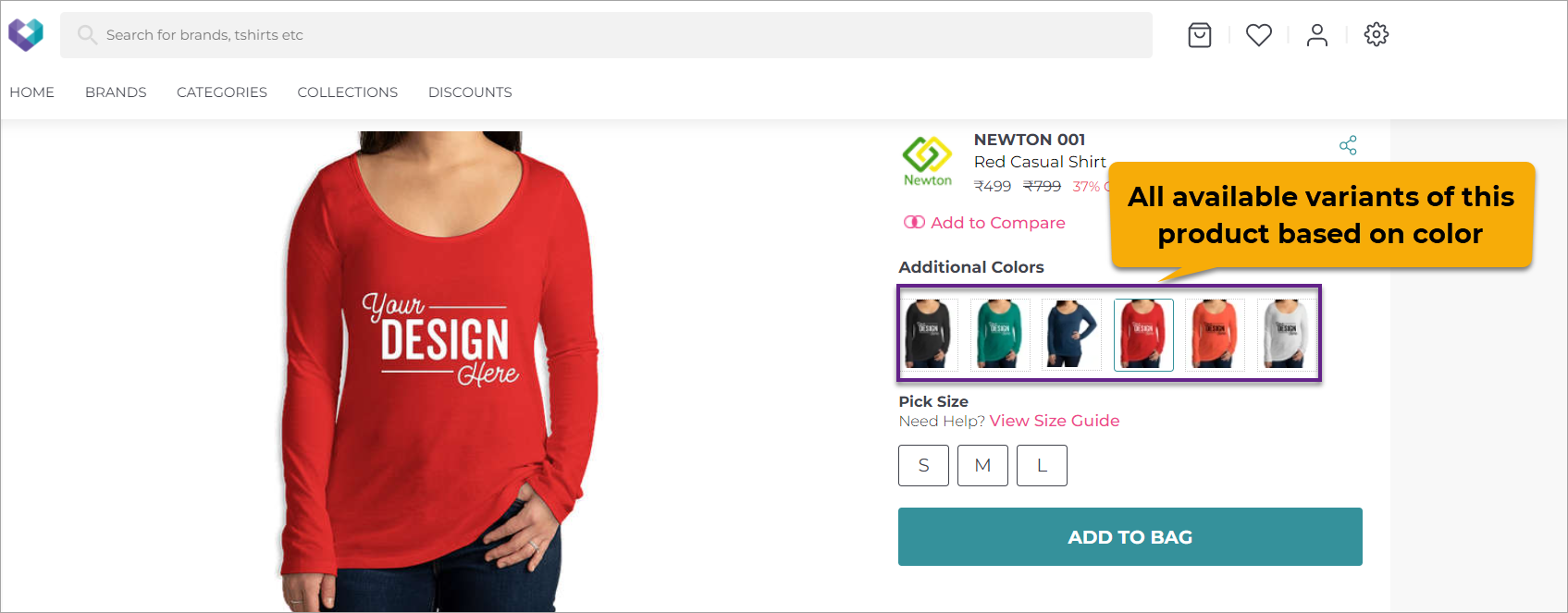
Figure 1: All Product Variants In your sales channel settings, go to Products → Variant
In this case, the T-shirt has colour variants. Select 'Additional Colours' to customise the way you want to show the colour variants to your customers.
You can change the display label from 'Additional Colours' to something else for your PDP page, for e.g. 'More Variants', 'Other Colours', etc.
You can change the position too. Simply enter the rank where you want this attribute to be, in the Move to Position field.
You can also set the minimum and maximum number of variants to display (apart from the original). Let's say, you have set the Minimum as 1, and the Maximum as 2. Save the configuration.
Min and Max no. of variant doesn't include the current product. Currently, Fynd Commerce supports maximum 40 variants for a product.
Using Display Type, you can decide how you want to represent the variants on your website. It can either be text, colour, swatch, or product image.
Variants appearing as product images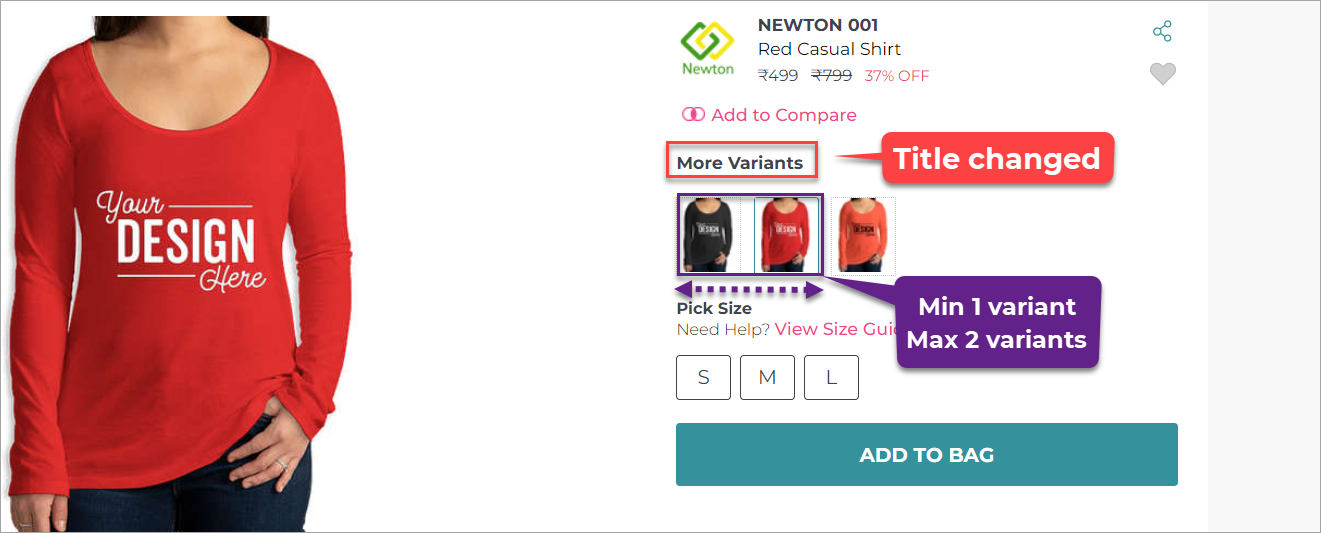
Figure 6a: Representing Variants Using Product Images Variants appearing as swatch tiles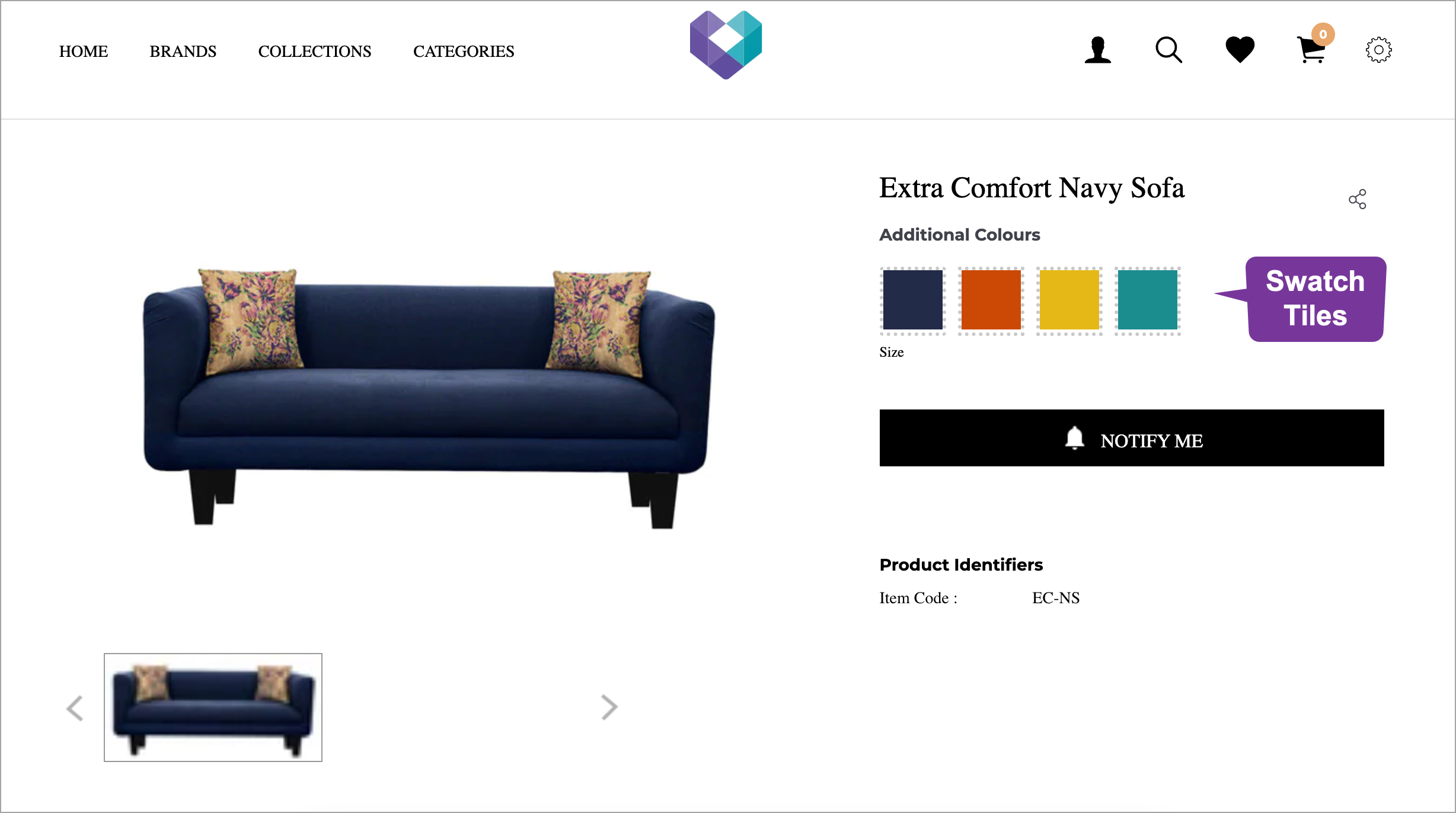
Figure 6b: Representing Variants Using Swatch Tiles Variants appearing as colours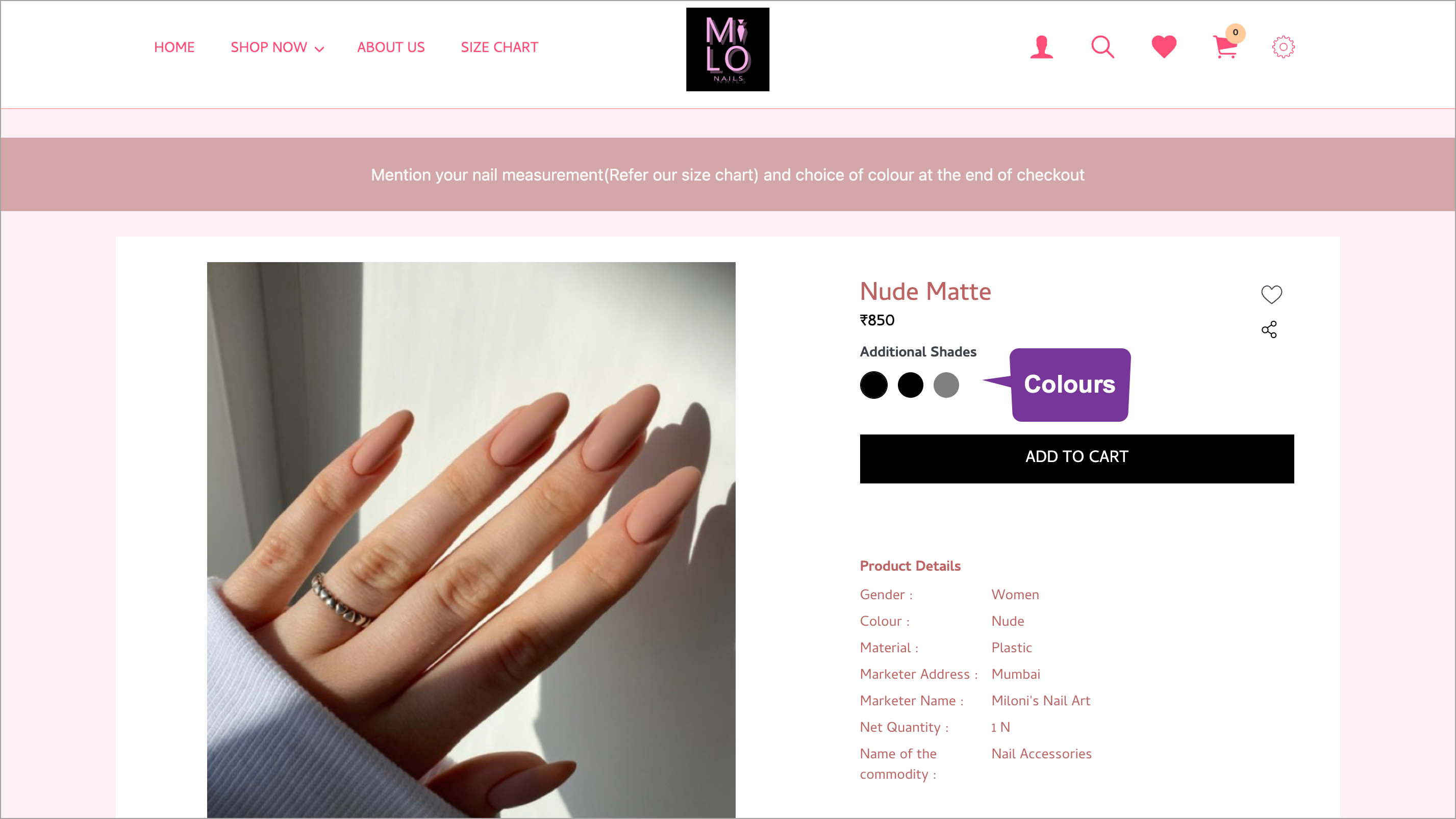
Figure 6c: Representing Variants Using Colours