Store OS enables store staff to process order cancellations, product returns, exchanges, and manage the corresponding refunds based on the order’s fulfillment type, payment method, and the refund options enabled by the merchant.
When a return or cancellation is initiated:
- Store OS checks the order’s fulfillment type and payment mode.
- Eligible refund options are shown to the store staff.
- The selected refund method determines how and when the customer is refunded.
Merchants can offer the following refund methods:
Back to Source: Refund is sent to the original online payment method (where supported).
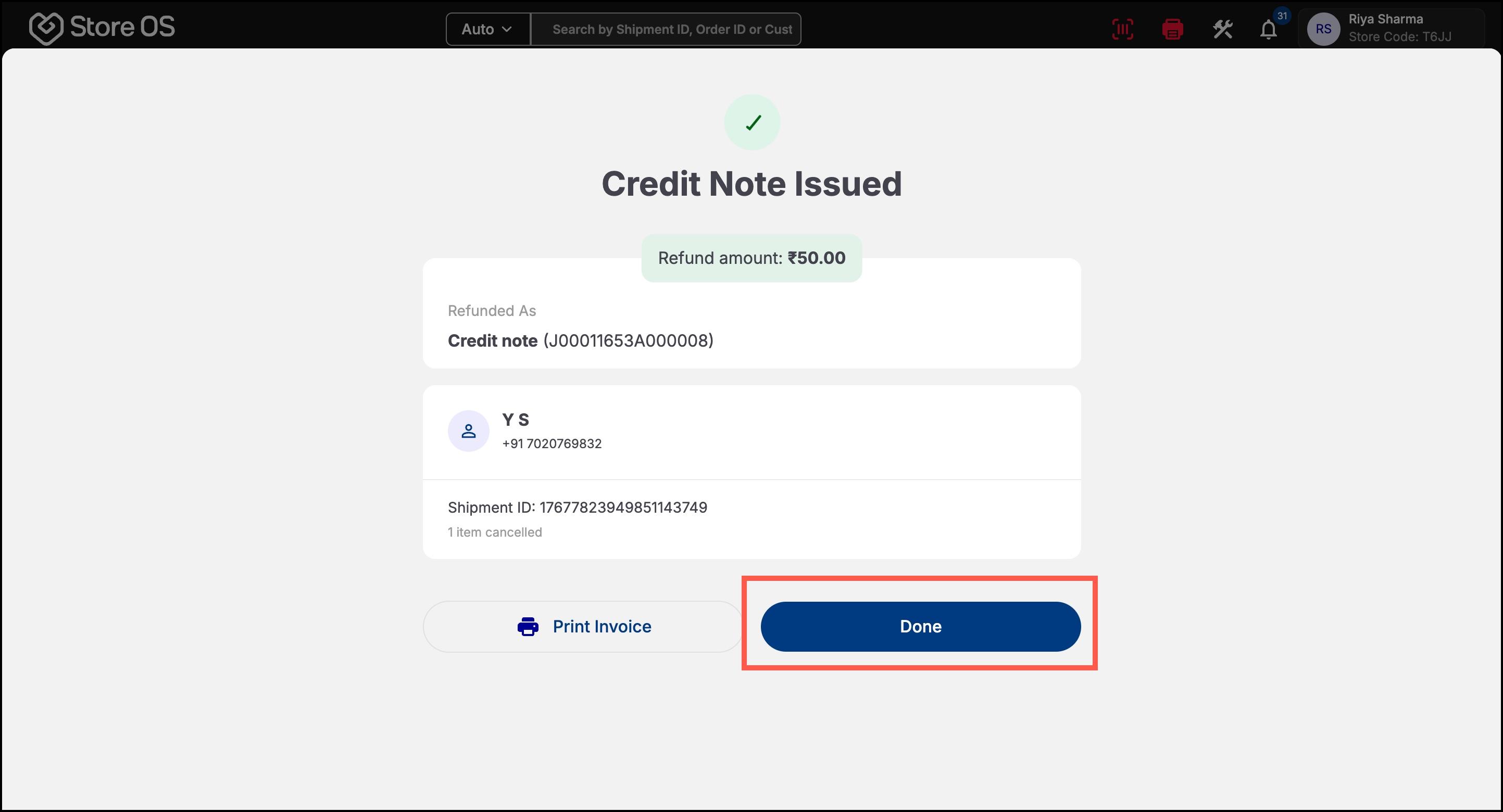
Credit Note (CN): Store-issued credit note that customers can use for future purchases.
Transfer to Bank: Refund transferred directly to the customer’s bank account.
Manual Refund: Refund completed outside Store OS (cash, UPI, or other offline methods).
The refund methods shown for an order depend on fulfillment type, payment mode, and merchant settings.
Return Eligibility: Allowed only at the ordering store where the order was placed
Who Can Initiate: Store staff with admin or store manager access
Refund Modes:
- Back to Source (for online payments)
- Credit Note (recommended for in-store orders)
- Transfer to Bank
- Manual Refund
Inventory Update: Returned items are added back to the ordering store’s inventory
Special Configs:
- Store must be enabled to accept returns
- Credit Notes can be reused for future purchases
Return Method: Items are picked up from the customer’s address
Who Can Initiate: Store staff from ordering or fulfilling store (with permissions)
Refund Modes:
- Back to Source: Razorpay/Juspay/etc., if available
- Transfer to Bank: Recommended fallback for COD/Pinelabs
- Manual Refund: For cash-based or unsupported online modes
Special Configs:
- Credit Notes are not supported for fully delivered orders
- For cash or offline payments, the merchant completes the refund
Returns Method: Refunds are handled separately based on item fulfillment type
Refund Modes:
- Pickup items
- Credit Note
- Back to Source
- Transfer to Bank
- Delivery items: Refund processed by the merchant (manual or bank transfer)
- Pickup items
Special Configs:
- Credit Notes apply only to pickup items
- Delivery item refunds follow merchant-managed processes
| Fulfillment Type | Payment Mode | Refund Modes Allowed | CN Supported |
|---|---|---|---|
| Self Pickup | Online | CN, Back to Source, Bank Transfer (manual), | Yes |
| Self Pickup | Cash/Offline | CN, Manual, Bank Transfer | Yes |
| Delivery | Online | Back to Source, Bank Transfer | No |
| Delivery | Cash/Offline | Manual Refund | No |
| Mixed | Any | Split by fulfilment type | Partial |
From the Store OS app, staff can:
Open the order in Store OS
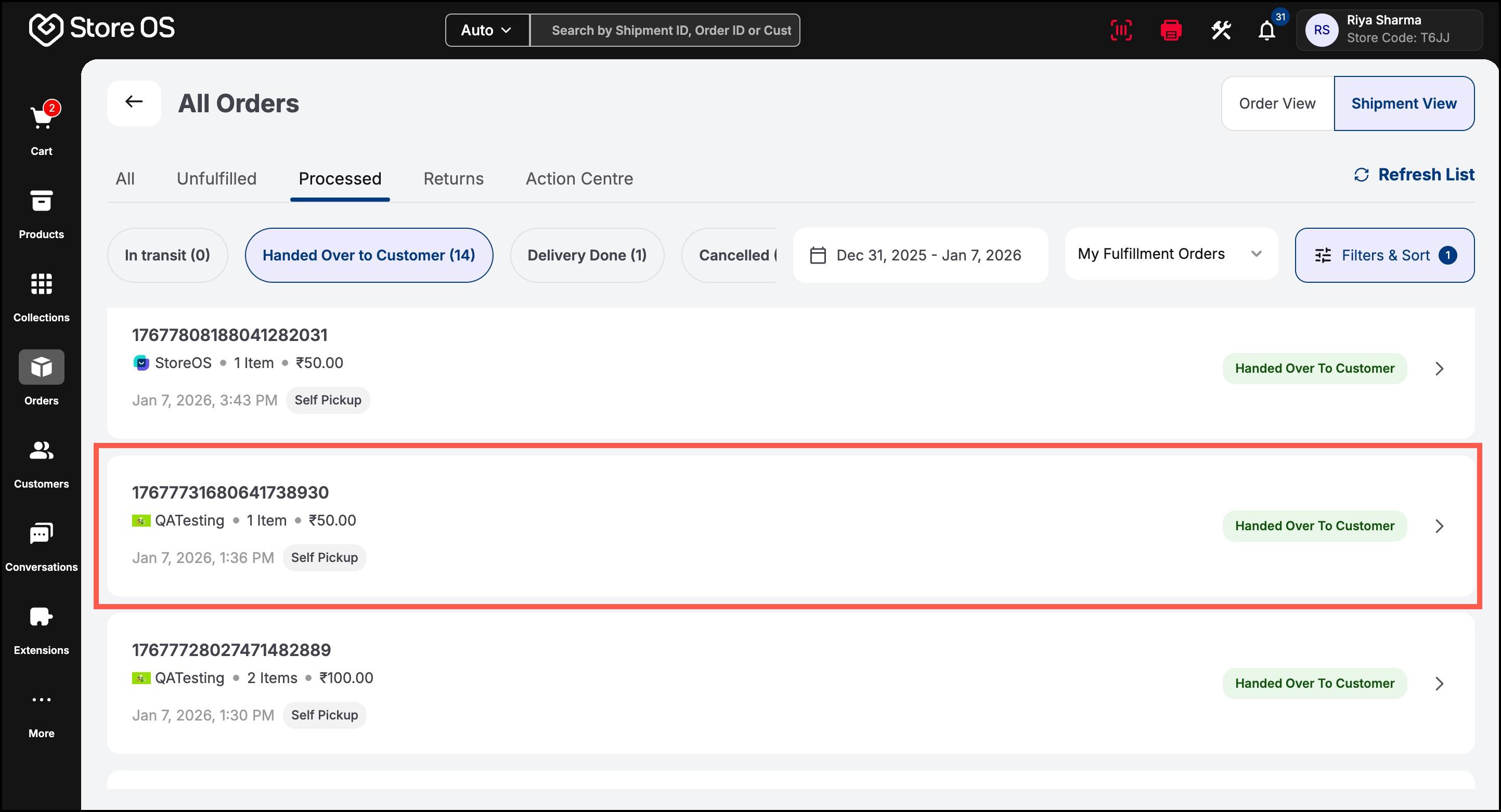
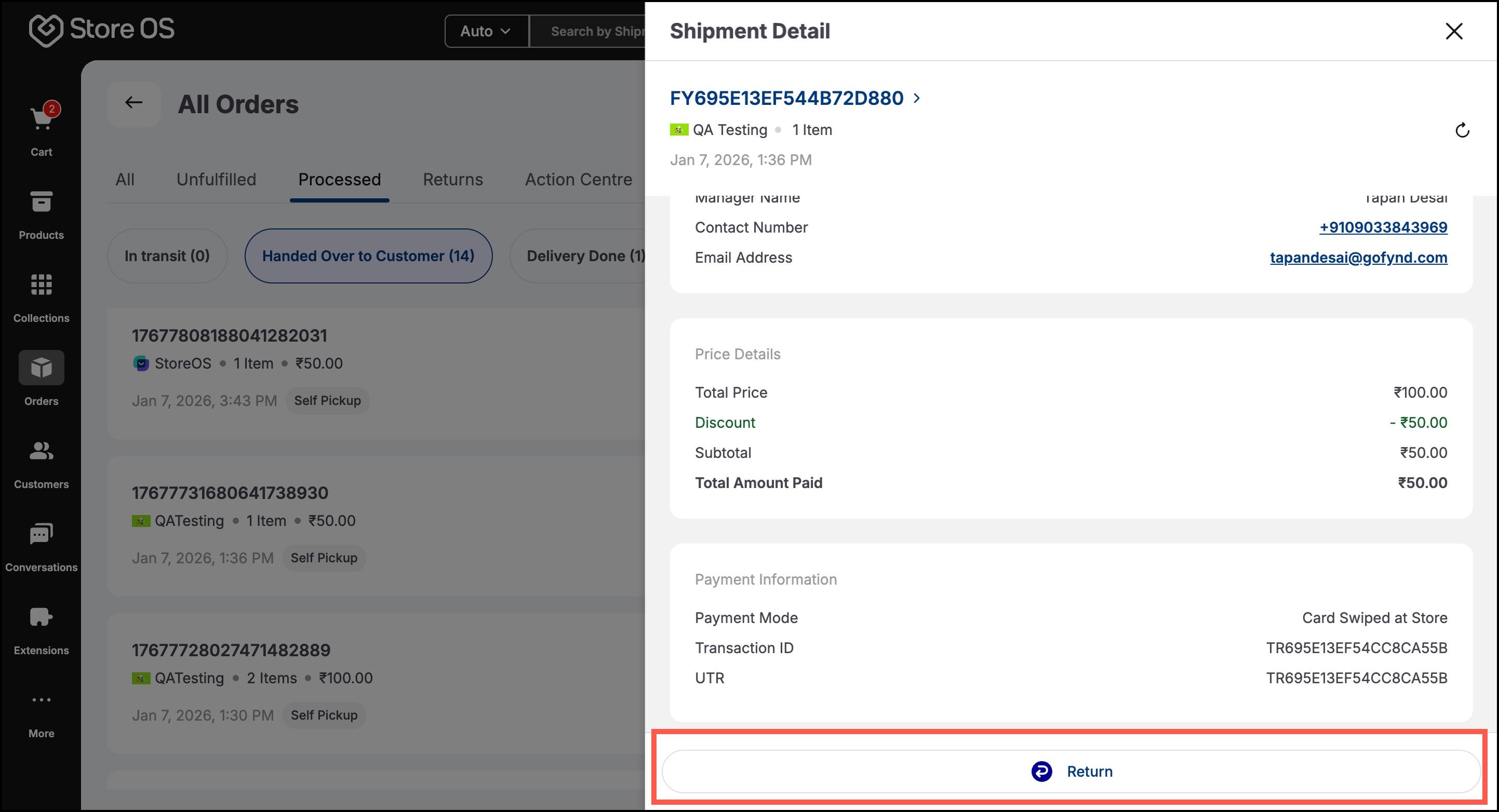
Initiate a return or cancellation
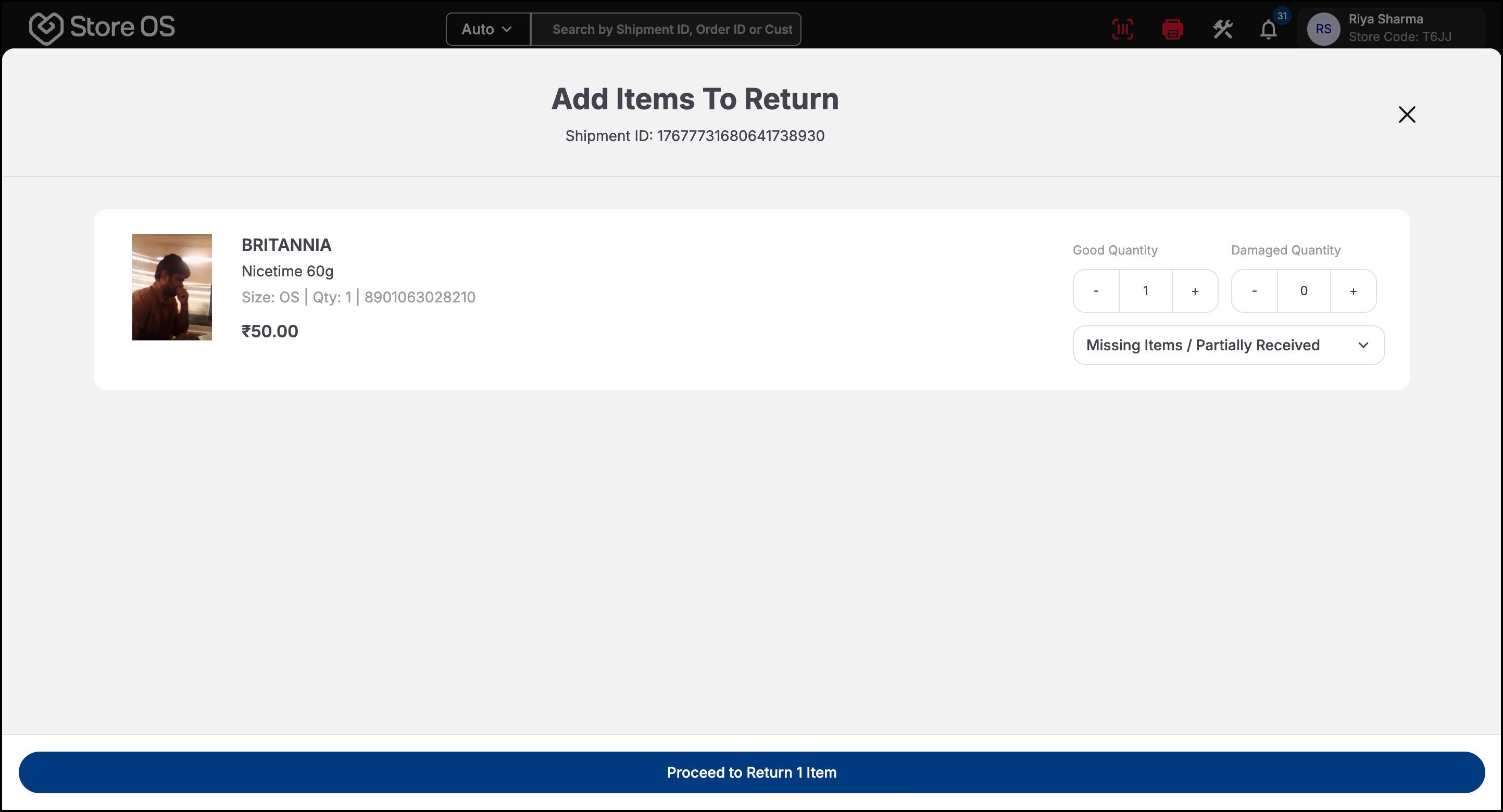
Select the quantity and reason for return
View eligible refund options
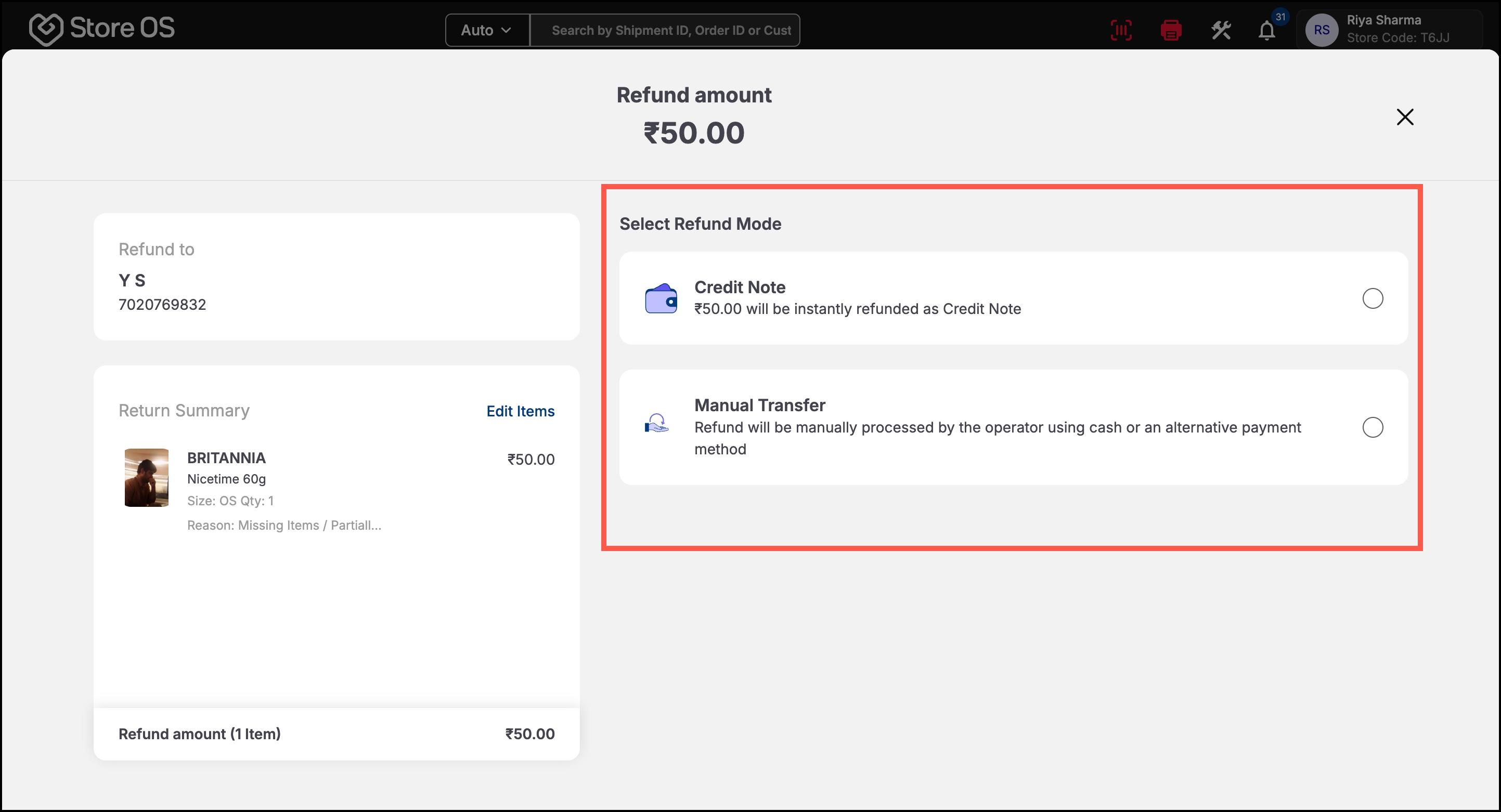
Select the refund method
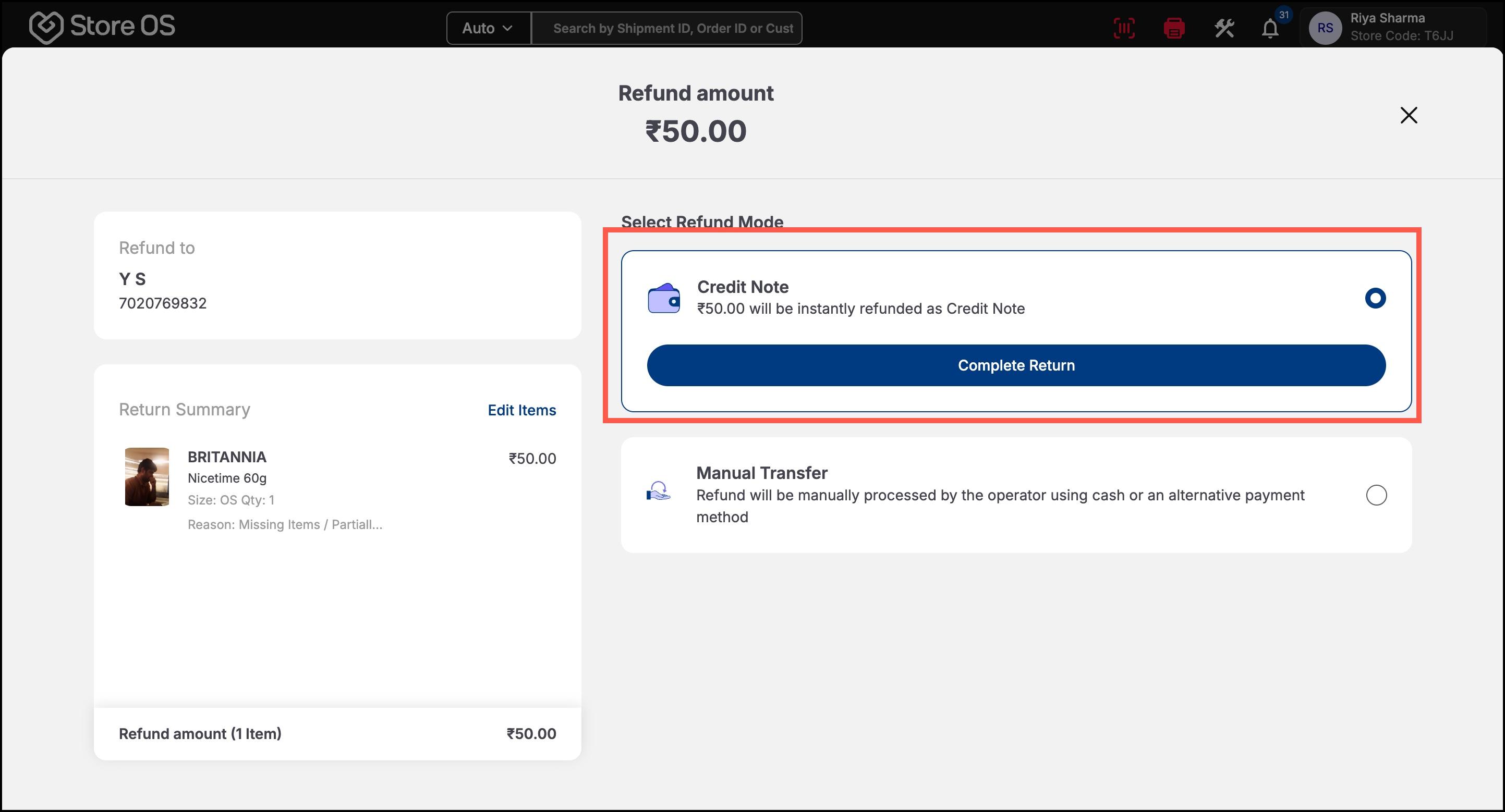
Complete the return
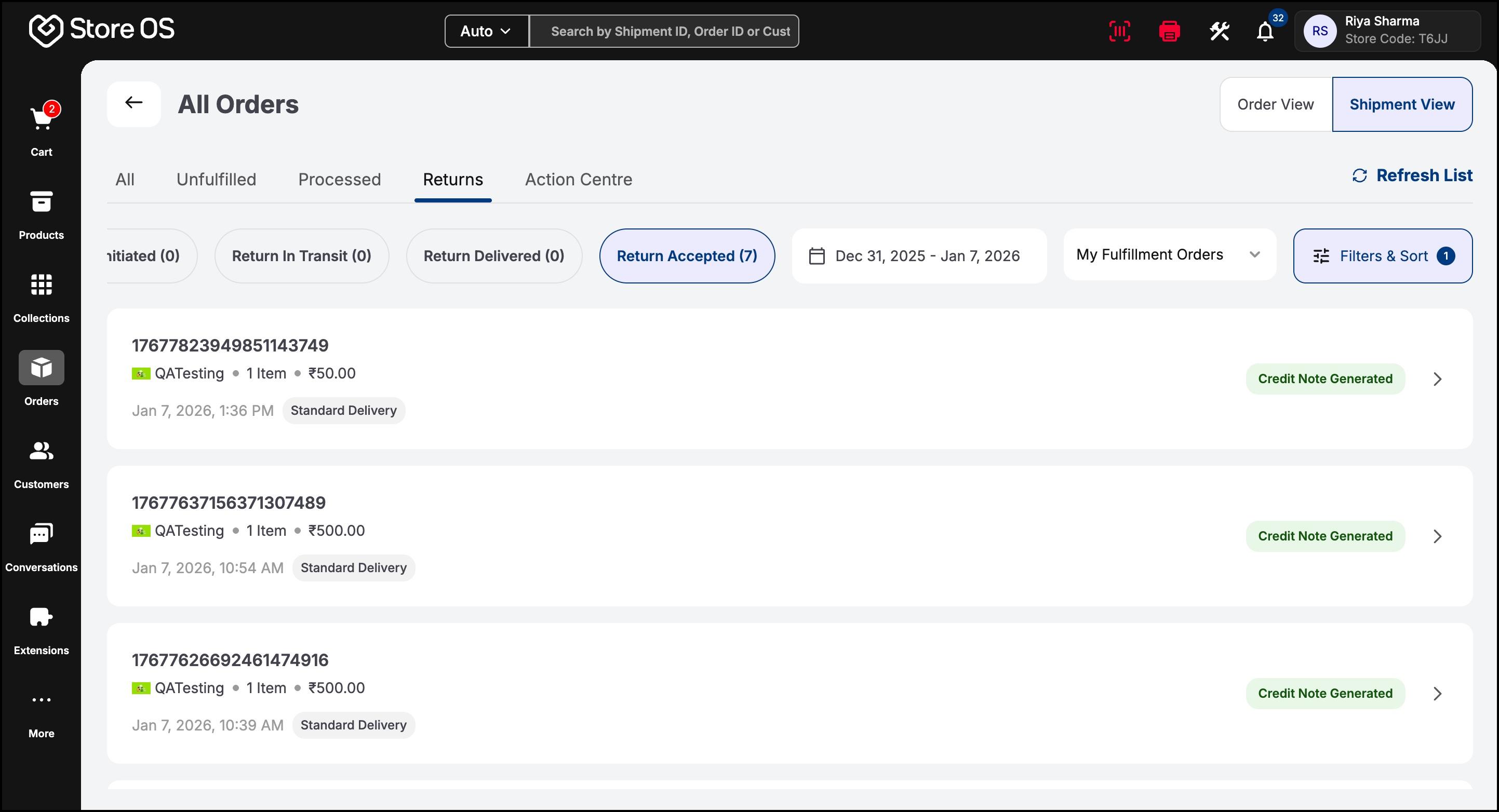
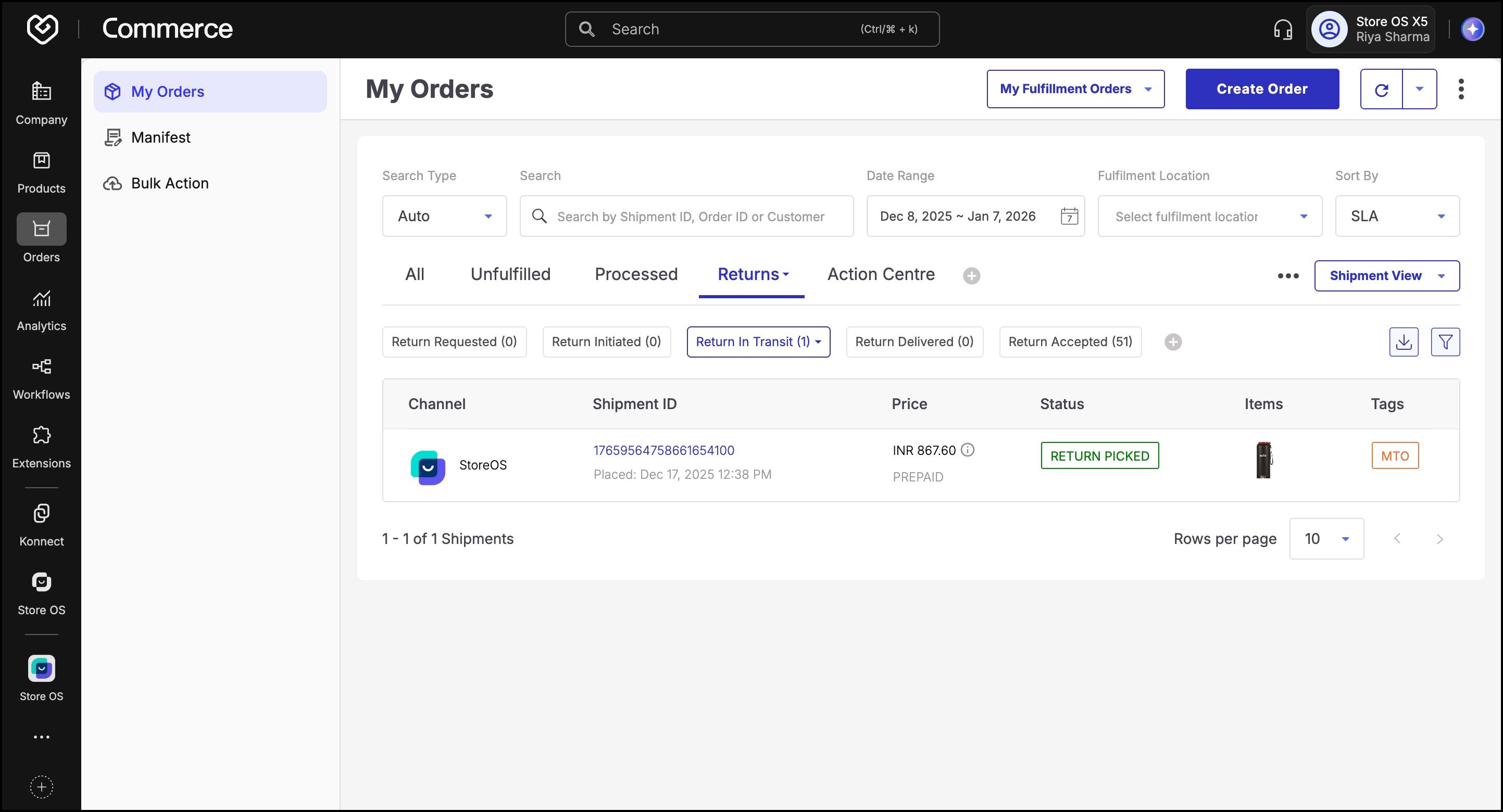
Track refund status from the Orders section
###Merchant Controls
From Fynd Commerce, merchants can:
Enable or disable refund methods per sales channel
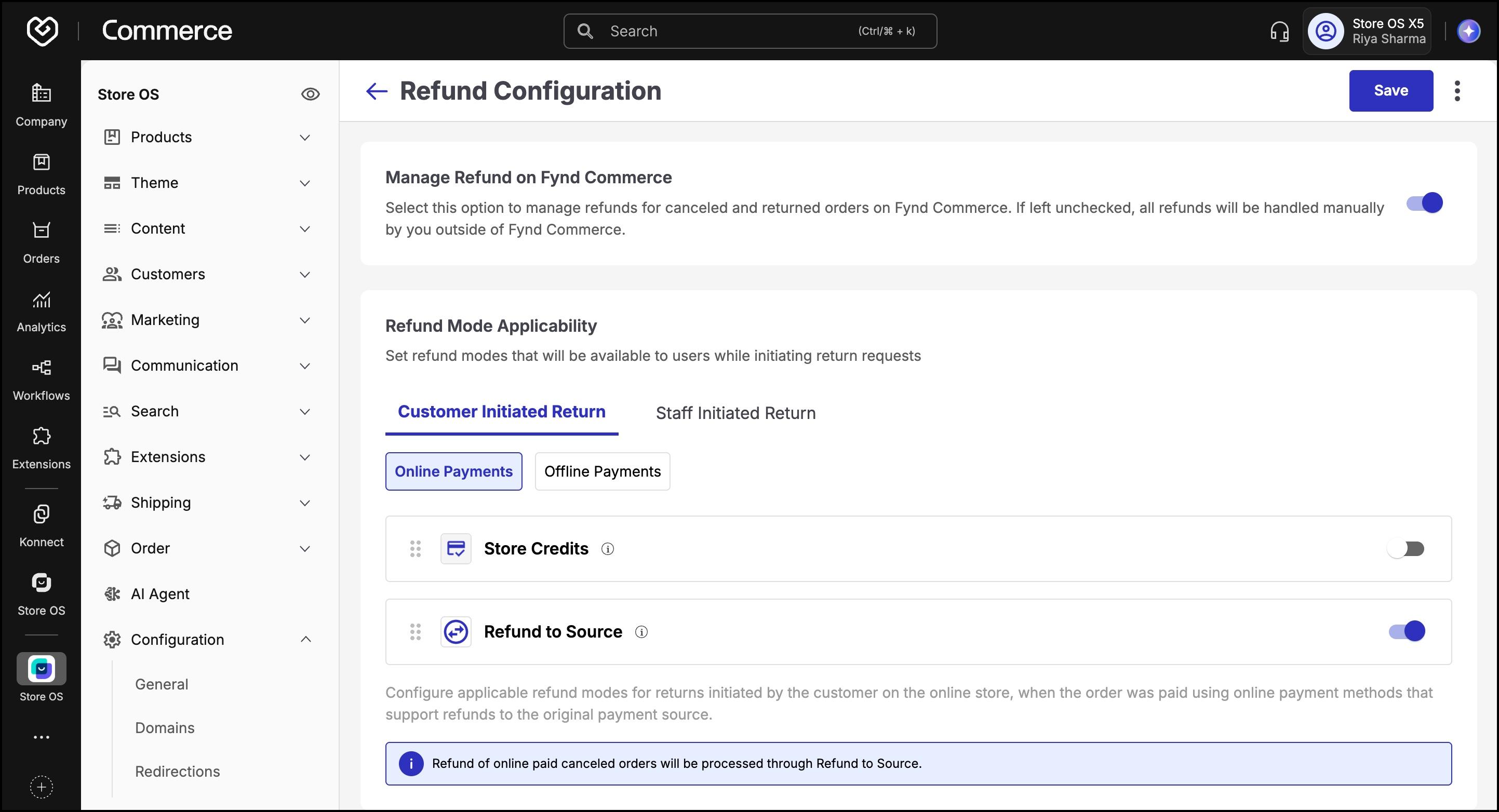
Approve bank transfer refunds
Track refund status (Initiated, Pending, Approved, Failed)
Customers receive:
- SMS and email updates on refund status
- OTP verification for bank refunds (if required)
- Printable Credit Notes for future use