Store OS allows store staff to create and manage customer orders directly from the POS (counter-based) or mPOS (mobile device) interface. Orders can be fulfilled via Self Pickup or Home Delivery, with full visibility into catalog, inventory, and promotions.
Key Benefits
- Seamless Order Management: Create and manage orders directly from POS or mPOS.
- Endless Aisle Capability: Capture orders for items not in stock at the store, fulfilled from another store or warehouse.
- Flexible Pricing: Override product prices using the extension, with clear visibility of adjustments and reasons.
- Cart & Checkout Flexibility: Save, share, and edit multiple carts with ease.
- Multiple Payment Options: Accept both online and offline payments, including UPI, cards, cash, and credit notes.
- Integrated Fulfillment: Orders are synced with backend OMS for inventory, delivery, and analytics tracking.
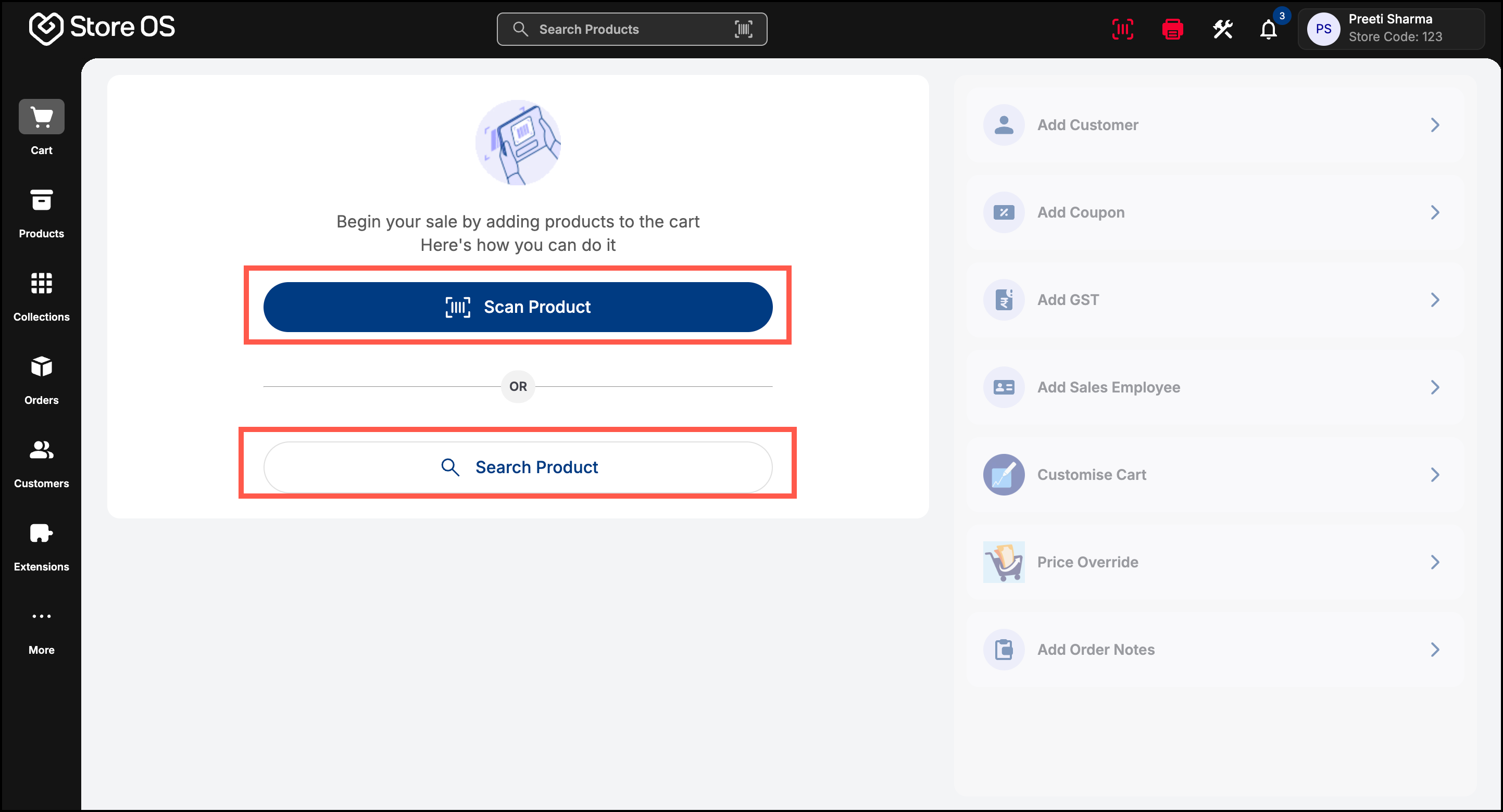
- On the StoreOS Dashboard, click Scan Product or Search Product to begin adding items to the cart.
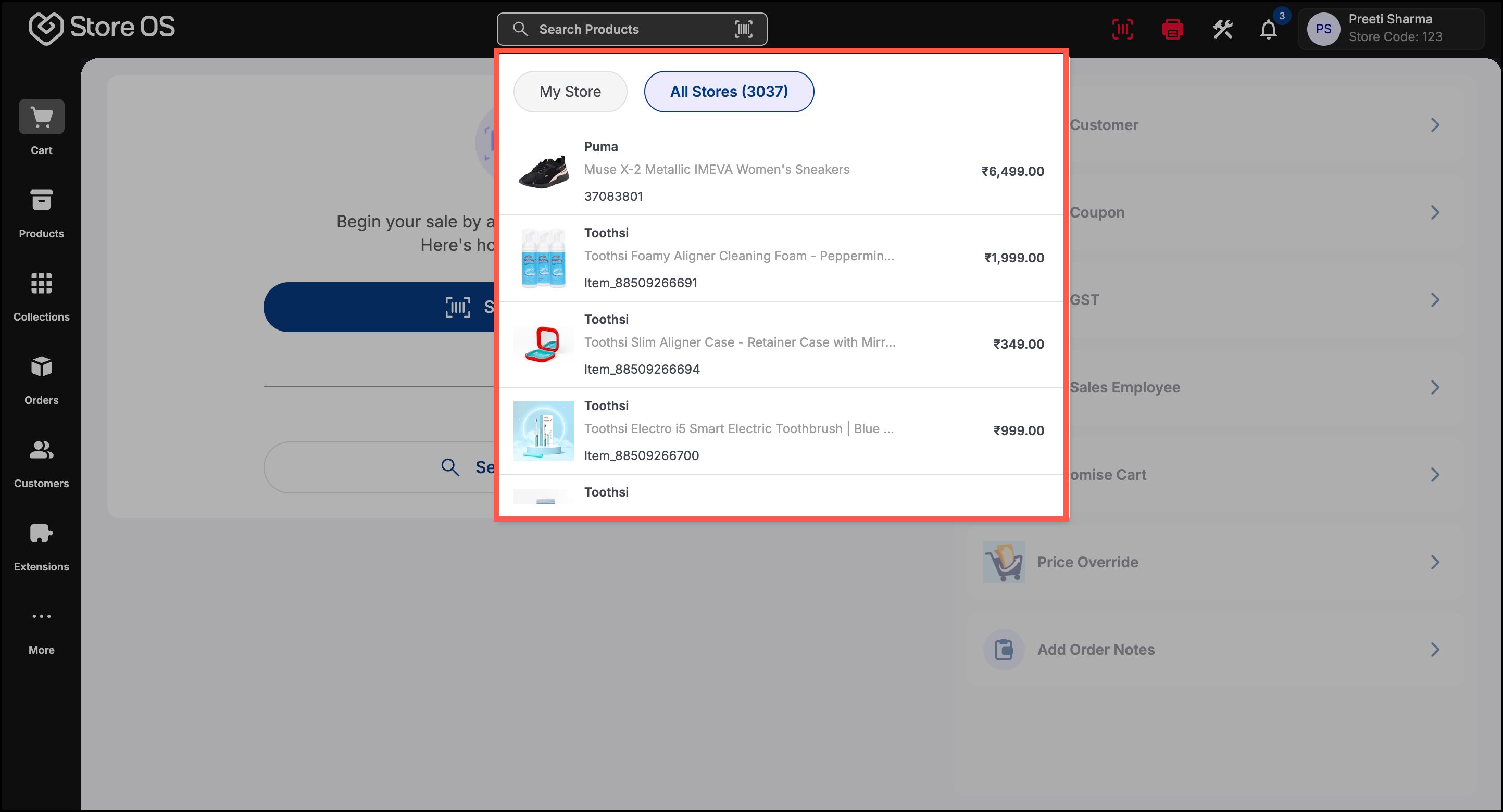
Use the search bar at the top to quickly find products by name, SKU, or barcode.
- You can search for products under My Store or All Stores.
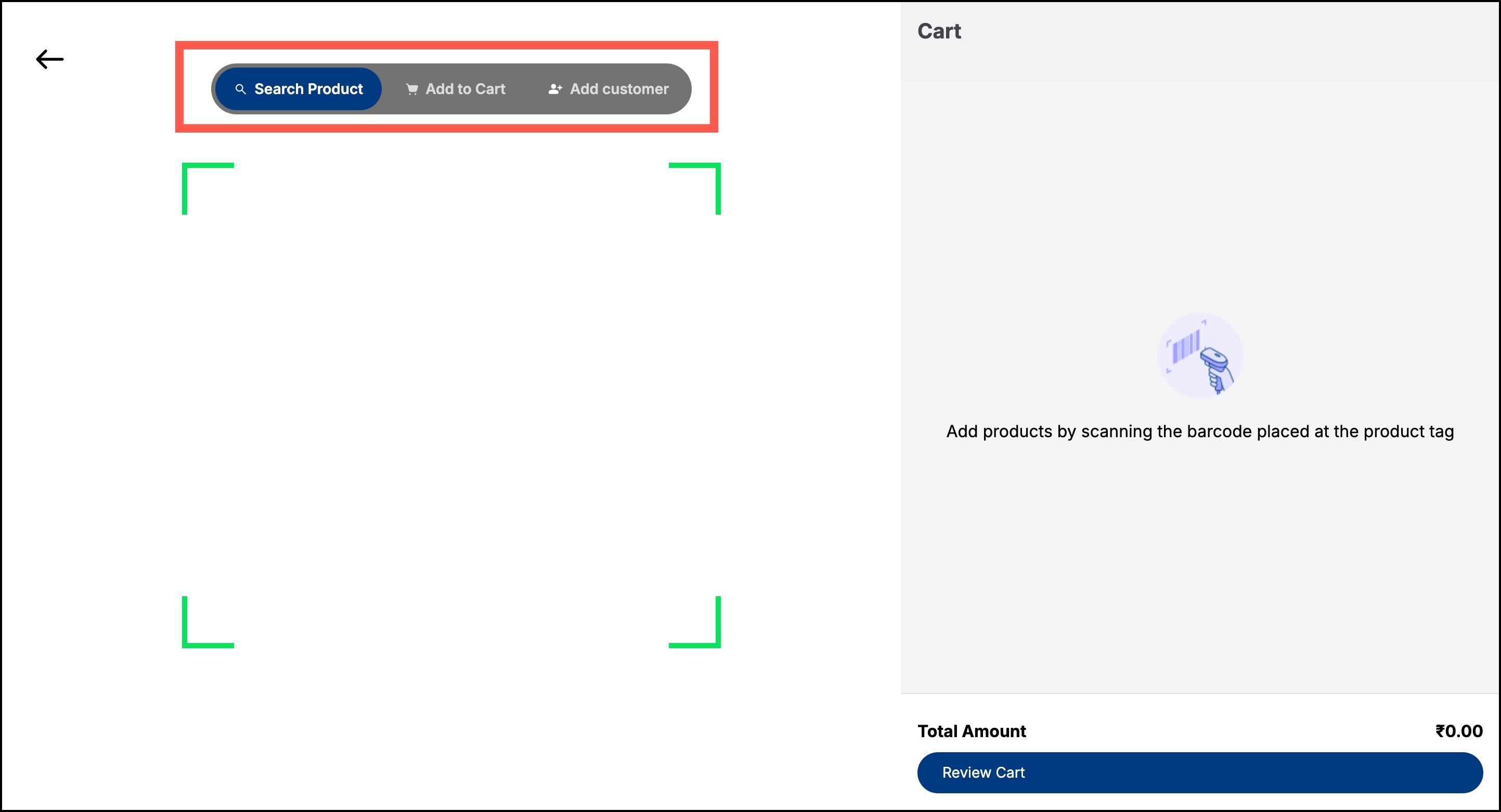
- You can also scan the barcode to search for a product, add it directly to the cart, or even retrieve a customer profile to link them to the order instantly.
- Select the preferred Size and Quantity.
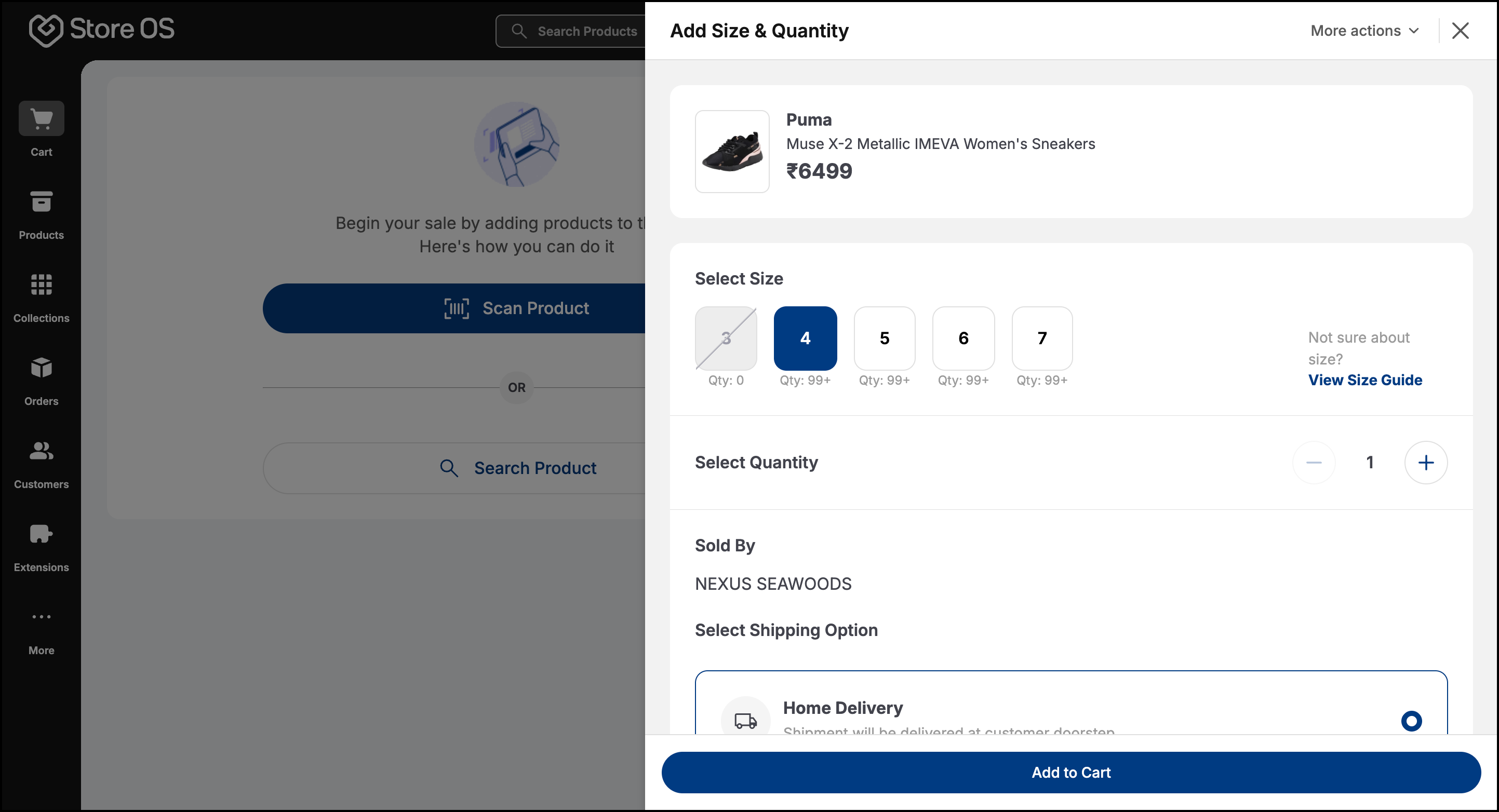
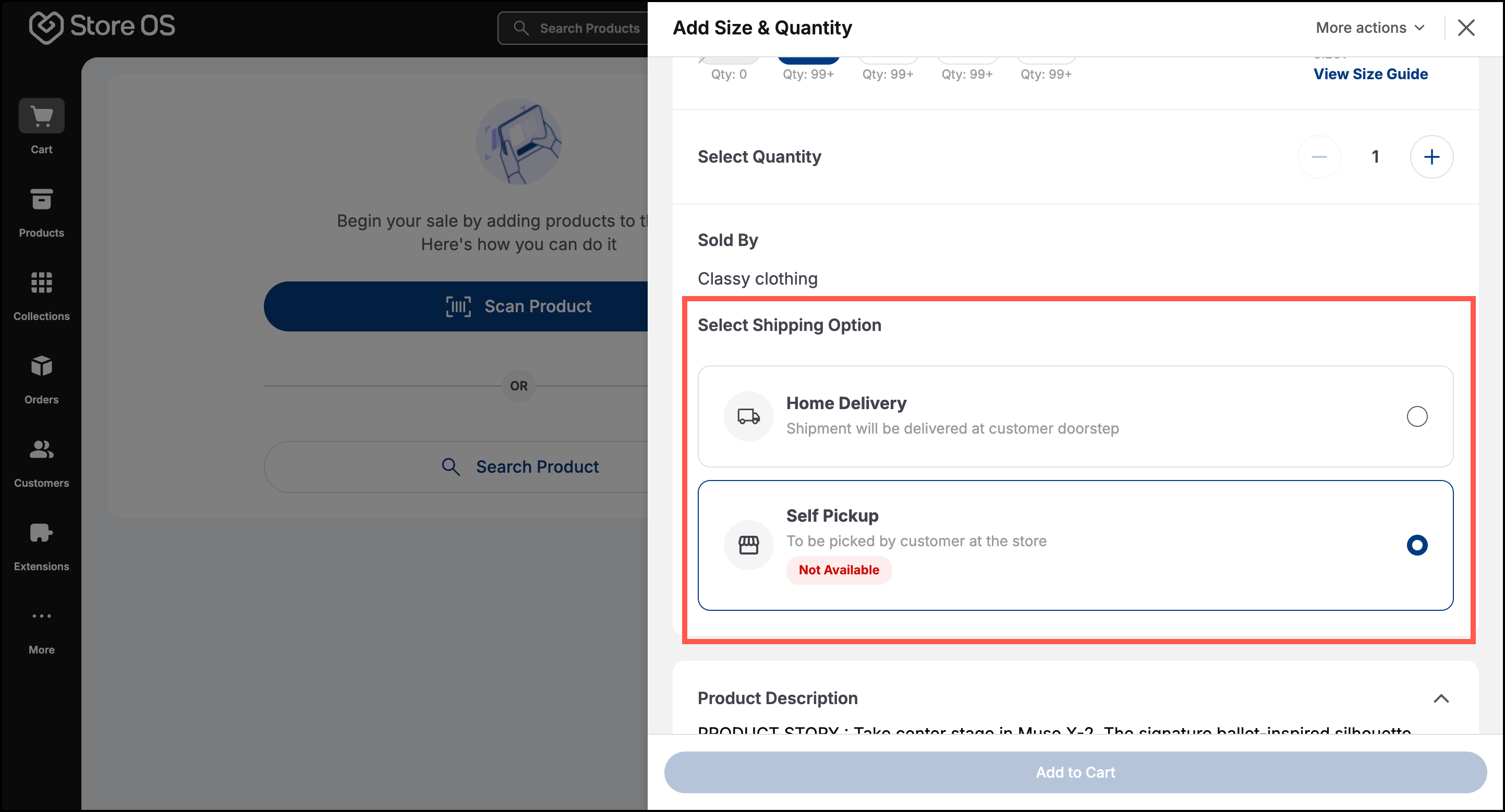
- Choose a Shipping Option:
- Home Delivery – Product shipped to customer’s address.
- Self Pickup – Customer collects item from the store.
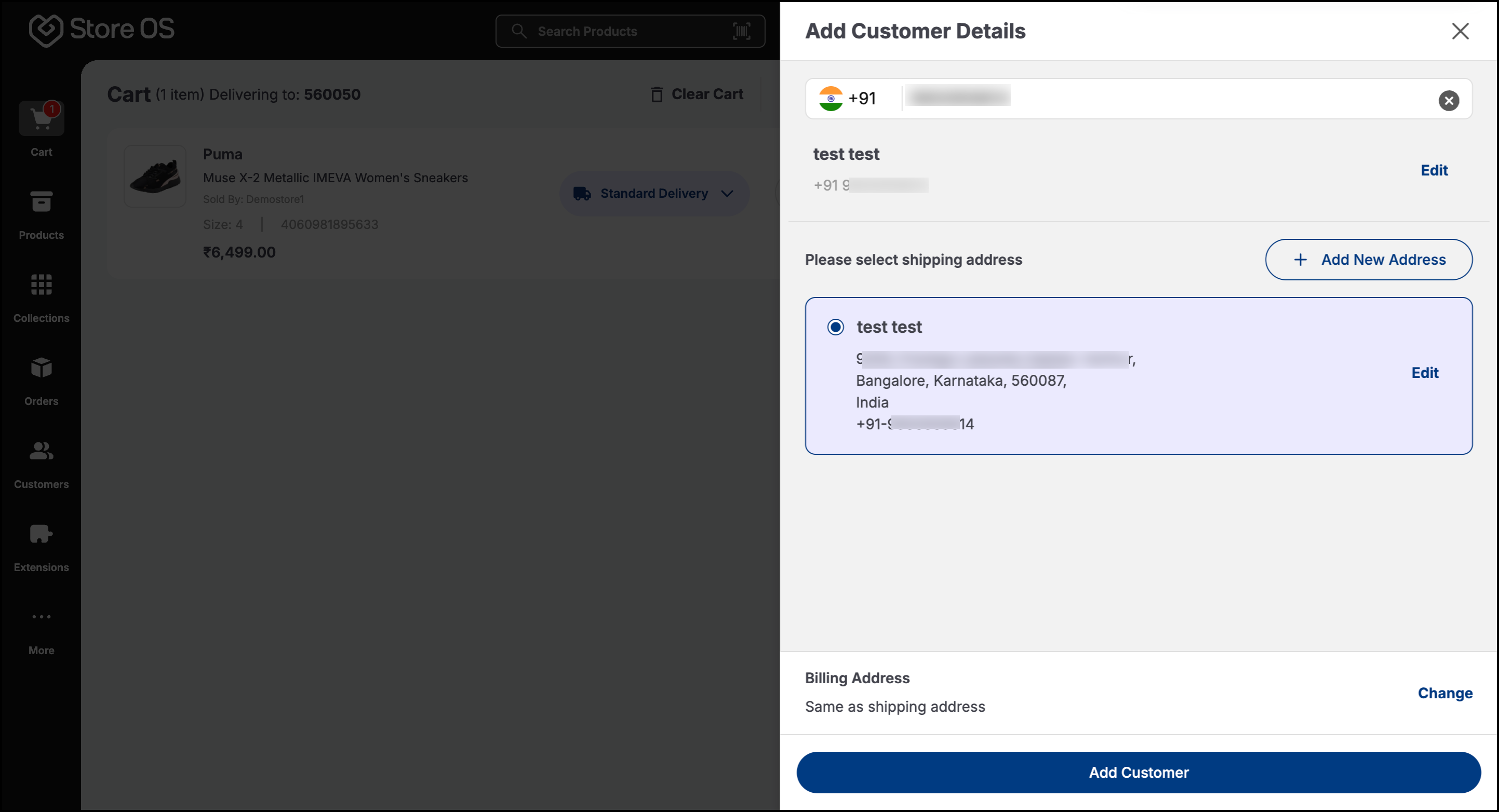
- Add Customer Details
- Search for existing customers using their Mobile Number. If not found, add a new customer by entering the mandatory details.
- Click Add Customer.
- For existing customers, you can click Manage Addresses to view or update their details.
- Click Add Coupon and enter the coupon code or select from the list.
- Click Check to validate and apply discounts.
- Add Sales Employee by searching the employee name.
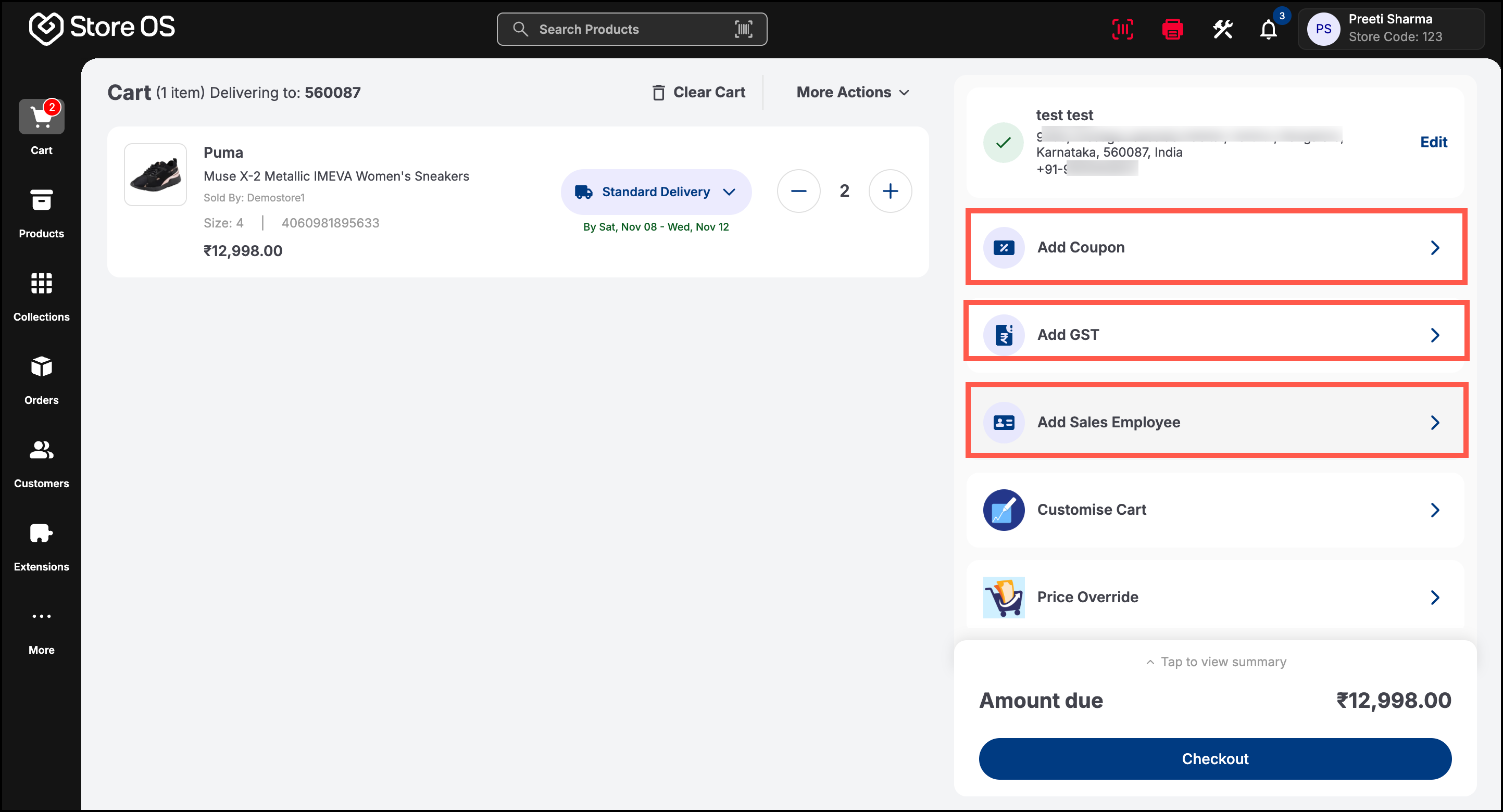
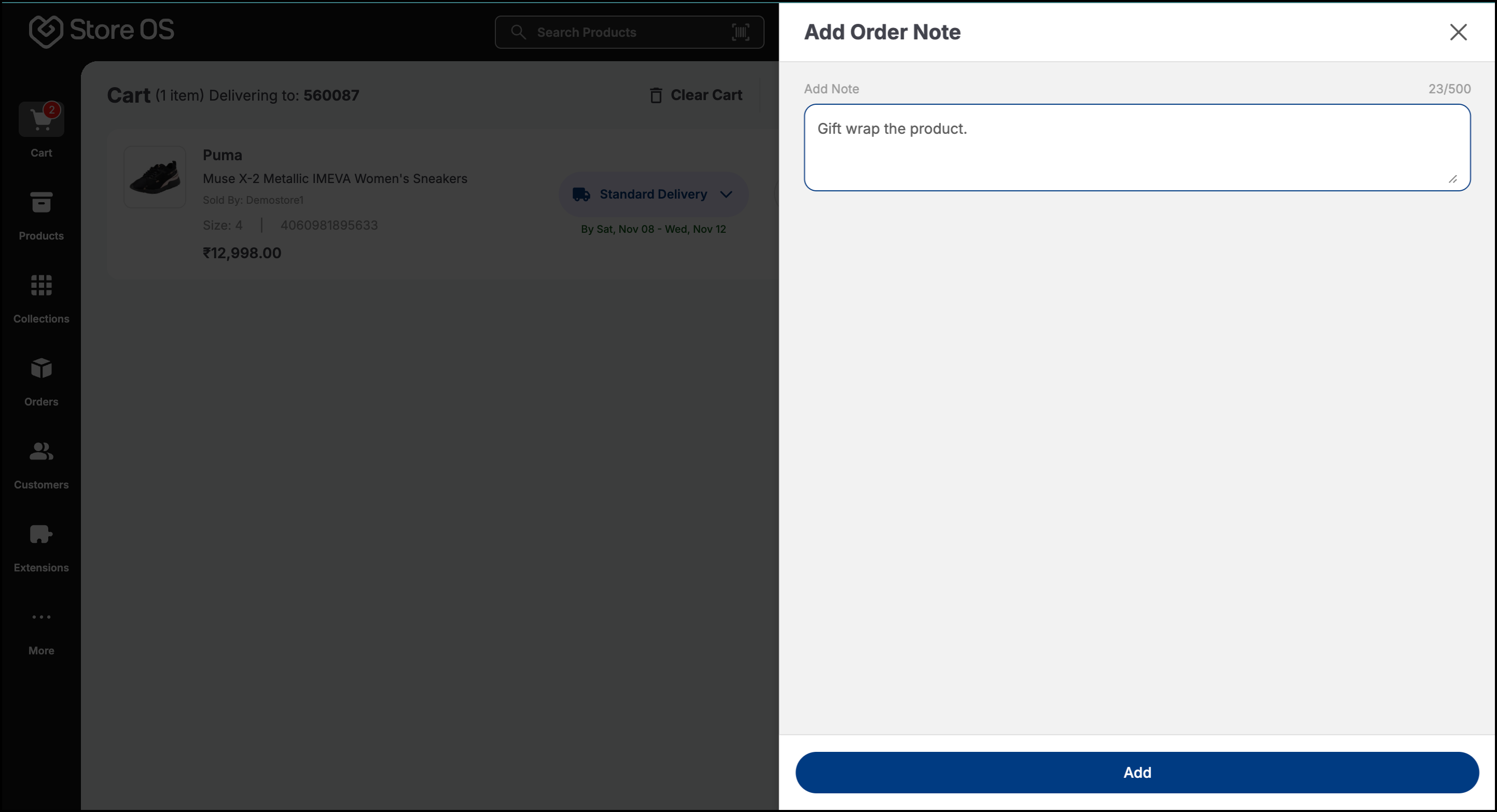
- You can also attach special instructions such as packaging or delivery requests to the respective order.
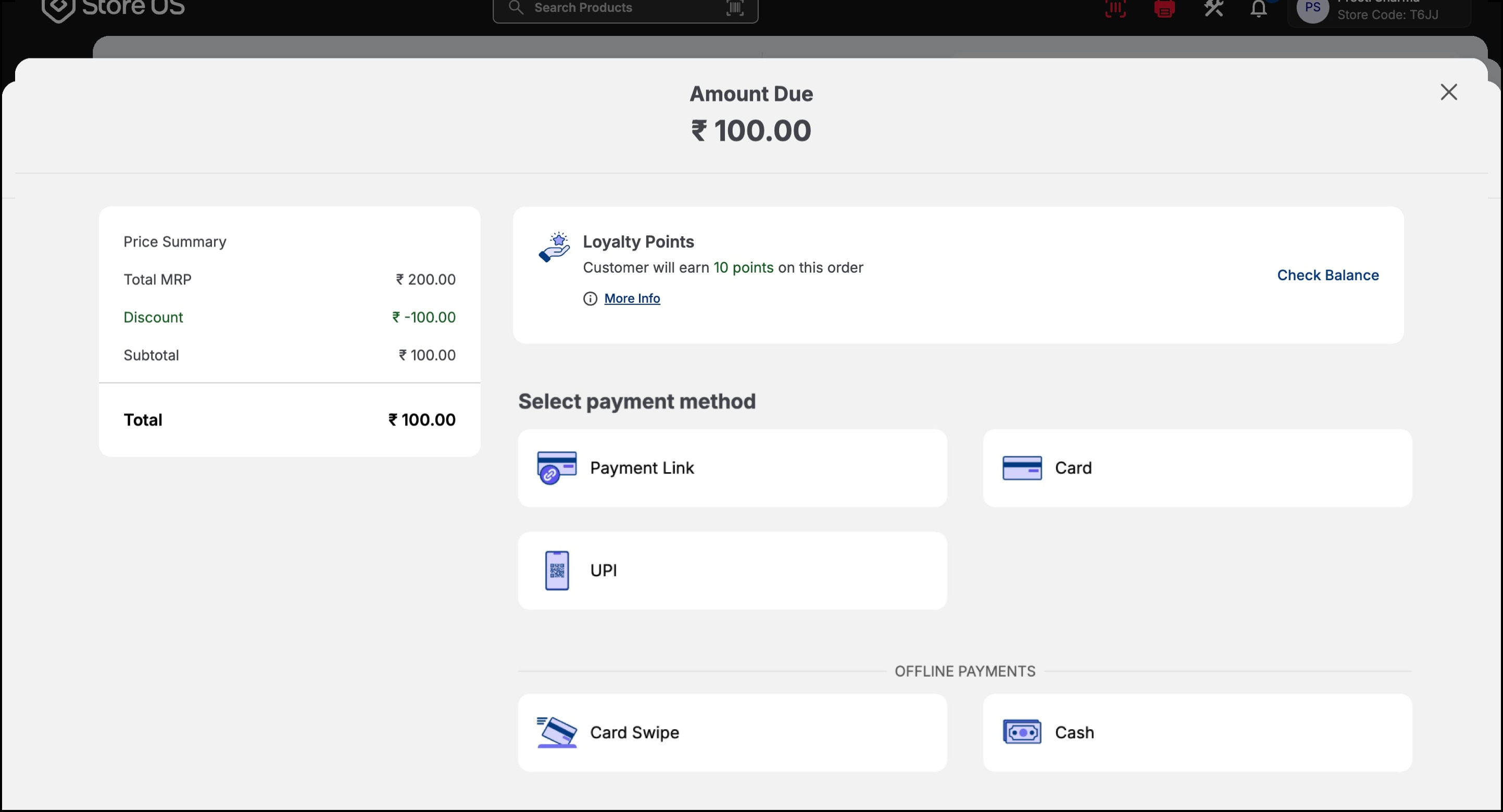
- The Amount Due screen shows a detailed price summary.
- Choose your preferred Payment Method:
- Once payment is successful, the Sale Completed screen confirms the amount paid, order ID and order summary.
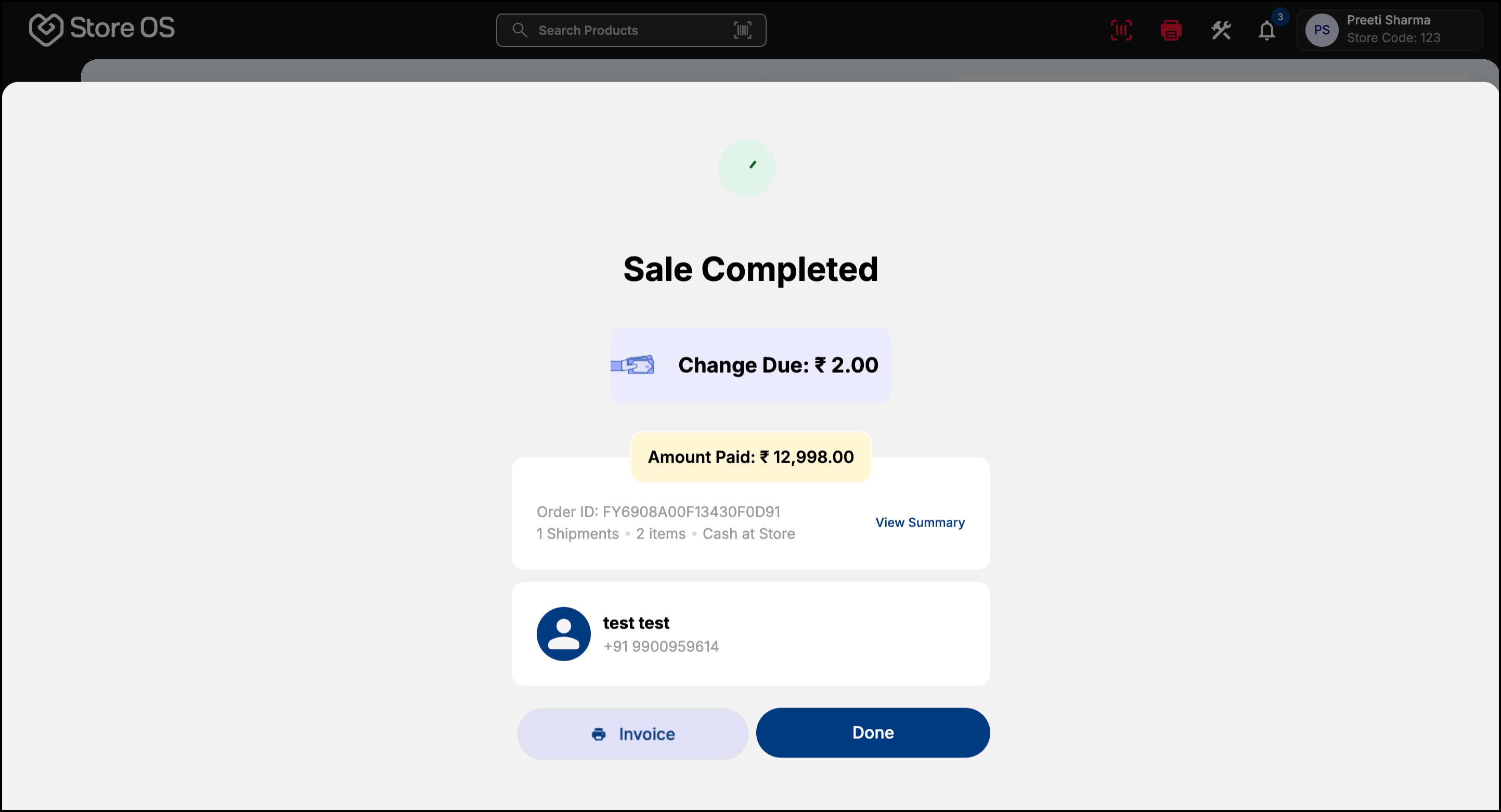
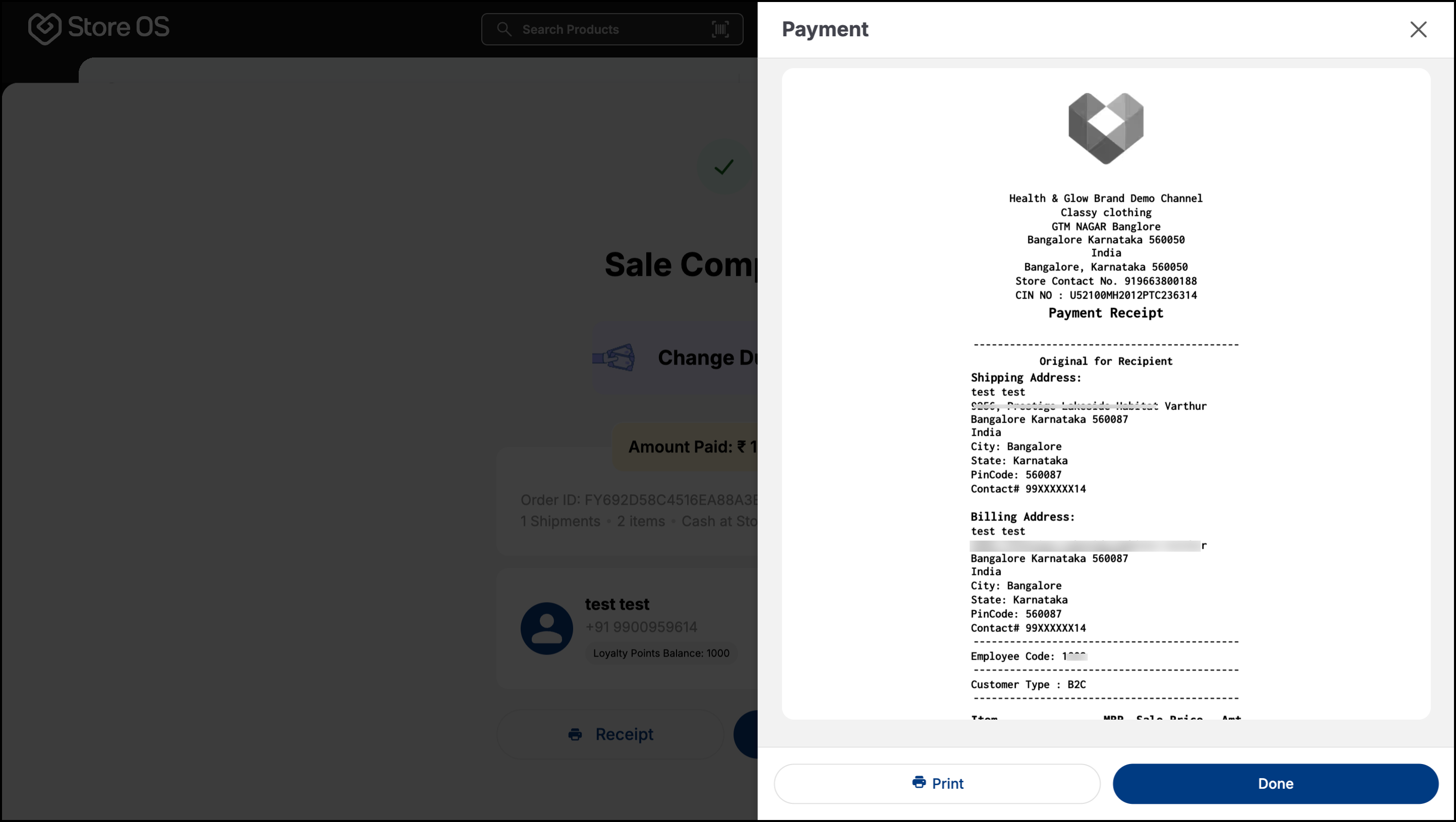
- Click Invoice to generate the receipt and click Print to share a copy with the customer. Printing option is available only if a printer is connected.