This guide walks you through connecting your Fynd Konnect instance to the Clozzet channel—no code changes required. You will set up account details, enter your Clozzet credentials, and map your locations to enable end-to-end sync.
Log in to your console account at console.fynd.com ↗ and open your Fynd Konnect panel.
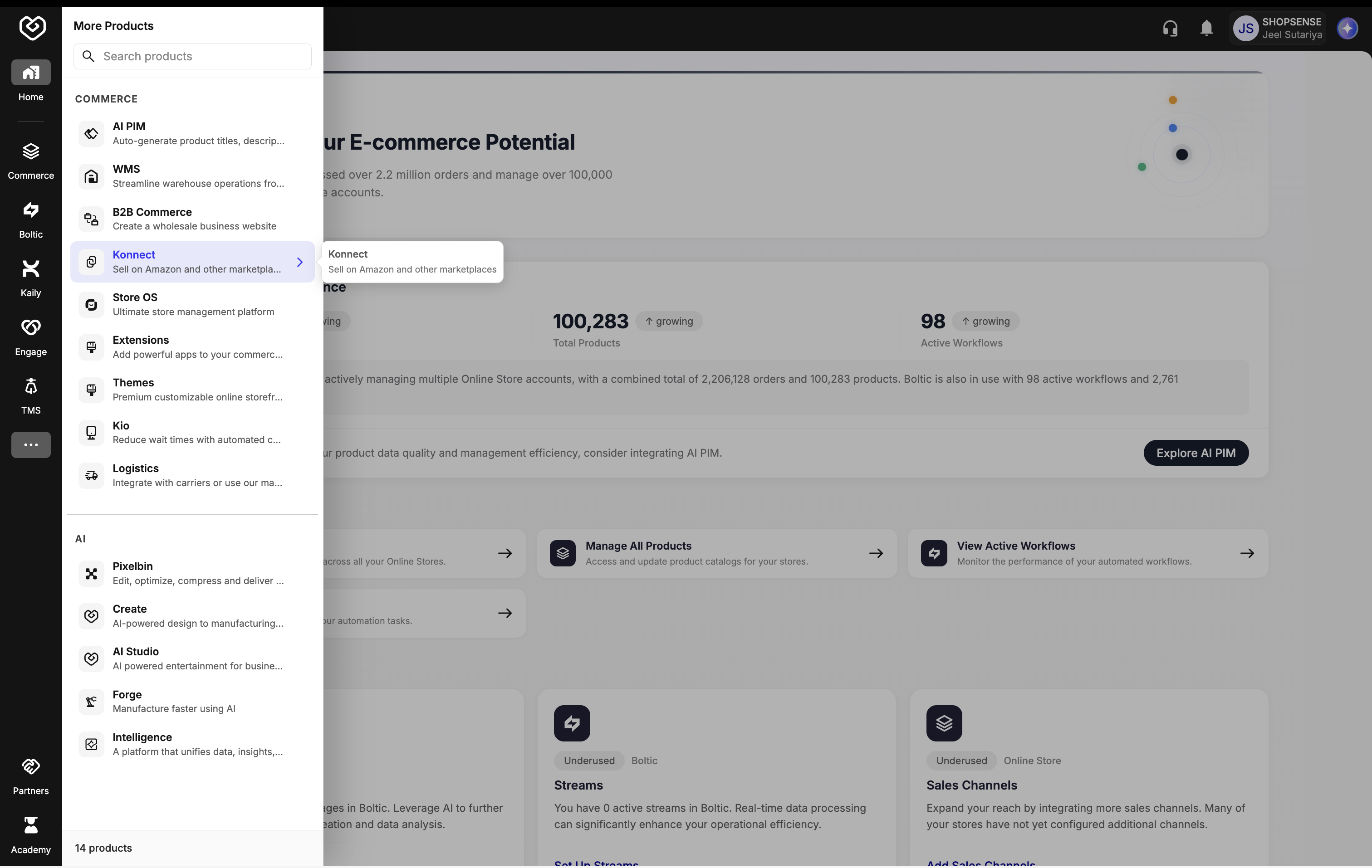
Figure 1: Your Fynd Konnect console In the left sidebar, go to Channels → All Channels. Here you will find every available channel connector within Fynd Konnect.
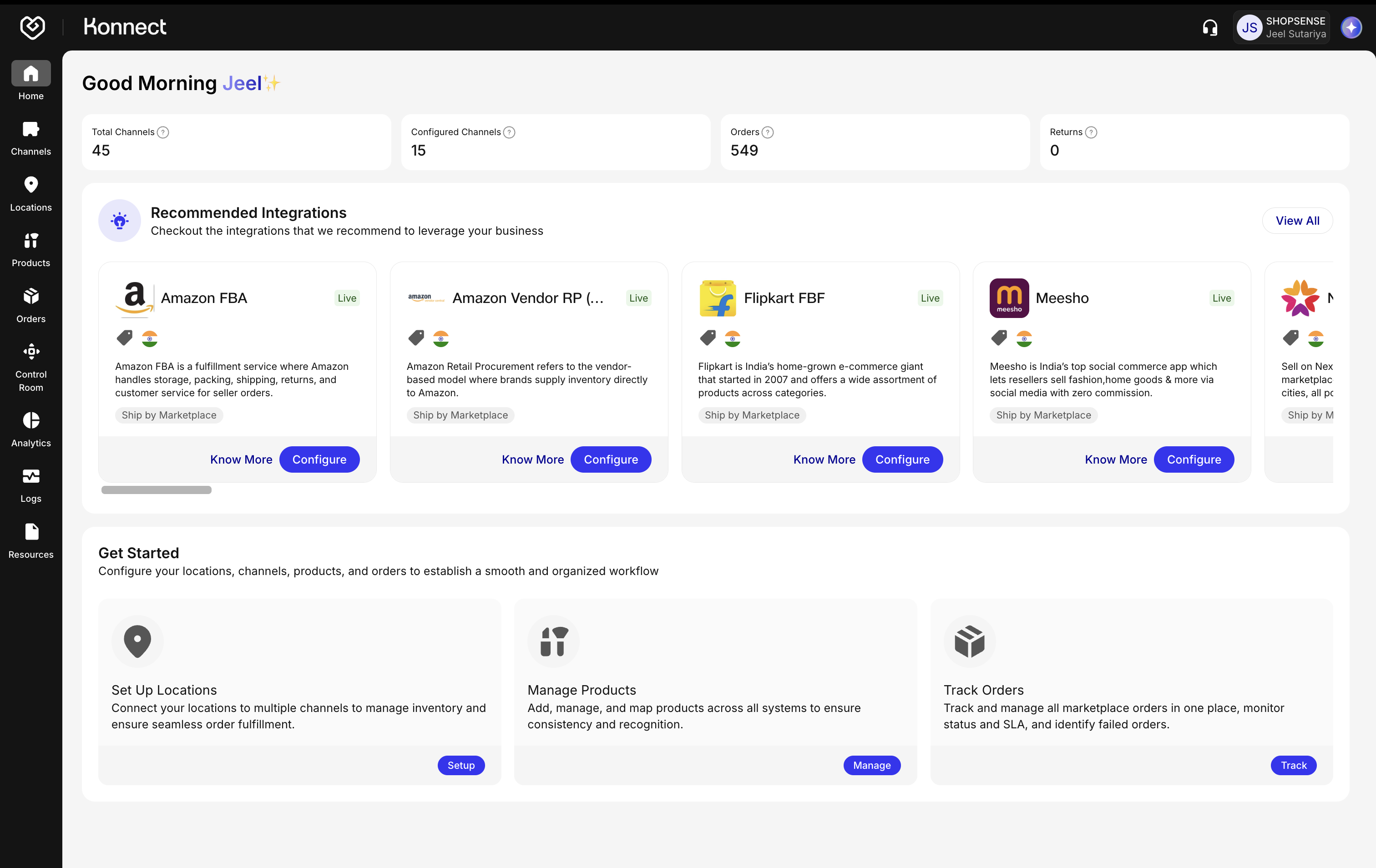
Figure 2: Navigate to Channels → All Channels 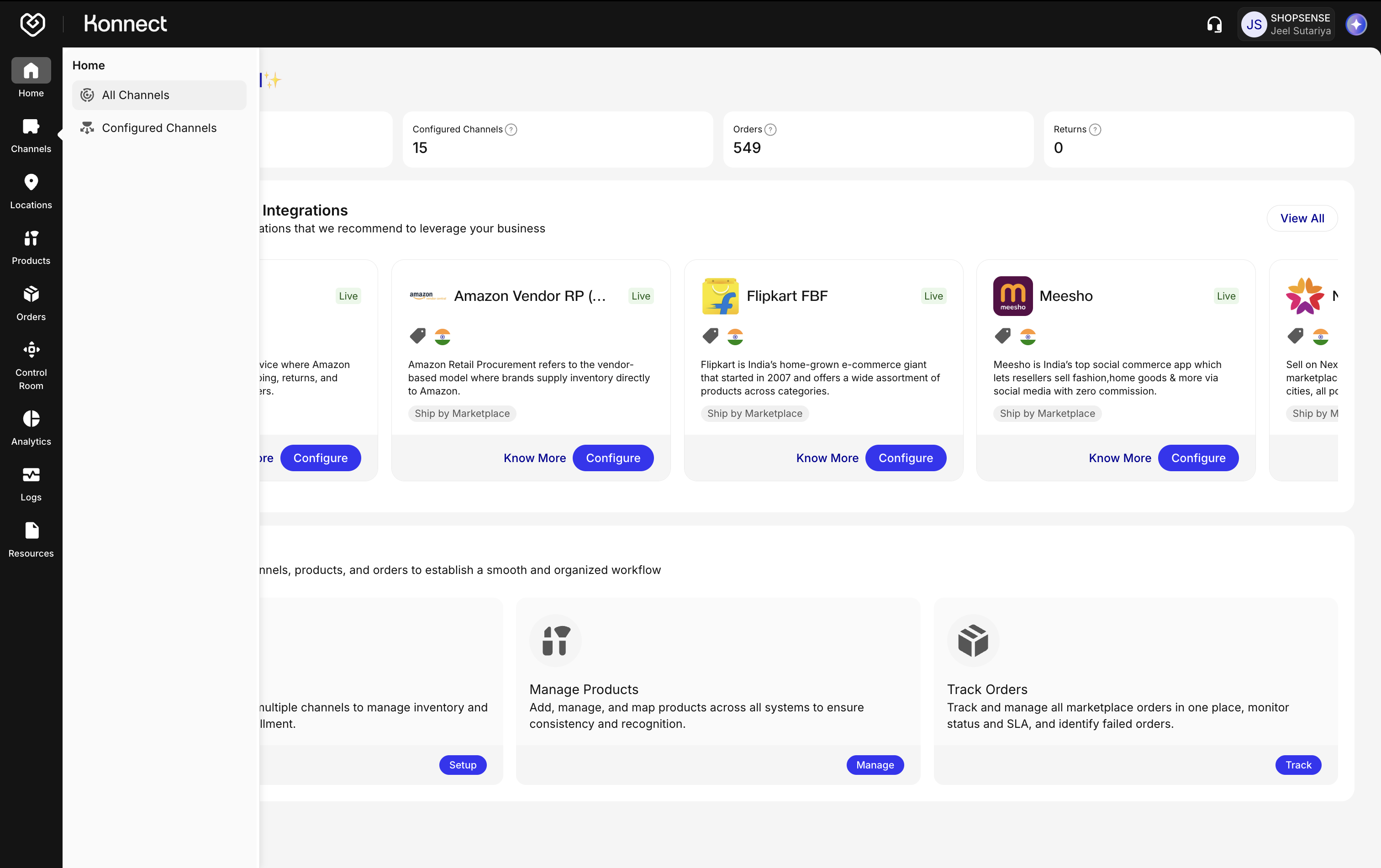
Figure 3: All Channels Search for Clozzet (or switch to the Marketplace tab and locate Clozzet), then click Configure on the Clozzet card. This opens the account setup section.
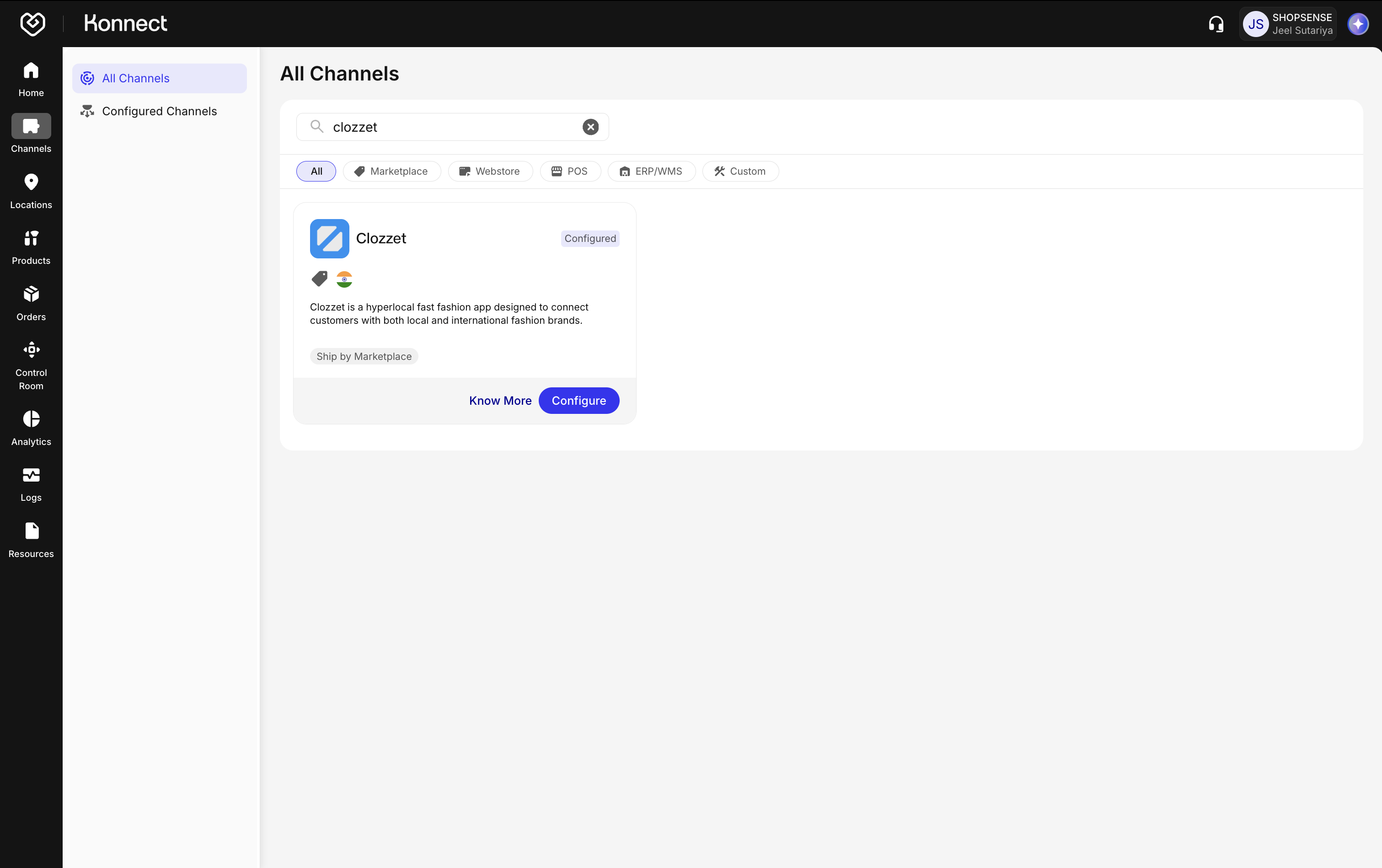
Figure 4: Search for and Configure the Clozzet Channel
Know more about Configuring the Account Details here
An account on Fynd represents a single Clozzet seller connection. You can create multiple accounts within a single channel, each maintaining its own siloed product mapping, inventory updates, and orders.
On the Account Details tab, set the following:
Account Name Provide a unique company-level name.
Configuration Controls Toggle on the sync features you need:
- Order Sync
- Optionally set Order Sync From date
- Return Sync (not supported by Clozzet at this time, leave off)
- Inventory Sync
- Order Sync
Note the logistics banner: this channel uses marketplace-managed logistics, meaning your shipments are fulfilled directly by Clozzet's logistics partners (its own rider fleet).
Click Next.
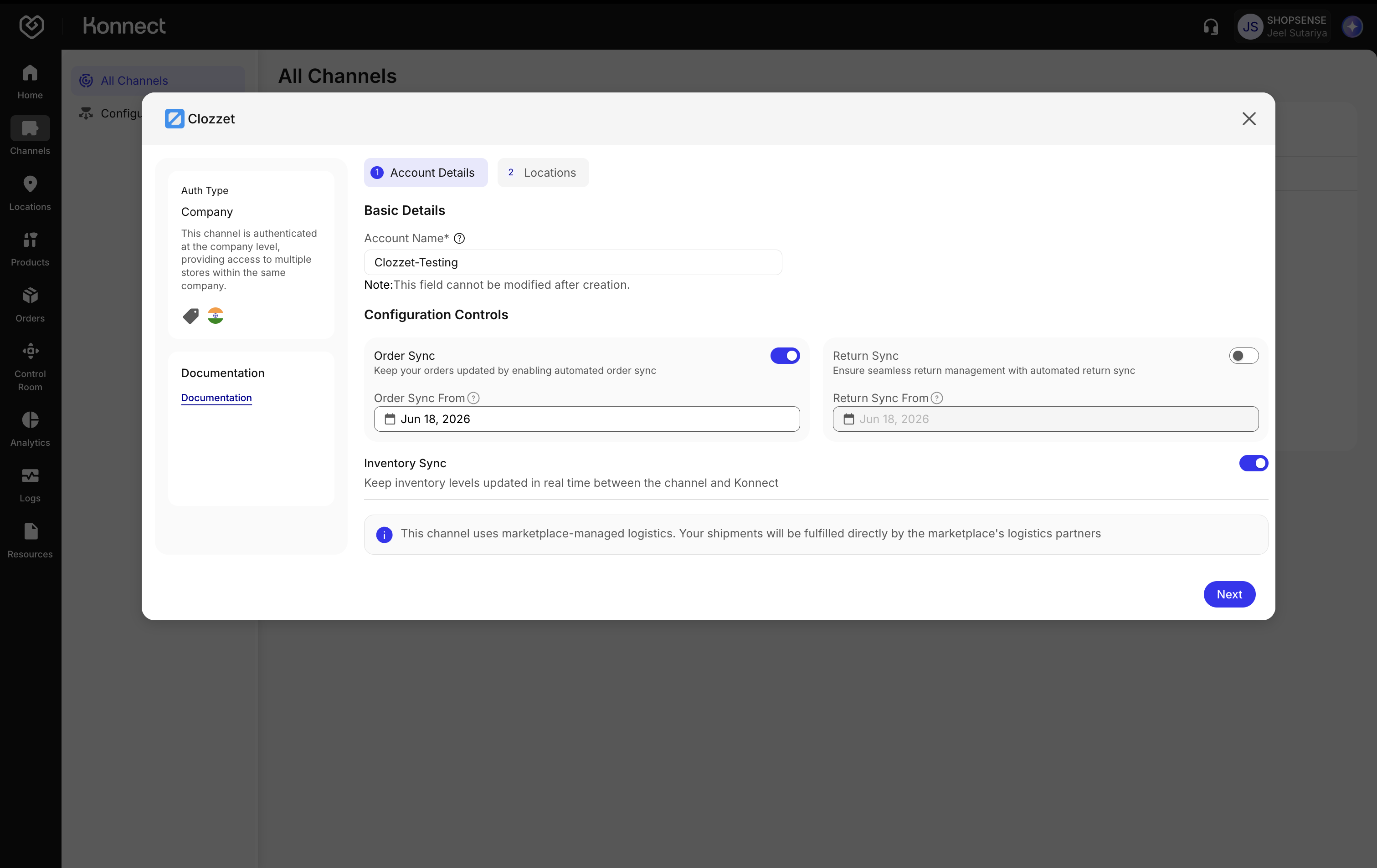
Figure 5: Account Details
The Account Name cannot be modified after the account is created. Choose it carefully.
Clozzet is a Company Type authentication channel, so a single company-level credential set authorises operations across all of your seller locations.
Under Channel Credentials, enter the email and password that Clozzet shared with you for your seller account.
Click Save.
The Konnect Credentials (username and password) are generated automatically once the account is created. You will collect and share these with your Clozzet POC during activation—see Activate & Share Credentials with Clozzet.
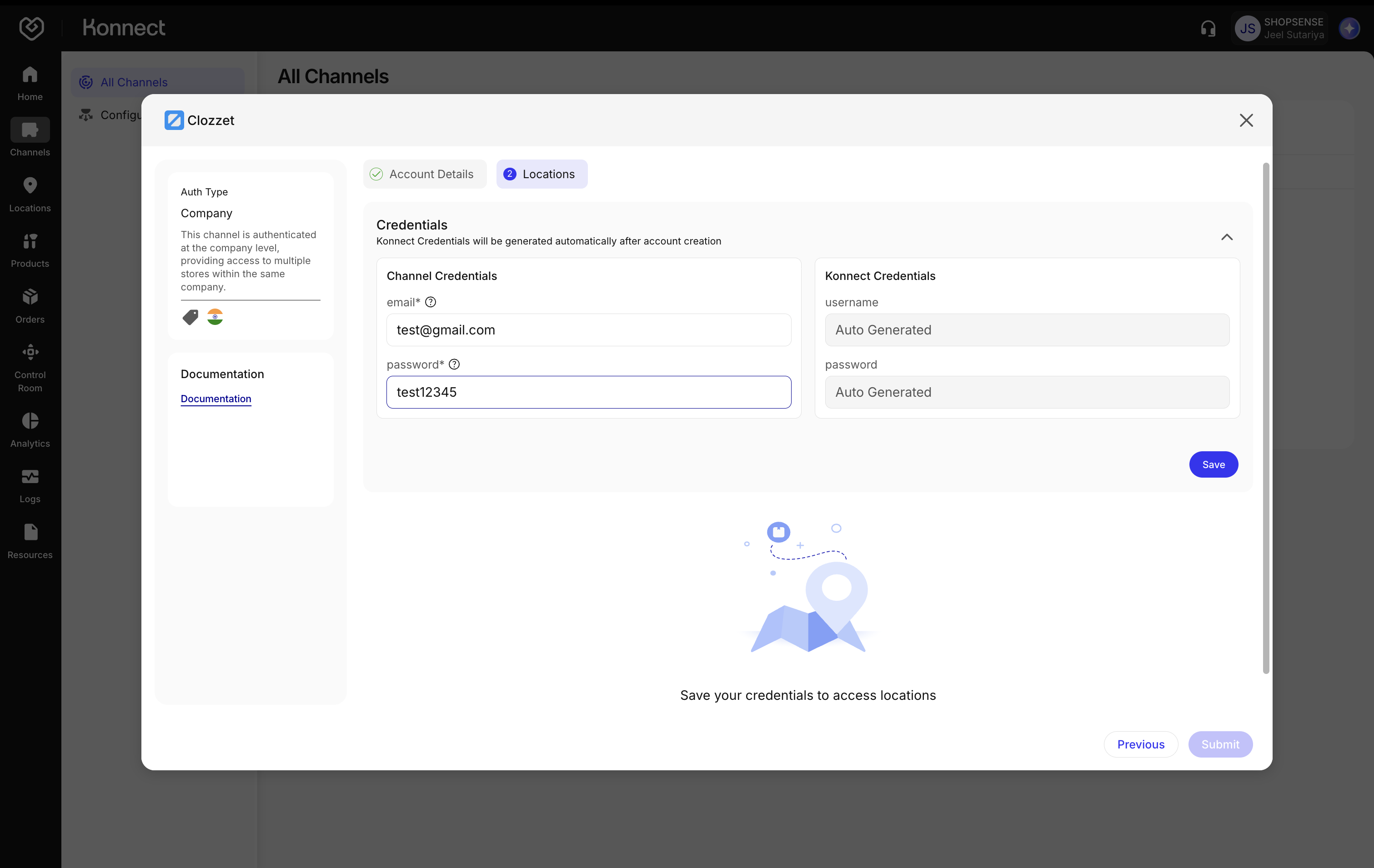
Figure 6: Channel Credentials and Auto-generated Konnect Credentials
The Channel Credentials let Fynd push to Clozzet. The Konnect Credentials let Clozzet push to Fynd. Together they enable the end-to-end bidirectional flow of inventory, orders, and updates.
Once the credentials are saved, map each Fynd location to its corresponding Clozzet location code. This ensures inventory flows to the correct location on Clozzet.
On the Locations tab, find the warehouse or store you want to map.
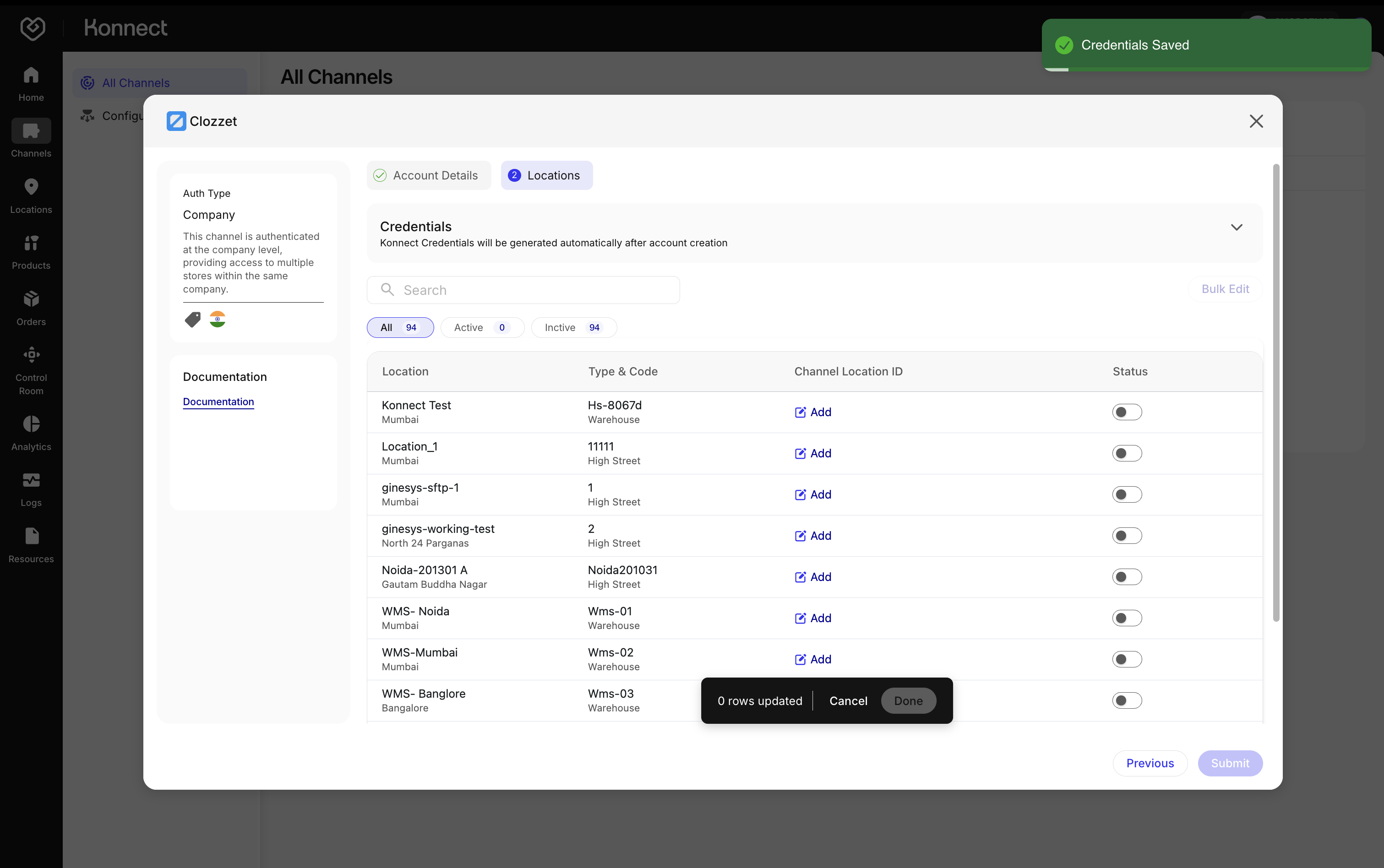
Figure 7: Locations List Click Add under the Channel Location ID column, enter the location code (storeId) shared by Clozzet for that location, then click Save.
- Use Apply to All to map all of your Fynd locations to a single location on Clozzet.
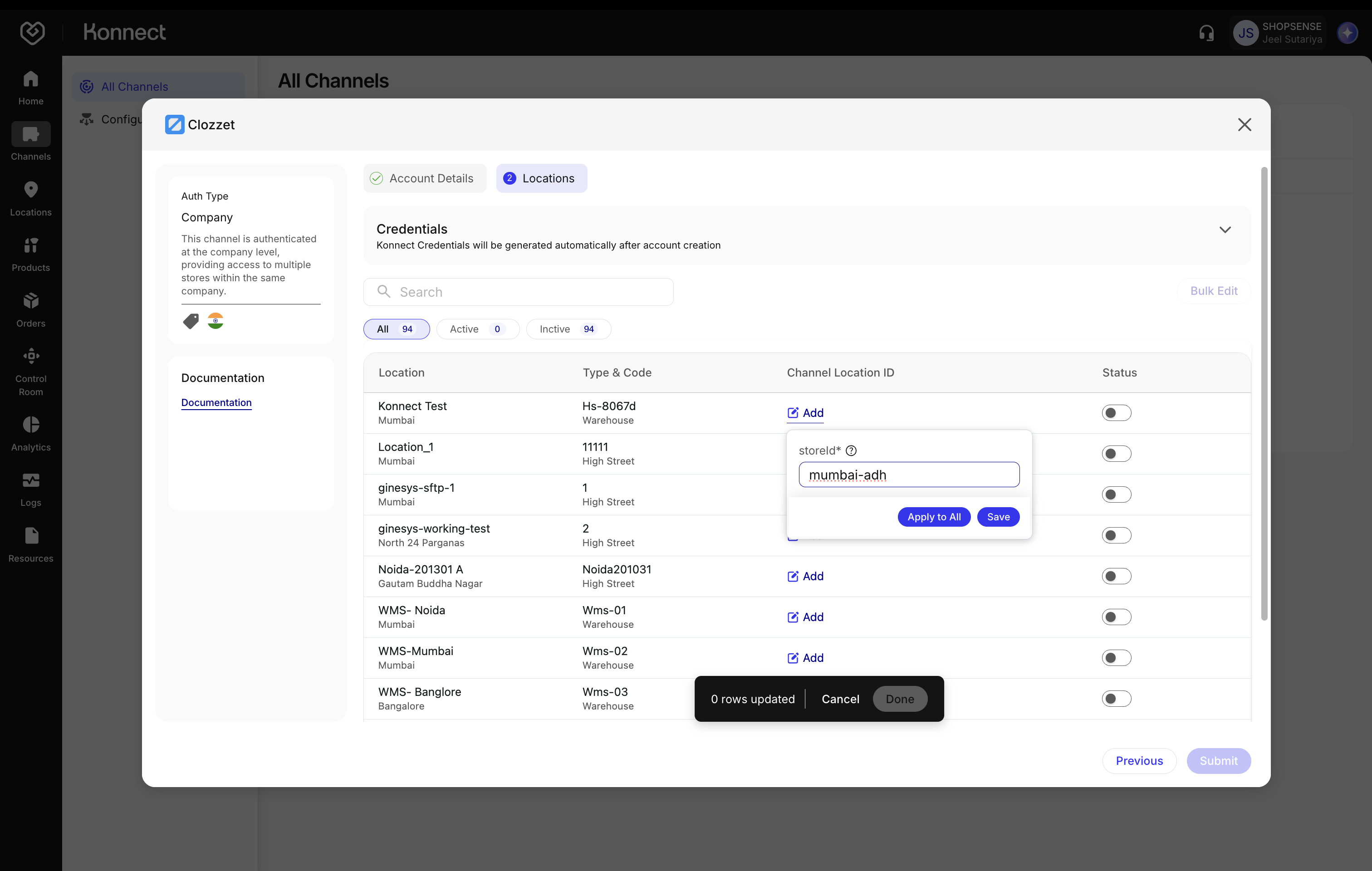
Figure 8: Map Fynd Locations to Clozzet Location Codes Toggle the Status for that row to map it, then click Done.
Use the search bar, the All / Active / Inactive filters, and Bulk Edit to manage multiple locations at once.
Pre-Submission Checklist
- Account Name is accurate and unique
- Order Sync and Inventory Sync toggles are set as required
- Channel Credentials are saved
- Each required location has a Channel Location ID and its status is toggled On
Submit
- Click Submit (bottom-right) to save your configuration and create your account
Submitting creates the account, but it is not active yet. You will activate it in the next step: Activate & Share Credentials with Clozzet.
| Setting | When Enabled | When Disabled |
|---|---|---|
| Order Sync | Orders auto-synced from Clozzet to Fynd | No automatic order sync |
| Return Sync | Not supported by Clozzet | Returns handled outside the channel |
| Inventory Sync | Real-time stock updates Fynd → Clozzet | No inventory updates (risk oversell) |