Your account has been created but is not yet live. In this phase you will review your configured channels, locate the Fynd-generated (Konnect) credentials, share them with your Clozzet POC, and switch the account to Active so that orders and inventory begin to flow.
Go to Channels → Configured Channels. This panel shows all of your active and inactive accounts across marketplaces in one place.
Locate your newly created Clozzet account. Its status will show as Inactive until you activate it.
To enable or disable an account, or make changes to its configuration, click Edit under the Manage column for that account.
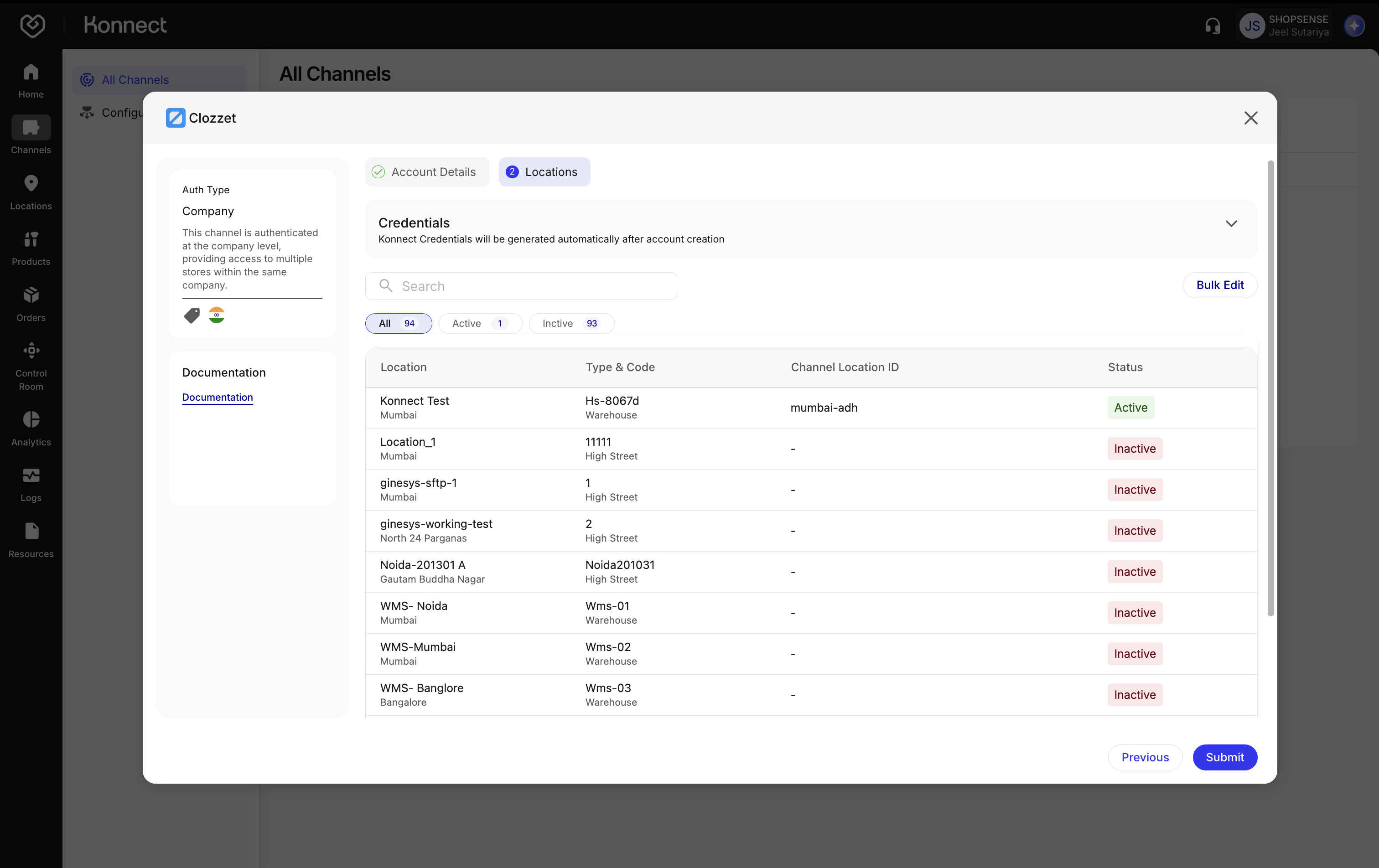
Figure 1: Configured Channels
Clozzet needs the Fynd-generated credentials in order to push orders, AWB, delivery updates, and cancellations back into Fynd.
Open the account configuration and go to the Locations tab.
Under Konnect Credentials, you will find the auto-generated username and password.
Copy both values and share them with your Clozzet POC for channel connection. This completes the bidirectional link, alongside the Channel Credentials you entered earlier.
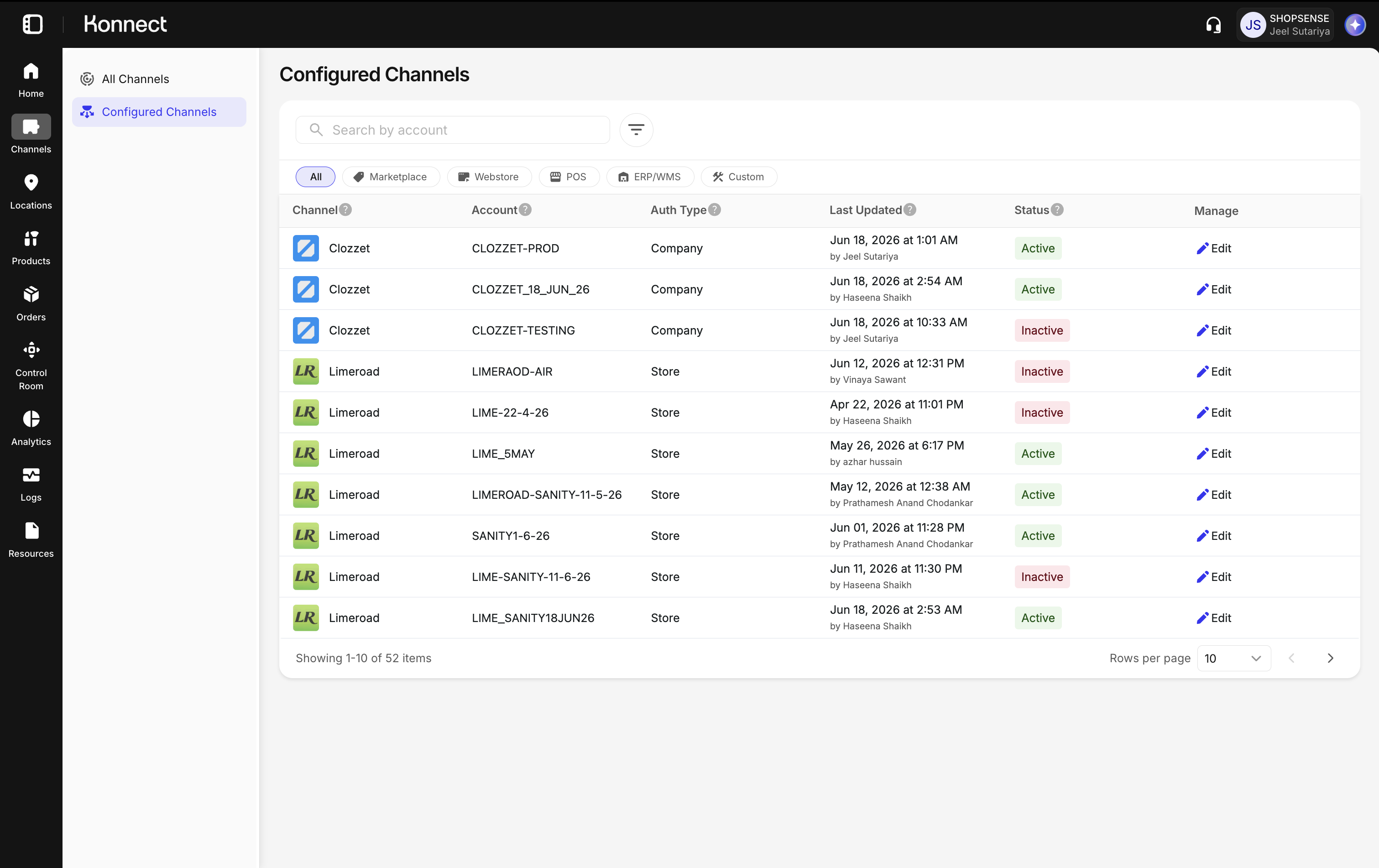
Figure 2: Auto-generated Konnect Credentials
These credentials are only generated once the account has been set up. They will not appear before submission.
Click Active in the top-right corner of the account configuration.
If you have already completed product mapping, you can enable the Inventory Sync toggle before confirming to run a full inventory sync for all mapped products.
- If product mapping is not yet done, you do not need to do anything extra here. Inventory will sync automatically once you complete product mapping.
Click Save Changes. Your account is now live.
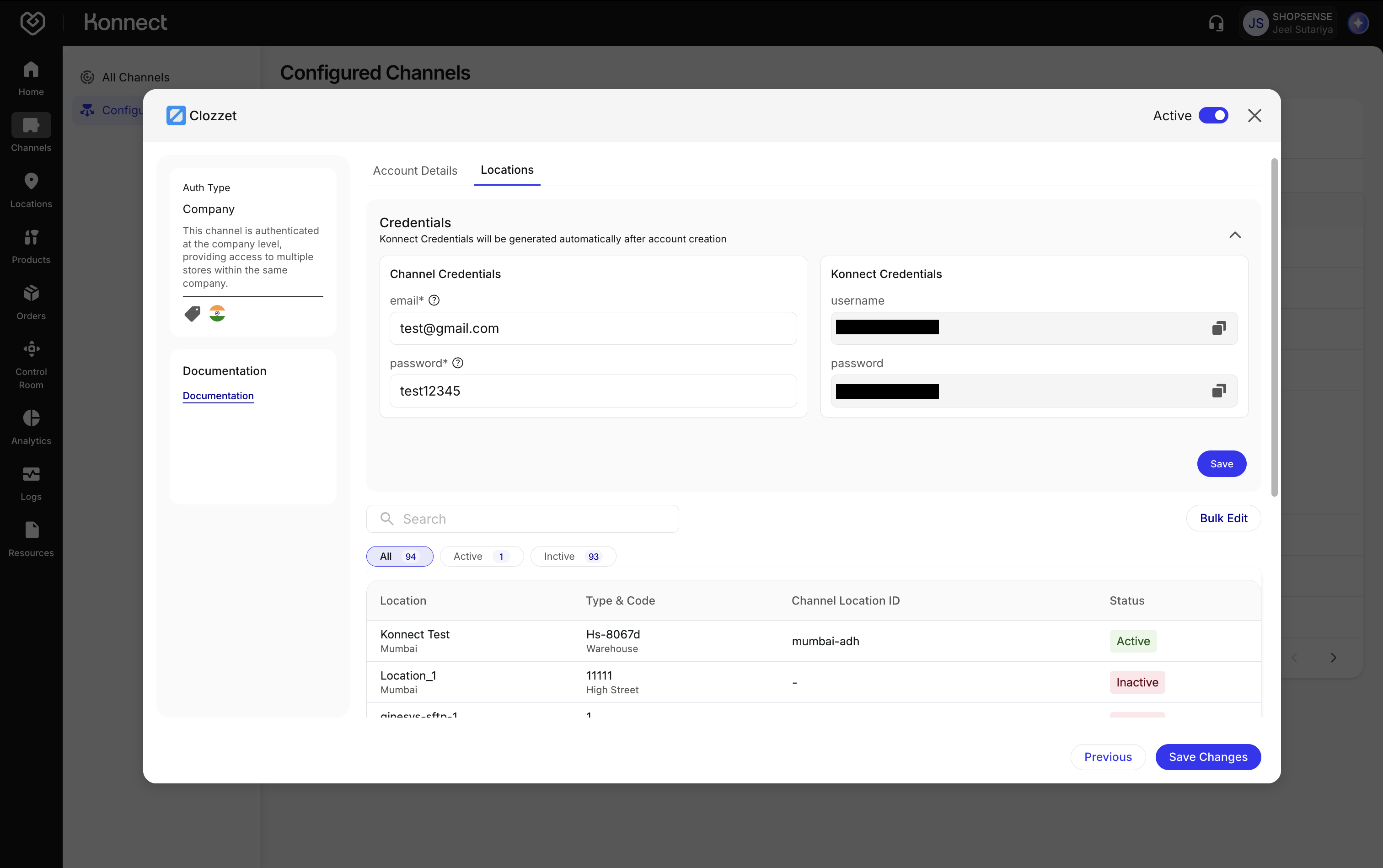
Figure 3: Activate the Account and Run Inventory Sync
Turning Inventory Sync on starts inventory updates. Price Sync is off on this channel, so no price updates are sent.
Next step: Map your catalogue in Product Mapping & Setup.