Open the Fynd Commerce dashboard.
Go to Company > Sales Channels.
Select the sales channel where POS or mPOS is enabled.
Navigate to Configuration > Payments > Payment Configuration.
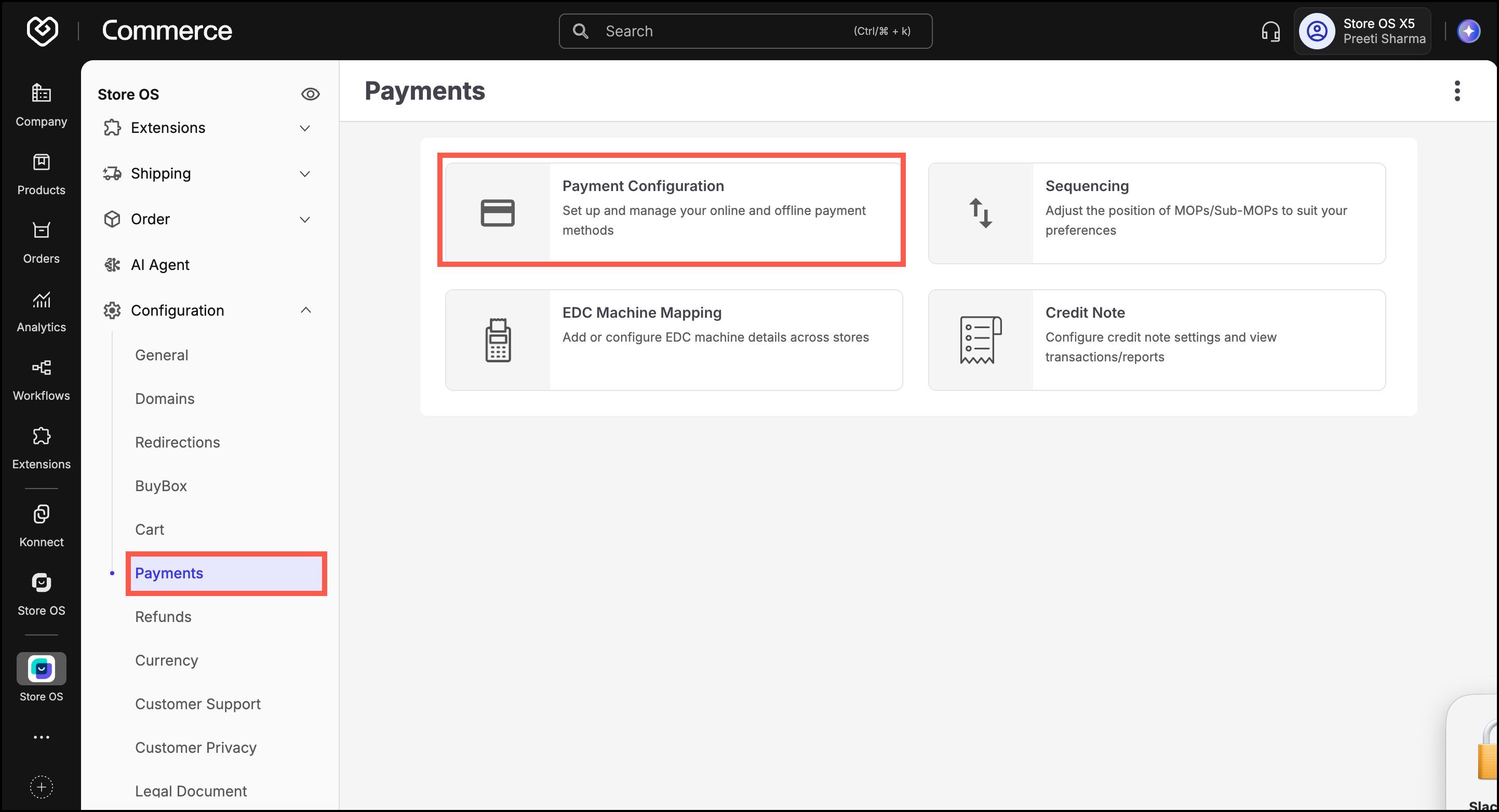
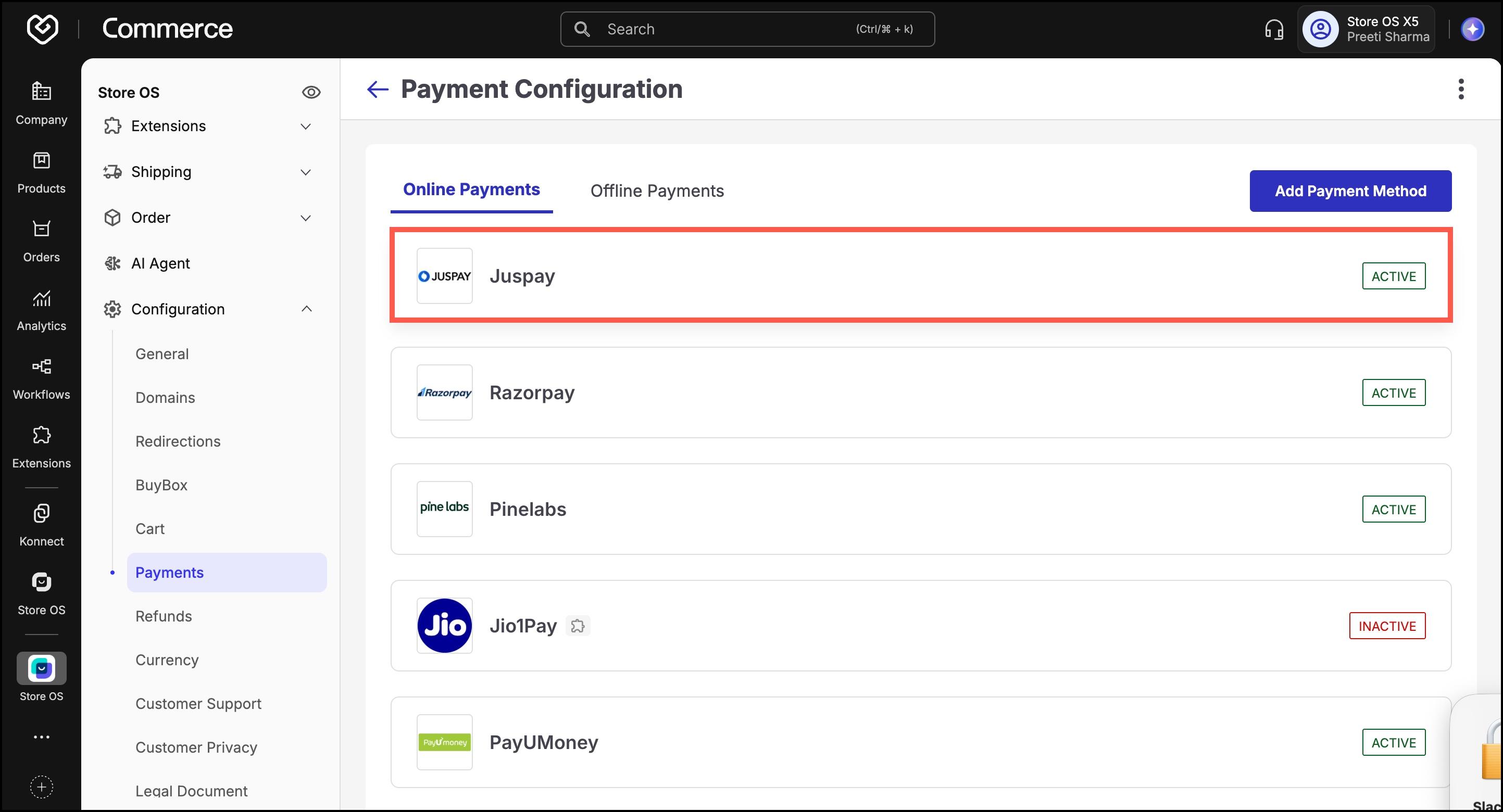
Under the Online Payment section, you’ll see a list of installed payment gateways.
If you haven’t installed a payment gateway yet, follow this guide to install a payment gateway.
Click on the desired payment gateway (e.g., Razorpay, Juspay, etc.).
A panel will open with two sections:
- Storefront
- Store OS
Go to the Store OS tab.
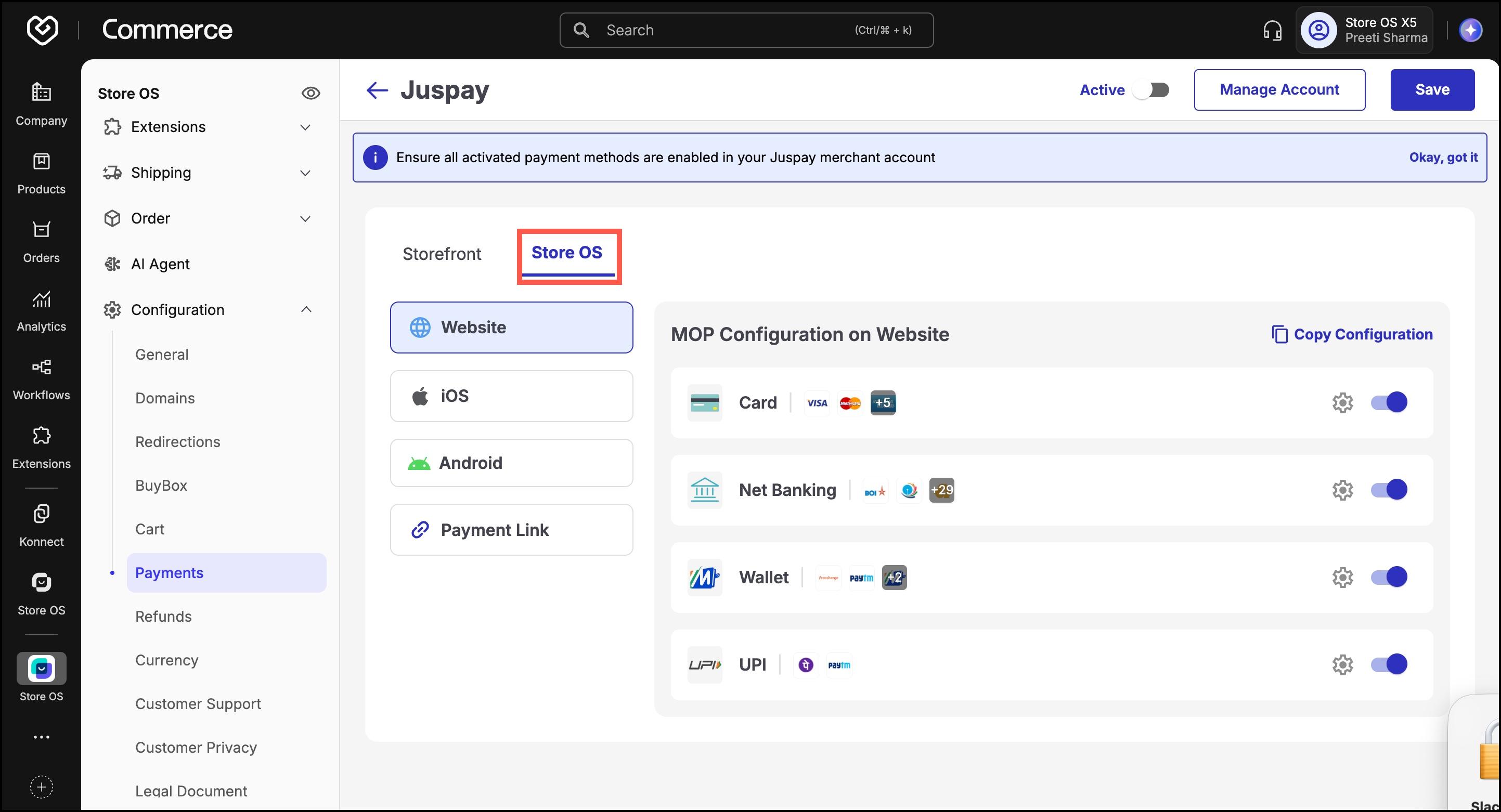
Enable your required Modes of Payment (MoP) and their respective Sub-Modes of Payment (Sub-MoP).
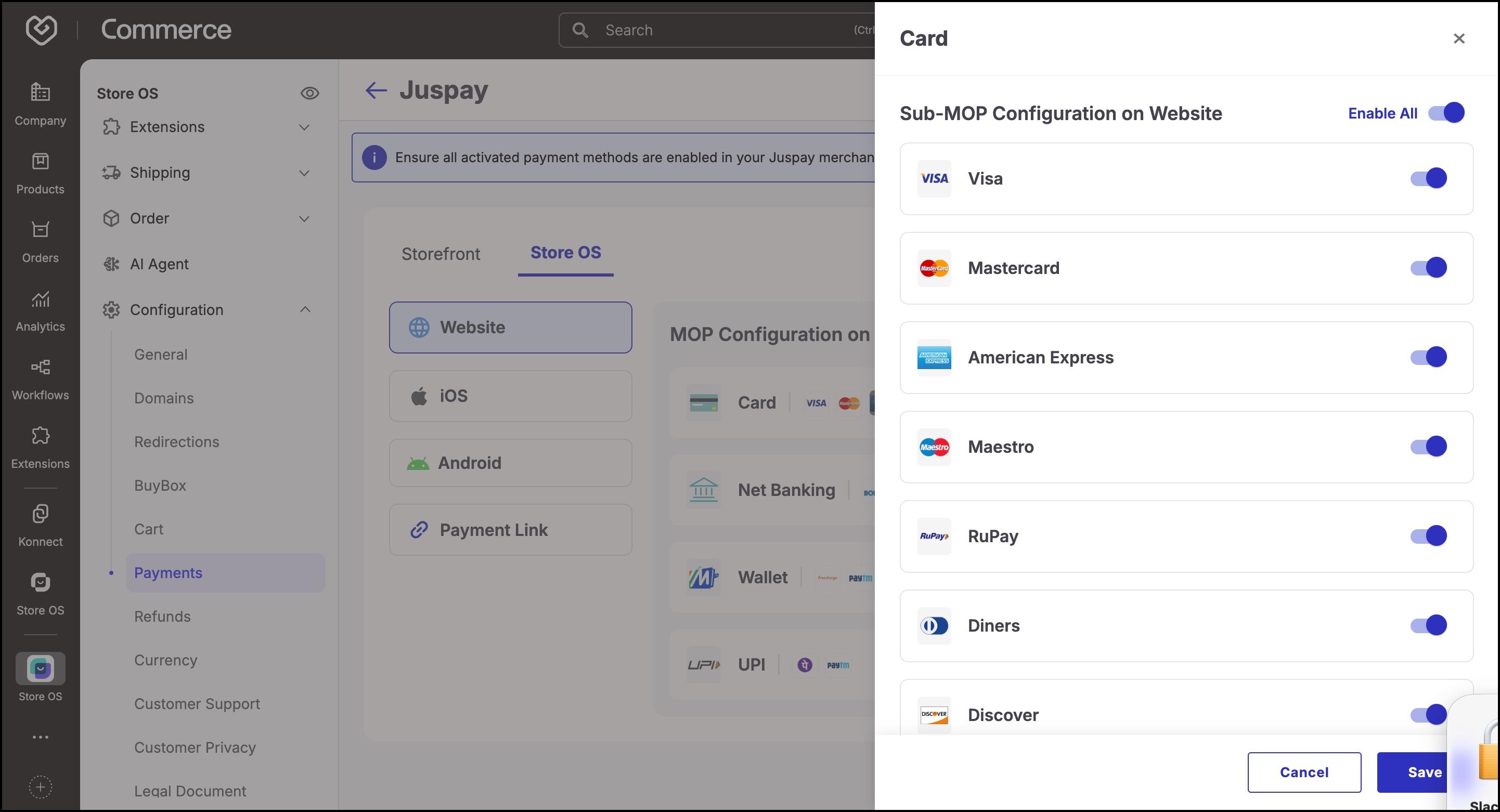
Figure 4: Modes of payment (MoP) Click Save.
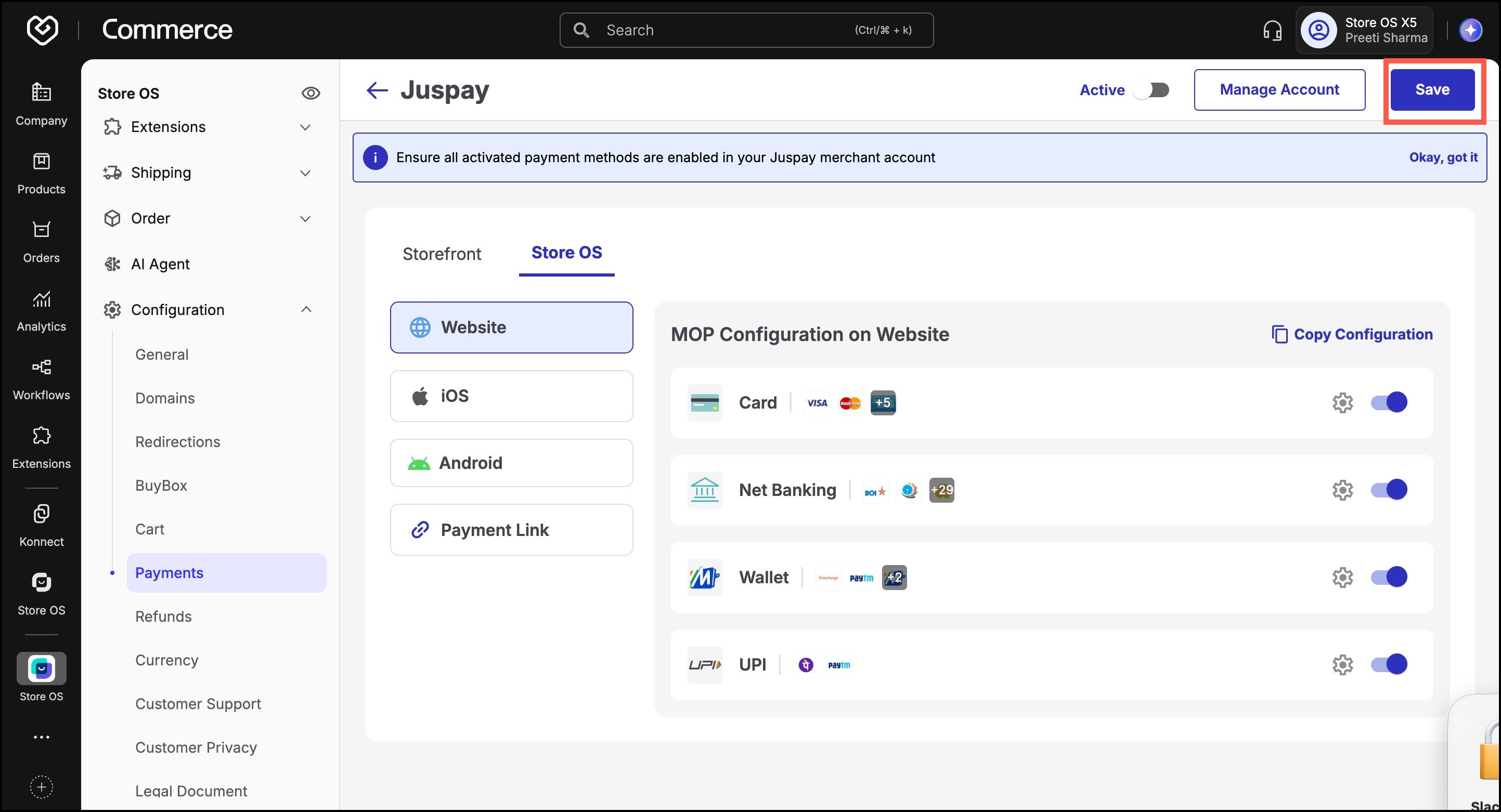
Figure 5: Save settings
Once saved, this gateway will now be available for use in the POS interface.