Commerce Panel → Sales Channel (select application) → Configuration → Shipping → Fulfillment Options → Self Pickup
To support in-store pickups or custom delivery flows for your POS and mPOS operations, you must configure the appropriate fulfillment options within your sales channel on the Fynd Commerce platform.
By default, a Standard Delivery option is enabled for all products, stores, and delivery partners. However, to allow in-store pickups via POS, you must explicitly enable Self Pickup and assign it to your POS sales channel.
- Standard Delivery (enabled by default): Supports shipping via delivery partners.
- Self Pickup: Enables customers or store staff to pick up orders directly from physical stores. Required for POS.
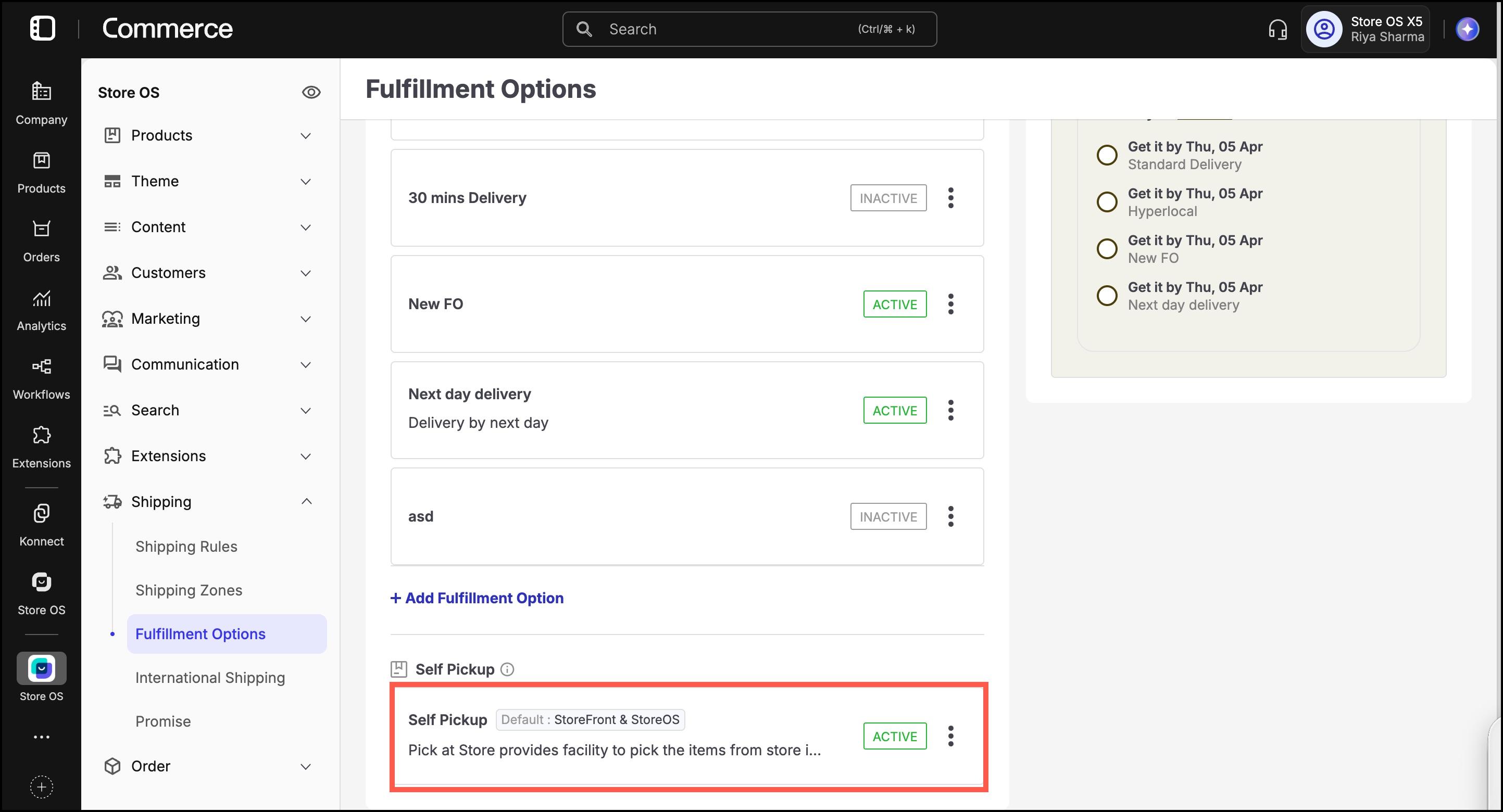
Navigate to Shipping > Fulfillment Options > Self Pickup in the left menu.
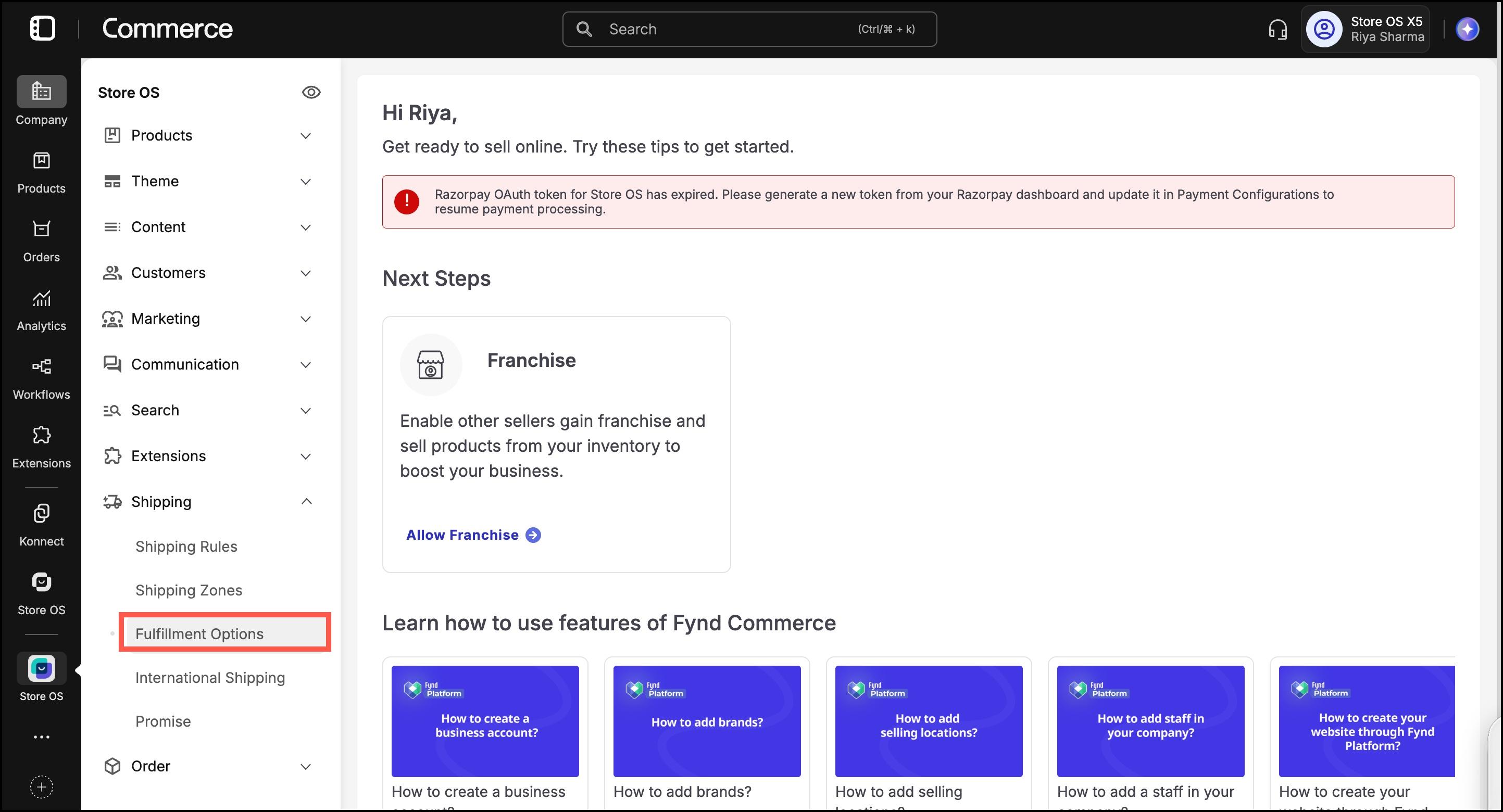
Open Self Pickup option.
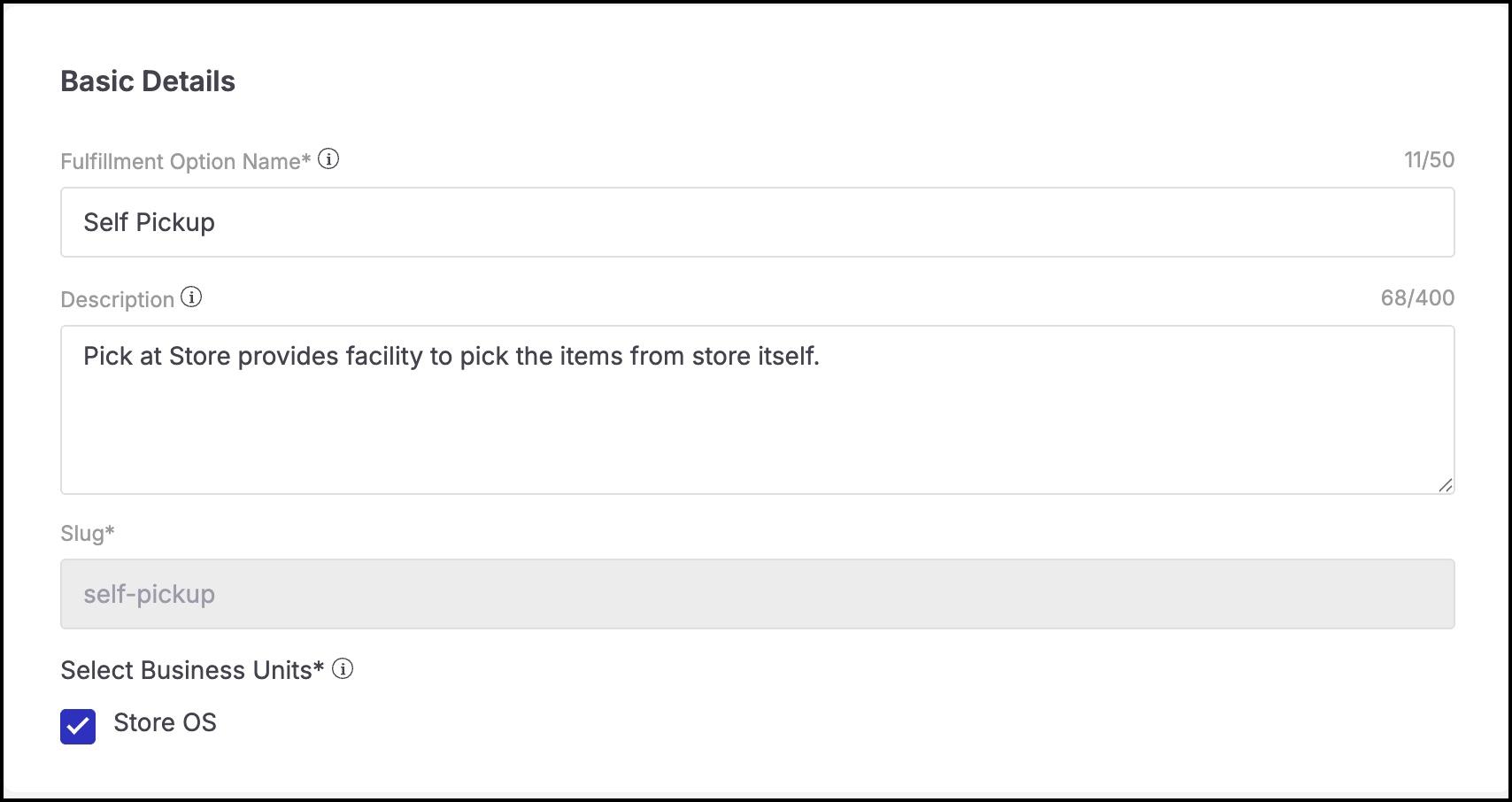
Under the Basic Details tab:
- Enter a Fulfillment Option Name (e.g.,
Self Pickup at Store). - Enter a short Description (e.g.,
Pickup your order directly from our store). - Slug will auto-generate based on the name.
- For Business Units, keep Store OS selected (this makes it visible for in-store POS operations).
- Enter a Fulfillment Option Name (e.g.,
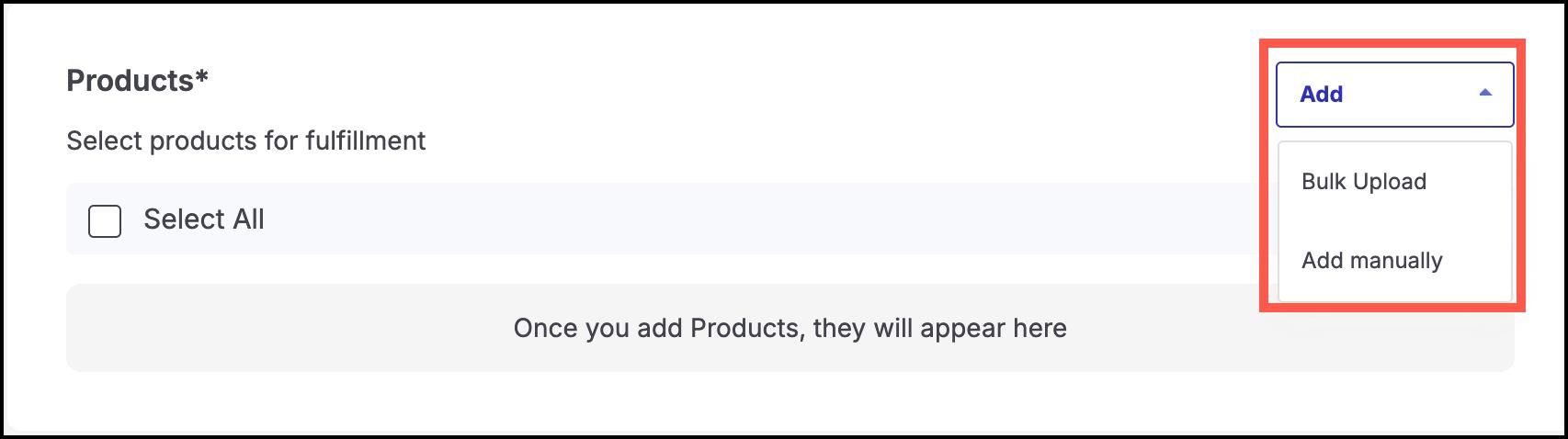
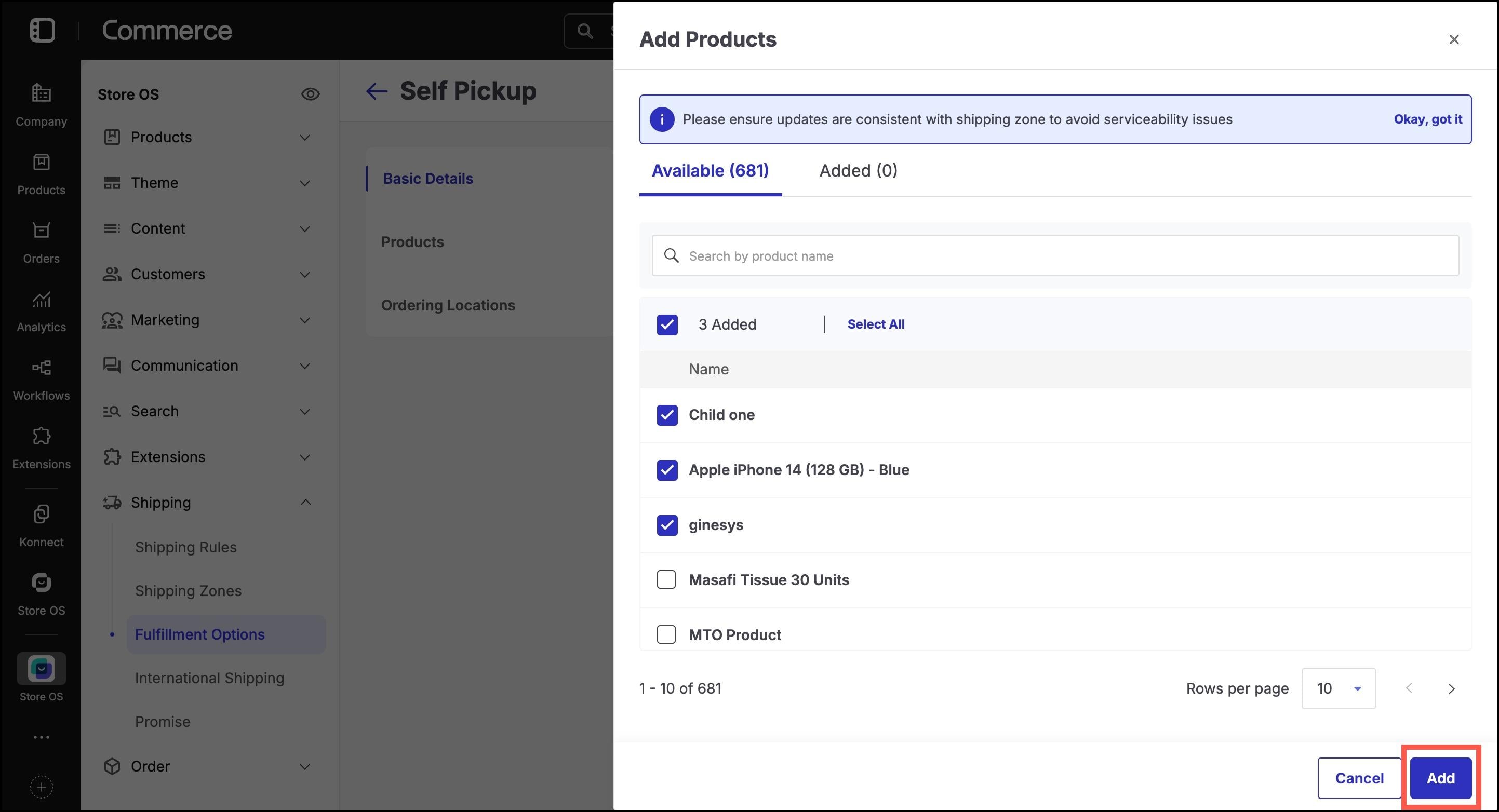
Go to the Products section.
Click Add, and choose either:
- Add Manually: Search and select specific products.
- Bulk Upload: Upload a CSV of product identifiers.
Click Done once products are selected.
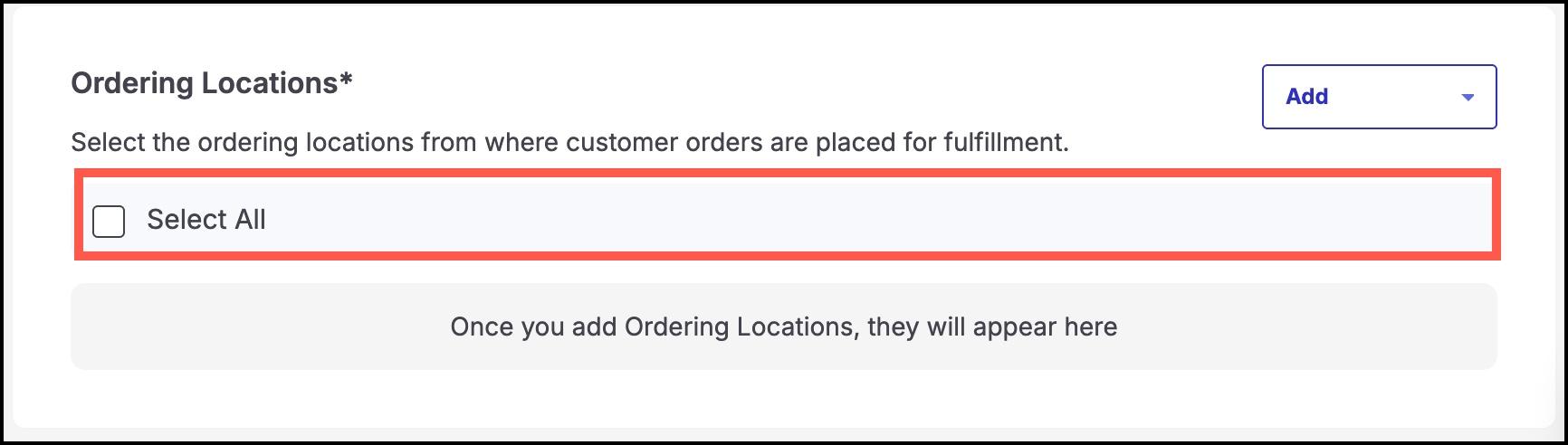
- Navigate to the Ordering Locations section.
- Uncheck Select All if you want to limit it to specific stores.
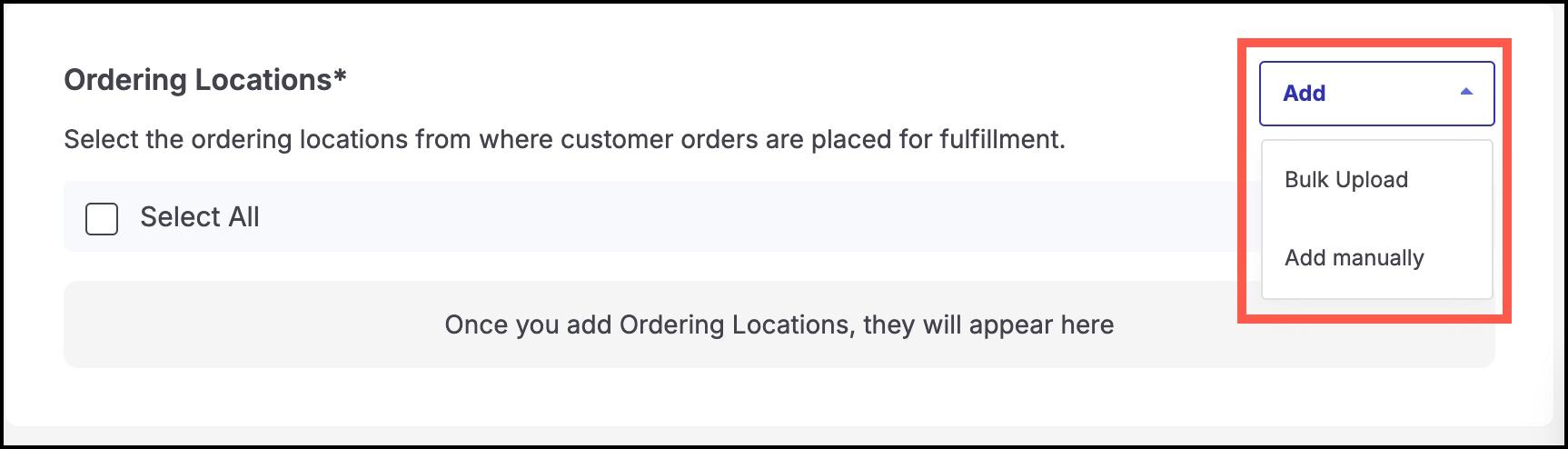
- Click Add, and choose from:
- Add Manually
- Bulk Upload
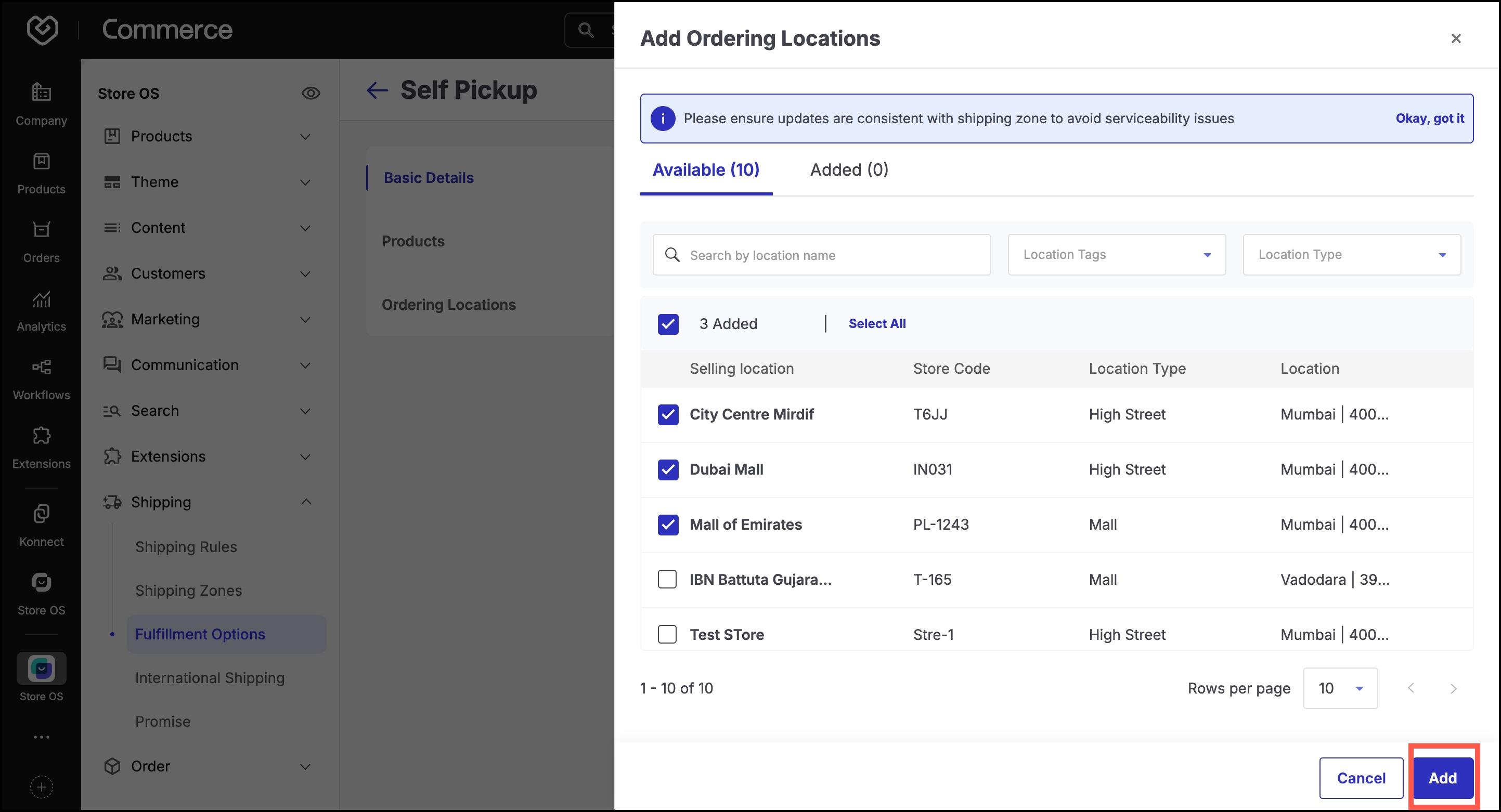
- Select the desired ordering locations (physical stores) where this fulfillment flow will be available.
- Click Done to confirm.
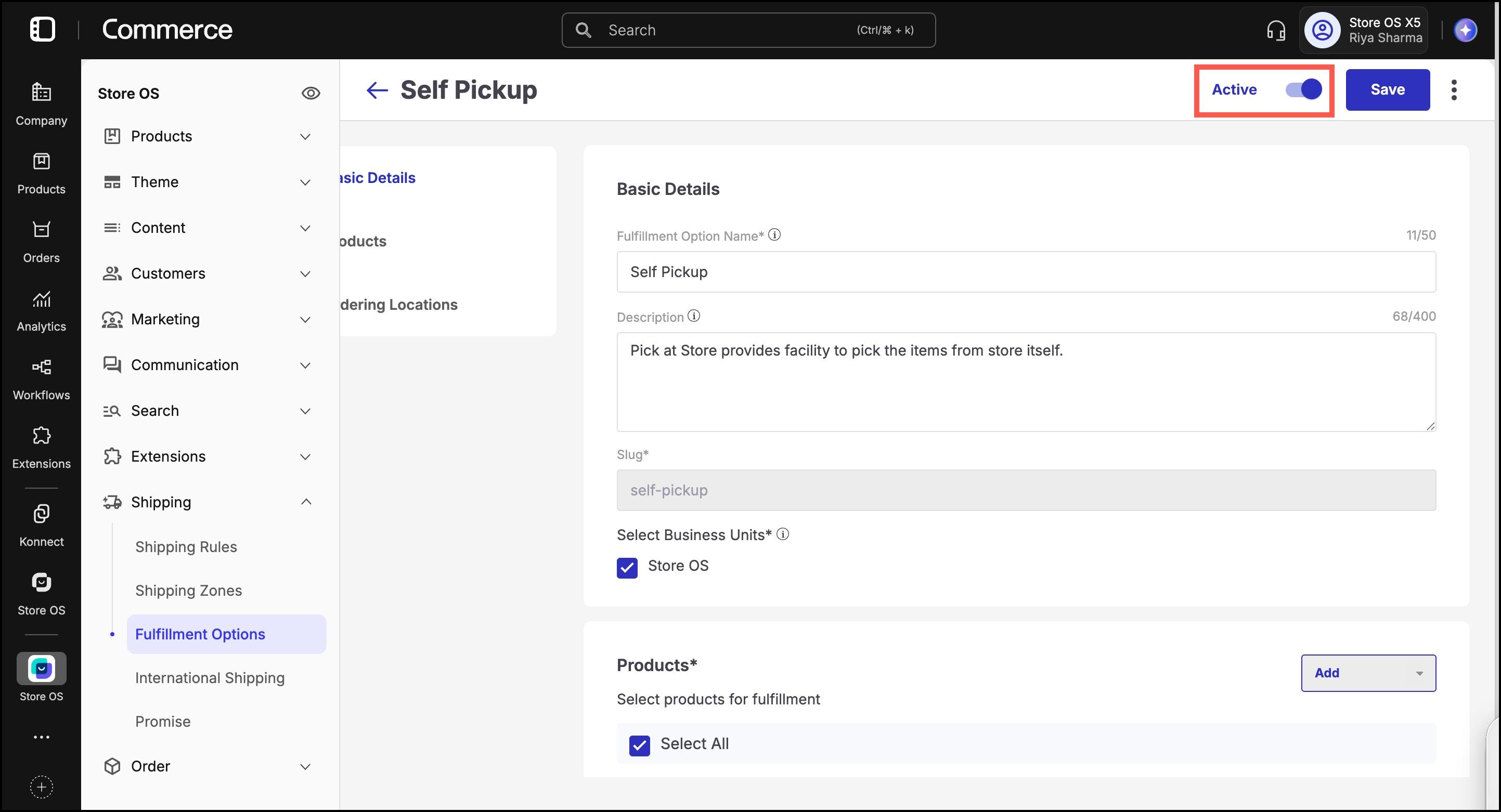
Toggle the Inactive/Active switch in the top-right corner to activate the fulfillment option.
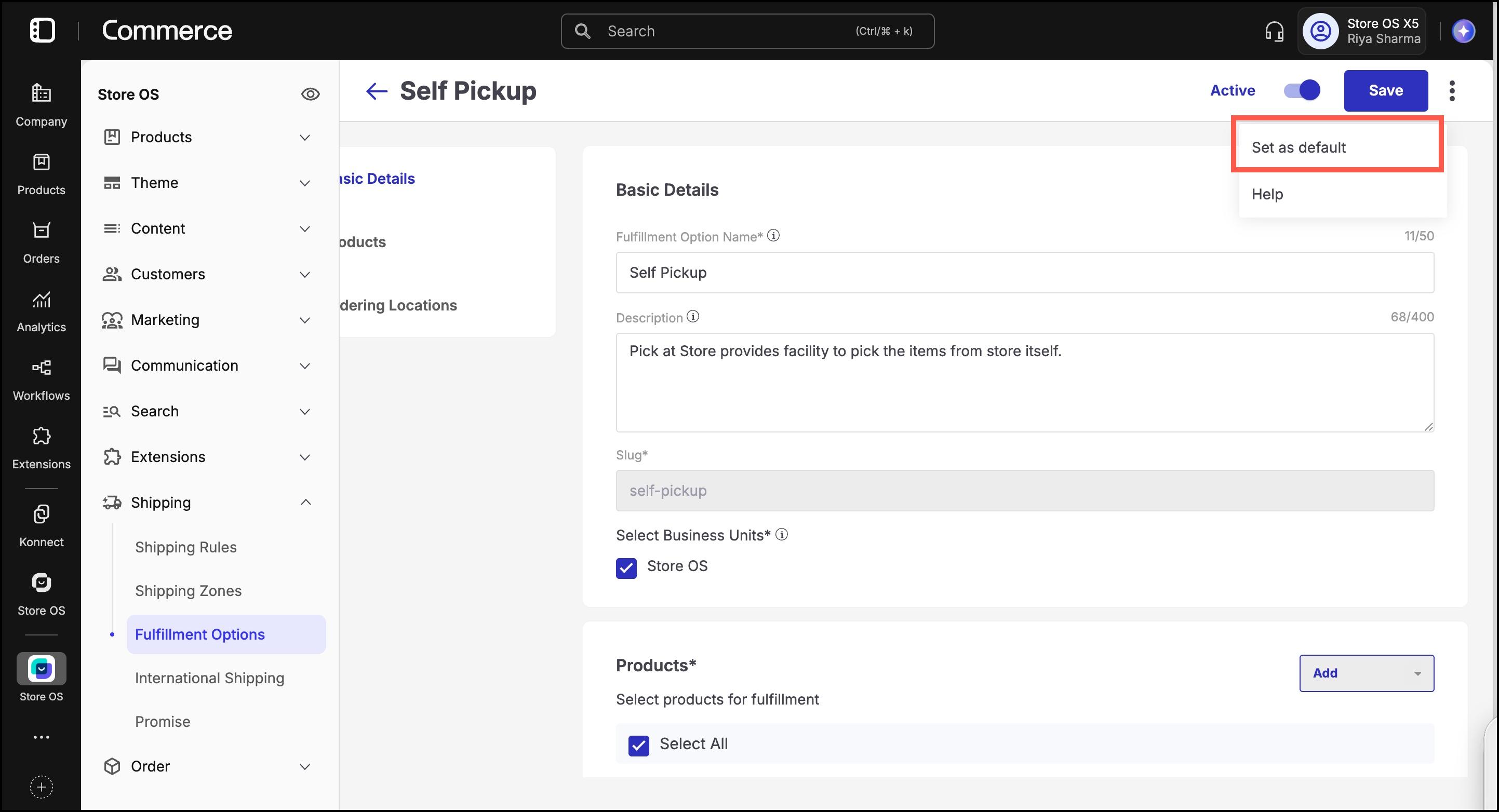
(Optional) Click the three-dot menu to set this as the default option for applicable products/stores.
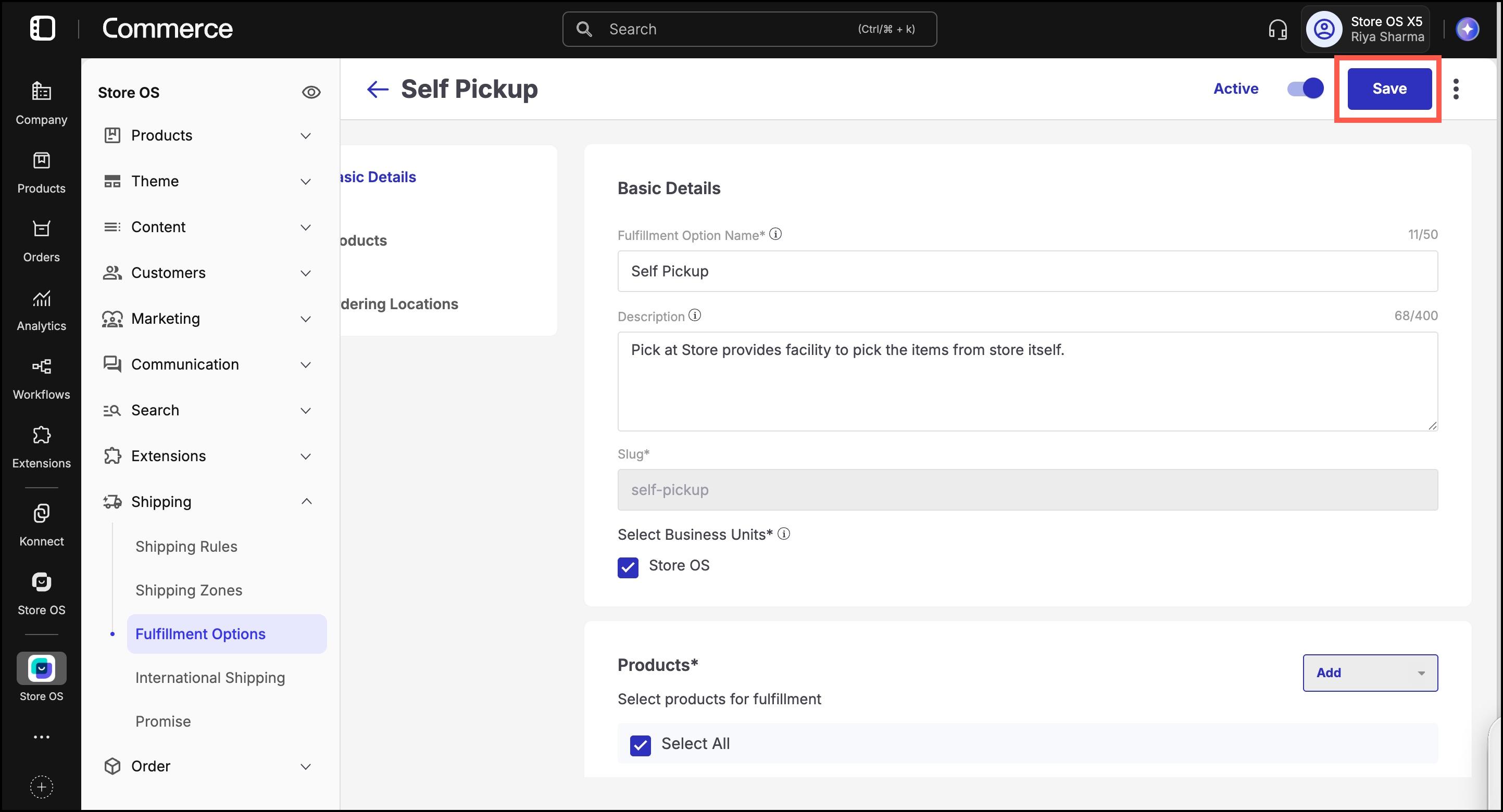
Click Save to apply your changes.
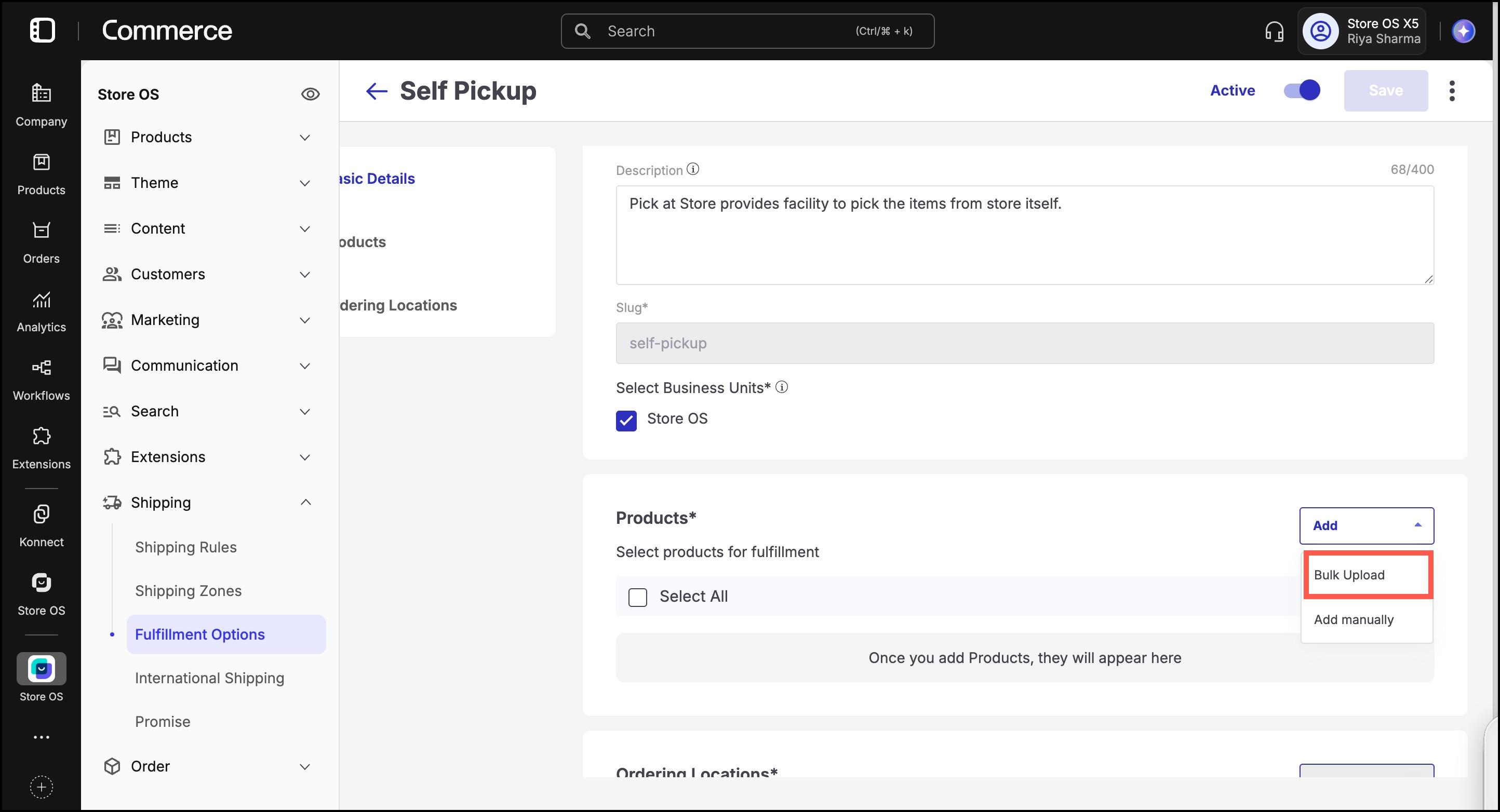
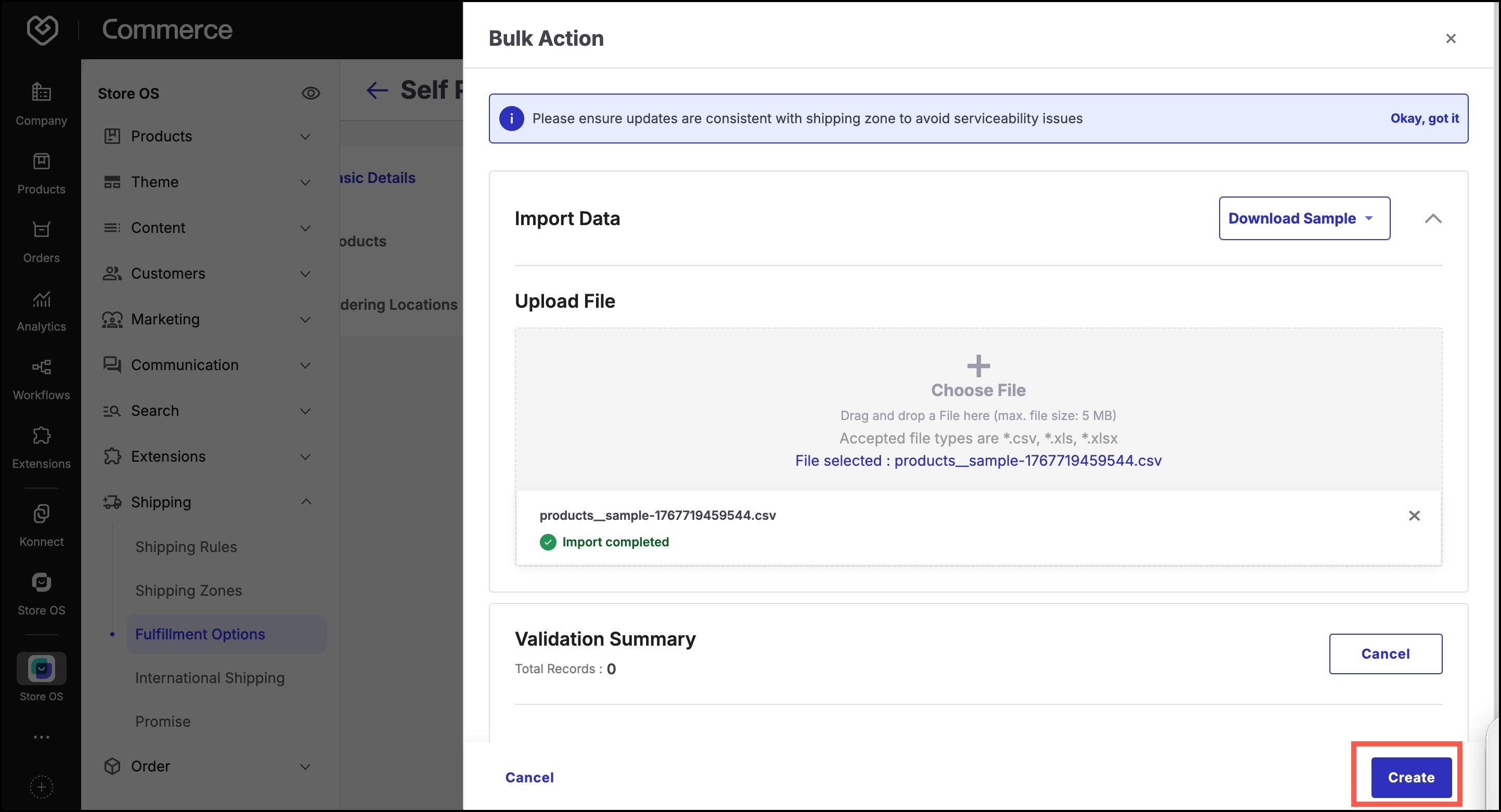
For Products and Locations, you can upload in bulk:
In the relevant section (Products or Ordering Locations), click Add > Bulk Upload.
Click Download Sample to download the CSV template.
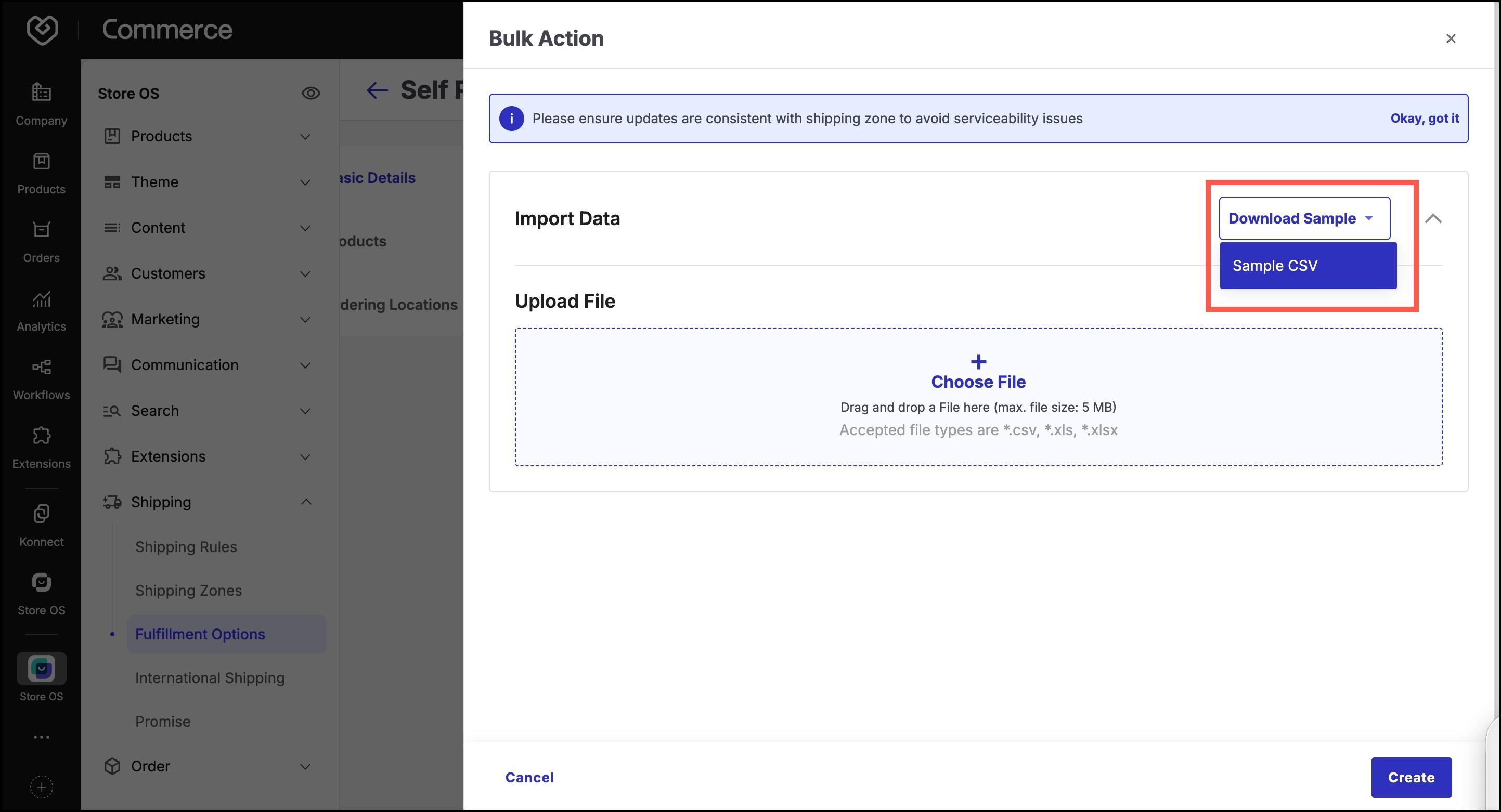
Fill the file with required data:
For products:
Type, Item Code, Brand Name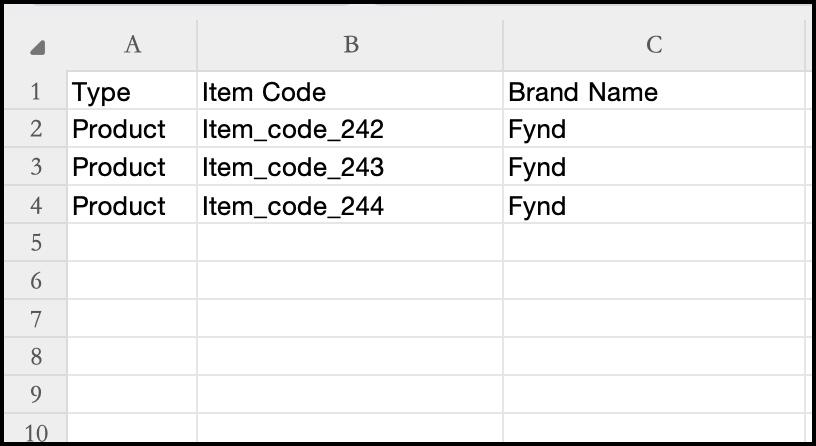
Figure 14: Fill products For locations:
Store Code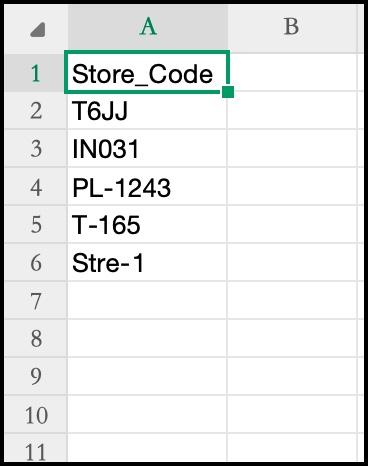
Figure 15: Fill locations
Click Upload File, select your CSV, and complete the import.
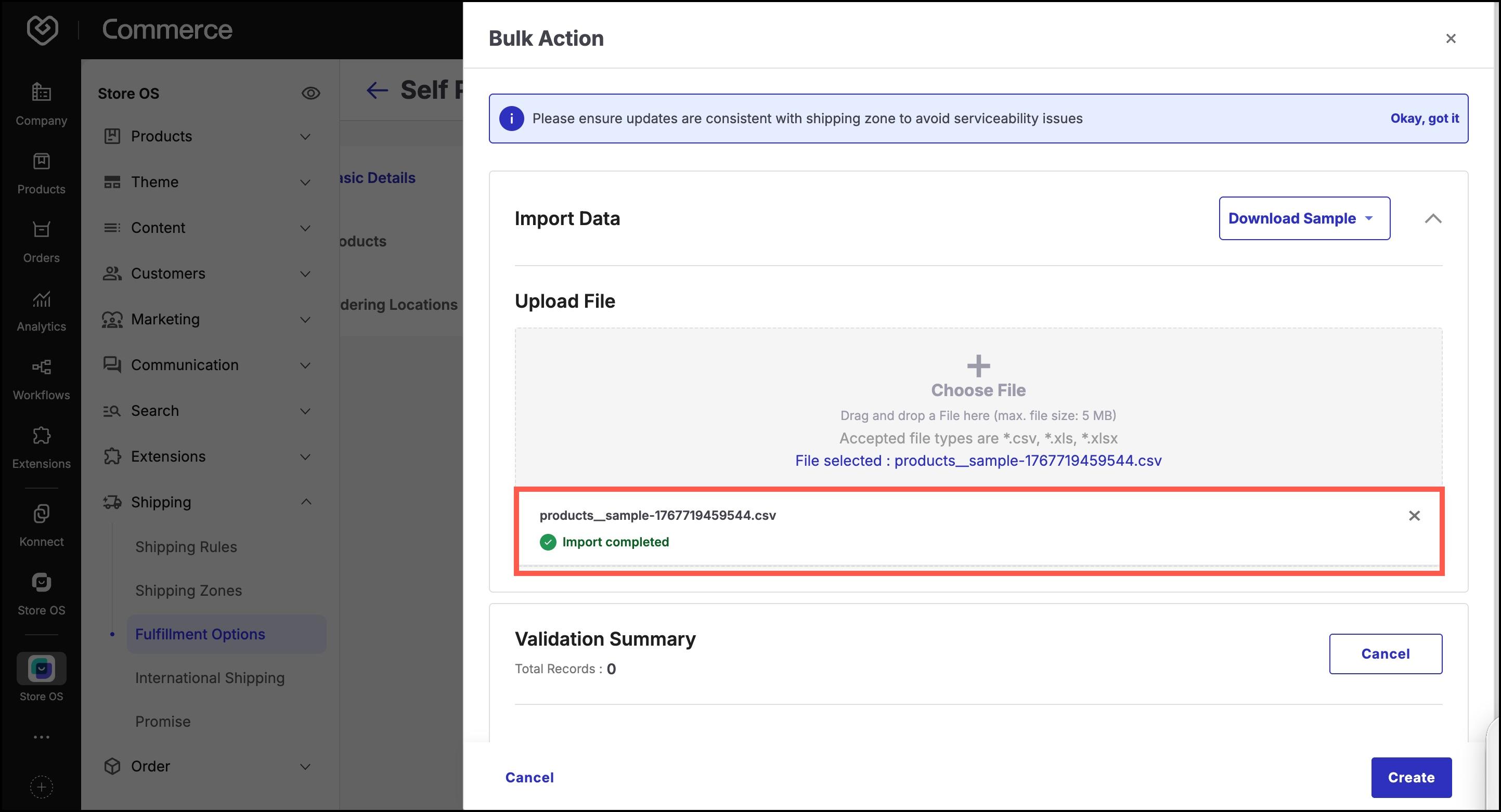
Click Create to confirm.
To disable the Self Pickup option:
Go to Self Pickup.
Click the three-dot menu beside the option you want to disable.
Toggle off the Active switch.
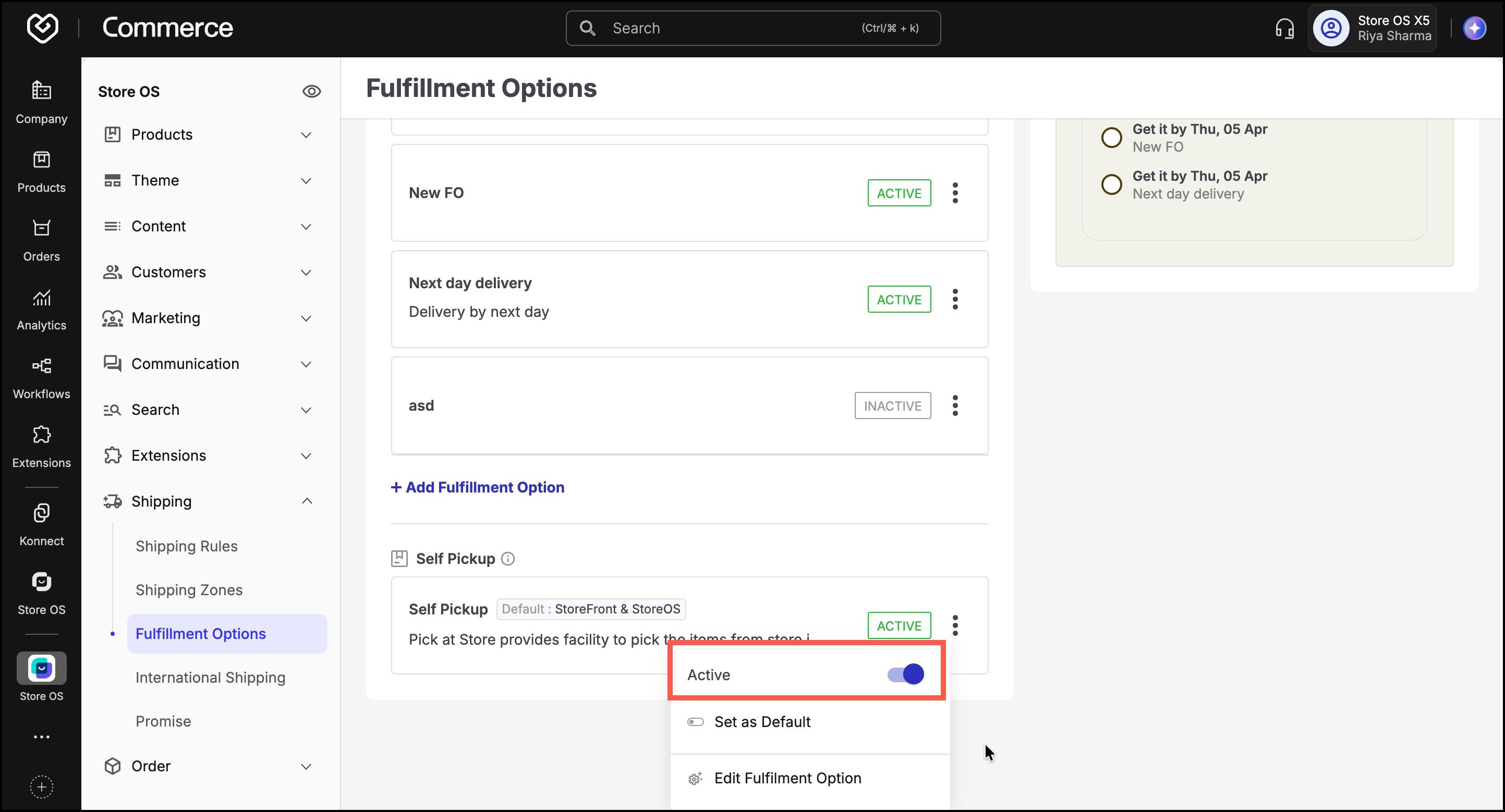
Or open the Self Pickup configuration and disable it from the top-right corner.