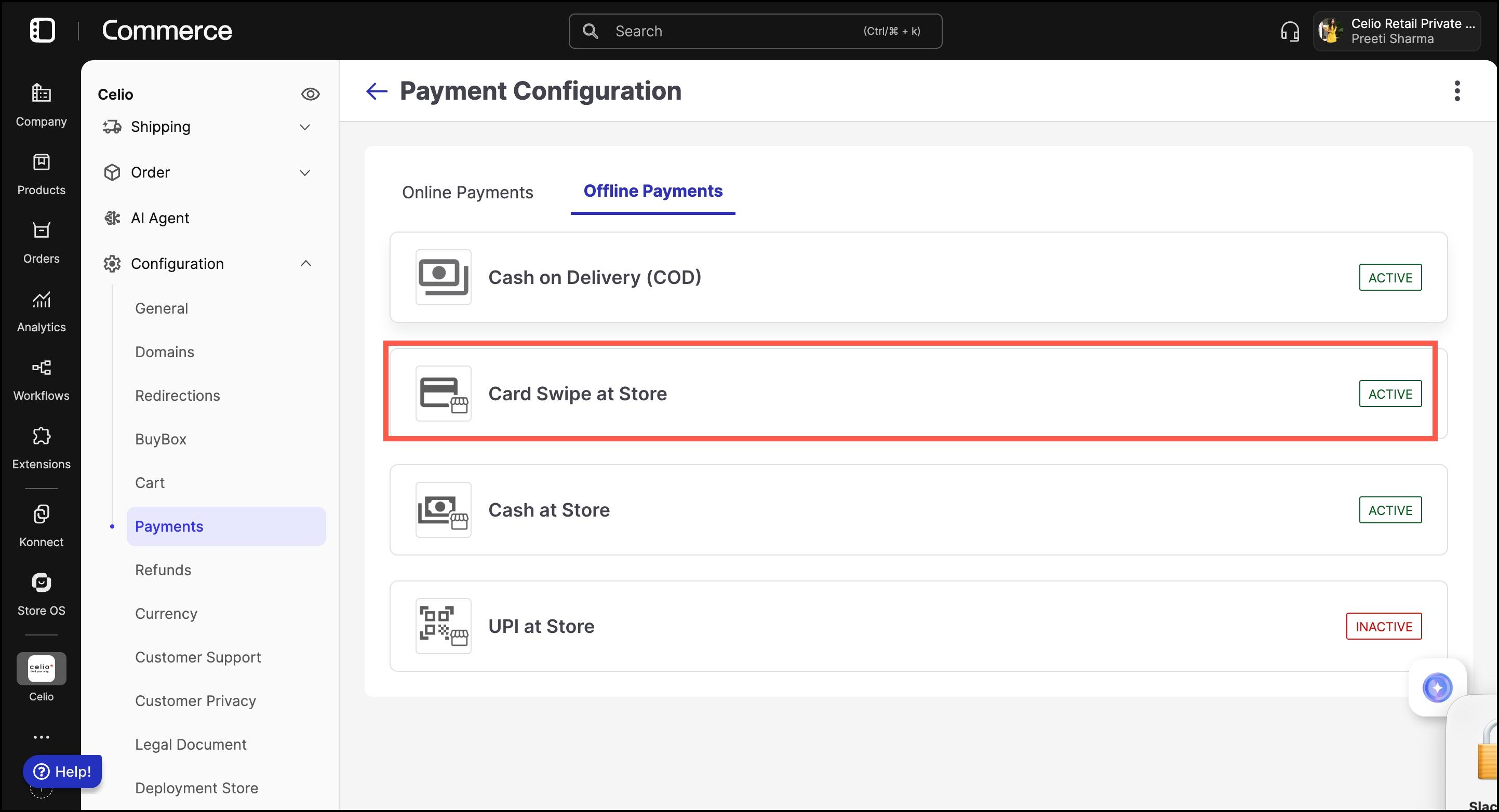
Commerce Panel → Sales Channel (select application) → Configuration → Payments → Payment Configuration → Offline Payments → Card Swipe at Store
This guide explains how to enable and configure the "Card Swiped at Store" offline payment method in Fynd Commerce . This method allows customers to complete purchases by physically swiping their card at a store POS (Point of Sale).
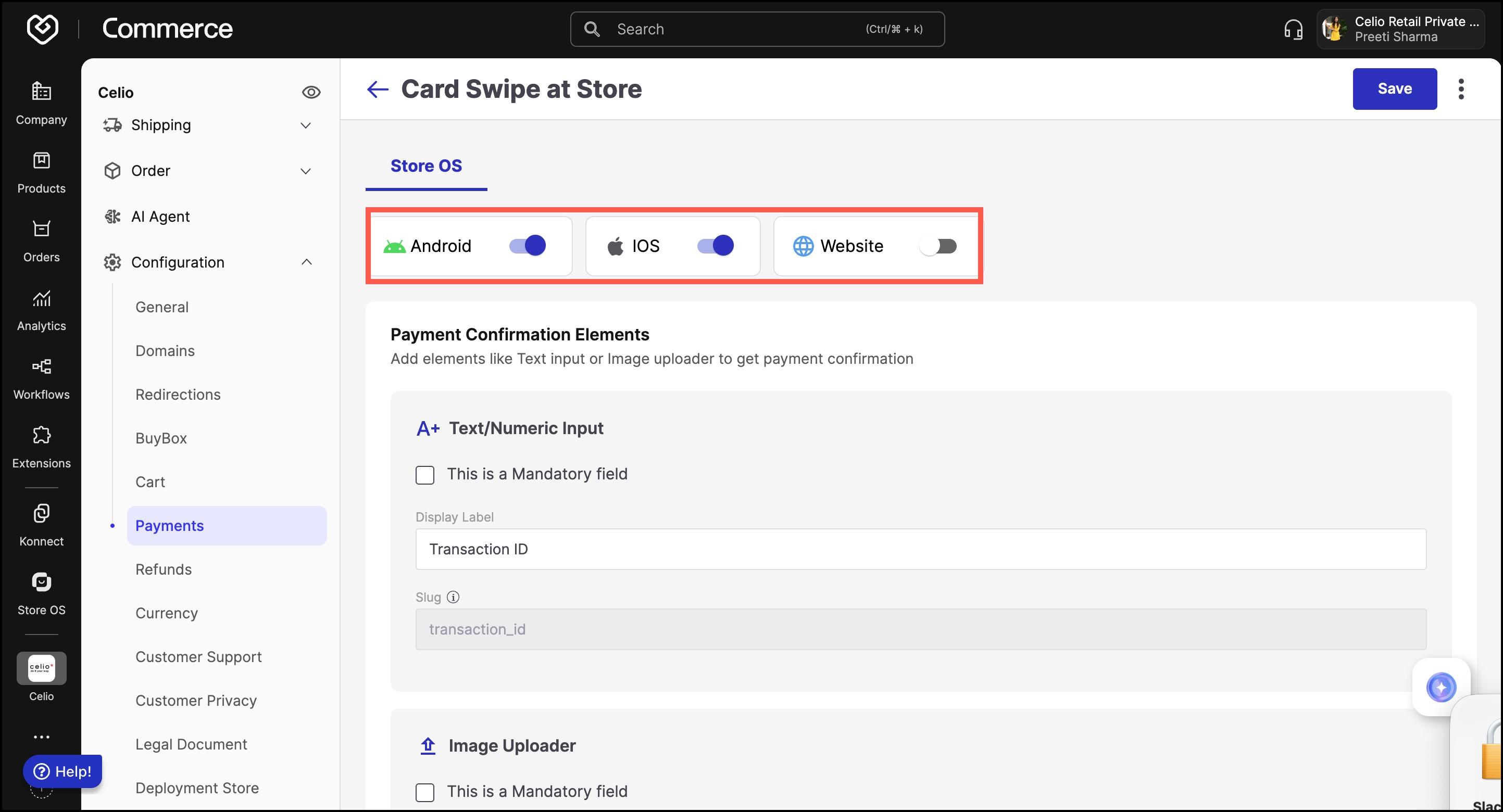
The configuration for this payment method is managed under the Store OS business unit. You can enable or disable it for specific devices:
- Android
- iOS
- Website (used for in-store web interfaces)
Use the toggle switches at the top of the screen to activate the payment method for the desired devices.
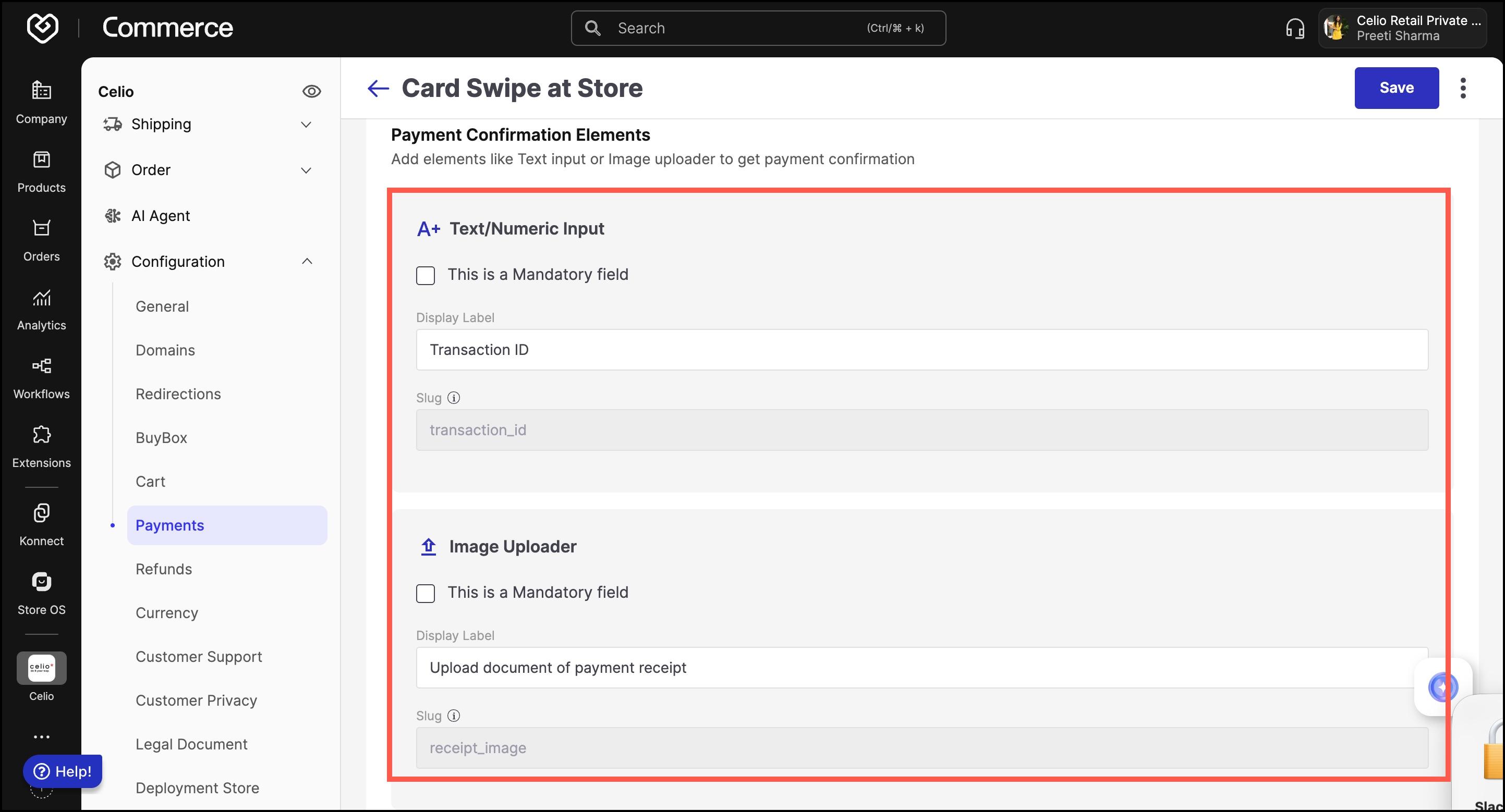
To ensure each transaction is validated correctly, merchants can define the fields required from store staff at the time of payment.
- Label: Transaction ID
- Slug: transaction_id
- Option to make it mandatory
This field captures the unique transaction reference generated by the POS machine. It serves as proof that the payment was processed.
- Label: Upload image of payment receipt
- Slug: receipt_image
- Option to make it mandatory
This field enables staff to upload a photo or screenshot of the payment receipt for confirmation. This acts as an additional verification layer for reconciliation.
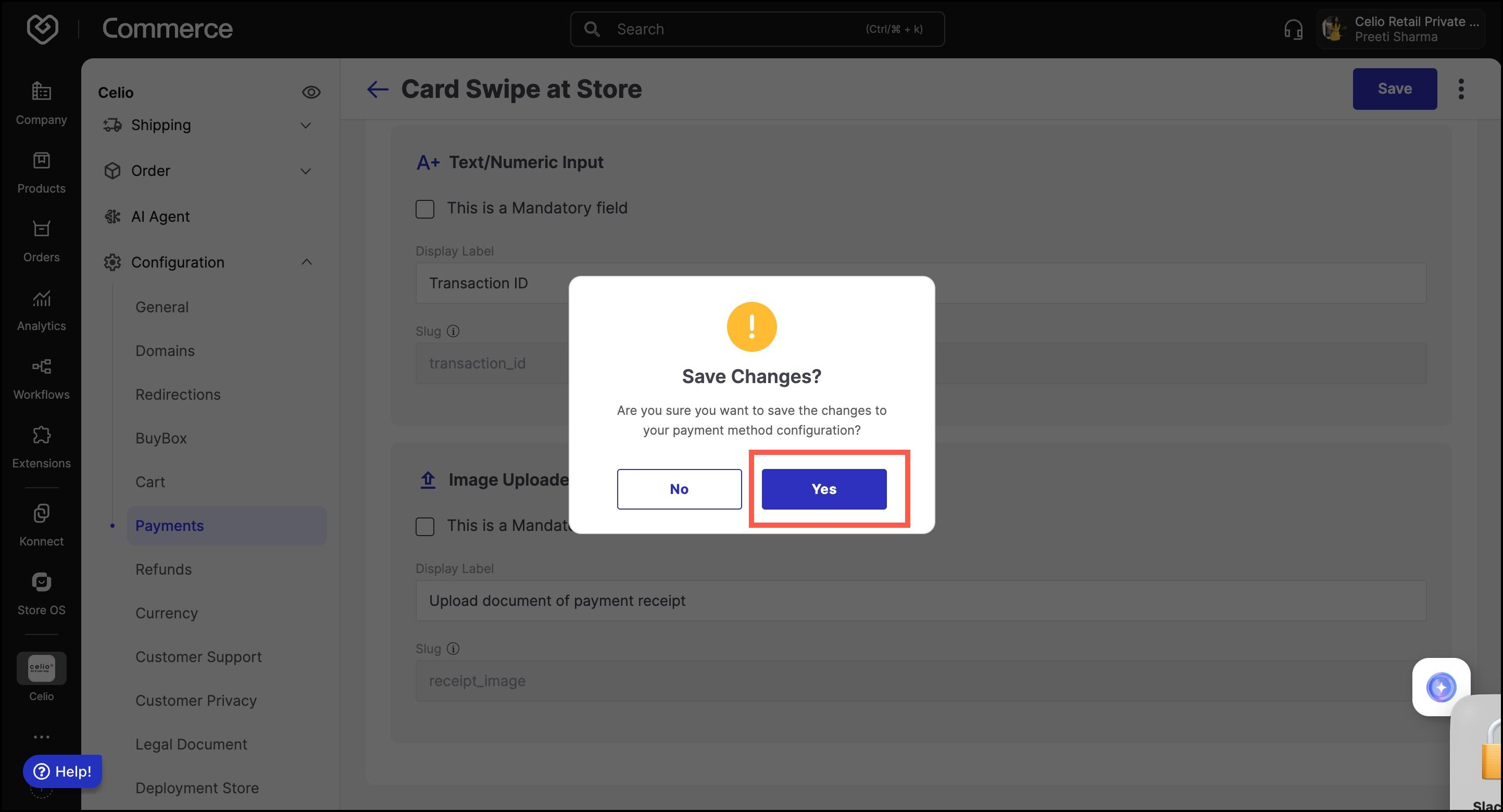
Once configuration is complete:
- Use the device toggles to enable or disable this method per platform.
- Click Save (top-right corner) to apply the settings.
- Confirm changes when prompted.
This configuration ensures secure handling and verification of in-store card payments.