Commerce Panel → Sales Channel (select application) → Configuration → Payments → Payment Configuration → Offline Payments → Cash on Delivery (COD)
To enable COD on your Store OS, follow the steps below.
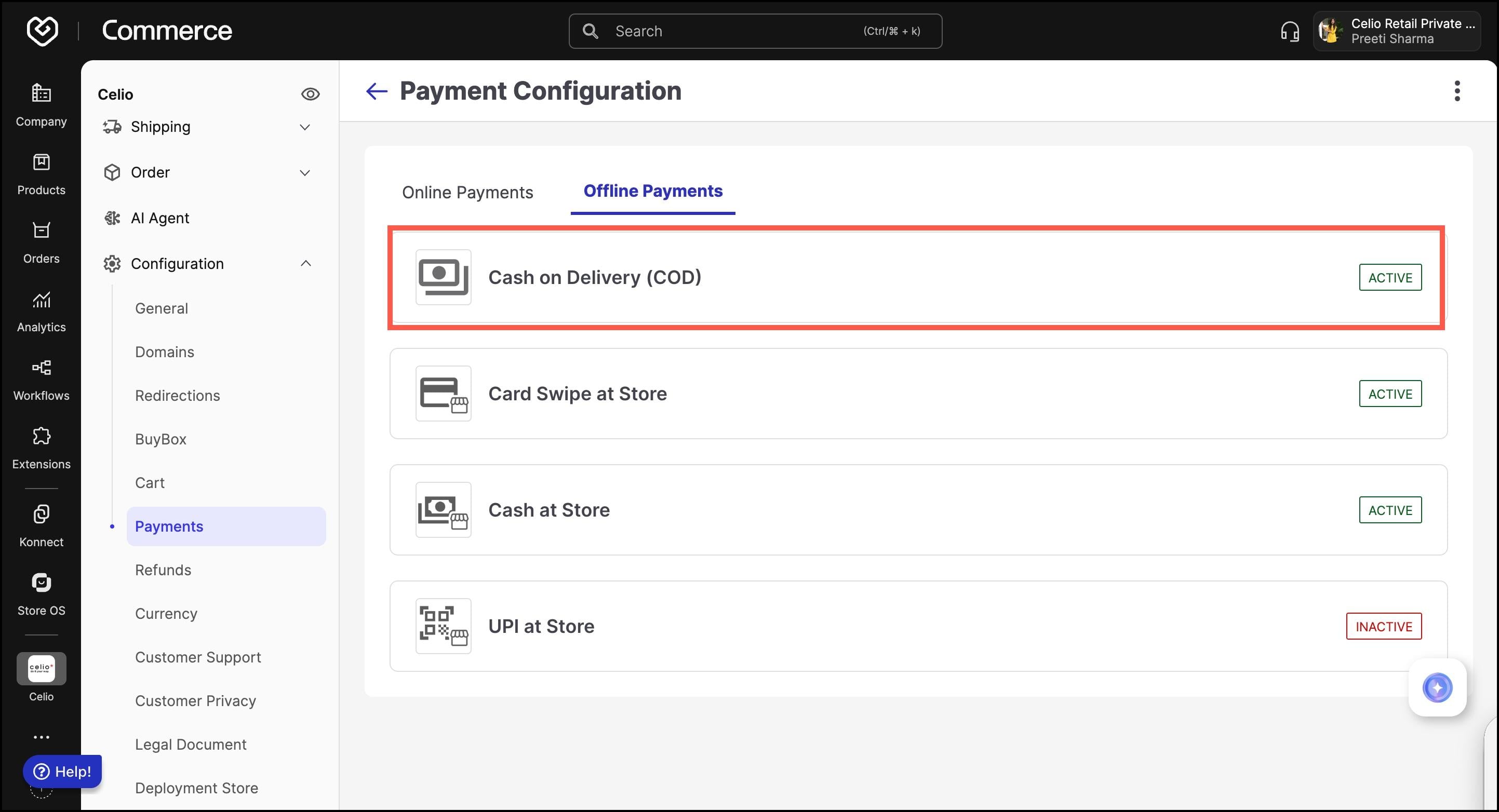
You can enable or disable COD for specific platforms:
- Website
- Android
- iOS
Use the toggles at the top to control where COD should be available.
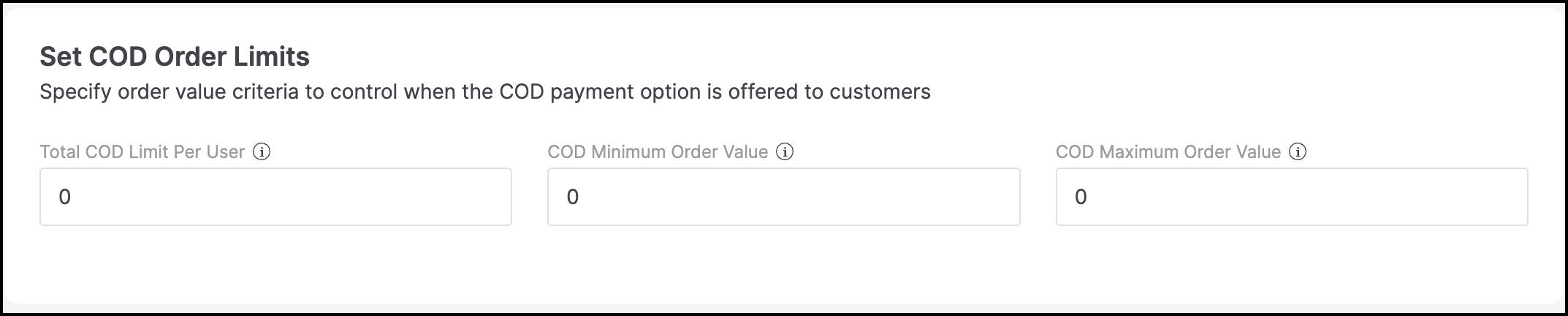
Configure value-based criteria to control when COD is offered:
- Total COD Limit Per User: Maximum total value a user can pay via COD.
- COD Minimum Order Value: Minimum cart value required for COD.
- COD Maximum Order Value: Maximum cart value allowed for COD.
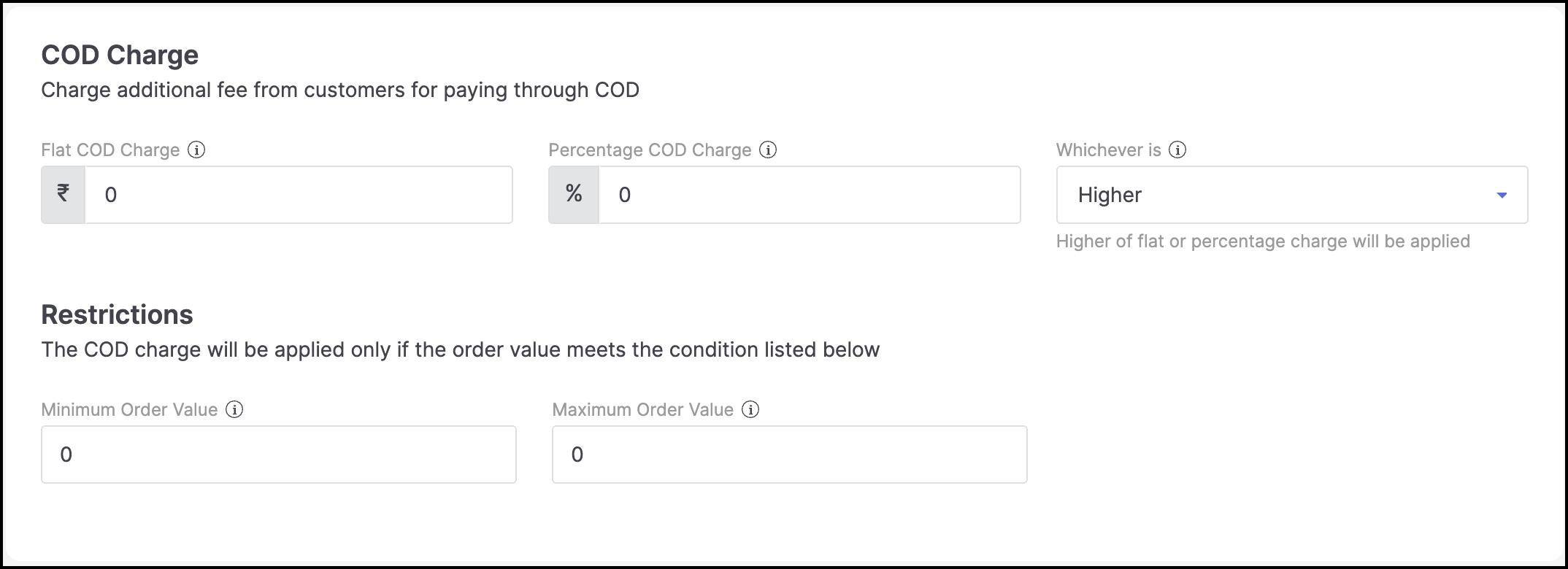
Optionally charge customers for using COD:
- Flat COD Charge: Fixed amount (e.g. ₹10).
- Percentage COD Charge: A % of the order value.
- Whichever Is: Choose to apply the higher or lower of flat vs. percentage fee.
Define conditions when COD charges should apply:
- Minimum Order Value: Apply charges only above this value.
- Maximum Order Value: Apply charges only below this value.
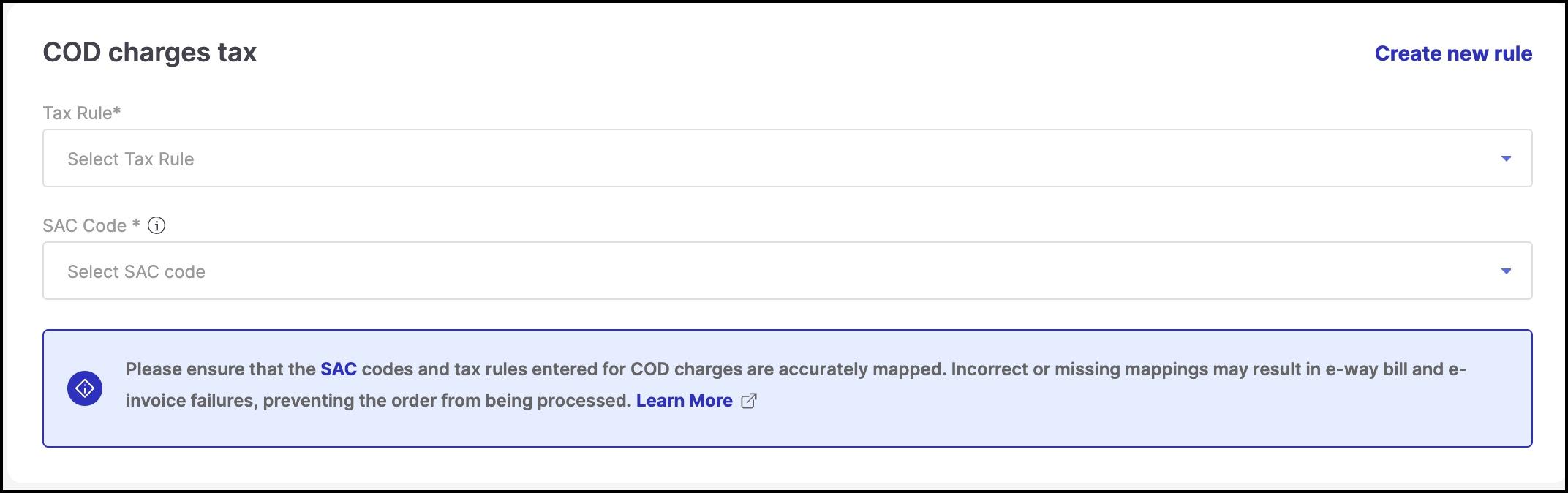
Define correct COD charges tax in compliance with GST rules.
Tax Rule: This determines how tax is calculated on the COD fee.
SAC Code: SAC (Service Accounting Code) is required for services like COD charges. It ensures GST is correctly classified.
This step ensures that COD-related taxes are correctly configured so orders flow smoothly through GST, e-way bill, and e-invoice systems.
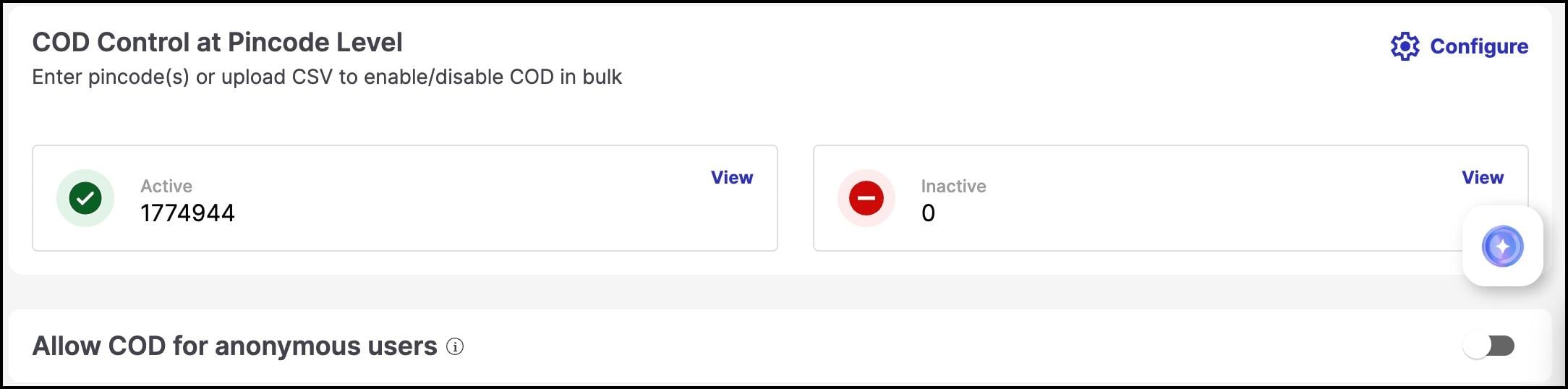
Limit or allow COD in specific delivery areas:
- Active shows number of PIN codes where COD is allowed
- Inactive shows where it is blocked
- Click Configure under COD Control at Pincode Level
You can enable or disable COD for specific pincodes either individually or in bulk.
Add or Remove Pincodes Manually:
- Select Country – Use the dropdown to choose your country (e.g., India).
- Enter Pincode(s) – Add one or multiple pincodes, separated by commas (e.g.,
400001, 400002). - Click Activate to enable COD for those pincodes, or Deactivate to disable it.
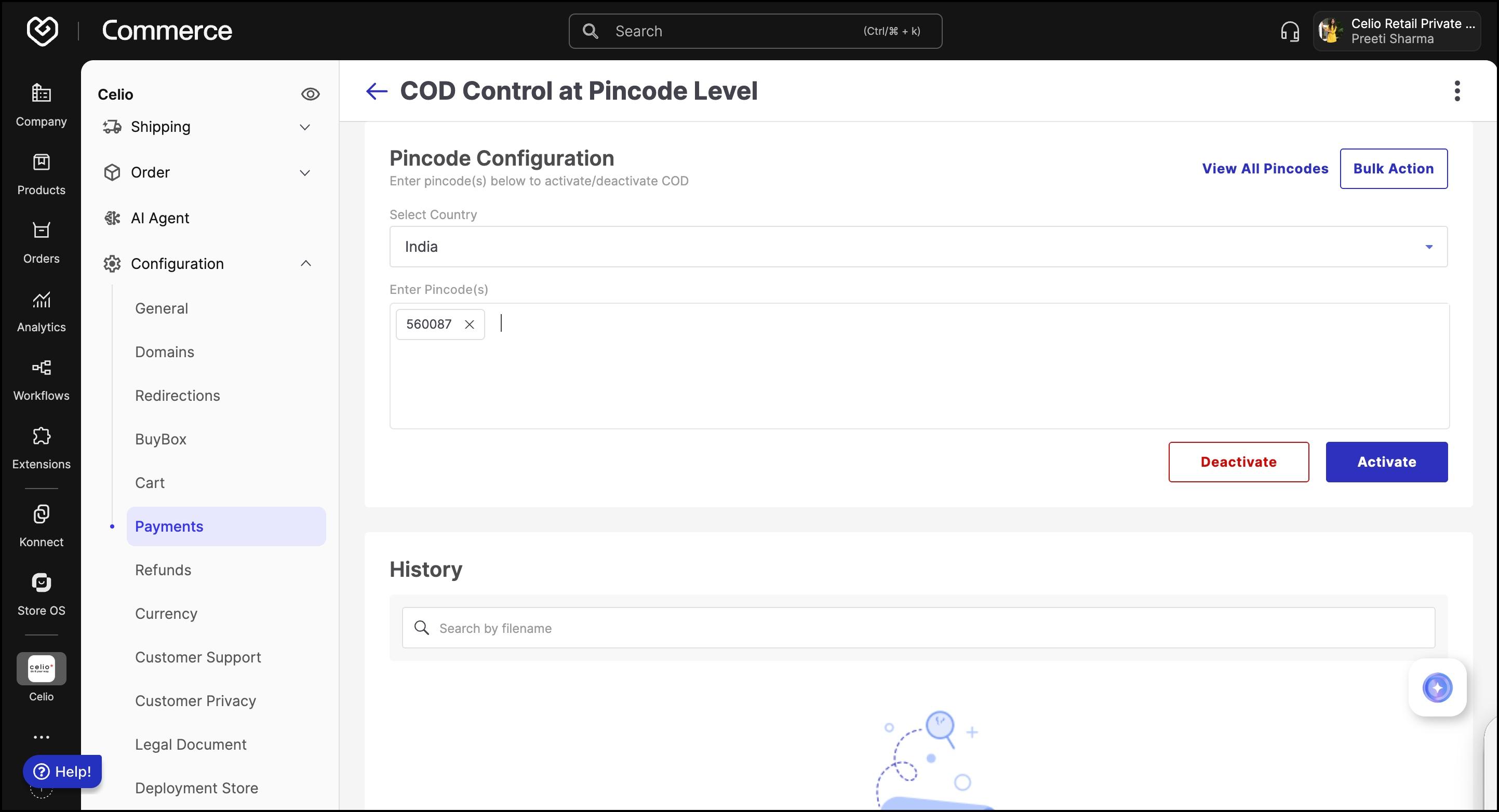
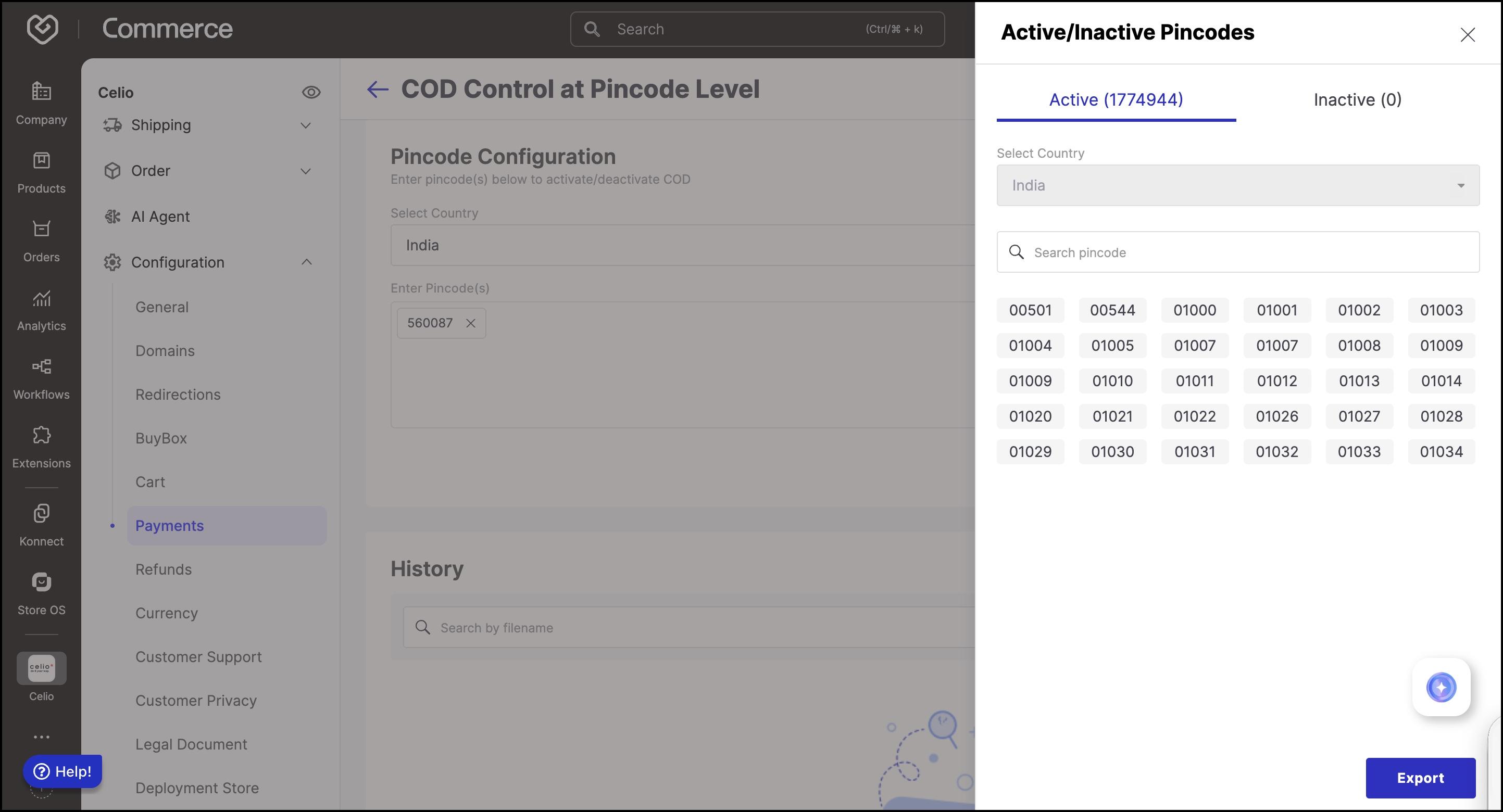
Click View All Pincode to see:
- Active – List of pincodes where COD is enabled.
- Inactive – List of pincodes where COD is disabled.
You can search by pincode and export the full list if required.
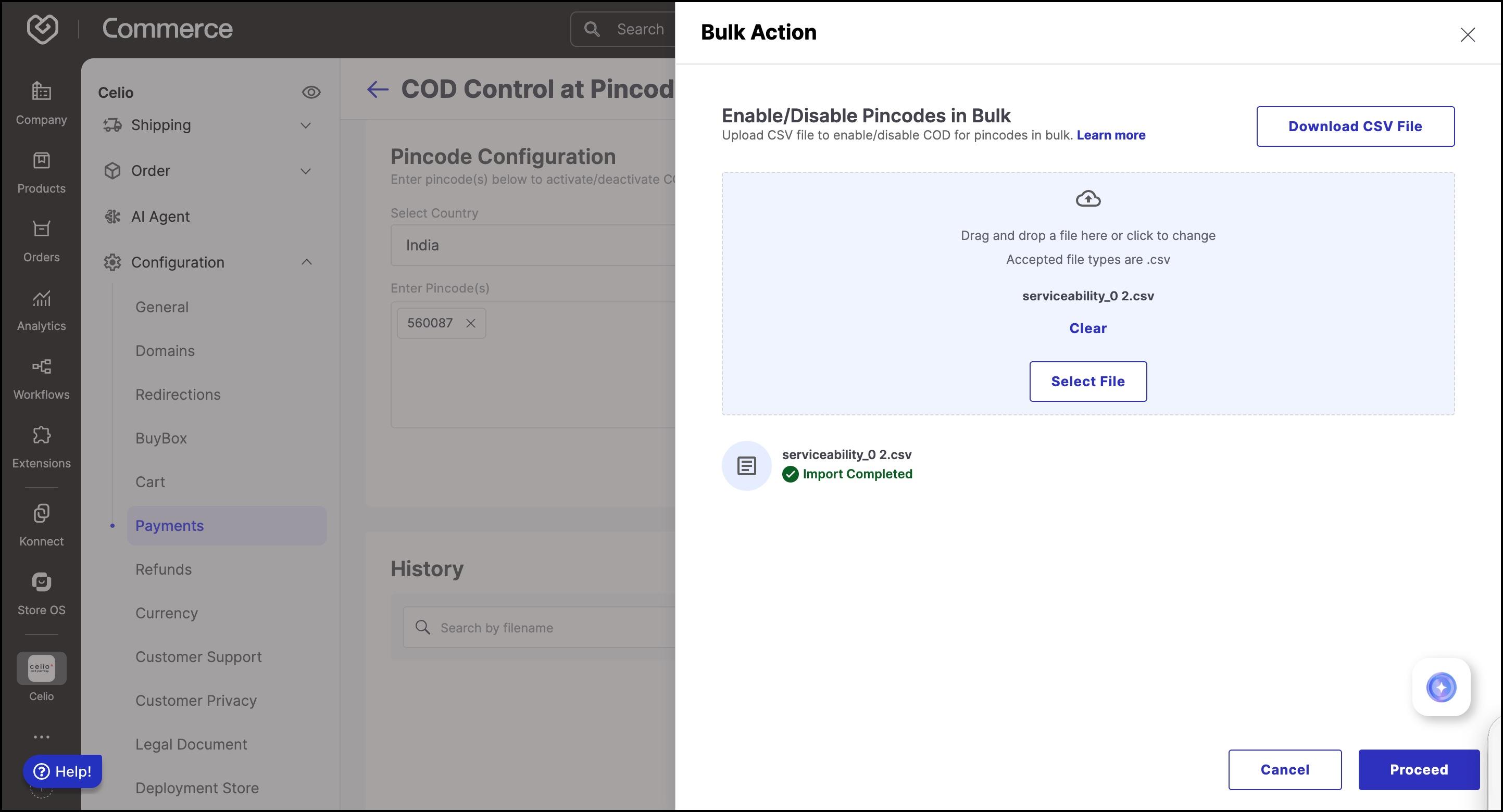
To manage COD for multiple pincodes efficiently:
- Click Bulk Action.
- Download the CSV template.
- Fill the file with pincodes, country, and status (
activateordeactivate). - Upload the CSV using the Select File button.
- Click Proceed to apply the changes.
The system will update COD availability based on the provided file.
To manage PIN codes:
- Add individually by entering country and PIN
- Use CSV bulk upload with PIN, country, and activate/deactivate flags
Enable or disable COD for guest checkout users:
- Toggle Allow COD for anonymous users ON/OFF as needed.
After completing all configurations:
- Click Save at the top-right corner to apply changes
- Confirm when prompted
COD will now follow the rules defined across your platforms and delivery zones.