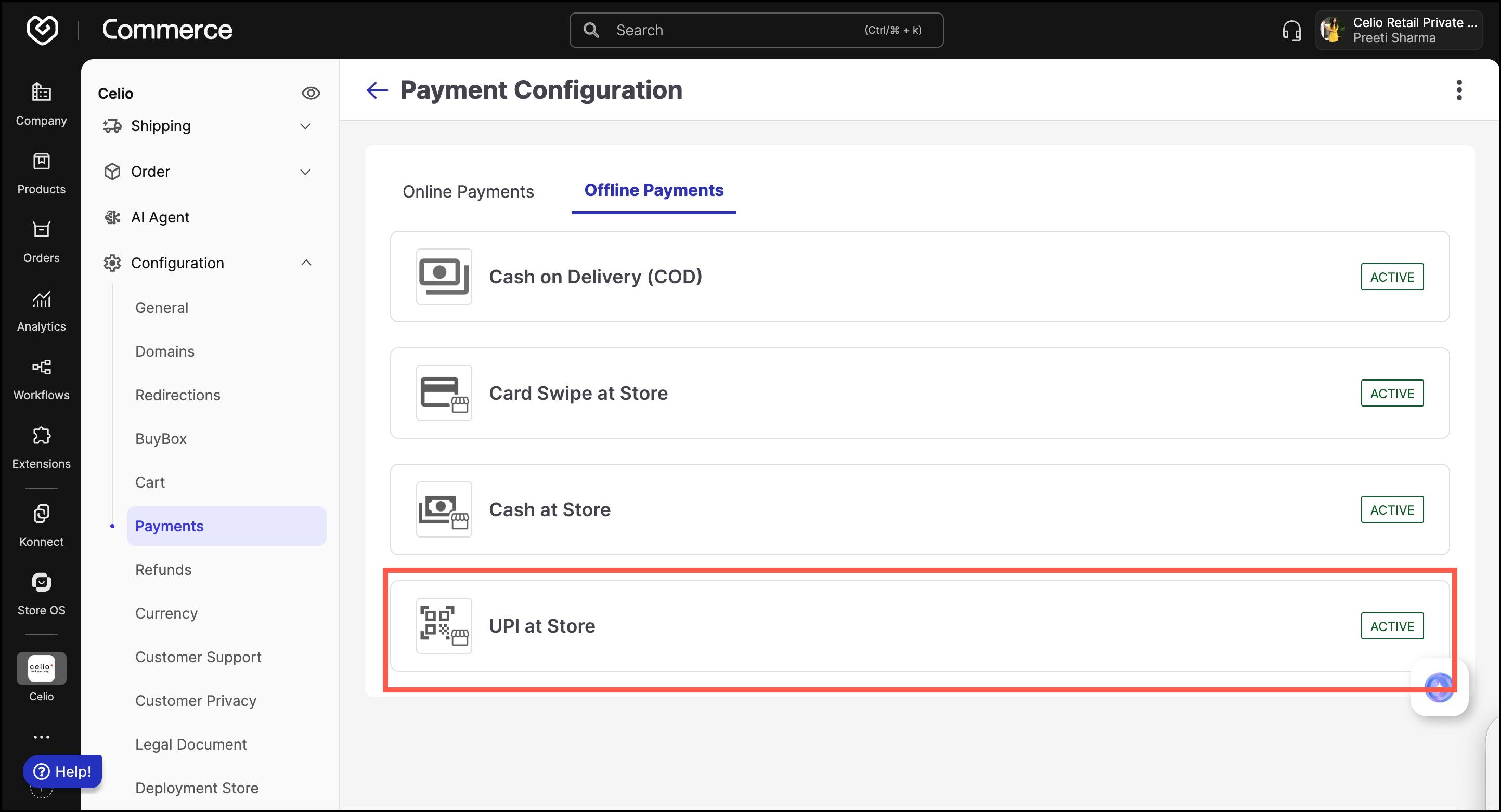
Commerce Panel → Sales Channel (select application) → Configuration → Payments → Payment Configuration → Offline Payments → UPI at Store
This guide explains how to enable and configure the UPI at Store payment method in Fynd Commerce . This method allows customers to pay using any UPI app (e.g., GPay, PhonePe, Paytm) by scanning a QR code at the store.
This configuration is available under the Store OS business unit. You can enable the payment method for:
- Android
- iOS
- Website (used for POS systems)
Toggle on/off the payment option per device based on where you want to accept UPI payments in-store.
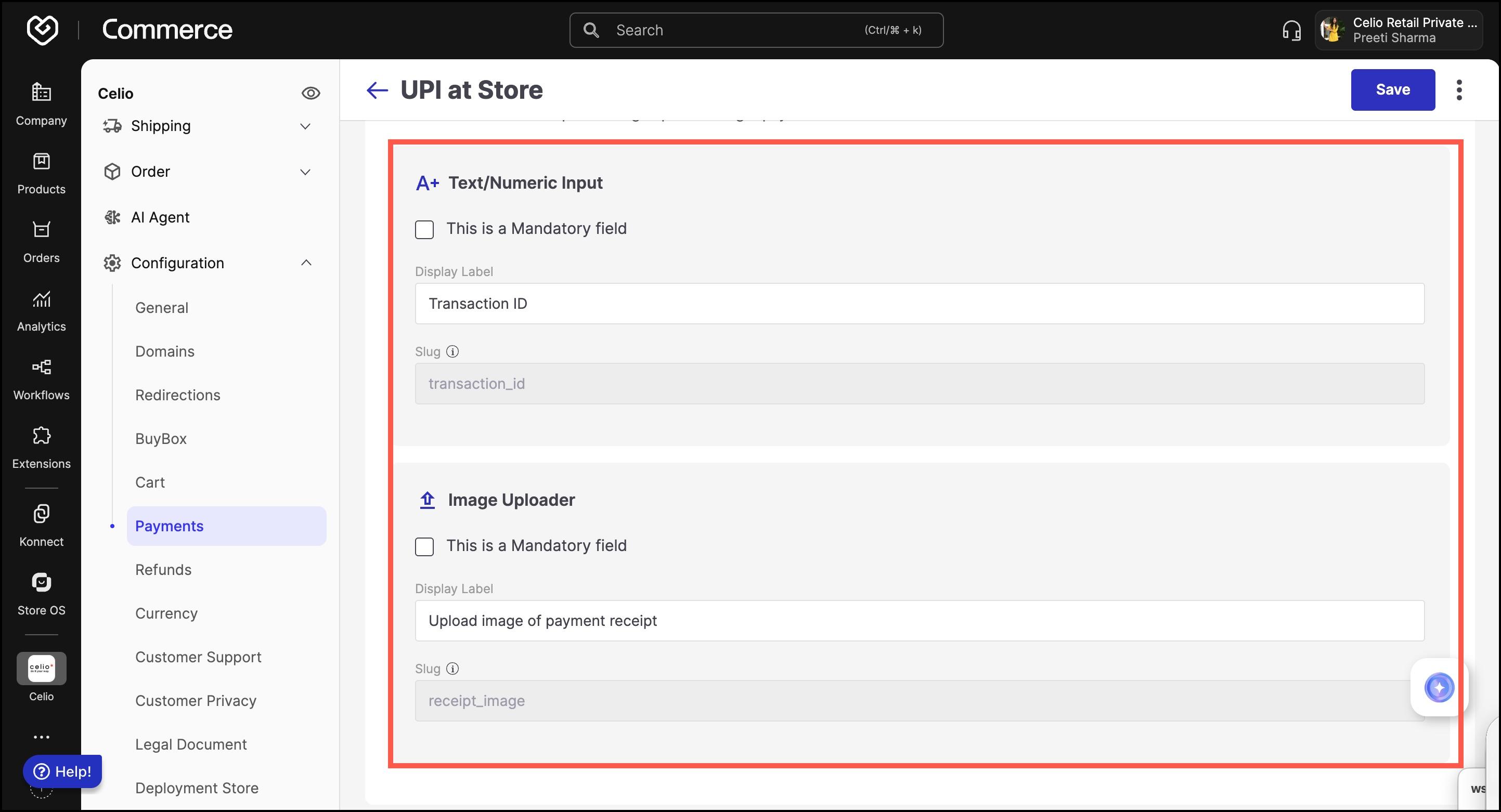
Set up the required input fields for store staff to validate the UPI payment.
1. Text/Numeric Input
- Label: Transaction Reference Number
- Slug: transaction_reference
- Optional: Make it mandatory
Used to capture the UPI transaction ID entered manually by staff.
2. Image Uploader
- Label: Upload screenshot of UPI confirmation
- Slug: upi_receipt
- Optional: Make it mandatory
Lets staff upload an image of the payment confirmation screen from the customer’s UPI app.
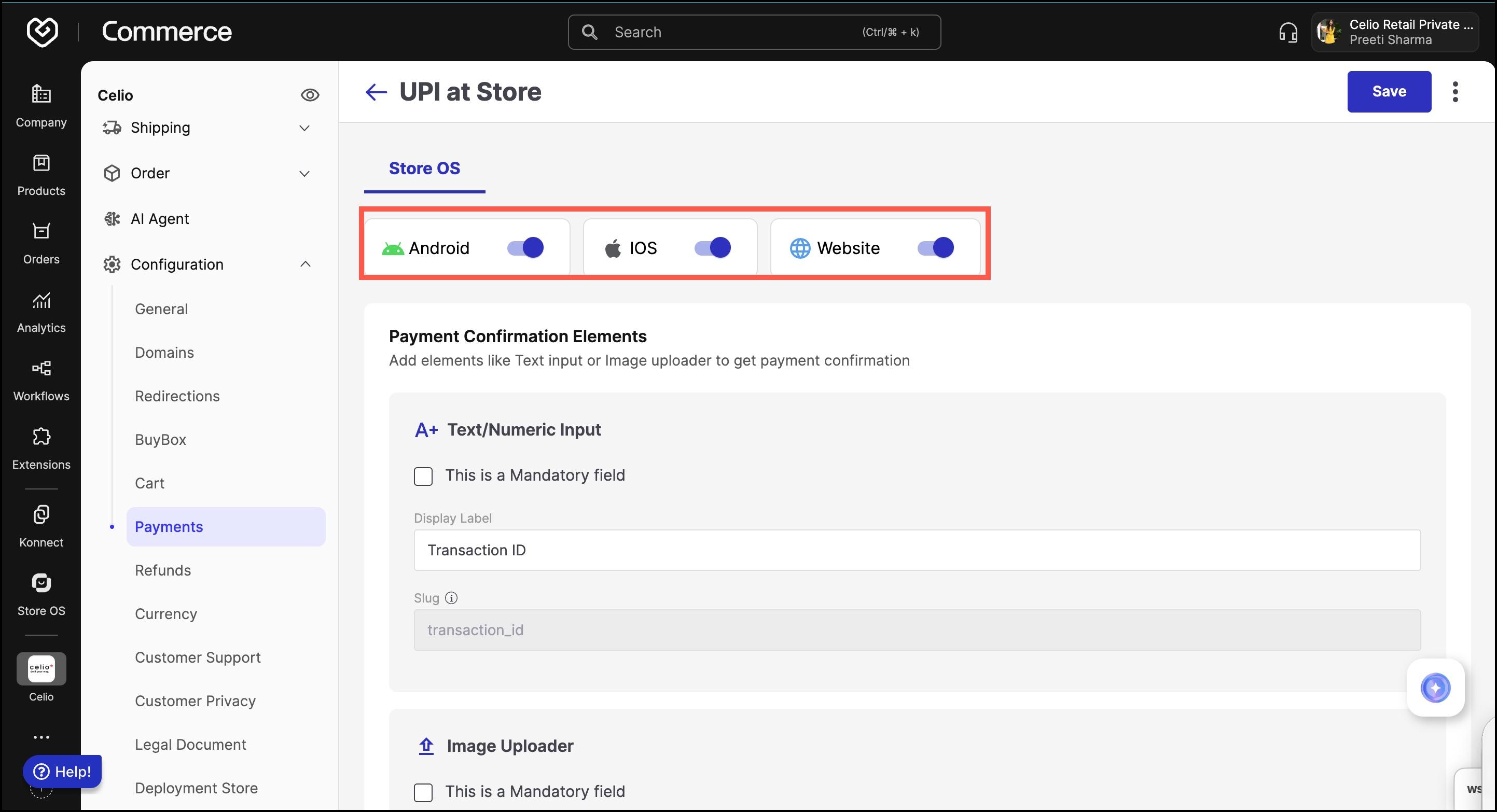
- Use the device toggles to activate UPI at Store per platform.
- Click Save at the top-right corner of the page.
- Confirm the changes to apply your configuration.