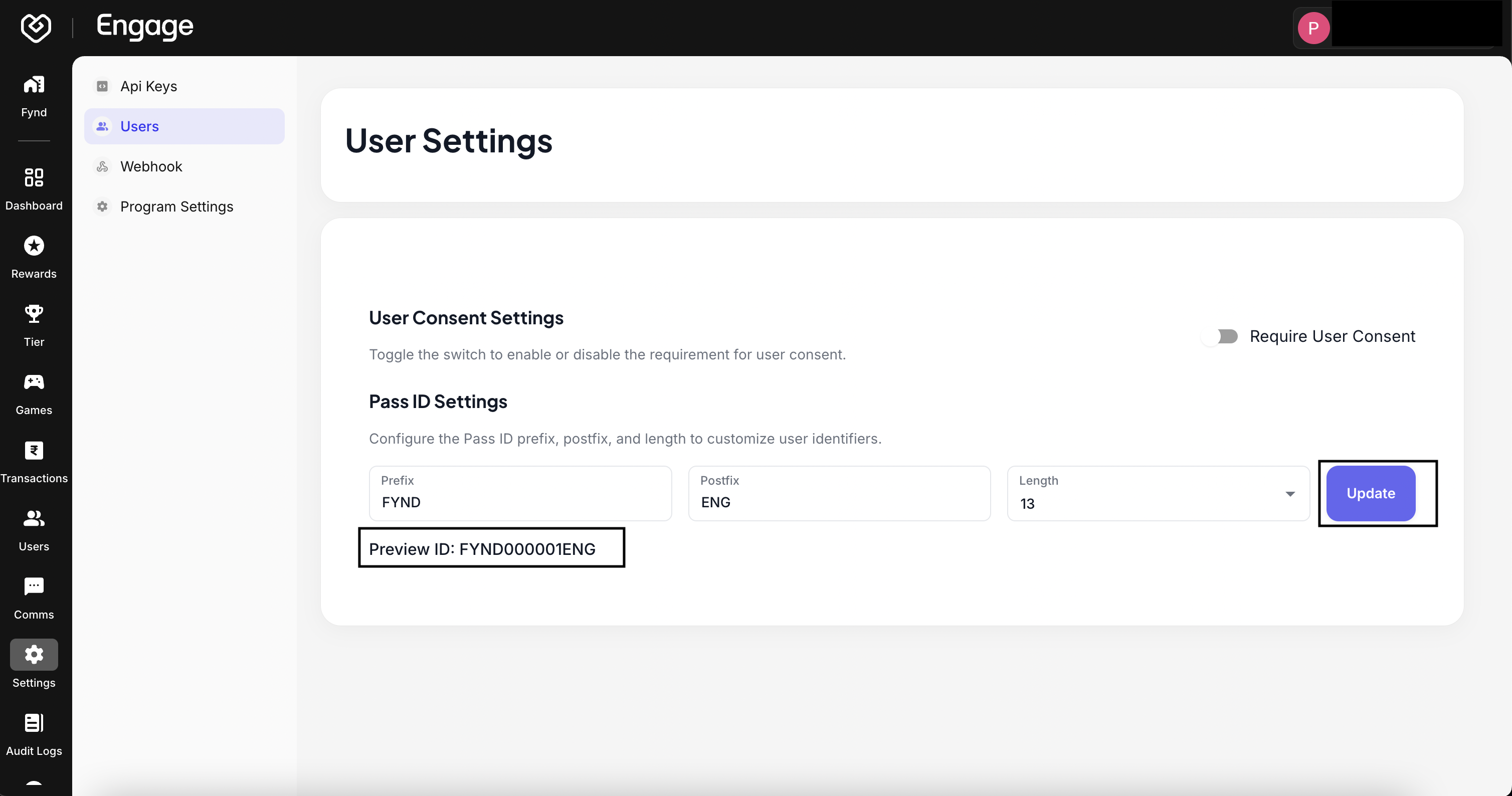
The User Settings configuration controls the generation logic for your customer's Pass IDs (Membership IDs). By defining a consistent structure with prefixes, suffixes, and fixed lengths, you ensure that loyalty IDs are easily recognizable, on-brand, and compatible with your internal POS or CRM systems.
- Access User Configuration - Navigate to the Settings tab in the dashboard and select Users from the side menu.
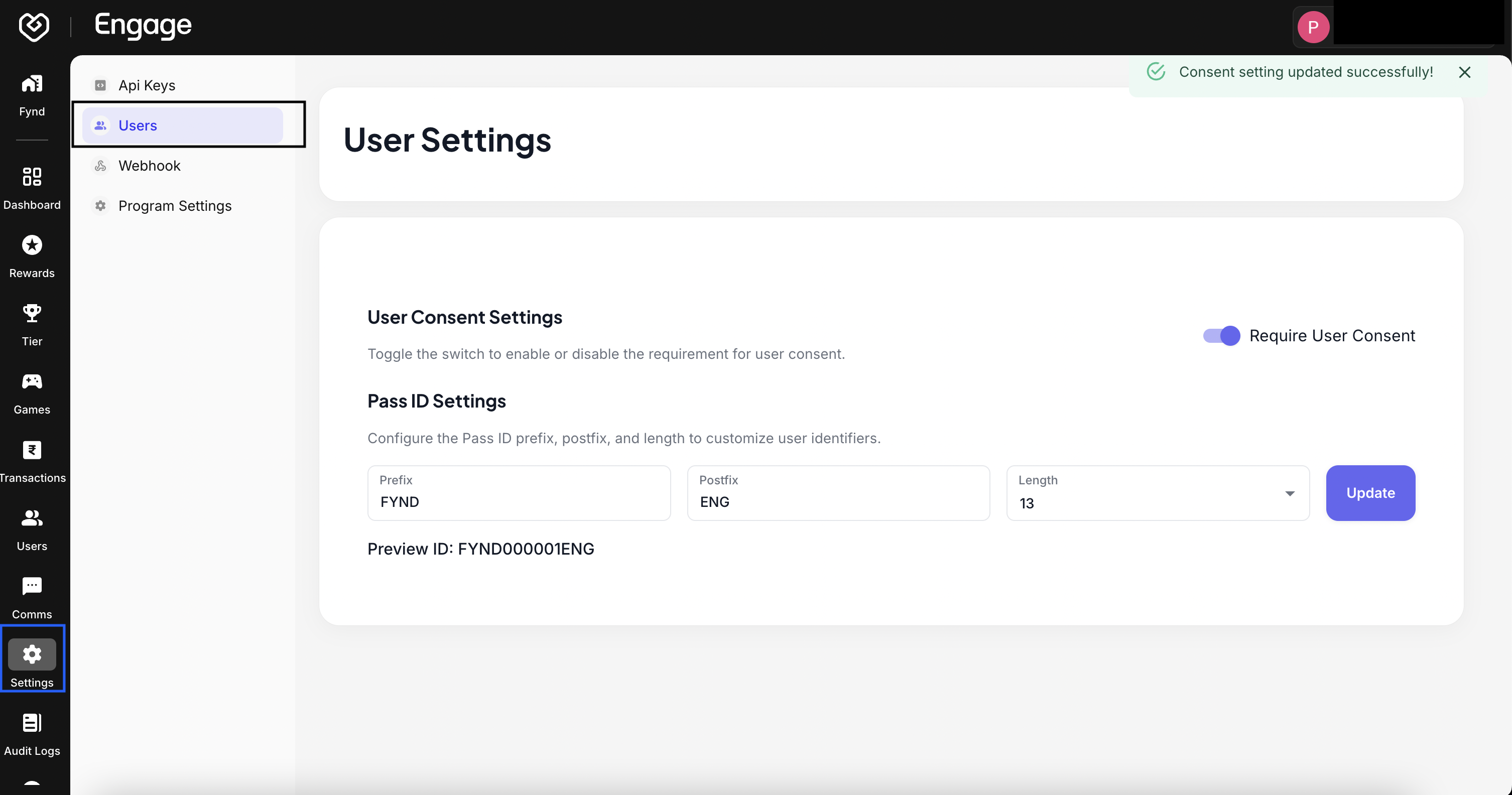
- Set Formatting Rules - Customize the ID structure by entering a Prefix (e.g.,
VIP-) and/or a Postfix (e.g.,-2024). These static characters will be attached to the start and end of every generated ID.
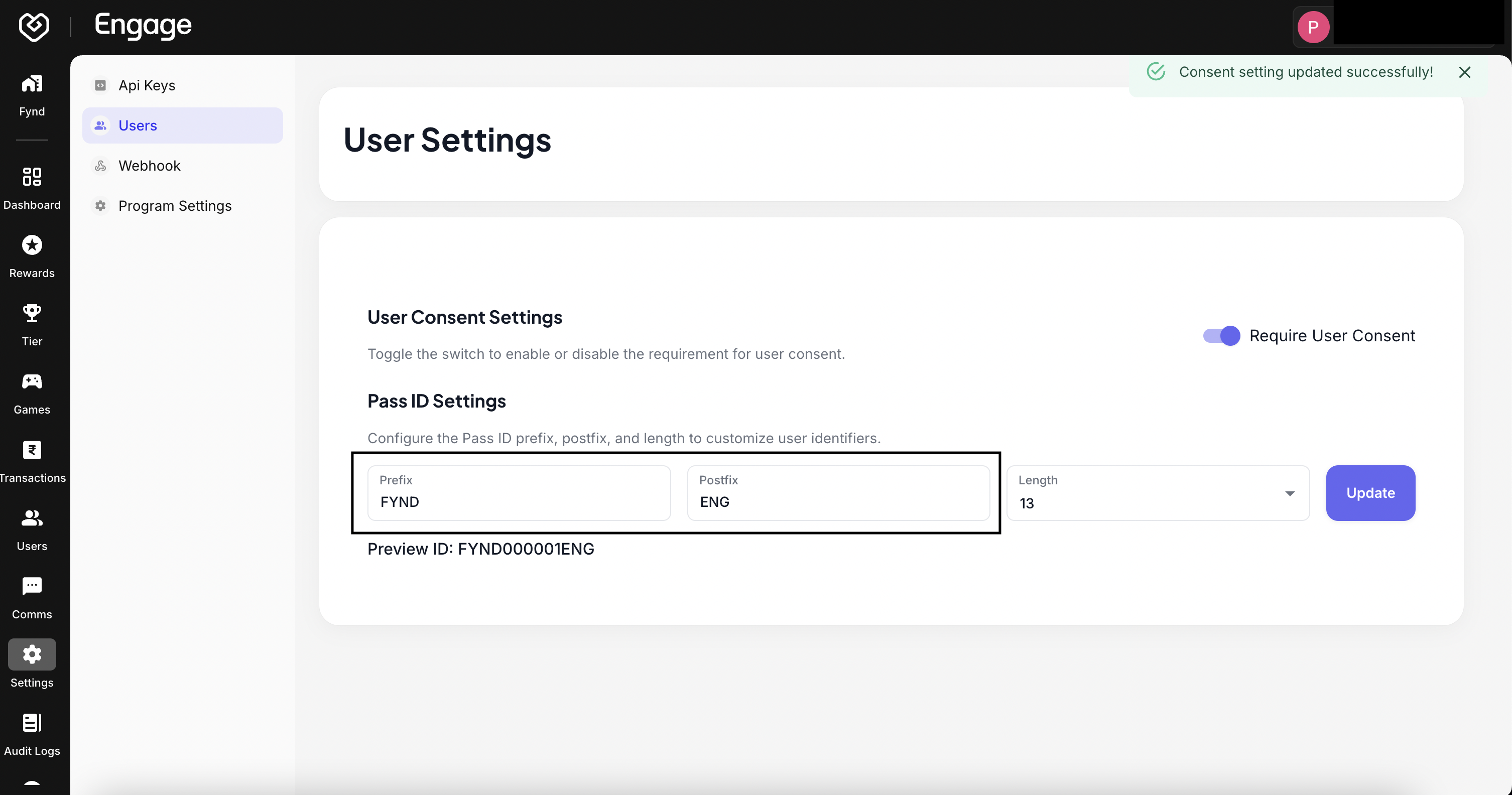
- Define ID Length - Specify the ID Length. This controls the number of characters in the generated unique sequence. Ensure the length is sufficient to accommodate your expected user base without duplication.
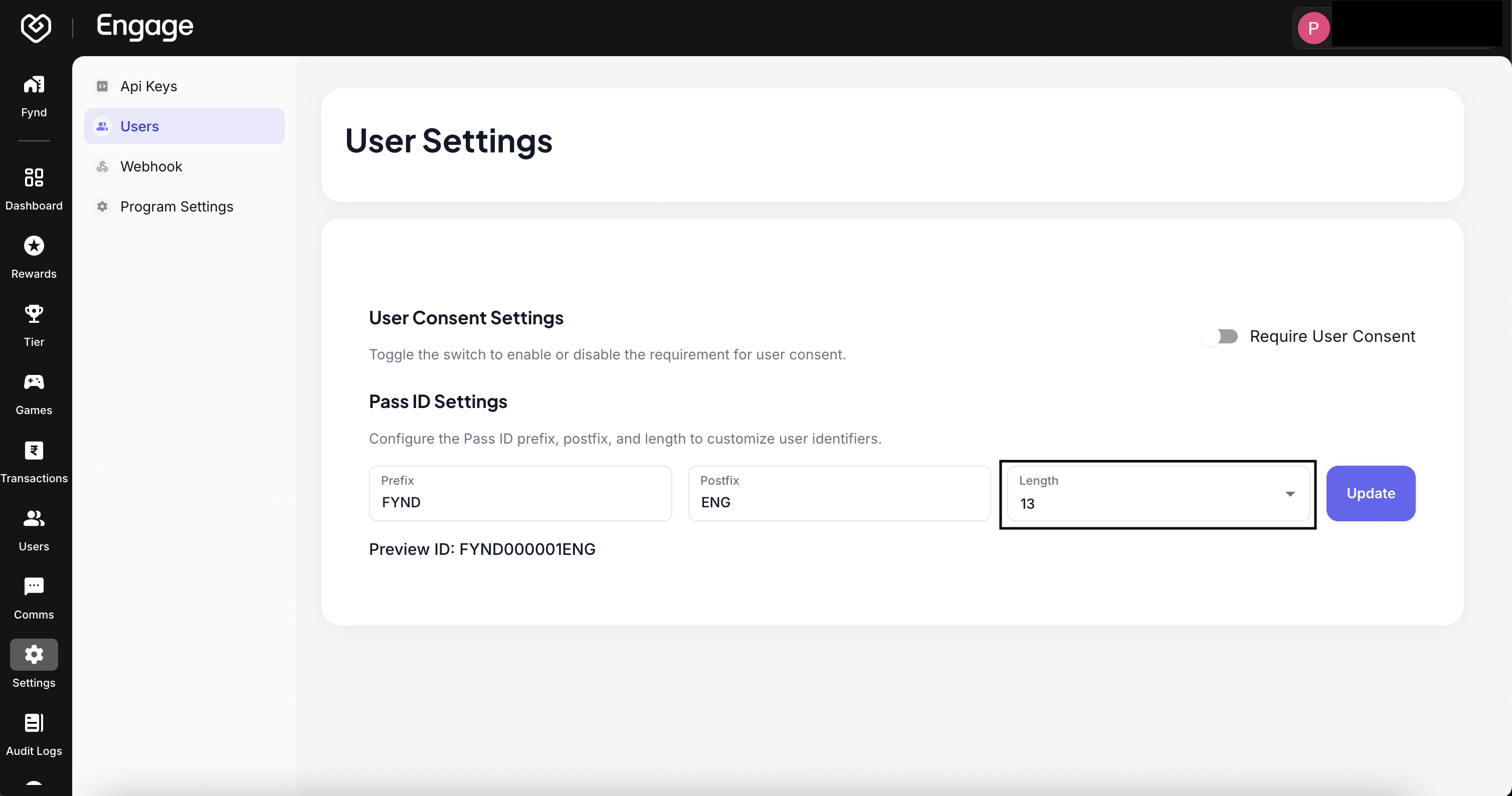
- Preview and Save - Review the sample ID shown in the preview to ensure the format meets your requirements. Click Save to apply this configuration to your program.