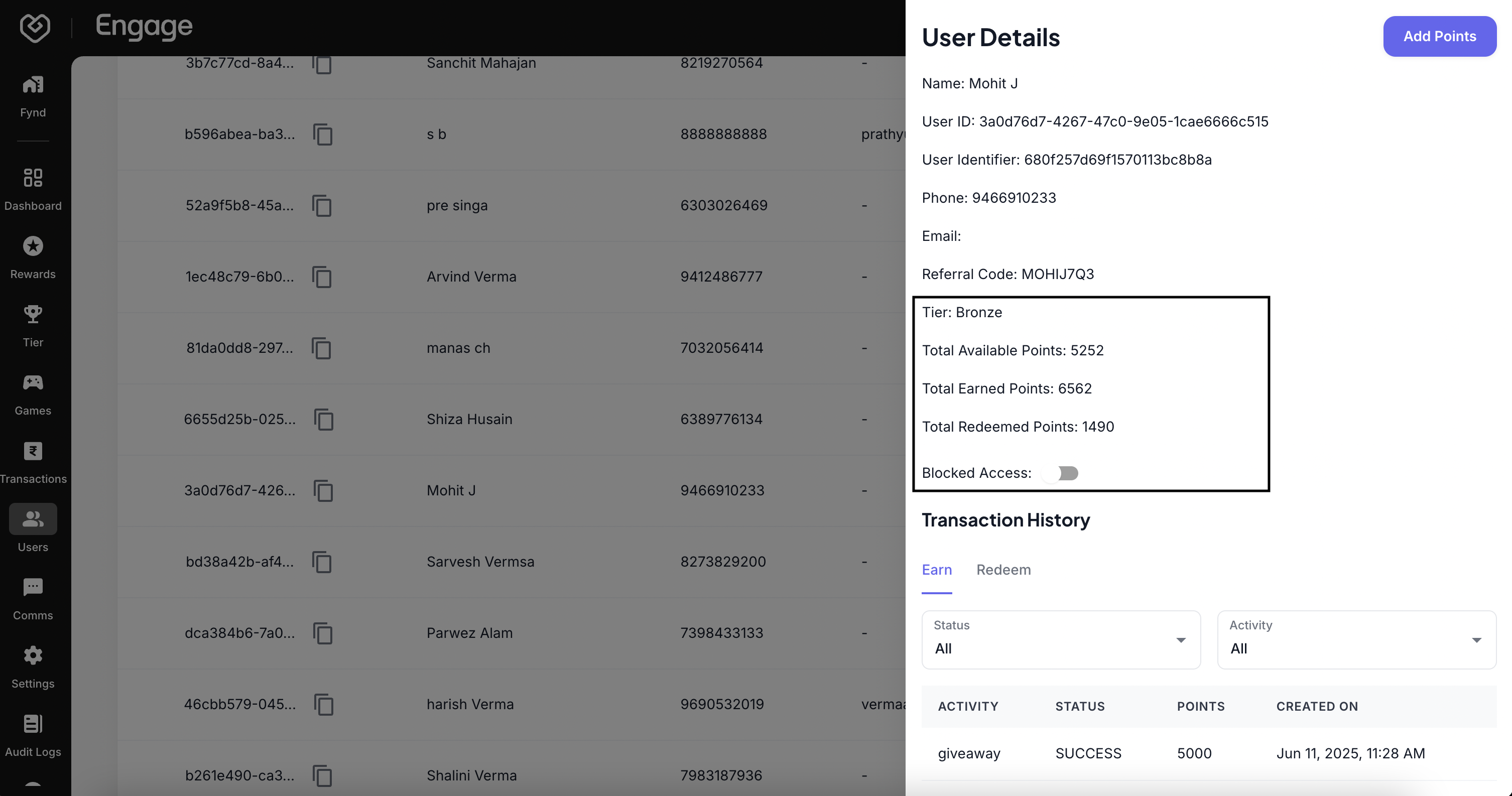
The Manage Users interface acts as your customer relationship hub within Fynd Engage. It allows you to oversee all participants in your loyalty program, audit individual account histories, manage access statuses, and manually adjust point balances for customer support resolutions.
To manage your customer base, navigate to the Users tab. This provides a master list of all enrolled members.
Search and Filter - Use the search bar to locate specific customers by Name or Identifier. To refine your view, use the dropdown filters:
- Status: Toggle between All, Blocked, or Unblocked to view specific segments.
- Date Range: Select a specific timeframe to analyze user activity within a certain period.
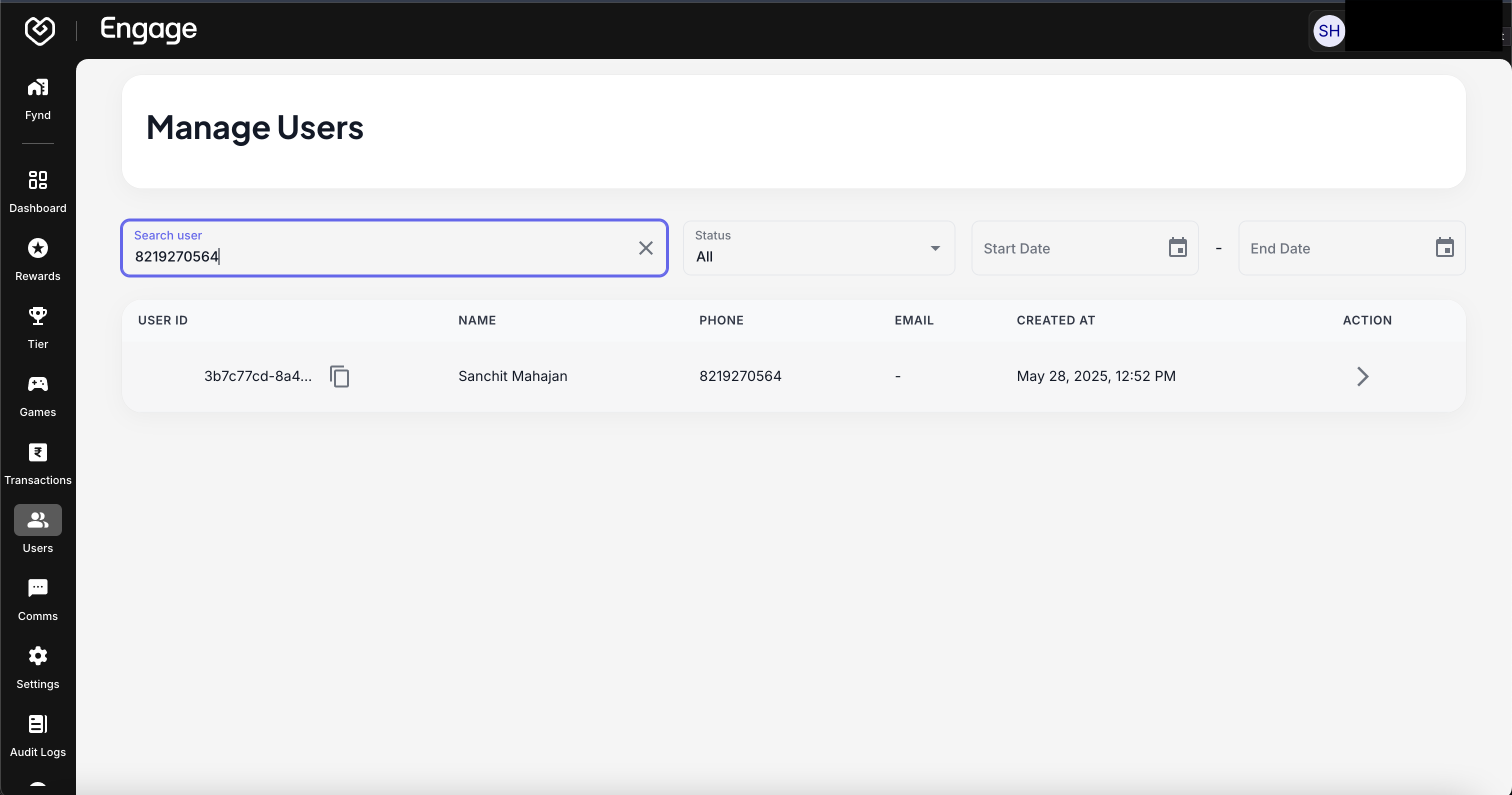
Clicking on any user in the list opens their User Profile. Here you can view their total Points Earned, Points Redeemed, and complete Transaction History.
Blocking/Unblocking Users - If you need to restrict a user due to suspicious activity or policy violations:
- Locate the Block button within the user's profile header.
- Confirm the action to prevent them from earning or redeeming further points.
- To restore access, simply click Unblock.
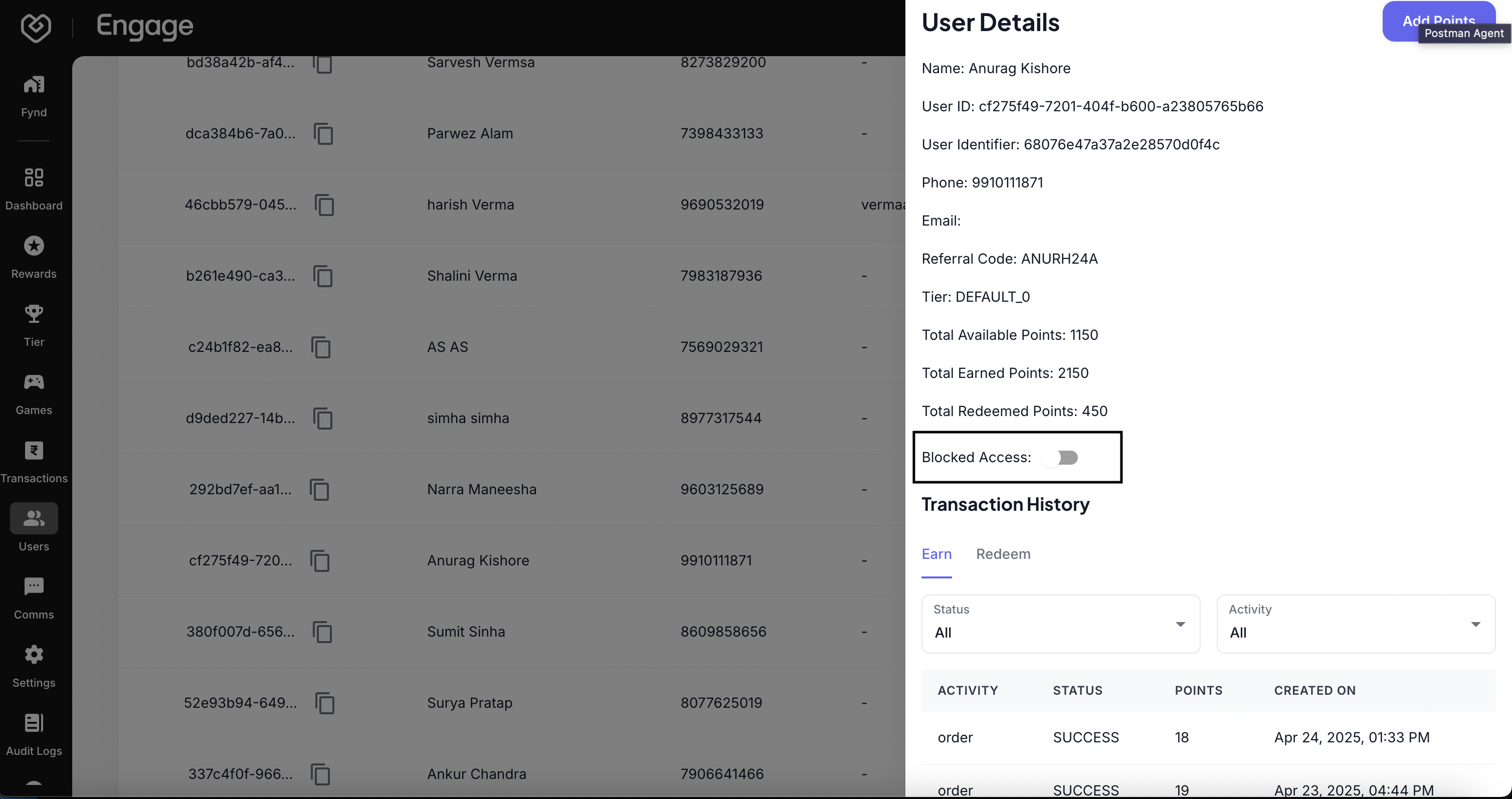
You can manually credit (Give) or debit (Redeem) points for specific users. This is useful for correcting errors or granting goodwill points.
- Initiate Adjustment - Open the specific user's profile page. Click the Add Points button.
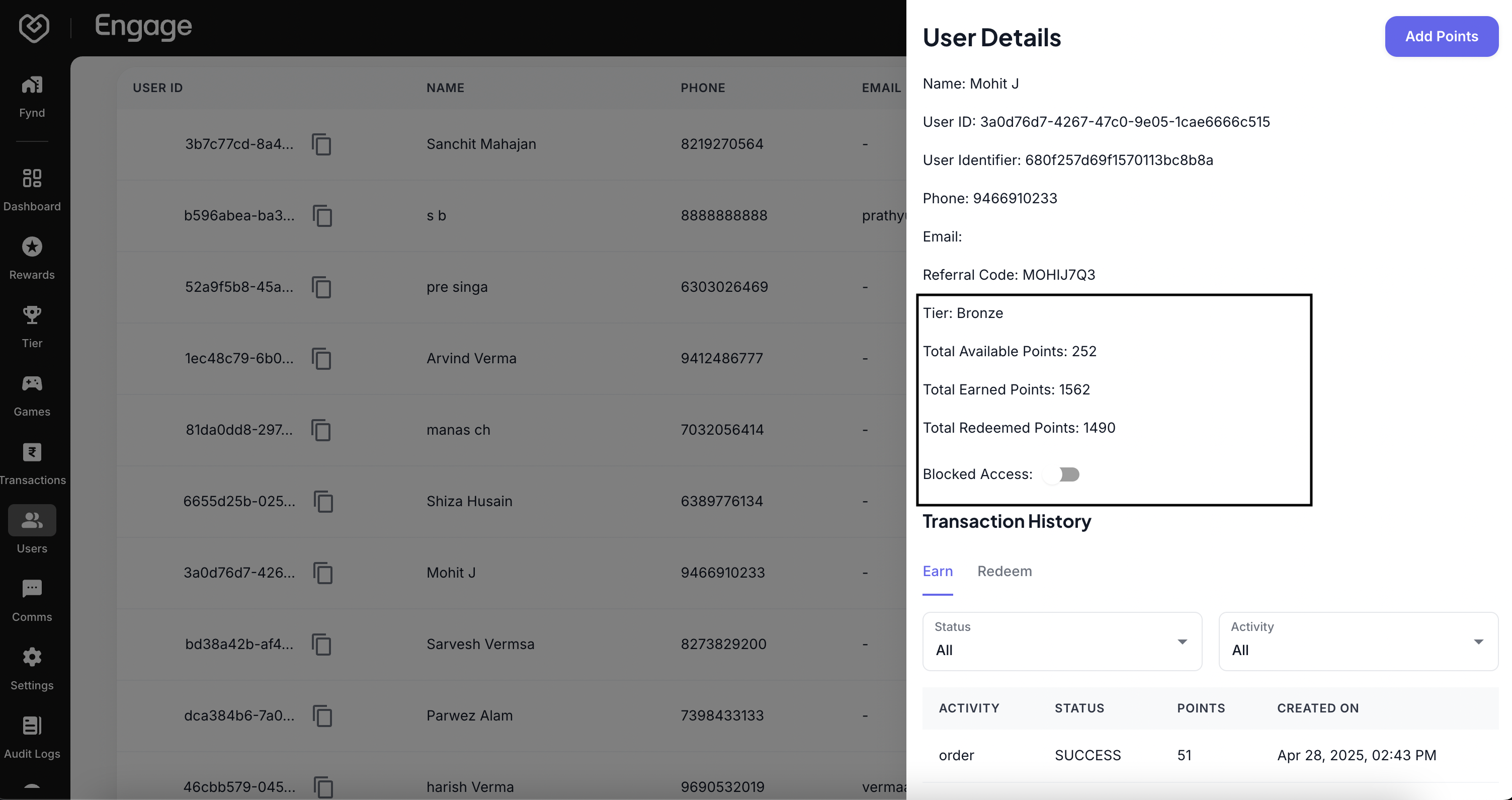
- Configure Transaction - A modal will appear. Enter the Points amount and select the transaction type (Earn to give points, Redeem to remove points). Click Confirm to process the transaction.
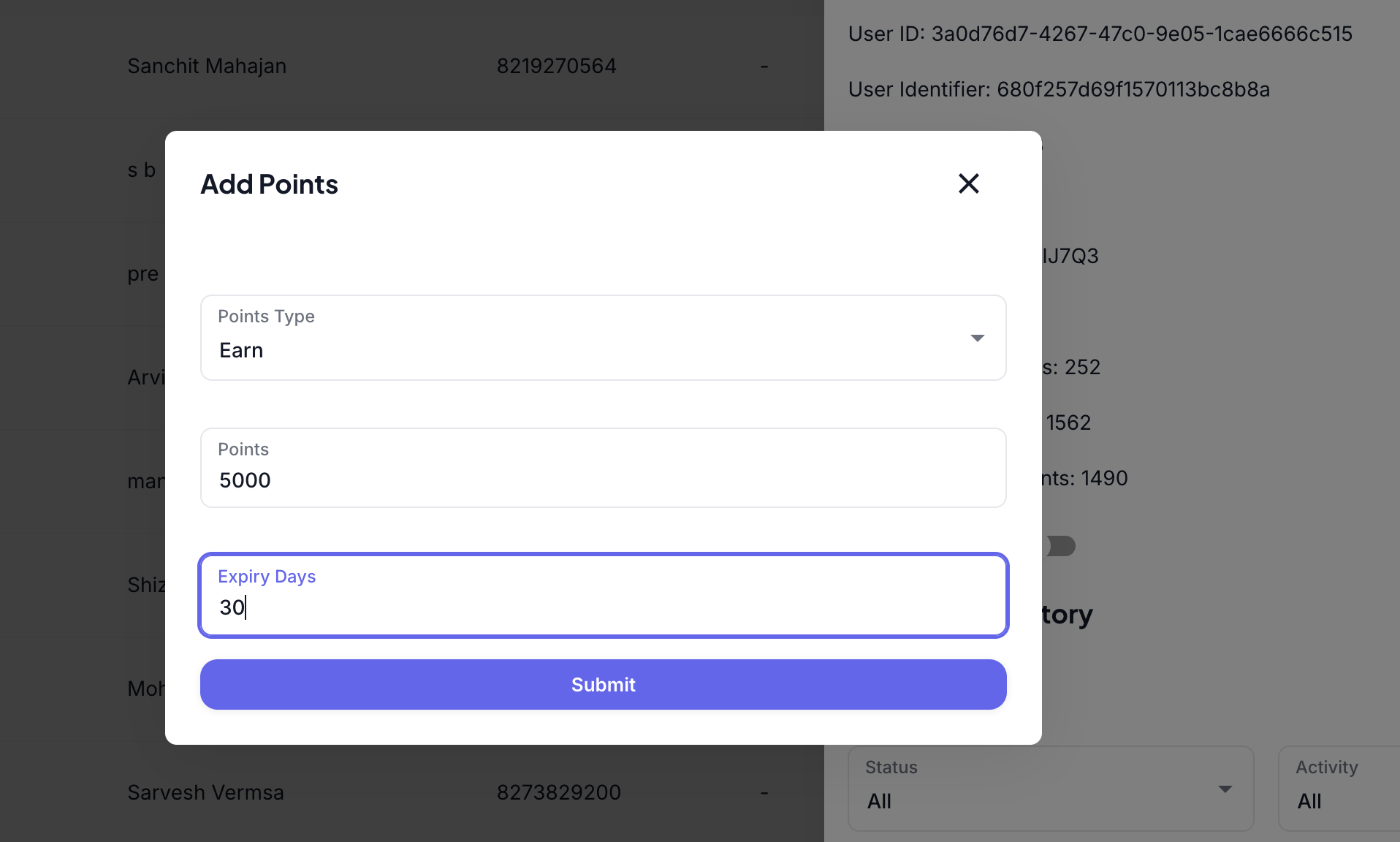
- Verify Balance - The system will immediately update the user's balance. You can verify the adjustment in the updated details view or the transaction history.