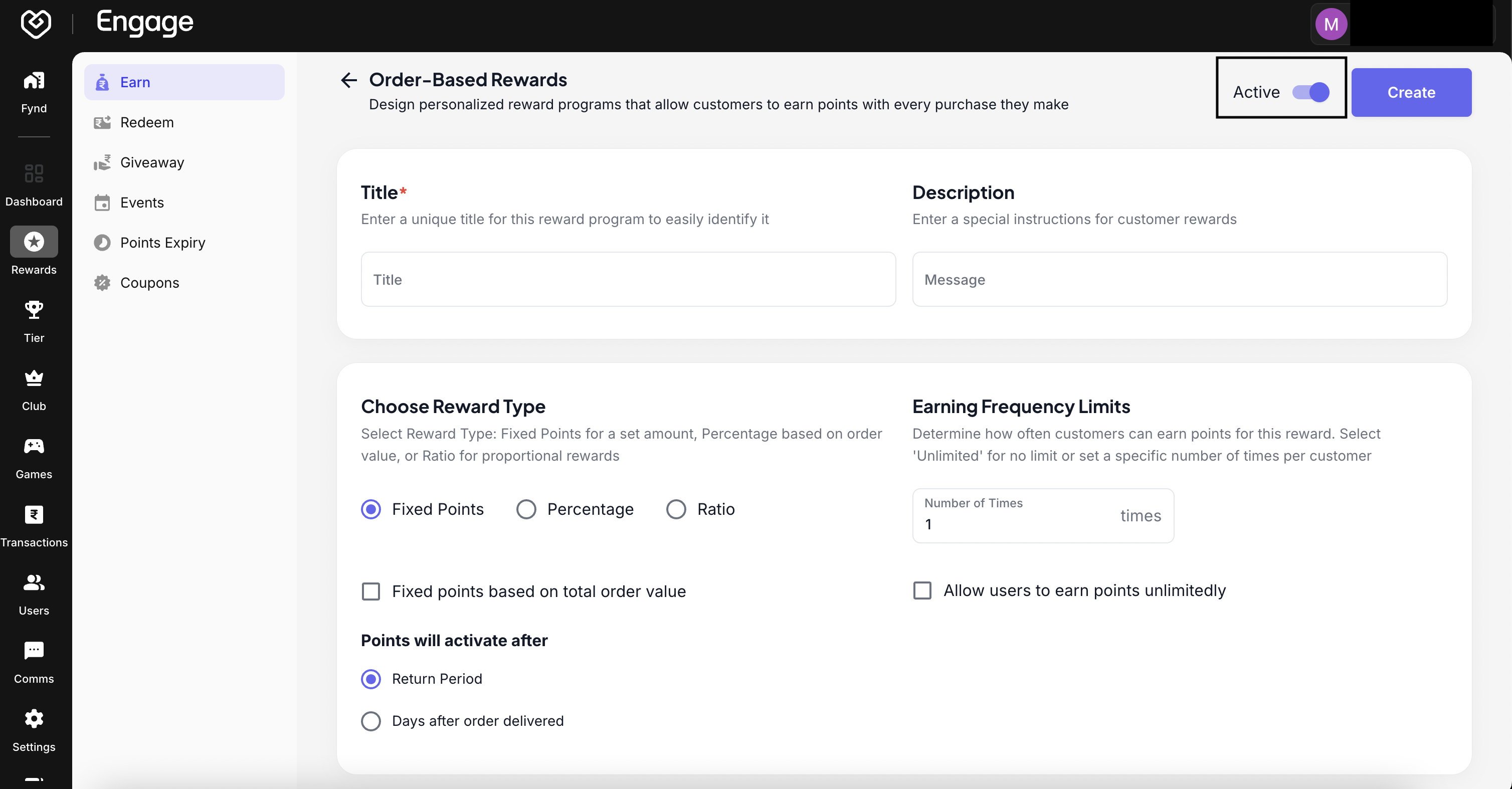
The Earn Rules engine is the core of your loyalty program. It defines the specific behaviors - such as making a purchase, signing up, or referring a friend - that reward your customers with points. By configuring these rules, you can drive desired user actions and increase retention.
- Initialize Rule Configuration - Navigate to the Rewards or Earn Rules section of the dashboard. Click on Continue or Add Rule to begin the configuration process.
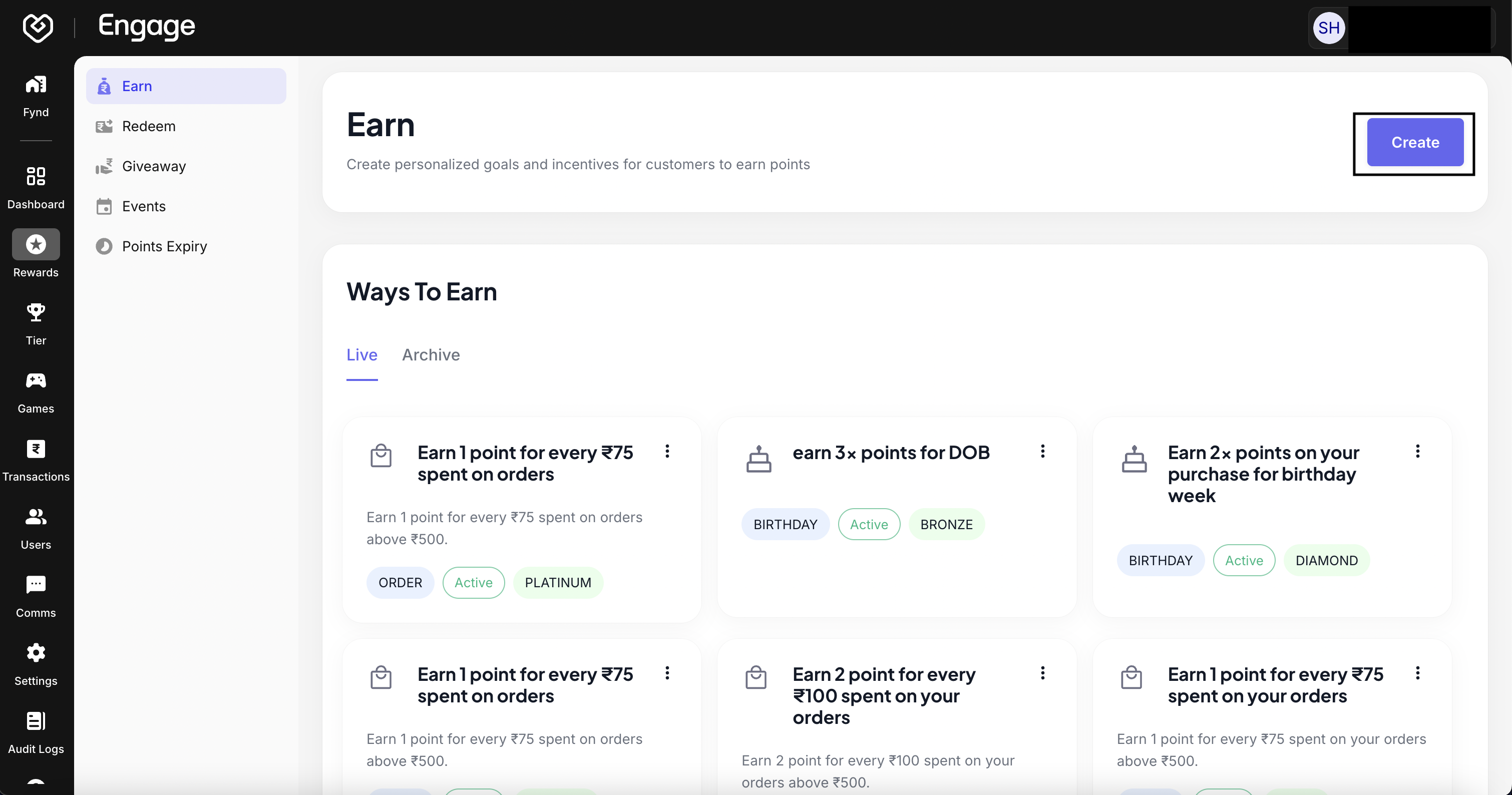
Select Trigger Type - Choose the specific activity that will trigger the reward. The available options typically include:
- Order: Rewards customers for completing a purchase.
- Sign Up: A one-time reward for registering a new account.
- Referrer: Rewards existing users when they successfully invite others.
For this guide, select Order to configure a purchase-based rule.
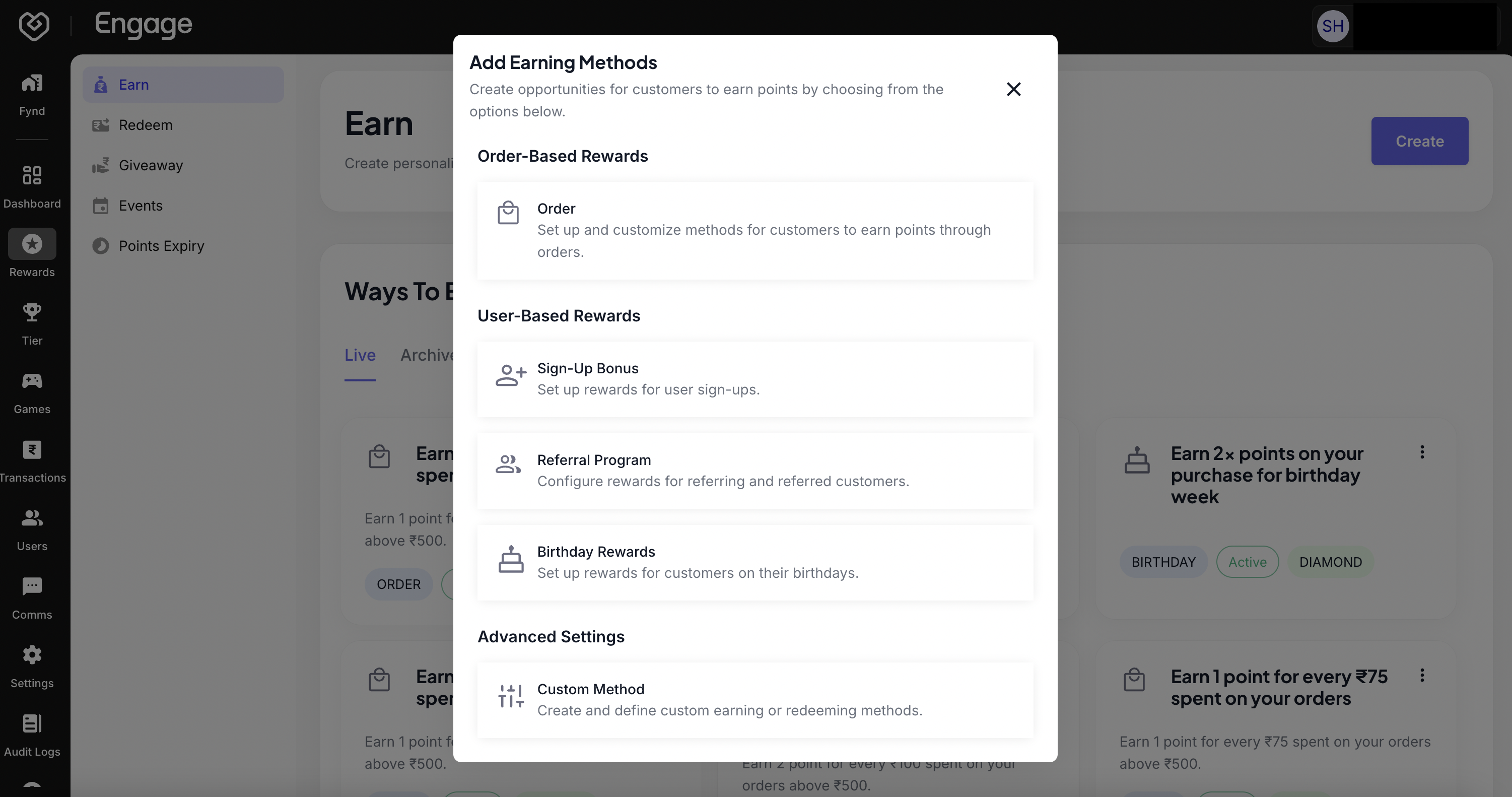
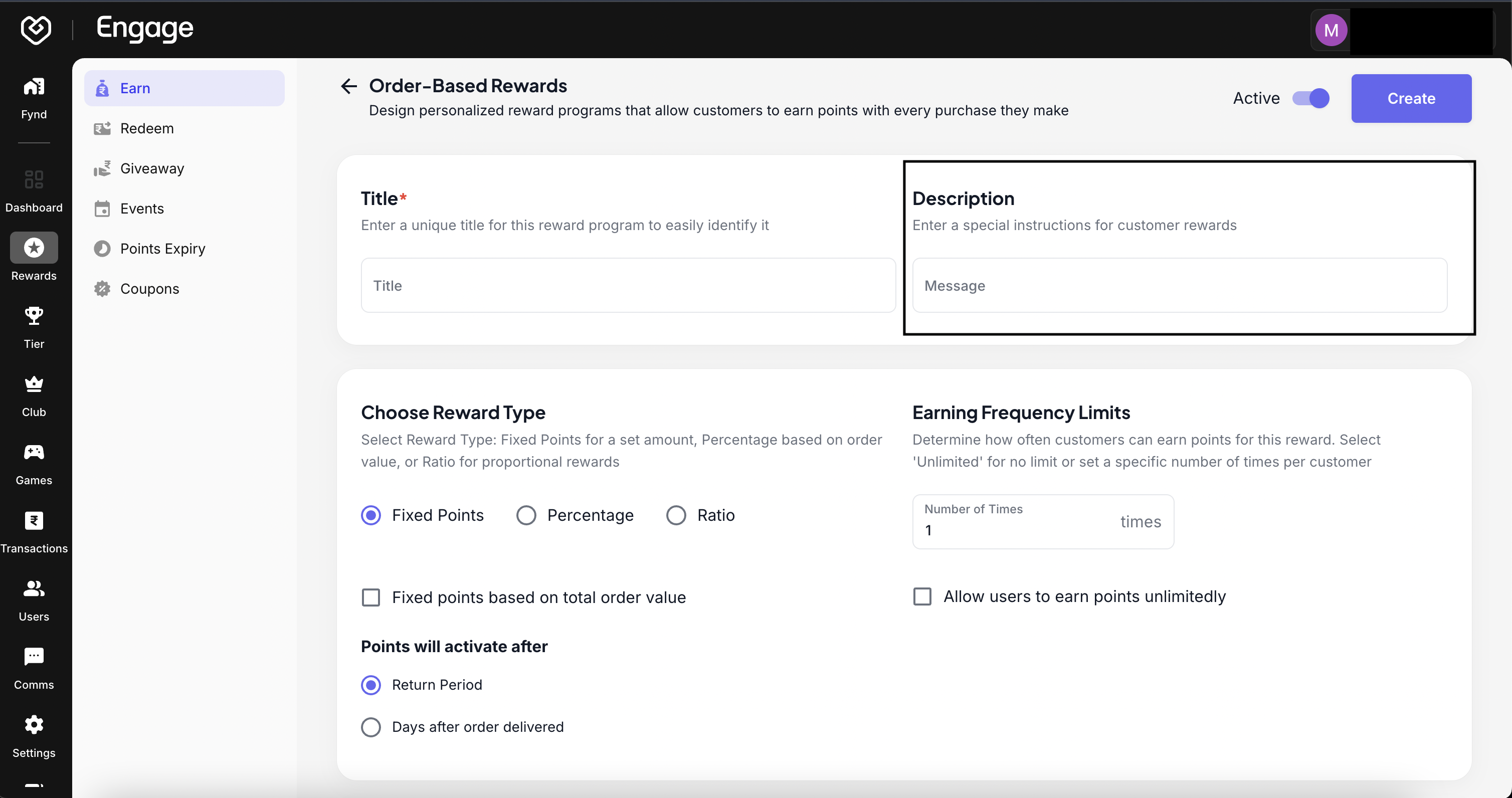
- Define Rule Identity - Enter a clear Title for the rule (e.g., "Standard Purchase Rewards"). This helps you identify the rule in your internal dashboard.
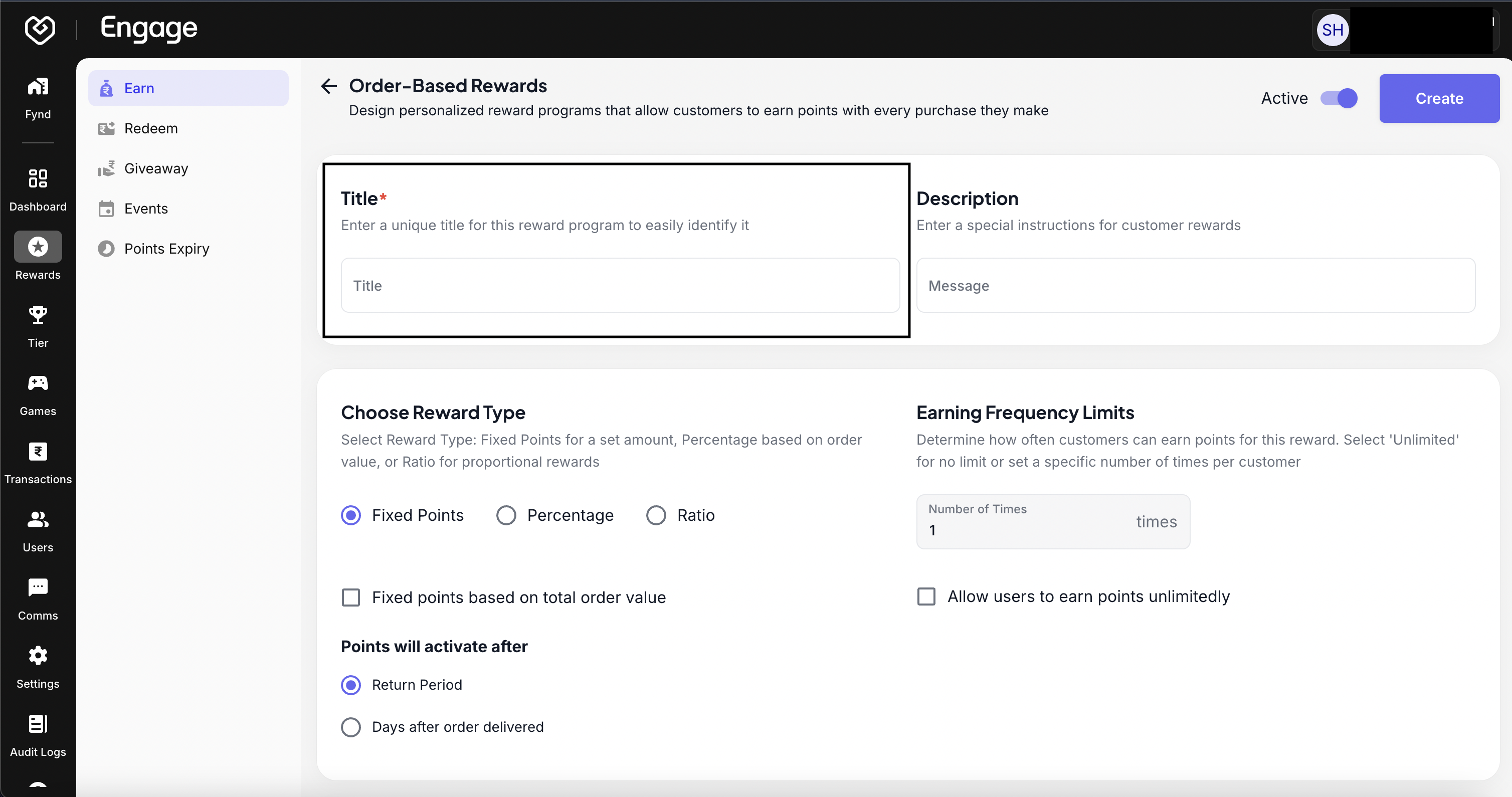
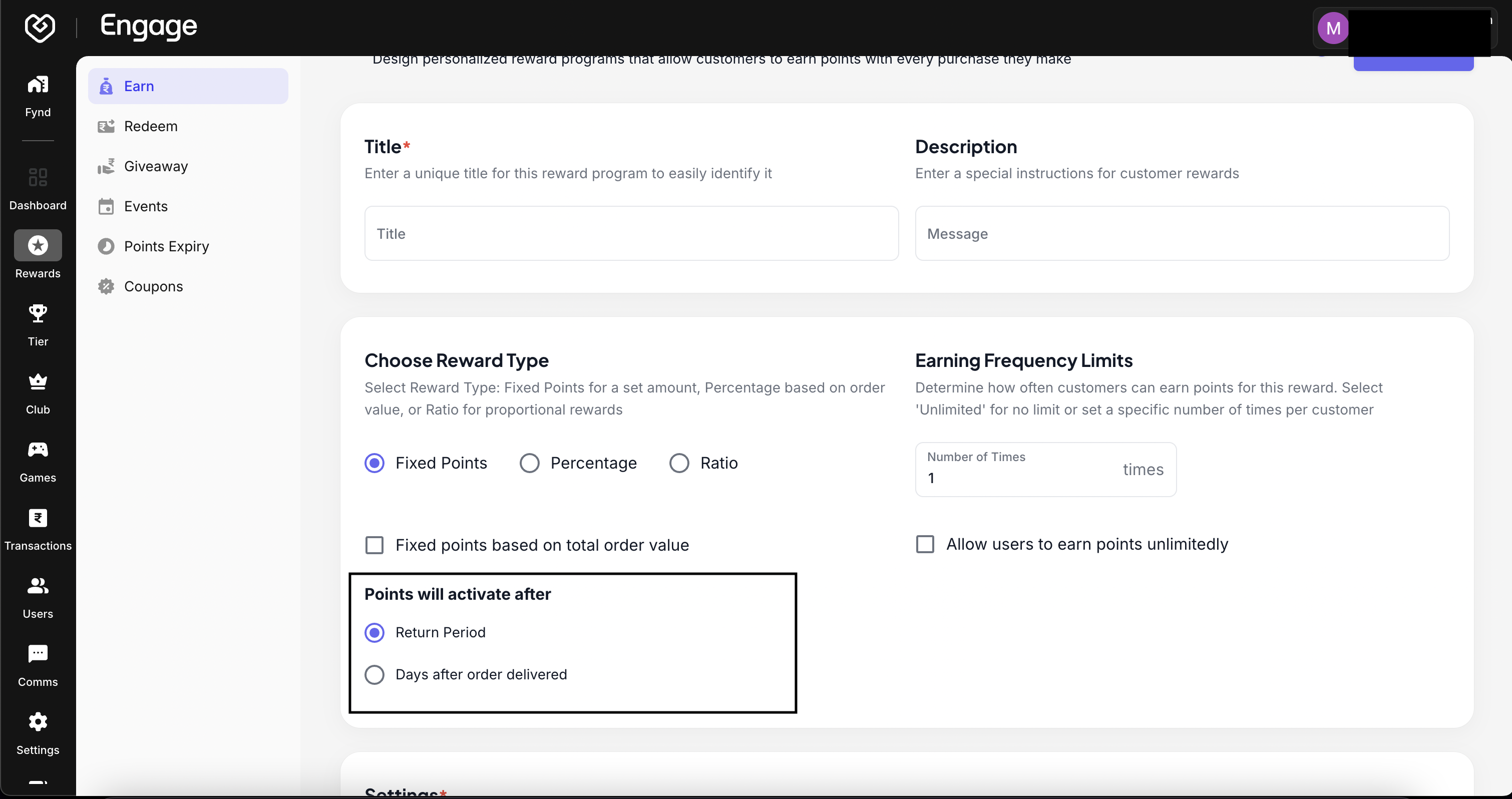
Next, add a customer-facing Description. This text may appear in the user's loyalty history or info screens, so ensure it clearly explains how they earned the points.
- Configure Reward Logic - Select the Reward Type to determine how points are calculated:
- Fixed: A set amount of points per action (e.g., 50 points per order).
- Percentage/Ratio: Points calculated based on the order value (e.g., 1 point for every $10 spent).
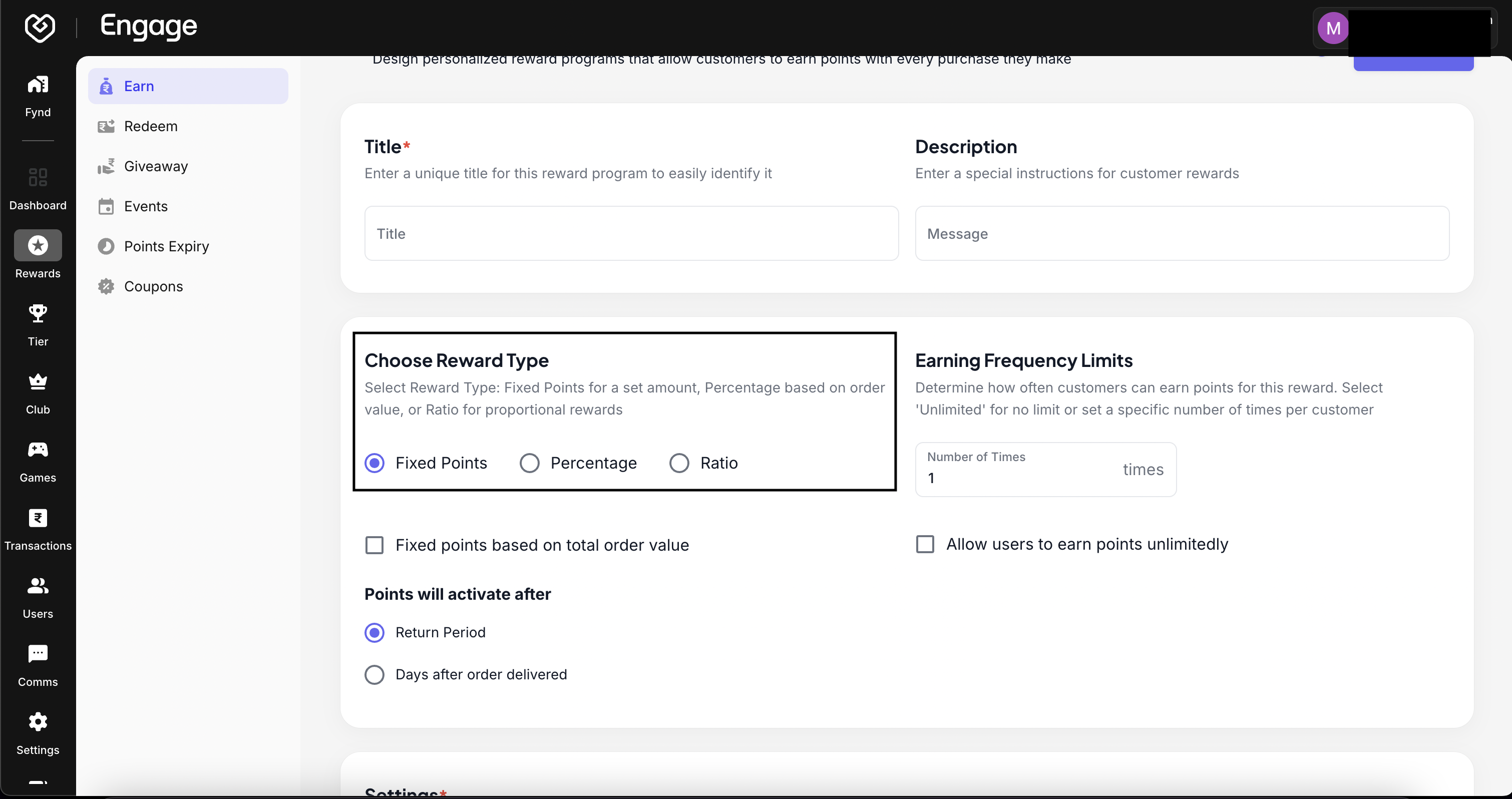
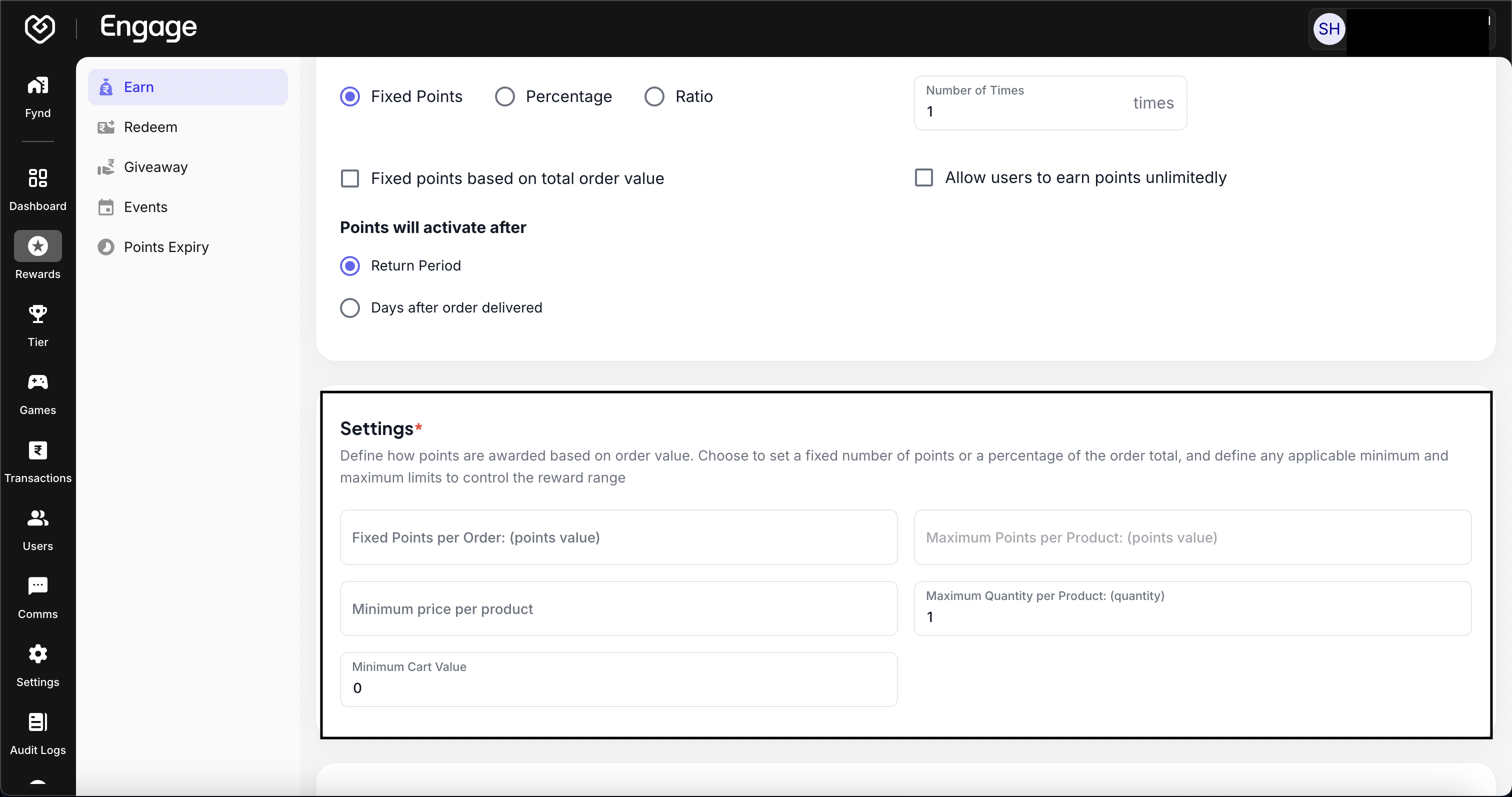
Based on the type selected, enter the Reward Amount (the specific value or percentage).
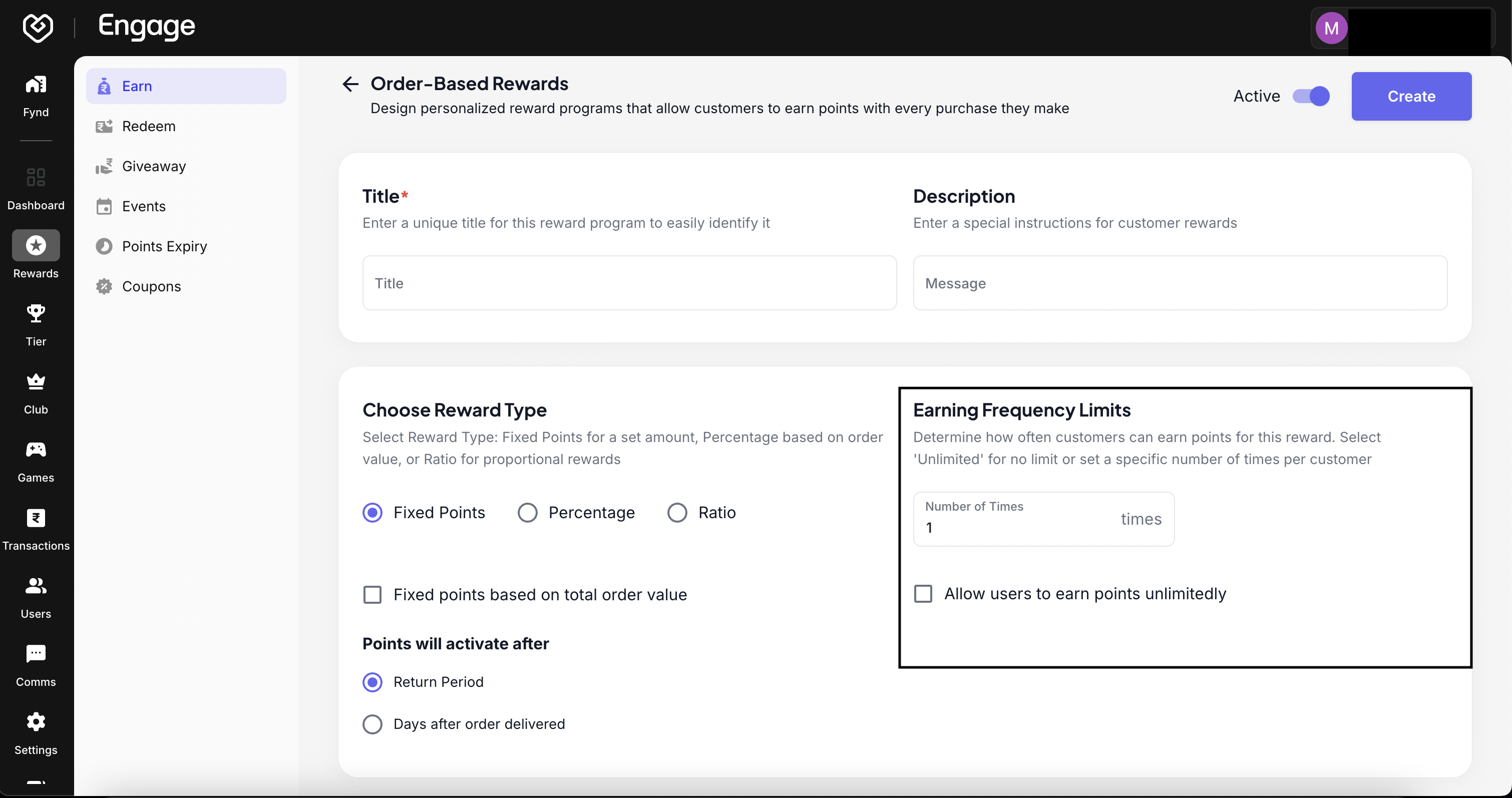
- Set Frequency Limits - Configure Earning Frequency Limits to control abuse or manage costs. You can restrict how many times a single user can trigger this rule within a specific timeframe (e.g., "Max 1 reward per day").
- Determine Activation Timing - Set the Points Activation Time. This determines when the points become available for redemption after the purchase. Adding a delay (vesting period) is recommended to account for potential return windows.
- Save Changes - Finally, review your settings and toggle the status to Active. Click Save to launch the rule.