The Redeem Transaction History offers a dedicated view of how customers are utilizing their loyalty points. Monitoring this data is essential for understanding reward popularity, tracking liability reduction, and auditing point "burn" rates across your user base.
- Navigate to History - From the main dashboard, select the Transaction History tab. Ensure you are viewing the redemption data stream to see a list of all point deductions.
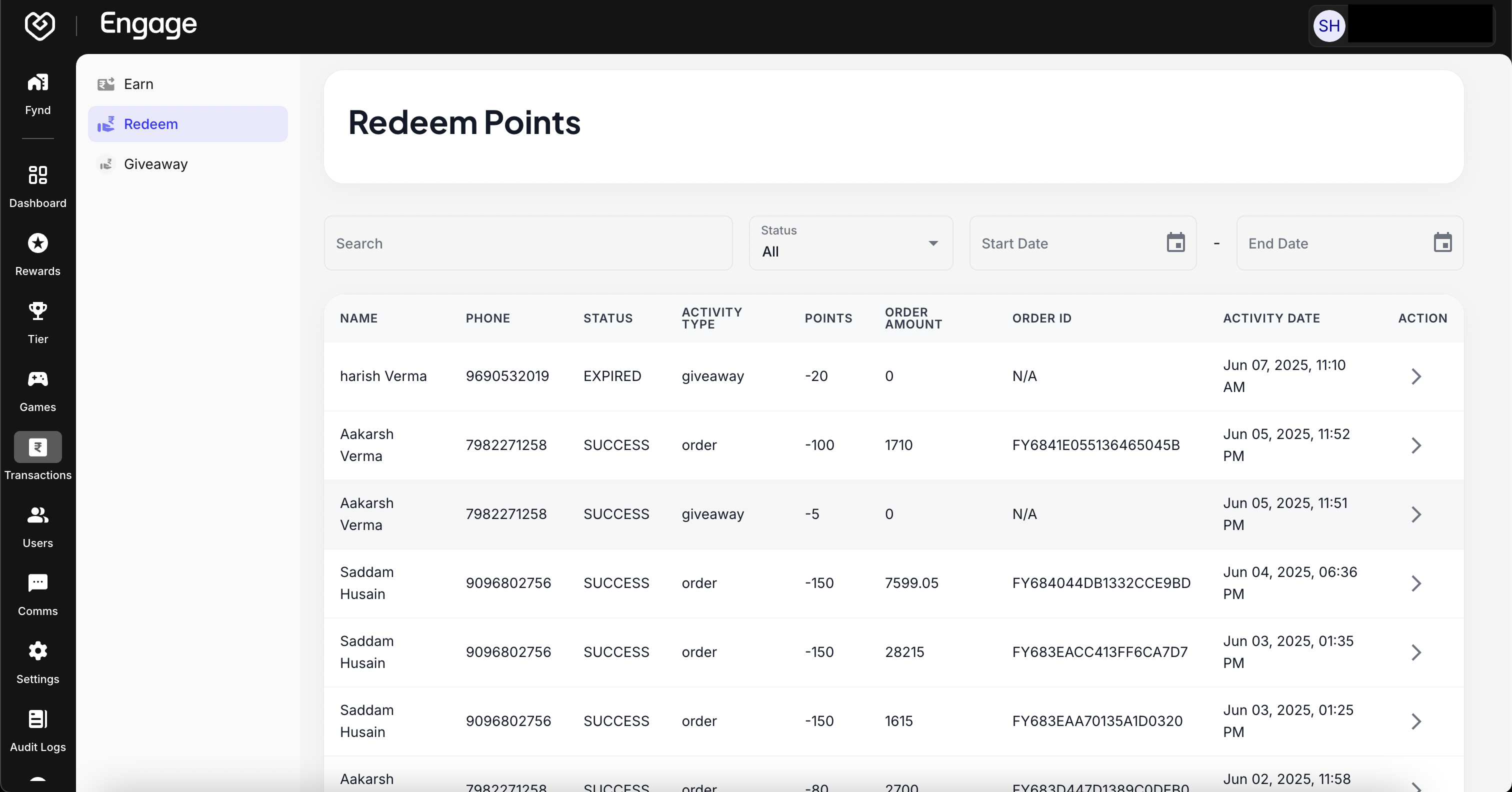
Use the search and filter tools to audit specific transactions or analyze redemption trends over time.
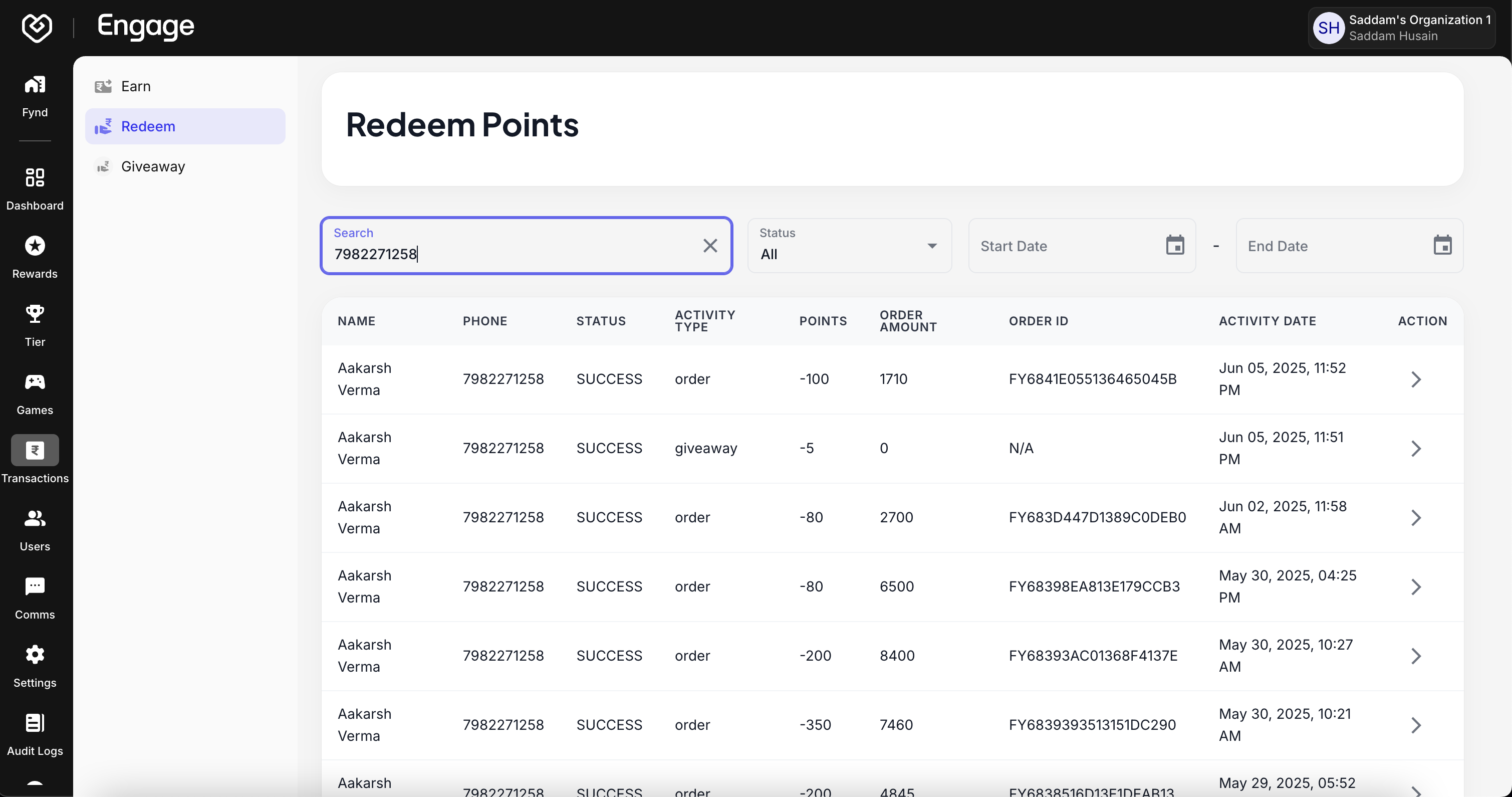
- Search by Entity Enter a User Name, Mobile Number, or Transaction ID to locate specific redemption events. This is particularly useful for investigating customer inquiries regarding missing points or claimed rewards.
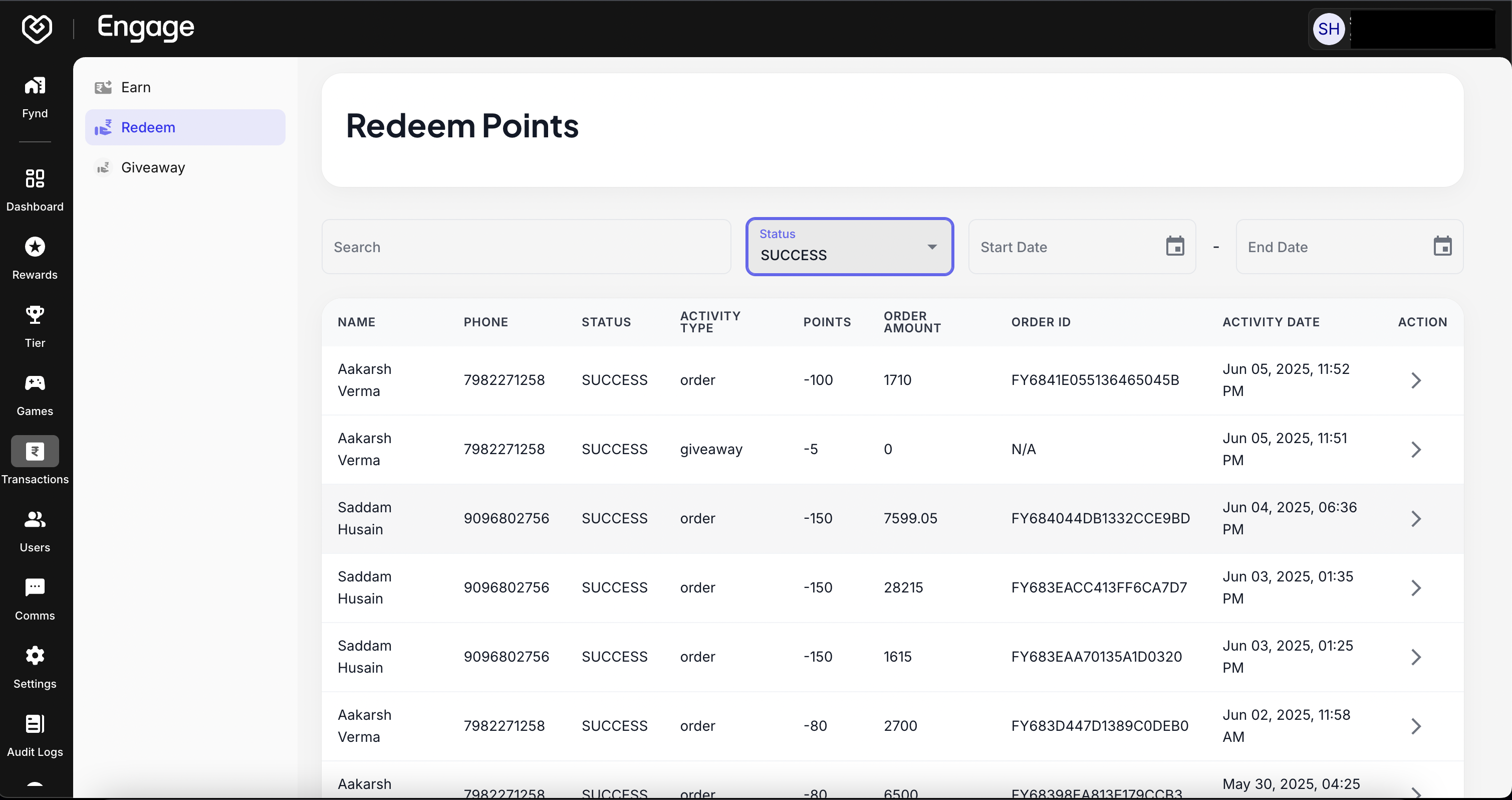
- Filter by Status - Refine the list by transaction Status. In the context of redemptions, this helps identify:
- SUCCESS: Points successfully deducted for a reward.
- REVERSED: Points returned to the user (e.g., after a cancelled order).
- FAILED: Attempted redemptions that did not process.
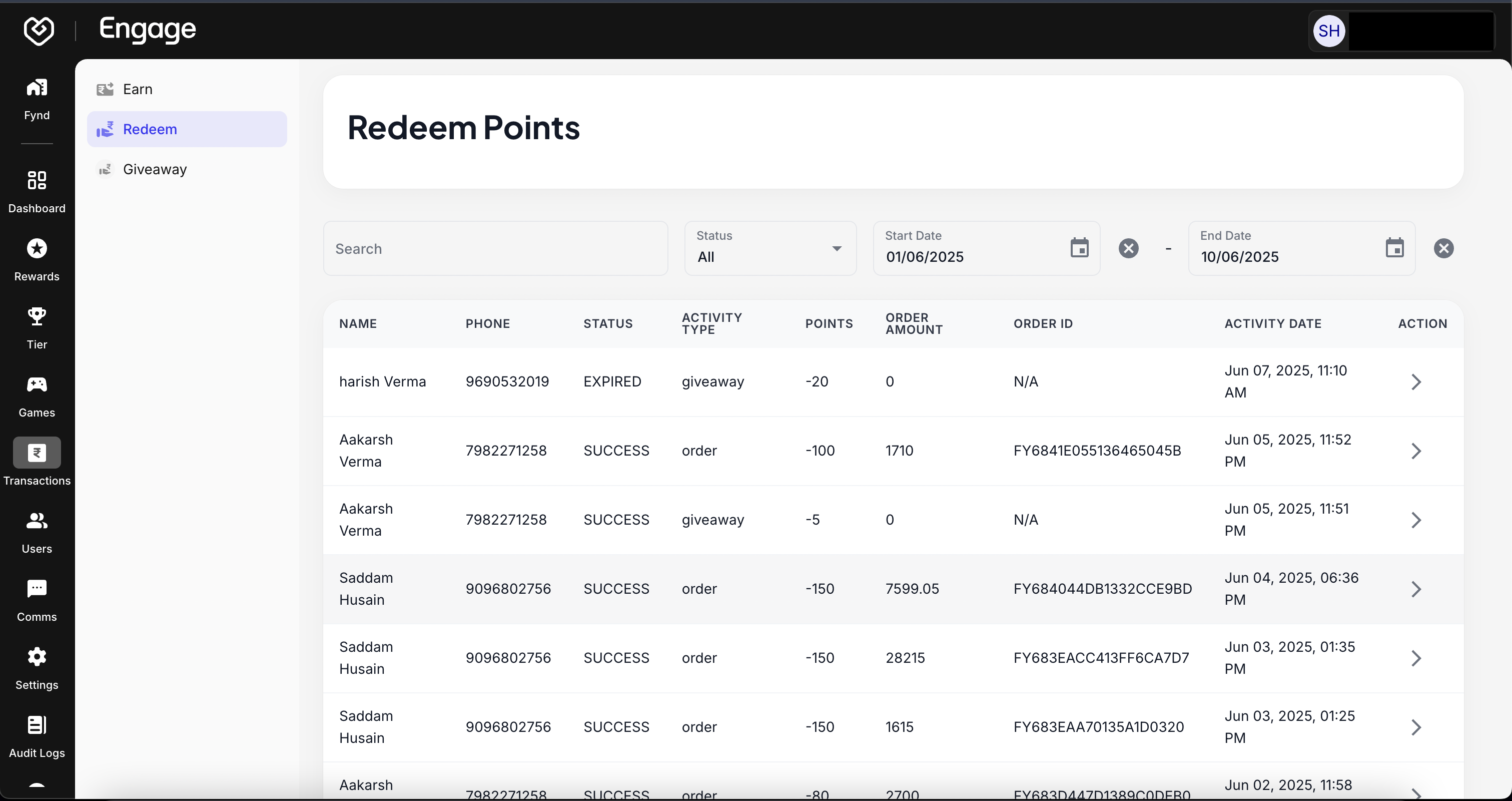
- Filter by Date Range Select a Date Range to view redemptions within a specific period. This is critical for measuring the impact of seasonal sales or limited-time reward campaigns.
To understand the specifics of a redemption, click the arrow icon (chevron) next to the transaction row.
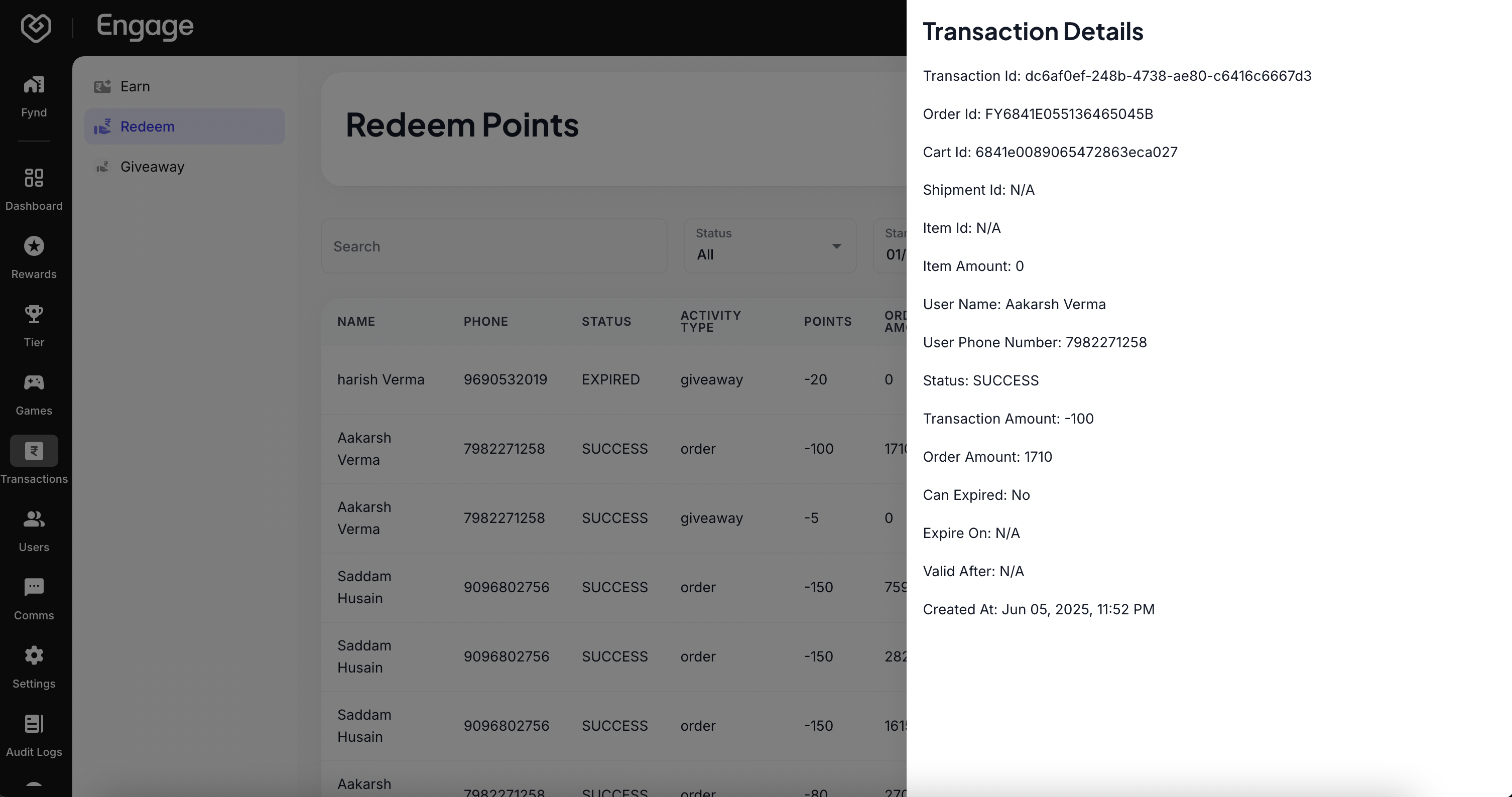
Key Data Points:
- User Name: The customer who redeemed the points.
- Activity Type: The specific action (e.g., Order Discount, Voucher Claim).
- Points Redeemed: The total points deducted from the user's balance.
- Order Amount: The total value of the associated order (if the redemption was a cart discount).
- Status: The final state of the transaction (e.g., SUCCESS).