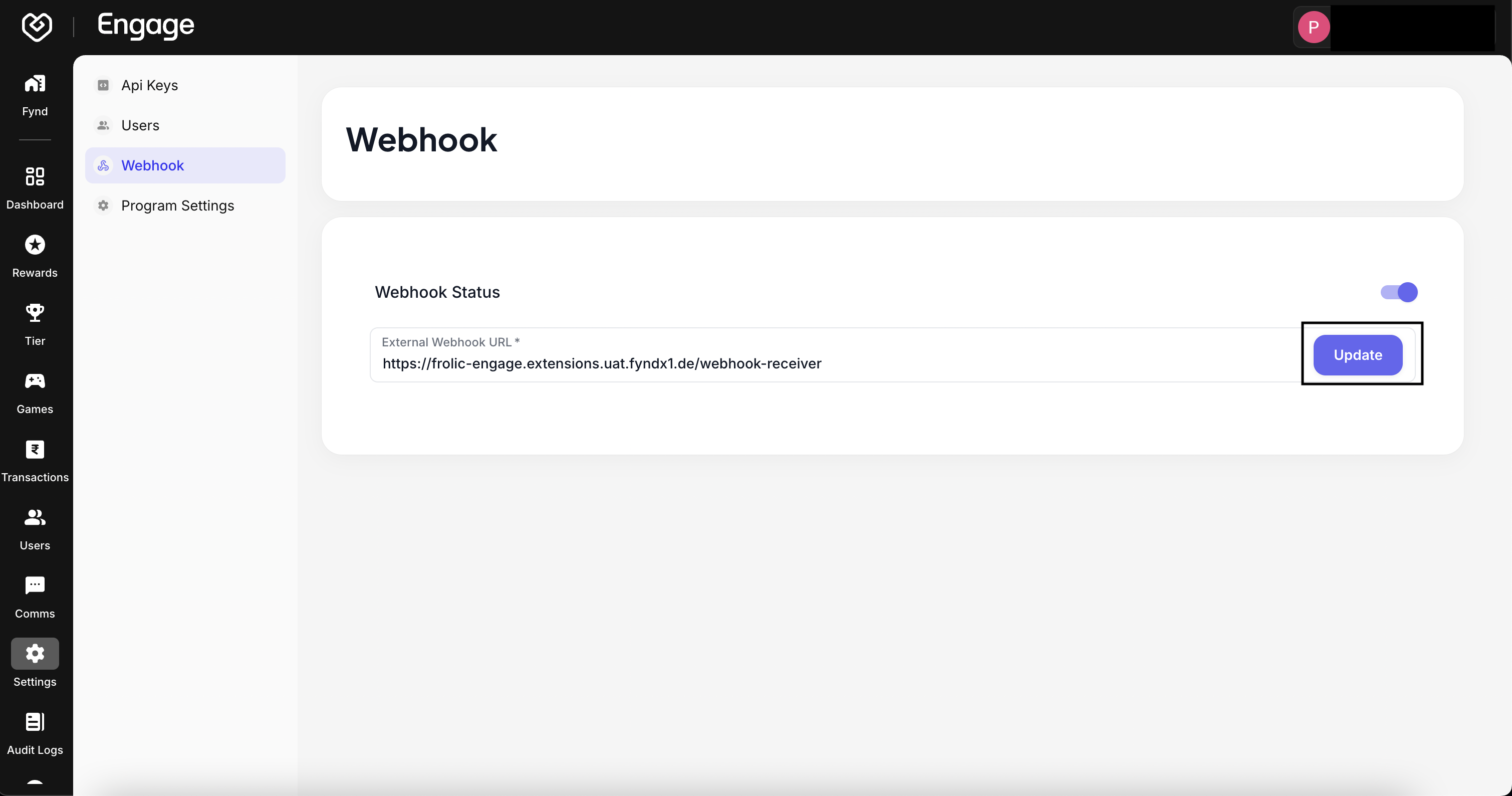
Webhooks enable Fynd Engage to push real-time data to your external applications. Instead of polling the API, your system can listen for immediate notifications whenever specific events occur (such as point balance changes or tier upgrades), ensuring your data remains perfectly synchronized.
- Access Webhook Configuration - Navigate to the Settings tab on the main dashboard and select Webhook from the side menu.
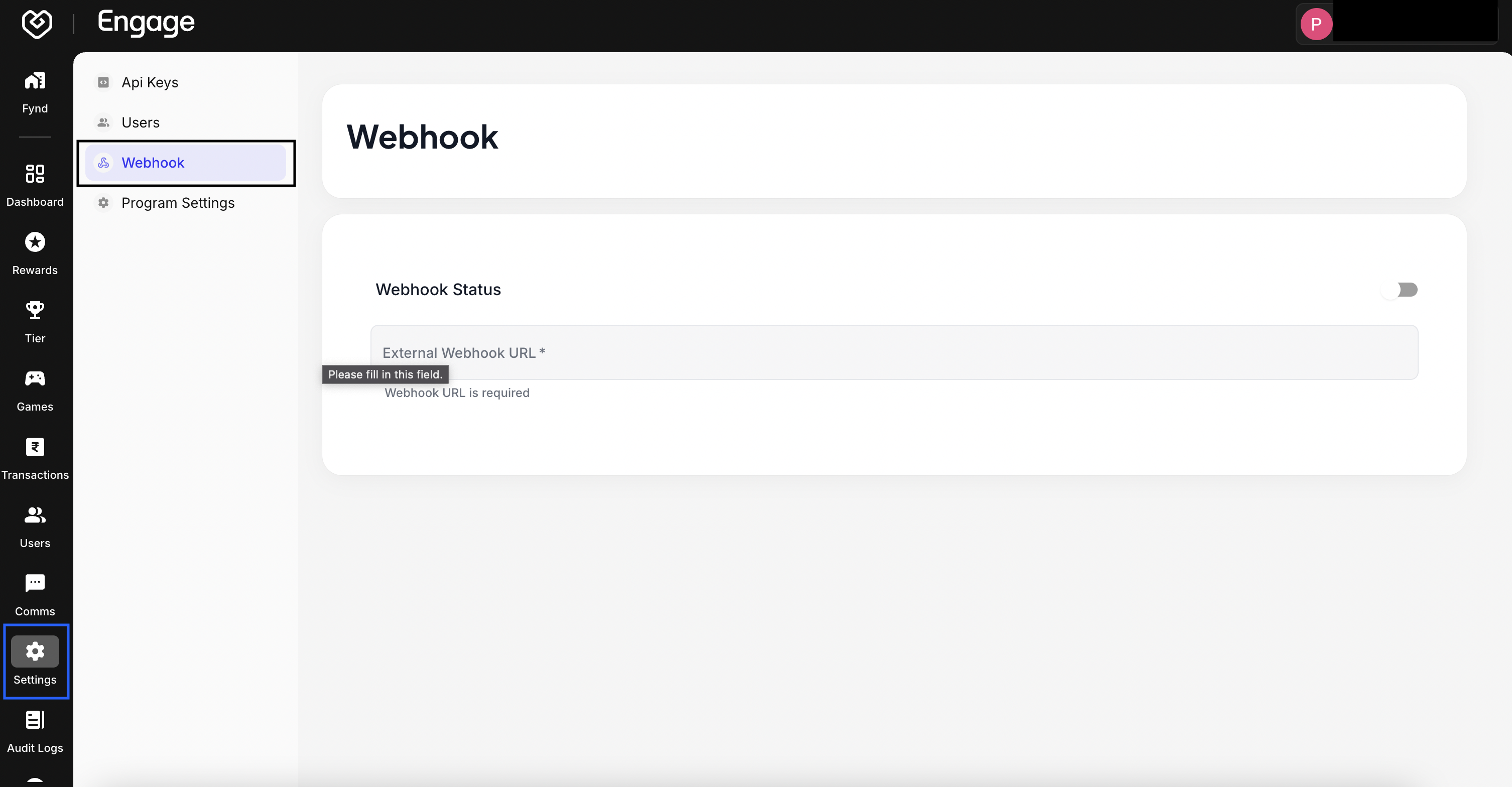
- Define Endpoint URL - Enter the Webhook URL. This is the specific endpoint on your server that is configured to listen for and process incoming POST requests from Fynd Engage.
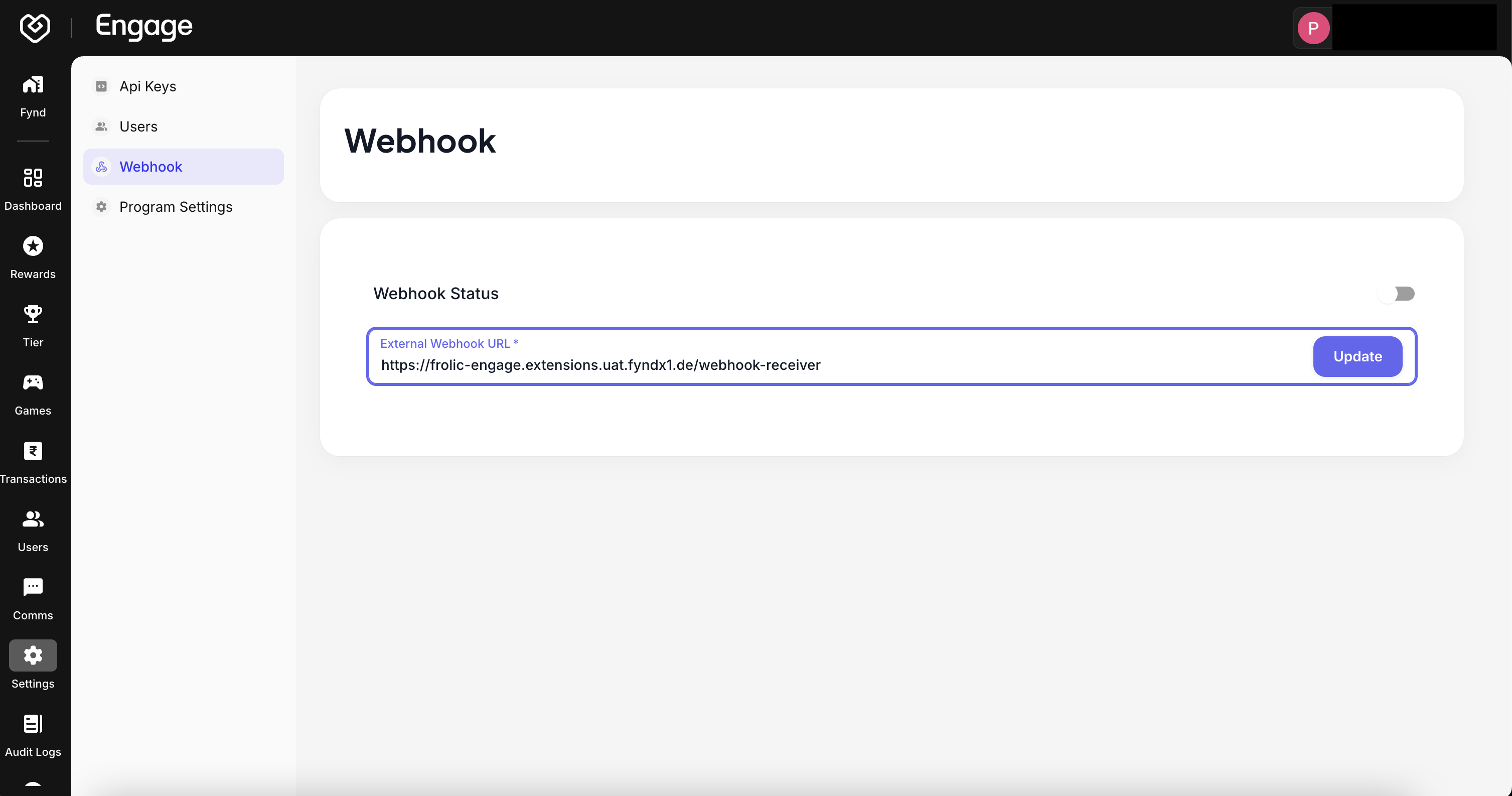
- Enable Data Stream - Use the toggle switch to Activate Webhook.
- Enabled: The system will immediately start sending event payloads to your URL.
- Disabled: No data will be sent, though your URL configuration will be preserved.
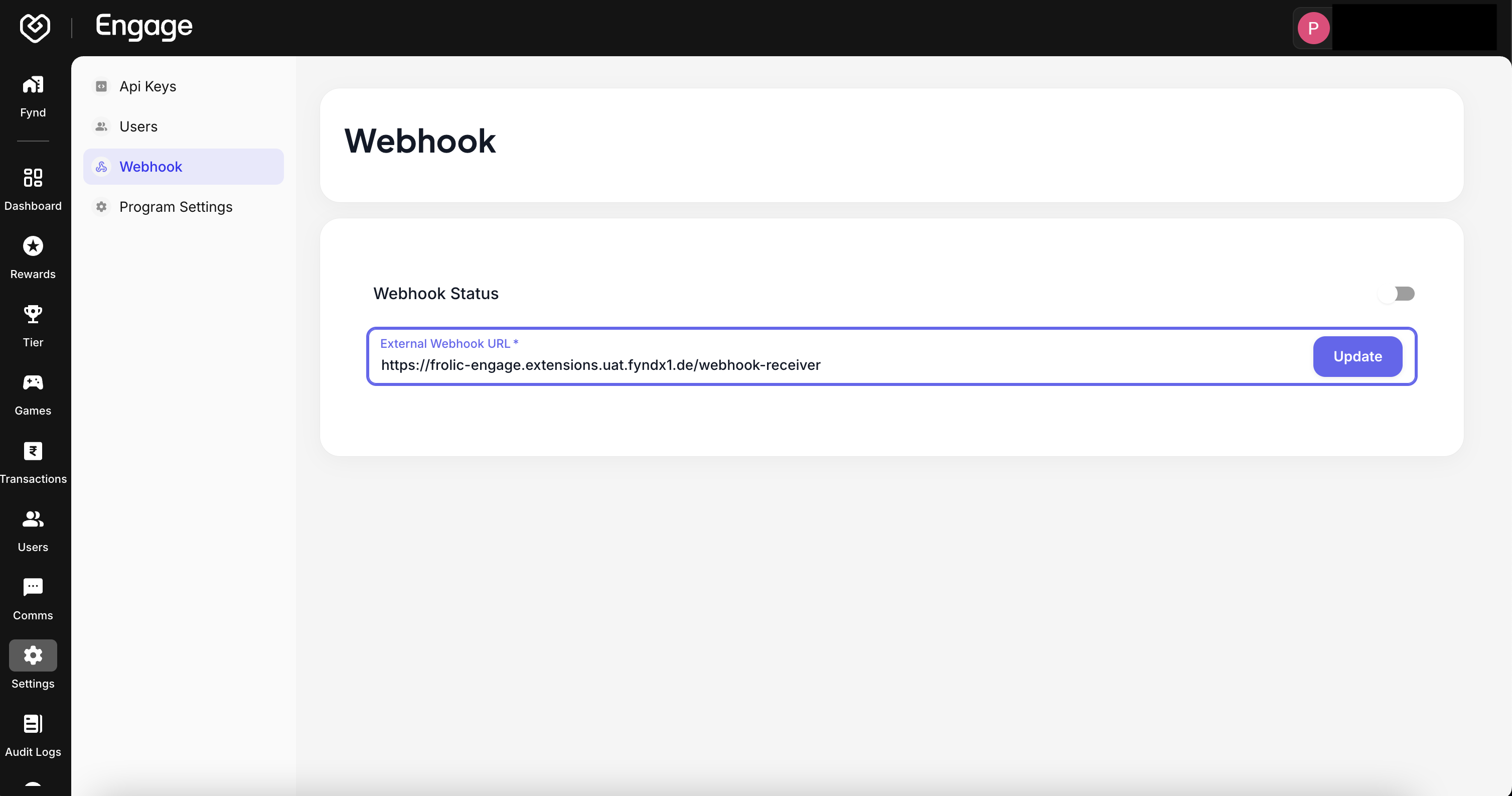
- Save Configuration - Review your endpoint details and status. Click Save to apply the settings and begin the integration.